
AI Slides Changelog
Discover the latest updates, features, and improvements.
Aug 05, 2026
Meet the Built-in Editor — Full Manual Control, Right on the Canvas
Sometimes you don't want to ask AI — you just want to grab that title and move it yourself. The new built-in editor gives you full manual control over your slides — move, resize, rotate, and restyle anything — right on the canvas where your deck is generated, with the AI chat still by your side. Click Edit in the toolbar and the slide becomes directly editable: no page change, no context lost.
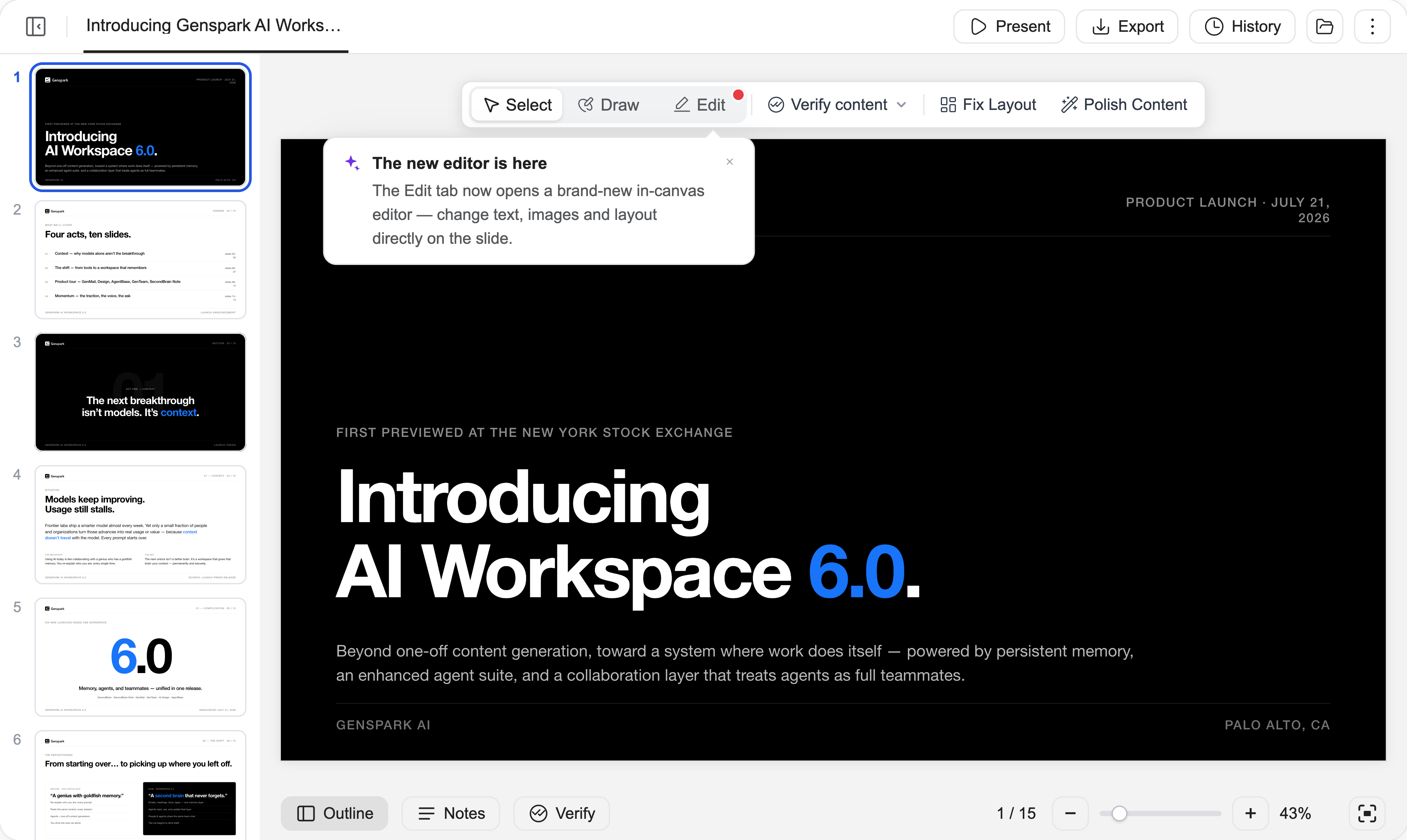
1. Editing now happens in place
No more separate editing page: the editor opens right on the canvas, one click on Edit in the mode switch — alongside the Select and Draw you already use for AI edits — with chat, history, and export at hand the whole time, and manual edits don't consume credits.
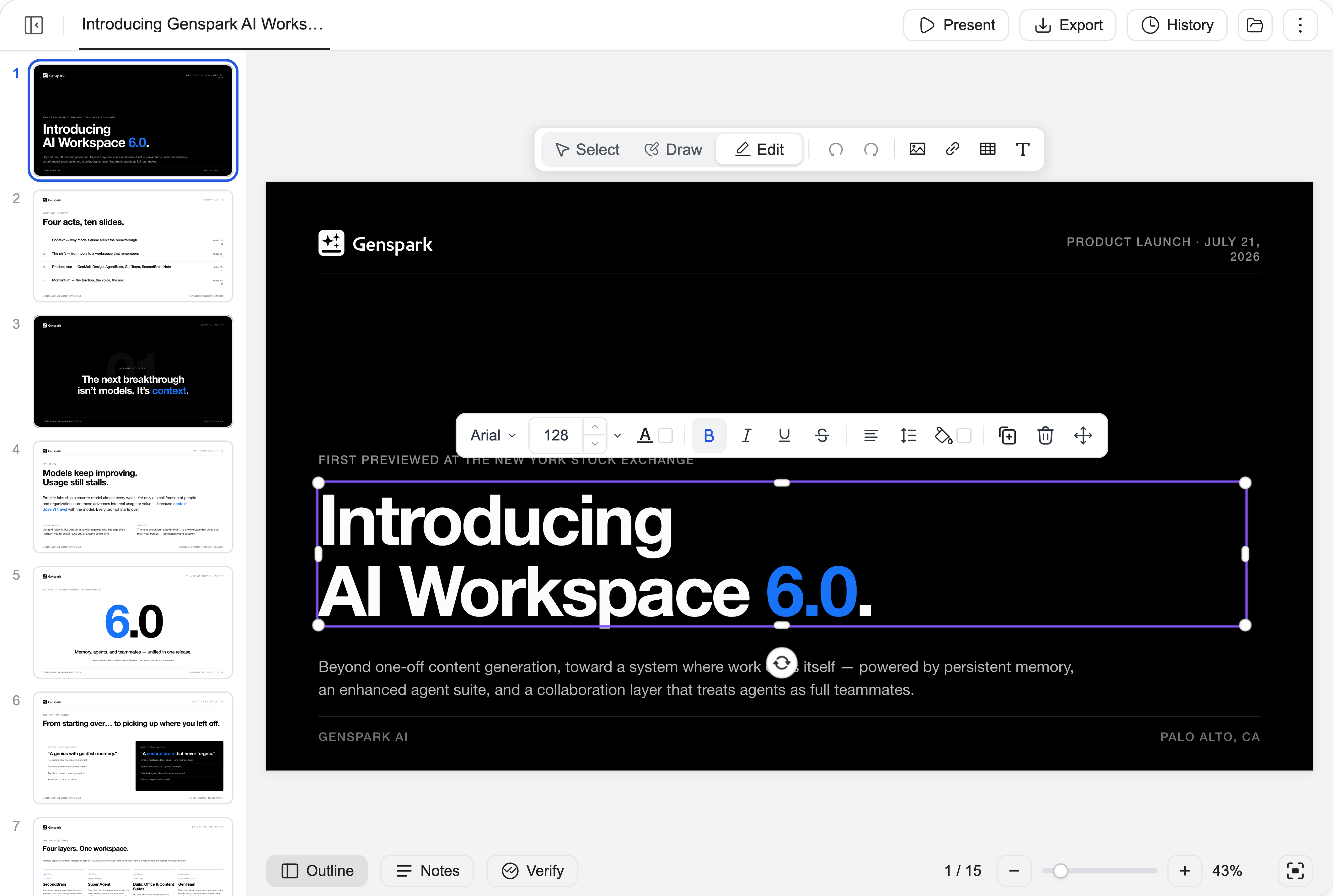
Once inside, work with elements like in a design tool: click to select any element, drag to move it, and use the handles to resize and rotate. Marquee-drag to select several at once, then align, distribute, or group them, and reorder layers. Every element gets a floating toolbar with the right tools for it, and right-click covers cut, copy, paste, duplicate, and more.
2. Format text in place
Double-click into any text and type, right on the slide. The floating toolbar covers font, size, color, bold/italic/underline/strikethrough, alignment, line height, and letter spacing — perfect for the changes too small to be worth explaining to an AI.
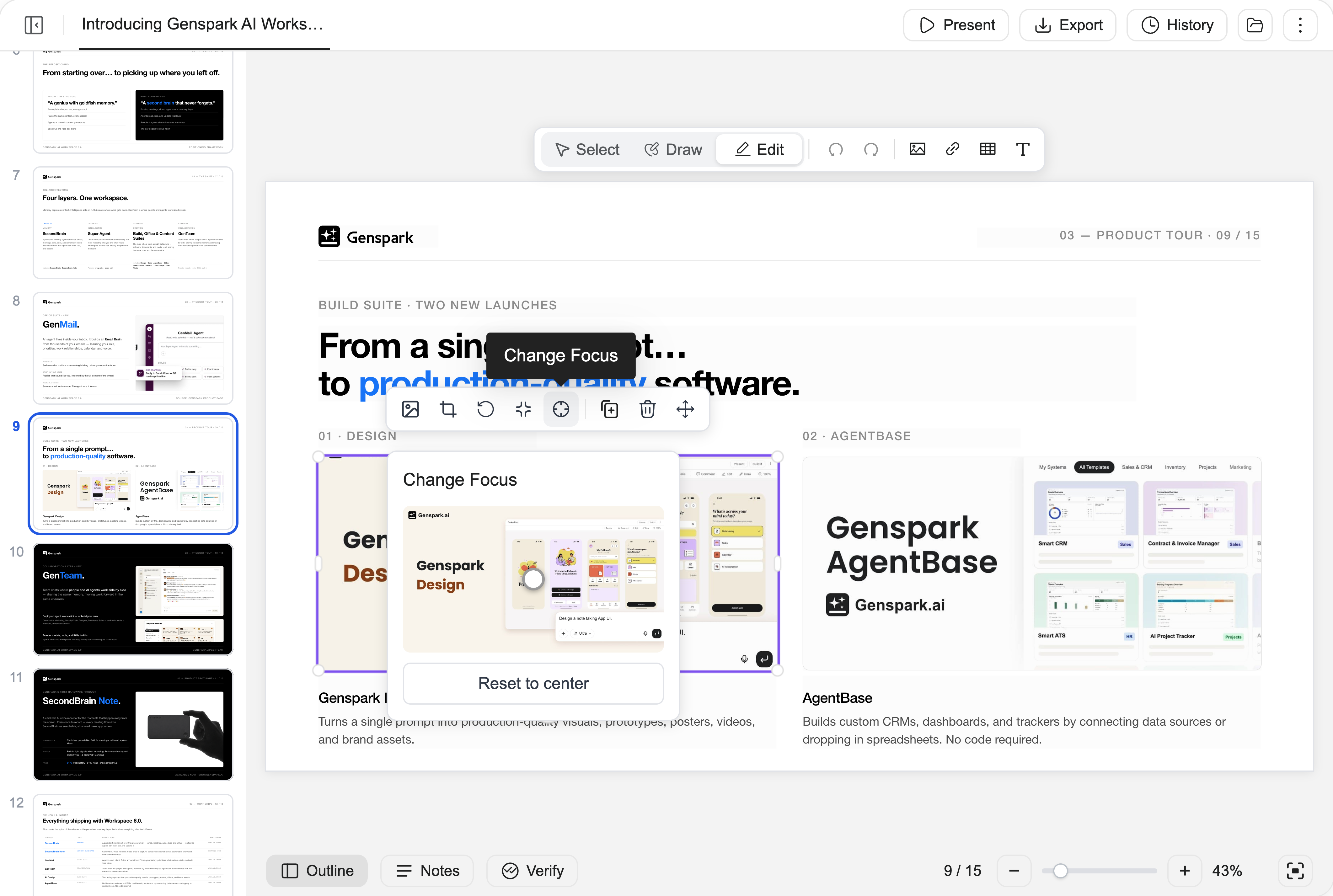
3. Fine-tune images with Change Focus
Replace an image, crop it freely or to a shape or ratio, round its corners — or open Change Focus and drag a dot on a miniature of the original photo to choose exactly which part stays in frame. When the AI picked a great photo but the framing is off, recompose it in seconds instead of hunting for a new image.
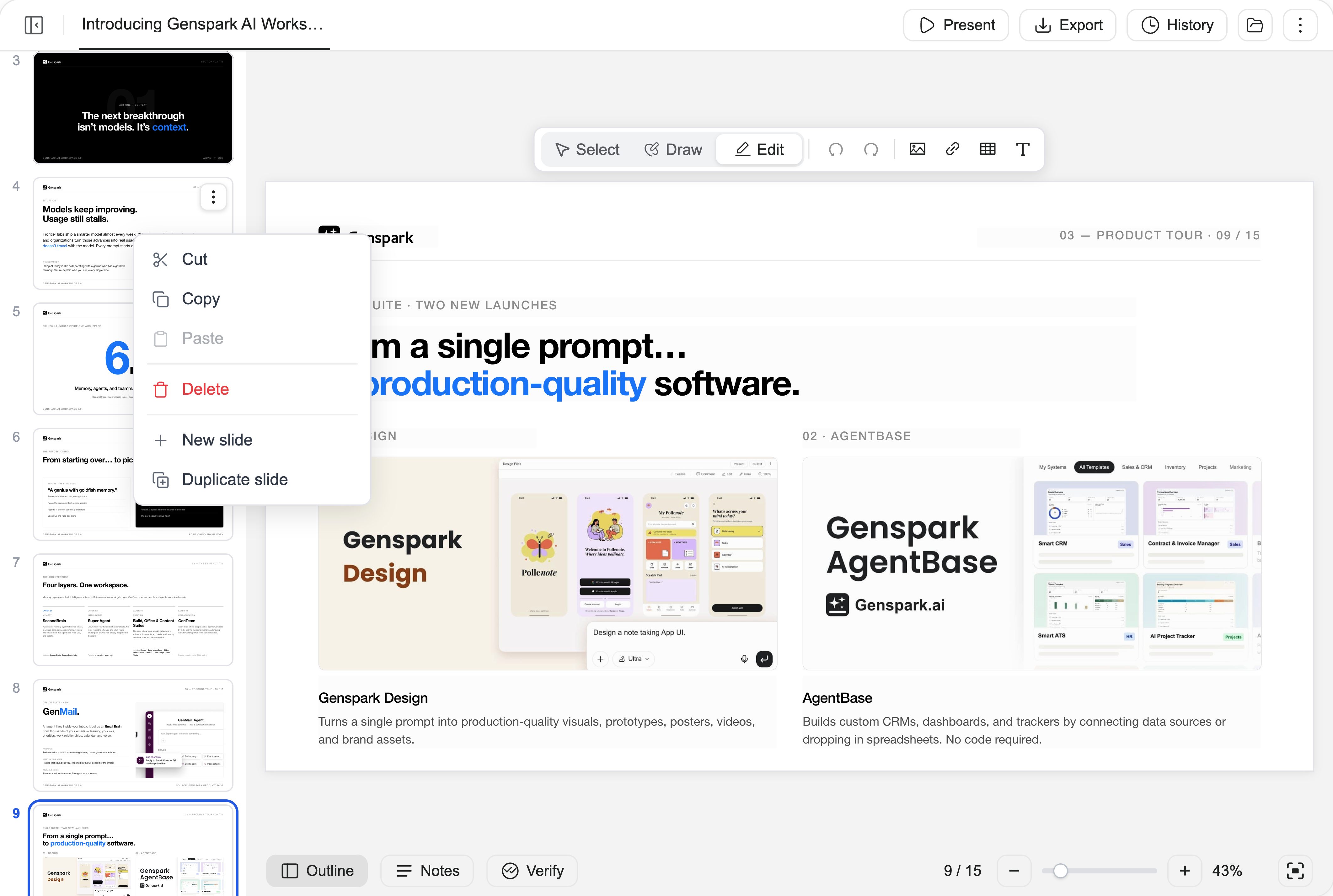
4. Manage pages and speaker notes without leaving the editor
Drag thumbnails in the left rail to reorder pages, and right-click a page for cut, copy, paste, delete, new slide, or duplicate slide. Speaker notes are directly editable in the Notes panel while you edit.
5. Undo anything — your work is safe
Every action is one undo step away, and redo is just as easy. The History panel keeps full version snapshots you can preview and roll back to — manual edits and AI edits share the same history. Changes save automatically as you go, and if the deck changes under you — say, the AI finishes an edit while you're in the editor — you'll be shown the newer version and choose how to proceed instead of silently losing work.
Jul 17, 2026
Meet the New Slides Workspace
The slides canvas has been redesigned from the ground up into a full presentation workspace. Watch AI build your deck page by page, mark up changes the way you'd annotate a printed draft, have every figure verified, get speaker notes written for you — then step on stage with Presenter View.
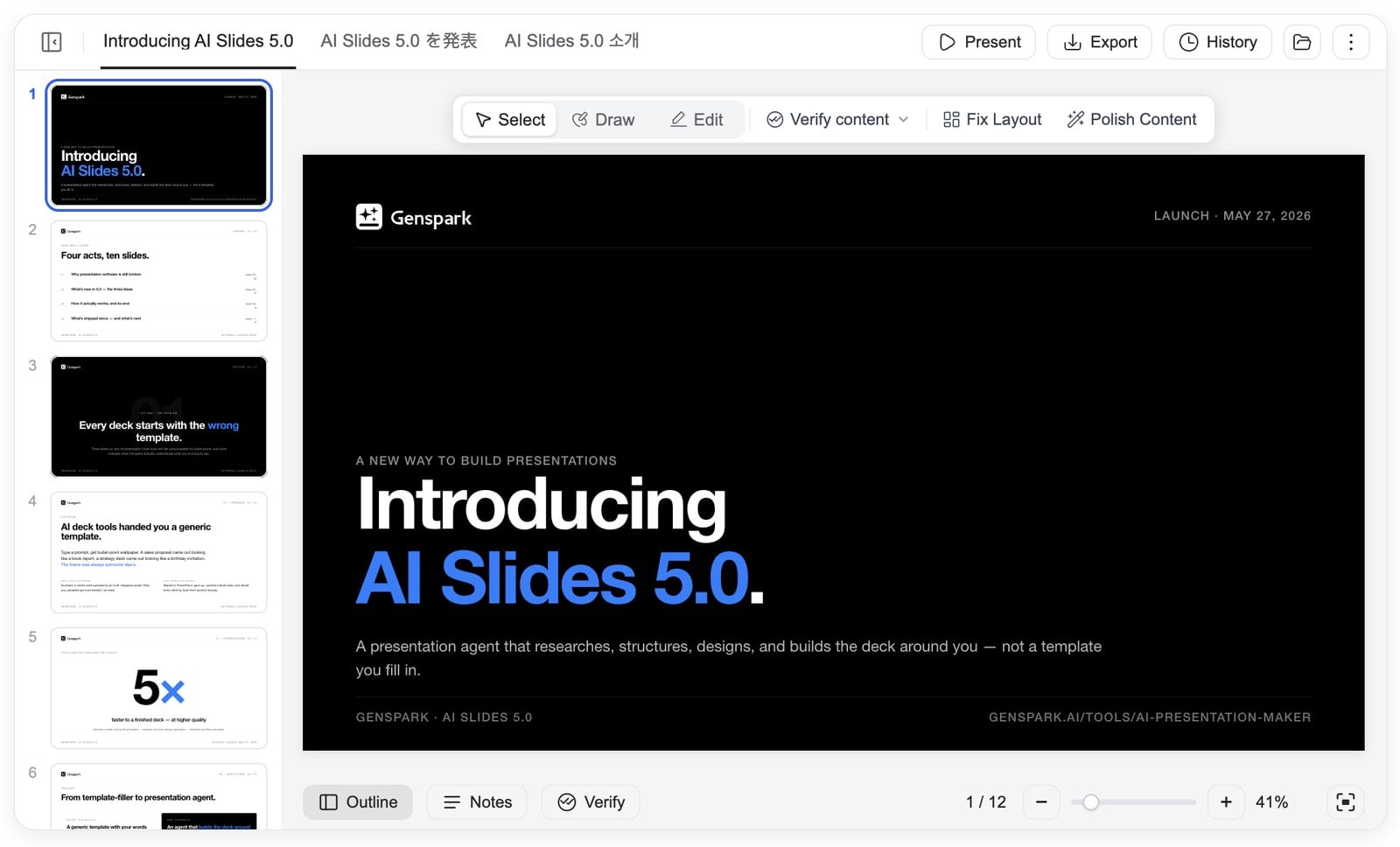
1. A redesigned canvas
What: A full workspace layout: an outline rail on the left shows every slide at a glance — click any thumbnail to jump; multiple decks in one project sit in tabs across the top; a zoom control (−/+/%) lives in the bottom toolbar, and clicking the percentage snaps back to fit. Large decks open instantly and flip smoothly.
When to use it: With a deck dozens of pages long, the whole structure stays in view — you can see which page the AI is writing and which are coming up next. Review with confidence: zoom in for detail, zoom out for the big picture, and jump from slide 3 to slide 30 in one click.
How: Open any slides project — the new canvas is the default. Jump with the outline rail, switch decks with the tabs, zoom from the bottom toolbar, and drag the canvas's left edge to make it wider.
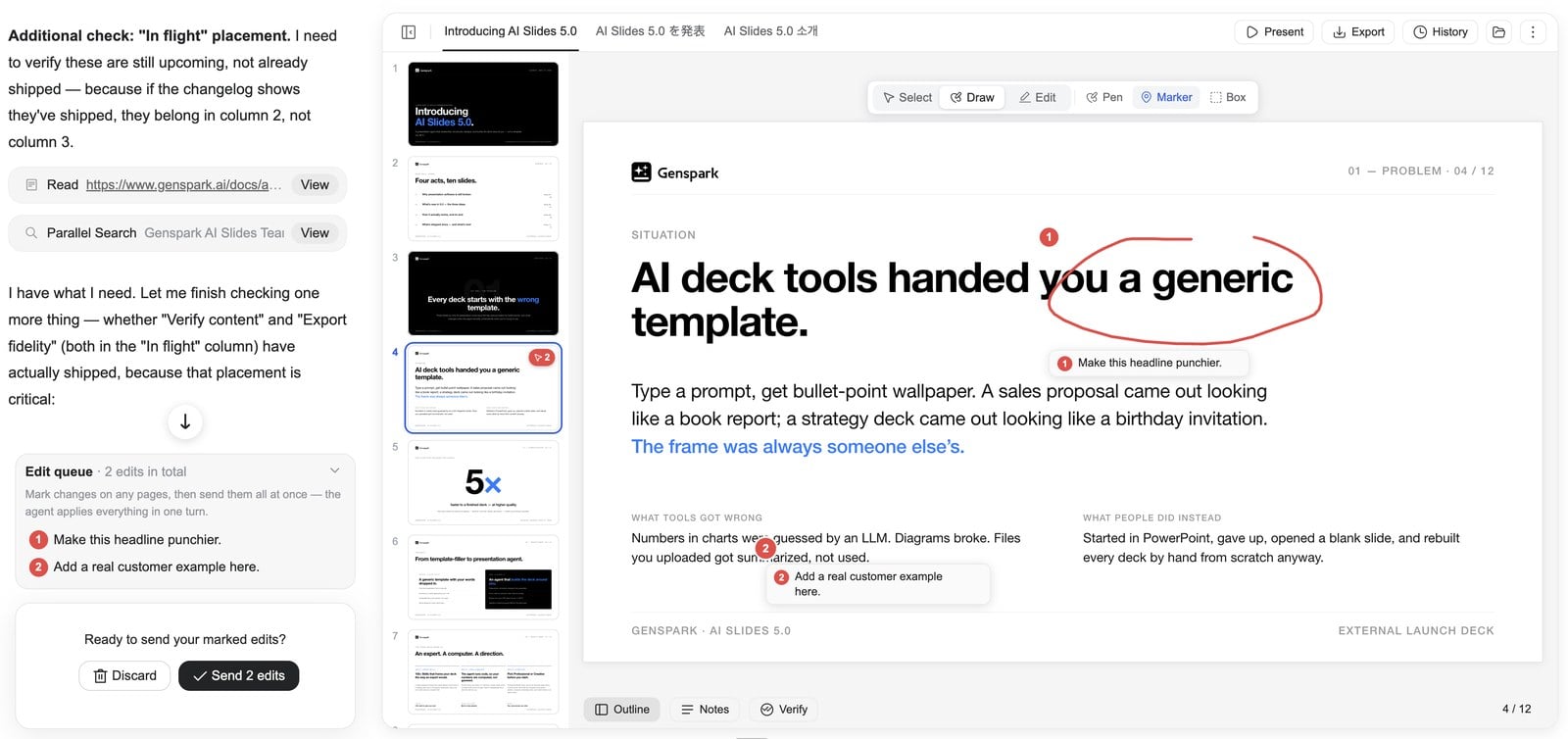
2. Point-and-annotate editing — mark it up like a draft
What: Three ways to point at exactly what you want changed: click to select any element (title, image, chart — the selection is labeled by type), draw to circle an area, or drag a box around a region. Each annotation carries your instruction, and they all collect into an edit queue you send in one go.
When to use it: Review your deck the way you'd go through a printed draft: circle this image, click that title, box that whole section, jot down what you want — annotations stay put as you flip through pages. When you've marked up the whole deck, hand the whole batch to the Agent at once, go grab a coffee or join your next meeting, and come back to review the results one by one.
How: Turn on Draw in the toolbar, then circle, click, or box-select what you want changed and type your instruction. Mark up as many pages as you like, then hit Send N edits to submit them all at once. Discard any note you change your mind about.
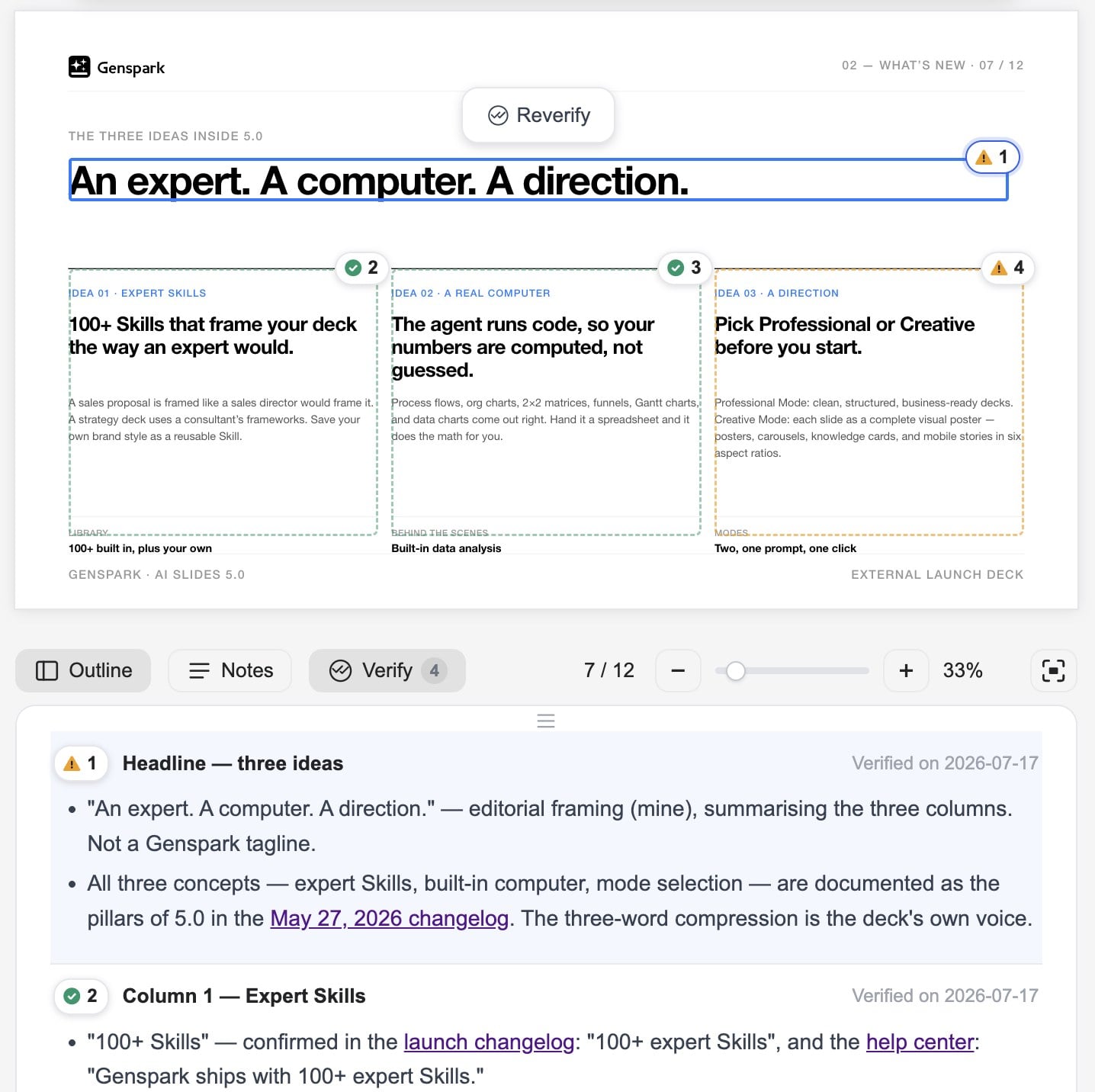
3. Fact Check, upgraded — now "Verify Content"
What: AI checks the accuracy of your slide data and claims — choosing on its own whether to verify against the web or your uploaded files — corrects what's wrong, and leaves a verification mark on the slide. On PPTX export, the verification trail is written into the slide notes automatically.
When to use it: Before an important deck goes out, have AI verify every figure and claim in it. The marks on each slide show you what's been checked and how — and colleagues and audiences who receive the PPTX can see the evidence behind every number. Enterprise-grade data confidence, in one click.
How: Hover over the current slide and click Verify content in the floating toolbar, then choose Verify this page or Verify entire deck. The Agent checks everything, fixes errors, marks verified data in place, and includes the trail in your PPTX export.
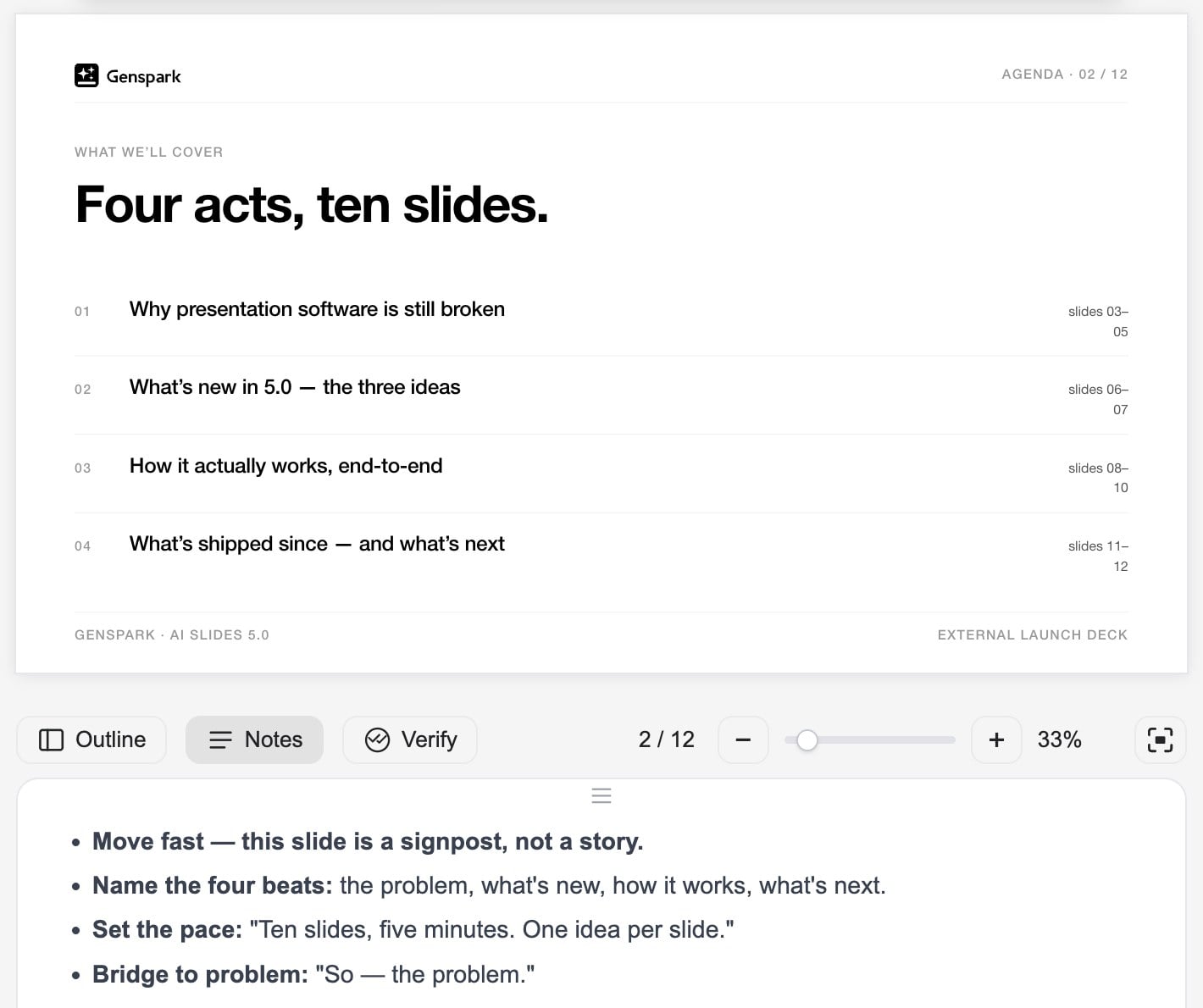
4. Speaker Notes
What: AI writes speaker notes for your slides. Click Add notes and the Agent first asks a few questions — the occasion, the audience, how long you'll speak, the tone — then writes notes tailored to your answers. View them in a panel below the canvas; they're included in PPTX exports.
When to use it: Once the deck is ready, shape your delivery with AI: notes tailored to your occasion and audience mean you walk on stage knowing exactly what to say. The notes travel with the PPTX, so anyone you hand the file to can present it smoothly too.
How: Open the Notes panel from the bottom toolbar to read notes per slide. Click Add notes (this slide, or all slides) to have the Agent interview you and write them. Export to PPTX and the notes appear in PowerPoint's presenter view.
5. Presenter View
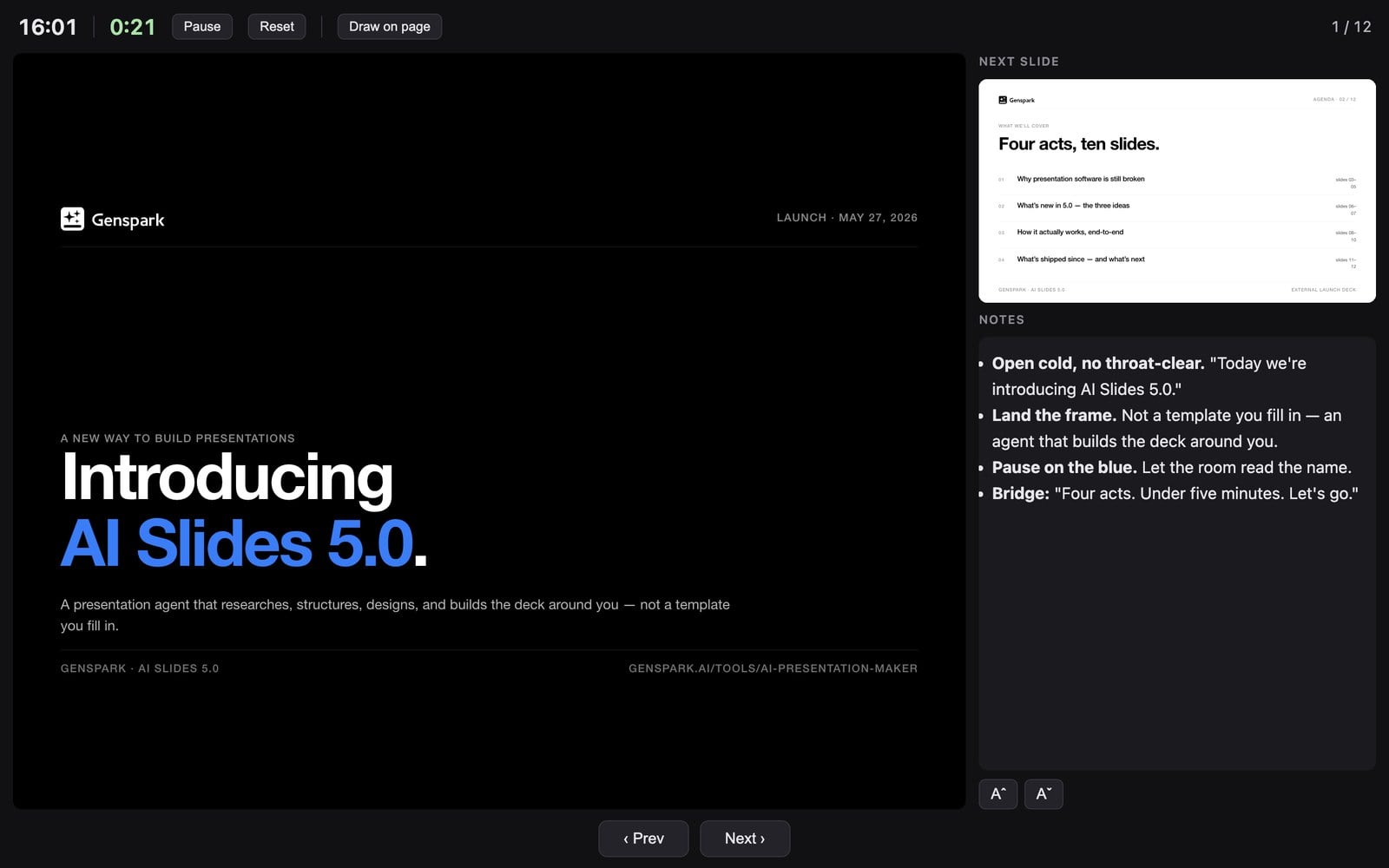
What: A dual-screen presenting mode: your screen shows notes, the current and next slide, and a timer; the audience sees only clean slides — with your cursor synced across both displays.
When to use it: Present like a pro: your script, the next slide, and the clock are right in front of you while the audience sees nothing but polished slides. Move your cursor to guide attention on both screens at once — a PowerPoint/Keynote-grade presenting experience, right in the browser, nothing to install.
How: Click Presenter view next to Present. The presenter console opens in its own window; move the audience window to the projector or second display and make it fullscreen.
Jul 09, 2026
AI Slides Honors Your Organization's AI Model Vendor Restrictions
Enterprise organizations can restrict members to AI models from approved vendors — and AI Slides now applies the policy to every step of building your deck.

What is it?
Admins of Enterprise organizations can turn on "Restrict AI Model Vendors" so members only use AI models from the organization's approved vendors. With the policy on, every model AI Slides uses while building your deck — the main agent, research, and copywriting sub-agents — is picked from approved vendors automatically. The Standard and Ultra model tiers adapt too, mapping to the best available models from your allowed vendors.
When to use it
When your organization's compliance, data policy, or procurement rules require that team content is only processed by specific AI vendors. Admins set it once and it applies to everyone — members keep the same simple experience while staying fully compliant.
How to use it
Admins: open Team Admin → Connectors and turn on "Restrict AI Model Vendors". Members don't need to change anything — AI Slides picks compliant models automatically.
Jul 08, 2026
New Feature: Team Skills — Publish a Skill to Your Whole Organization
Your team can now build a shared library of Slides Skills: members submit, admins review, and approved skills reach everyone automatically.
What is a Team Skill?
A Slides Skill published to your whole organization. A member submits a skill for review; once an admin approves it, the skill appears in the new "Team Skills" tab of the Skills gallery for every member and activates automatically — no importing needed. When the publisher updates the skill, everyone gets the latest version. Email and in-app notifications keep the review loop moving: admins are notified of new submissions, and submitters are notified of the outcome, including the reason if a version is rejected. Available on both the Team and Enterprise plans.
When to use it
When your team wants one consistent way of making presentations — the company proposal framework, a department's brand style, a report format that took years to refine. A great skill stops being personal know-how: publish it once and everyone benefits. A new employee can build a polished, on-brand deck that meets company standards on day one, just like a veteran.
How to use it
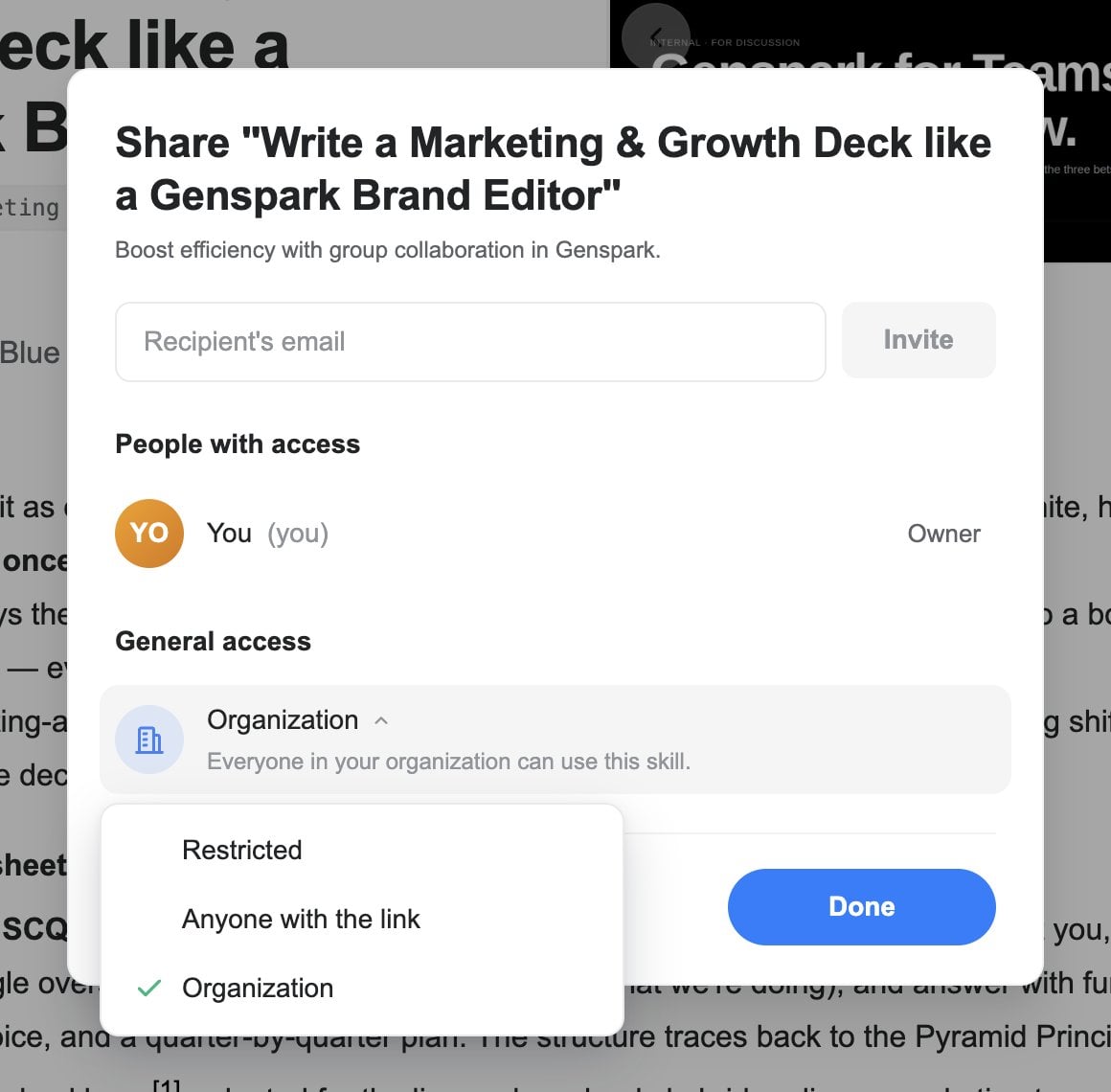
- Members: open your Skill, click Share, and set General access to "Organization" — this submits it for admin review.
- Admins: review at Team Admin → Skills and approve or reject (with a reason).
- Once approved, the skill appears under the "Team Skills" tab for everyone.
Jul 03, 2026
New Feature: Share Your Slides Skills
A Skill you own can now be shared like a doc — one link, and a colleague can preview it and import their own copy.
What is skill sharing?
Every skill you own now has a Share panel. Invite specific people by email, or set General access to "Anyone with the link" and copy a share link. Recipients can preview the skill and import their own copy. You stay in control: remove a person or disable the link at any time — copies people already imported remain theirs.
When to use it
When you've built a skill worth spreading — your company's brand template, a report structure you always use, a carefully tuned visual style — and you want colleagues or friends to use it too. No more exporting a .zip and sending files around; one link is enough.
How to use it
Open one of your Skills and click Share. Invite people by email, or switch General access to "Anyone with the link" and copy the link.
Jun 26, 2026
A Cleaner, Easier-to-Browse Skill Gallery
The Skills gallery has been reorganized and polished so it's faster to find what you need. A new default "All" view brings the create-a-new-Skill option, your own Skills, and the full public catalog together in one place.
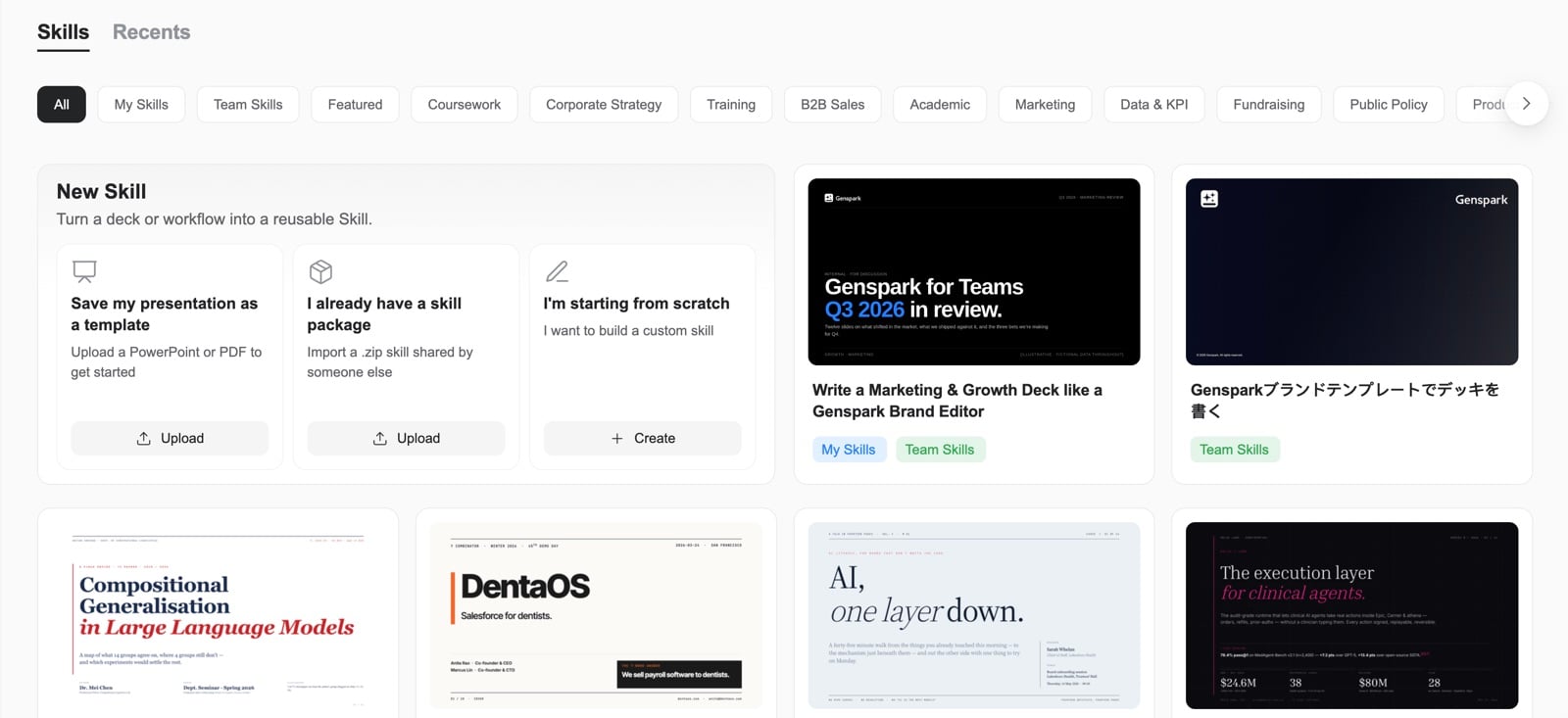
- Quick tabs at the top let you filter by "My Skills", "Featured", or by category.
- Your last-chosen tab is remembered and reflected in the link, so you can share a specific view with others.
- Skill cards now sit in a tidy, equal-height grid; empty filters are hidden so you only see what's actually there; and the whole gallery lays out correctly on mobile.
How to use
Open AI Slides and go to the Skills gallery. Use the tabs at the top ("All", "My Skills", "Featured", or a category) to browse, or click "New Skill" to create or import your own.
Jun 23, 2026
Attach Any File Type, Including iPhone Photos
You can now attach any file to AI Slides, including ZIP archives and other formats the file picker used to block, so the agent can work from whatever source material you have. iPhone HEIC/HEIF photos are converted automatically, so they just work. And on the homepage, you can now drop files anywhere on the page to attach them, not just onto the input box.
How to use
Click the "+" button to browse and attach files of any type, or simply drag files from your computer and drop them anywhere on the homepage.
Jun 22, 2026
More Faithful PowerPoint Export
Exporting to PowerPoint now reproduces your slides much more faithfully. Charts, data tables, bulleted lists, and text colors come through correctly instead of being dropped or recolored, so the downloaded .pptx matches what you see on screen. PowerPoint export is reliably available to paid members, large presentations no longer fail to download, and exported files are noticeably smaller because images are sized down without losing quality.
How to use
Open a presentation and choose Export to PowerPoint (.pptx) to download a file that matches your slides.
Jun 21, 2026
New Feature: Recent Slides — Browse and Preview Your Past Projects
A new Recent Slides view shows your past projects as cards with the cover, title, and last edit time, so it's easy to pick up where you left off.
- Scroll to load more projects automatically.
- Hover a card to open or delete a project.
- Open a full-screen preview to flip through a project's decks before you dive back in.
How to use
Open AI Slides and switch to the "Recents" tab next to Skills to see all your past slide projects. Click a card's preview to flip through its decks, or use the hover actions to open or delete a project.
Jun 20, 2026
Faster, More Reliable Slide Previews and Playback
Opening a deck preview is now much faster. There's no more blank first slide on large decks, and previews no longer go blank on projects with long edit histories. When you regenerate an image it updates right away, fullscreen "Play Slides" now scales each slide to fit your screen instead of cropping the edges, and slide decks created inside Super Agent open showing your slides instead of an empty placeholder.
Jun 18, 2026
Editor and Generation Fixes
We fixed several issues you may have run into:
- A false "text overflow" warning no longer shows up when your browser is zoomed in or out from 100%.
- In Creative Mode, generation no longer looks finished before every slide has actually been built.
- Generated infographic images now appear right where they belong instead of far below their card.
- If you mention a source file in your request but forget to attach it, AI Slides now asks you for that file instead of building from the wrong source.
Jun 17, 2026
Smarter Automatic Skill Matching for Your Deck
When you don't attach your own reference or template, AI Slides now automatically finds and applies the best-matching expert Skills from its library to design your presentation. You get more relevant, more varied results without having to pick a Skill by hand, and image-rich Skills that previously failed to load now apply reliably.
How to use
Just describe the deck you want. If you don't attach a reference, AI Slides picks and applies fitting expert Skills for you automatically. You can still attach your own template, screenshot, or PPTX to override this.
Jun 16, 2026
A Cleaner Chat and Clearer Cost Signals
The chat experience is tidier and easier to follow. The tool activity bar no longer repeats a "Using Tool" label on every row, so you see just the tool and what it's doing. Manual edits you make to a slide no longer clutter the conversation thread. And when a conversation grows long and starts to cost more, the cost indicator now opens on its own so you won't miss it.
Jun 10, 2026
New Feature: Create, Edit, Download, and Import Your Own Skills
You can now fully manage your own AI Slides Skills. Create a new Skill three ways, then edit, share, or remove it whenever you like.
- Replicate one of your existing PowerPoint files into a Skill.
- Import a Skill package (a .zip) someone shared with you.
- Describe a custom Skill and build it with the agent.
From a Skill's detail view you can edit it, delete it, copy its name, or download it as a zip to share. When you save a Skill, an inline card appears that links straight to it in your Skills gallery, and you'll be warned if any images or assets are missing so your Skill always shows up correctly.
How to use
Open AI Slides, go to My Slides Skills, and click the "+" card to create a new Skill (replicate a PowerPoint, import a .zip, or describe your own). Open any Skill to edit, delete, copy its name, or download it.
May 27, 2026
New Feature: AI Slides 5.0 — A New Way to Build Presentations
AI Slides 5.0 is our biggest leap yet: a presentation agent that builds the deck around you instead of handing you a generic template. Tell it your goal in plain language, and AI researches, structures, designs, and generates a complete deck — then keeps working with you, conversationally, until it's right.
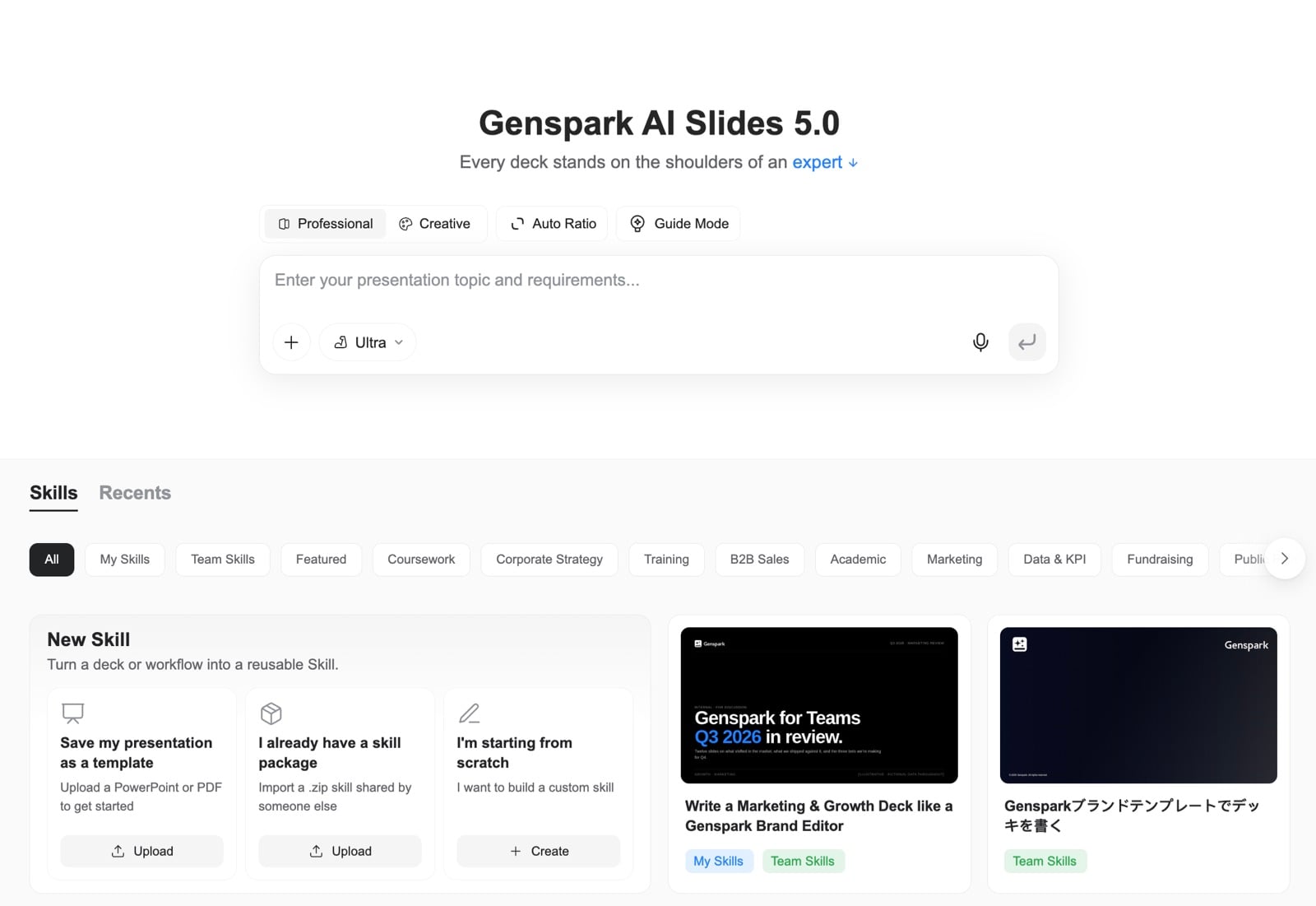
It's powered by 100+ expert Skills. A Skill packages an expert's thinking and design together — so a sales proposal is framed like a sales director would frame it, and a strategy deck uses a consultant's frameworks. Browse the built-in library by category, or save your own brand style as a reusable Skill by uploading an existing PowerPoint or PDF. You can also import a Skill someone shared with you, or build one from scratch.
AI Slides now has a real built-in computer. Because it can actually run code, the numbers behind your charts are computed accurately rather than guessed — so process flows, org charts, 2x2 matrices, funnels, Gantt charts, and data charts come out right. Hand it a spreadsheet and ask it to visualize the data, and it does the math for you.
Bring your own material: add AI-generated or web images, and import existing files — PDF, Word, Excel, or PowerPoint — to build directly from your content.
Pick a direction before you start. Professional Mode gives clean, structured, business-ready decks for proposals, reports, and consulting work. Creative Mode designs each slide as a complete visual, like a poster, with richer colors and imagery and multiple aspect ratios for posters, social carousels, and knowledge cards.
When your deck is ready, present it right in the browser or export to PDF, PPTX, or Google Slides.
How to use
Open AI Slides, describe your idea, type a prompt, or drop in a file, and AI Slides turns it into a polished deck. Click any expert Skill to apply it, or open the "My Skills" tab to use Skills you've saved.
Mar 21, 2026
New Feature: Iterative Slides Editing in Super Agent
Previously, asking the Super Agent to modify an existing Slides project would create a brand new one. Now, when you ask for changes in the same conversation, the AI continues editing the original project — no duplicates, no starting over.
How to use
In Super Agent, create a Slides project as usual. Then simply send follow-up messages like "change the title on page 3" or "add a summary slide at the end" — the AI will modify the existing project directly.
Mar 17, 2026
New Feature: Make a Copy
Need to adapt a presentation for a different client, translate it into another language, or experiment with changes without touching the original? Make a Copy creates an independent duplicate of your entire project — all slides, content, and design included.
How to use
- Open your project → click "View & Export" → select "Make a Copy"
- Or simply tell the AI "Make a copy" in the conversation
Mar 05, 2026
New Feature: Guide Mode
Guide Mode lets AI work as your presentation consultant — understanding your needs before building a single slide.
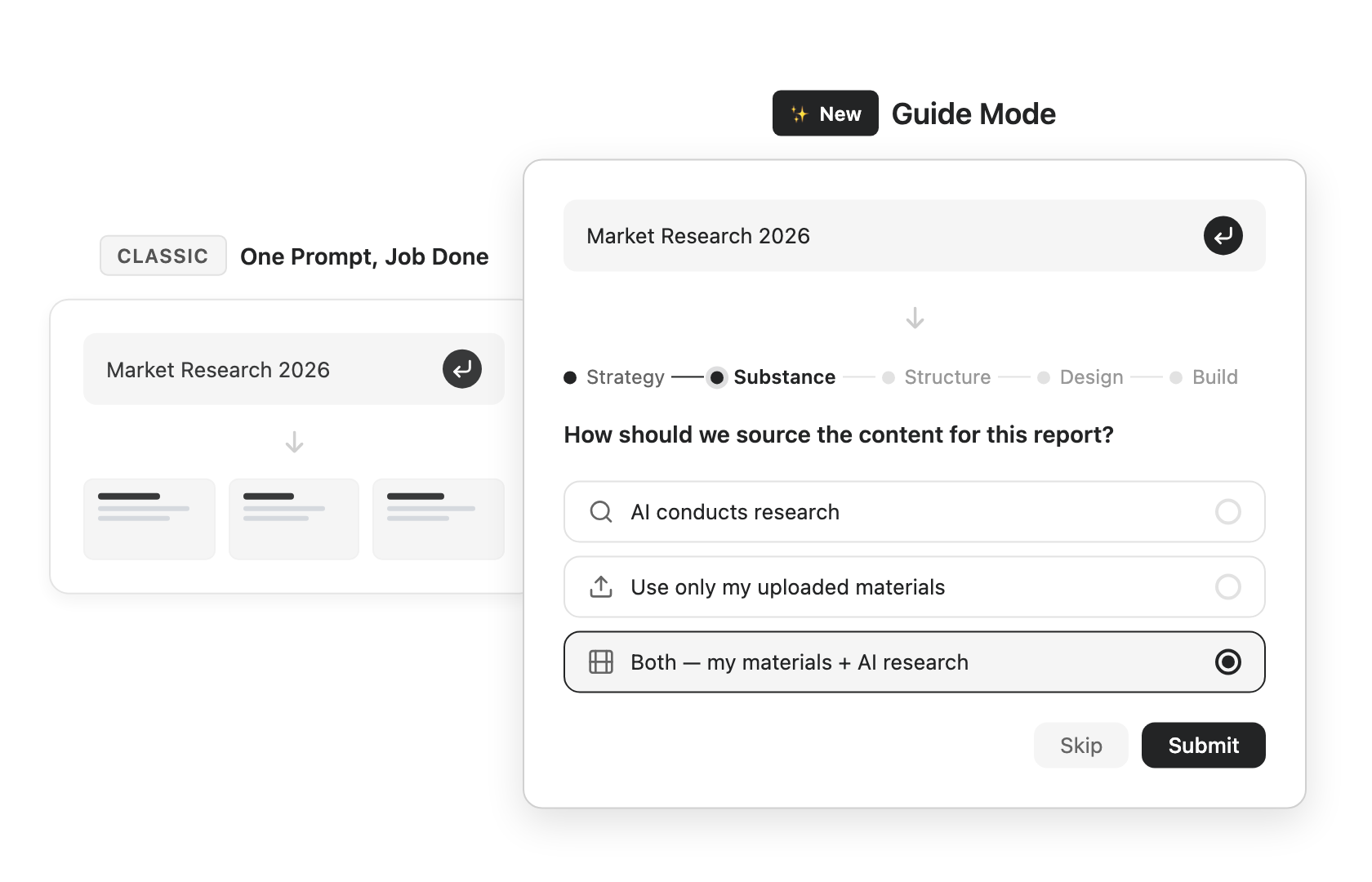
What is Guide Mode?
By default, you type one prompt and get instant slides — fast and effortless. With Guide Mode enabled, AI walks you through a structured consultation, asking the right questions and offering expert advice at each step, so the final result matches exactly what you need.
When to use it
Without Guide Mode, one prompt, job done — great for quick drafts and brainstorming.
With Guide Mode, it's designed for high-stakes presentations — board reports, investor pitches, client proposals — where getting it right matters more than getting it fast. AI guides you through five phases: Strategy, Substance, Structure, Design, and Build.
How to use it
On the AI Slides homepage, click Guide Mode at the top. Enter your topic as usual, and AI will begin a step-by-step consultation — clarifying your audience, purpose, content sources, narrative structure, and design preferences before generating slides.
Jan 27, 2026
New Feature: Creative Mode
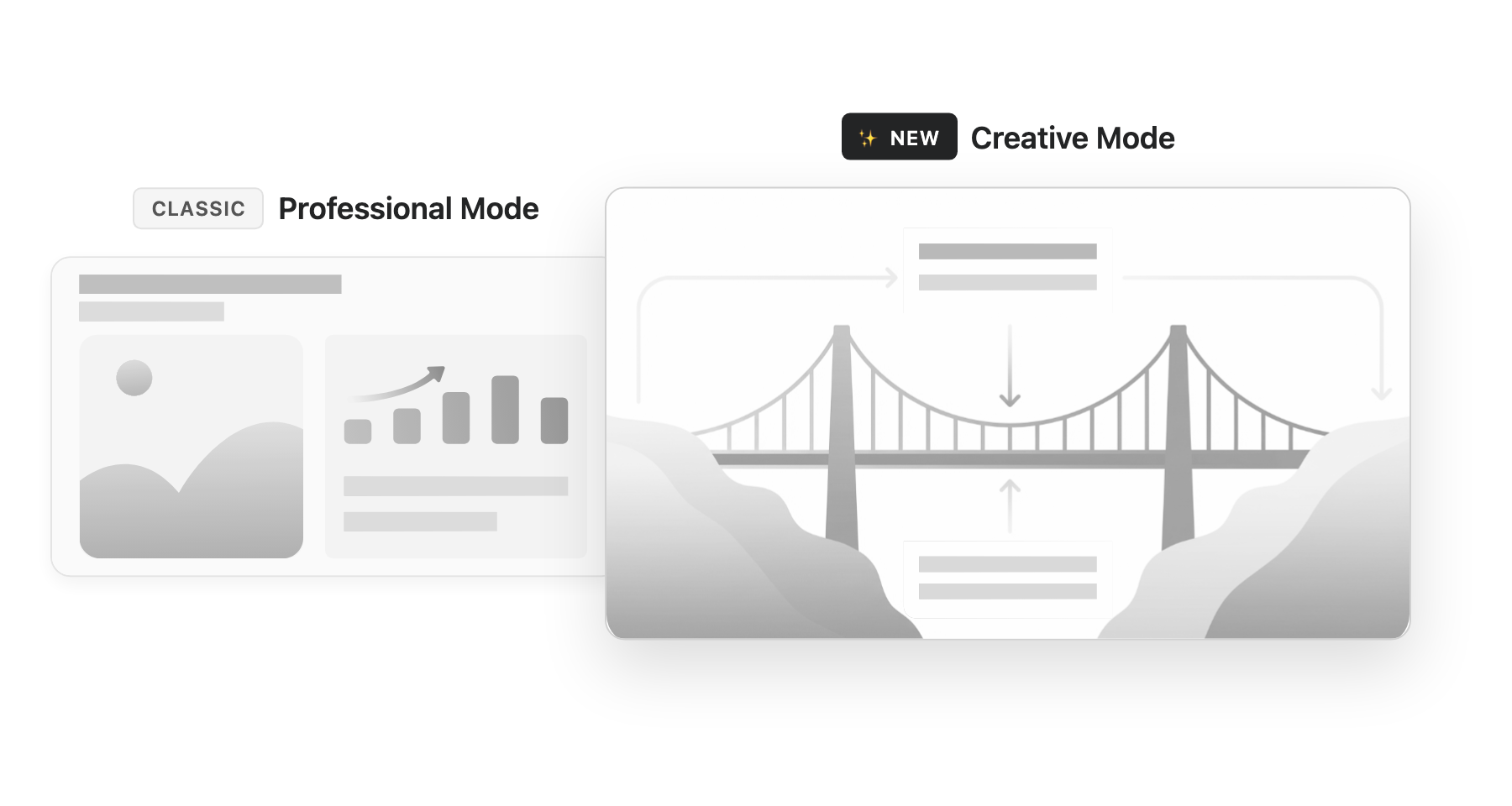
Creative Mode is a new way to create slides. Instead of traditional layouts with bullet points, AI rethinks your content through storytelling — organizing ideas as visual relationships rather than text lists. Each slide is designed as a complete visual, like a poster, where spatial arrangement itself conveys meaning. Powered by the state-of-the-art Nano Banana Pro image generation model, every slide is rendered with stunning visual quality.
When to use it
Professional Mode is ideal for classic, traditional slide presentations — data-heavy reports, formal pitch decks, and structured business documents where clarity and precision matter most.
Creative Mode goes far beyond slides. With multiple aspect ratios — from 16:9 presentations to 1:1 social posts to 9:16 mobile stories — you can create posters, knowledge cards, children's picture books, product manuals, social media carousels, study flashcards, and more. Anything that needs a set of beautifully designed visuals, Creative Mode can handle.


How to use it
On the Genspark AI Slides homepage, click the mode switch and select Creative. Then describe your topic as usual — AI will handle the narrative structure and visual design automatically. You can also paste reference images, such as posters or other visually rich slides you like, to guide the style.
Fine-tune your slides
Not satisfied with the result? Creative Mode enables Mark and Edit by default — simply click anywhere on a slide to select the area you want to change, then describe your edit. AI will regenerate just that part while keeping the rest of the design intact.
Jan 20, 2026
Better PPTX Export for Fonts and Images
We resolved export issues that could cause font styling inconsistencies and image display problems in exported PowerPoint files. Your presentations now export with accurate typography and properly embedded visuals, maintaining complete visual fidelity across all platforms.
Jan 12, 2026
Slide Copy Now Works Correctly
We fixed an issue where copied slides may not display correctly or show access errors. If you previously encountered problems when:
- Using "Continue Conversation" on someone else's shared presentation
- Copying slides from another project using the import feature
These issues have now been resolved. Your copied slides will work independently without any access problems.
Dec 11, 2025
New Feature: AI Edit with Fix Layout and Polish Content
The AI Edit button has been upgraded to a powerful dropdown menu with two new intelligent capabilities:
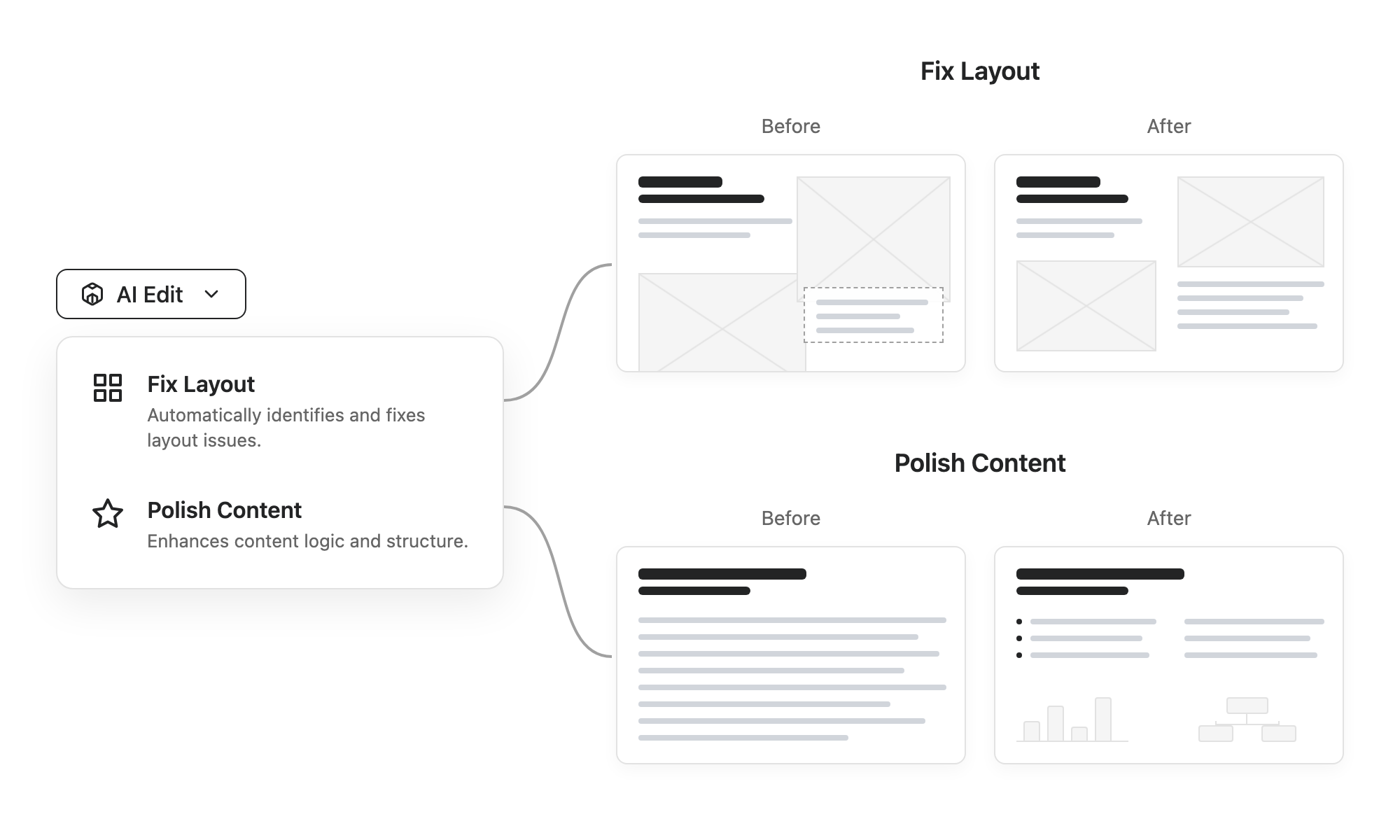
- Fix Layout: Automatically analyzes slide content to resolve overlapping elements, overflow issues, and display problems.
- Polish Content: Reviews and reorganizes presentation logic and layout while maintaining stylistic consistency.
Slides Now Keep a Consistent Aspect Ratio
Slides now strictly maintain their aspect ratio, preventing inconsistent heights across your presentation.
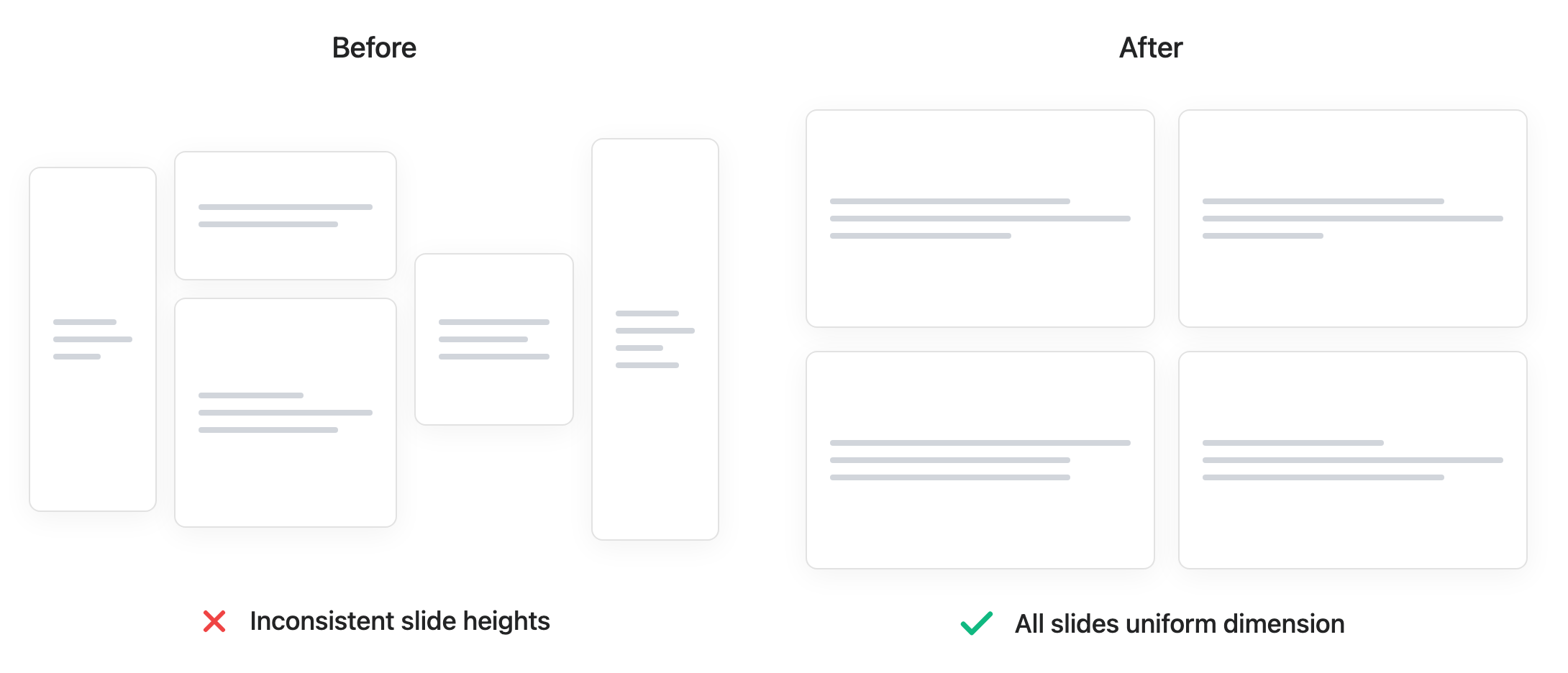
Pro Tip: Use the new Fix Layout feature if your content is too extensive for the slide dimensions.
Dec 05, 2025
Better Layer Ordering in PPTX Export
We redesigned the layer sorting algorithm for PPTX export to ensure elements maintain their correct visual stacking order in PowerPoint files.
Dec 01, 2025
New Feature: Import PPTX as Template (BETA)
You can now import existing PowerPoint presentations (.pptx files) into Genspark AI Slides and save them as reusable templates.
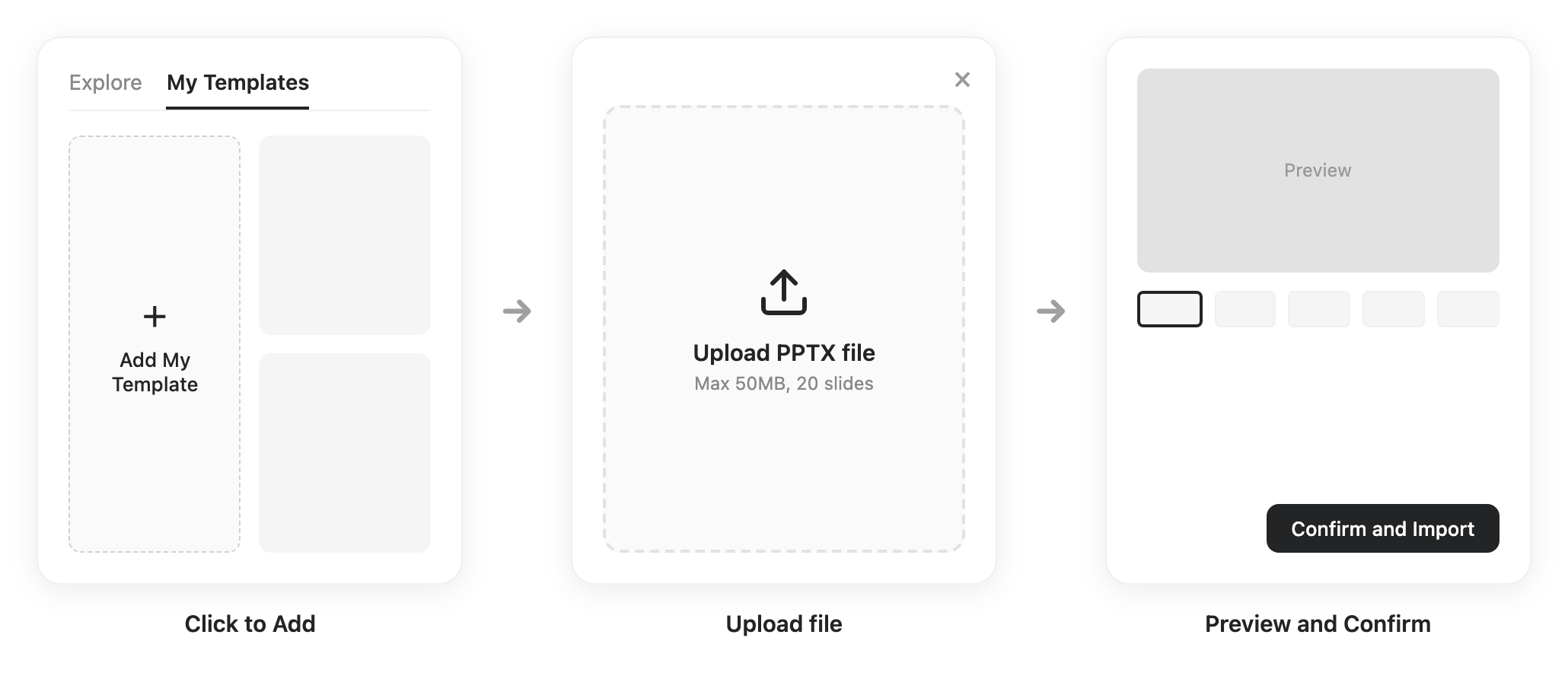
How to Use
- Access "My Templates": Click the "+" card labeled "Add My Template" in the library.
- Upload PPTX File: Drag and drop or browse (Max 50MB, 20 slides).
- Preview and Use: View thumbnails and start creating.
Key Benefits
- Brand Consistency: Maintain your company's brand identity.
- Reusability: Import once, use repeatedly.
- Time Savings: Start with proven designs.
New Feature: AI-Powered Next Step Suggestions
Intelligent suggestions now appear as clickable conversation bubbles at the end of your chat history, guiding your next best actions.
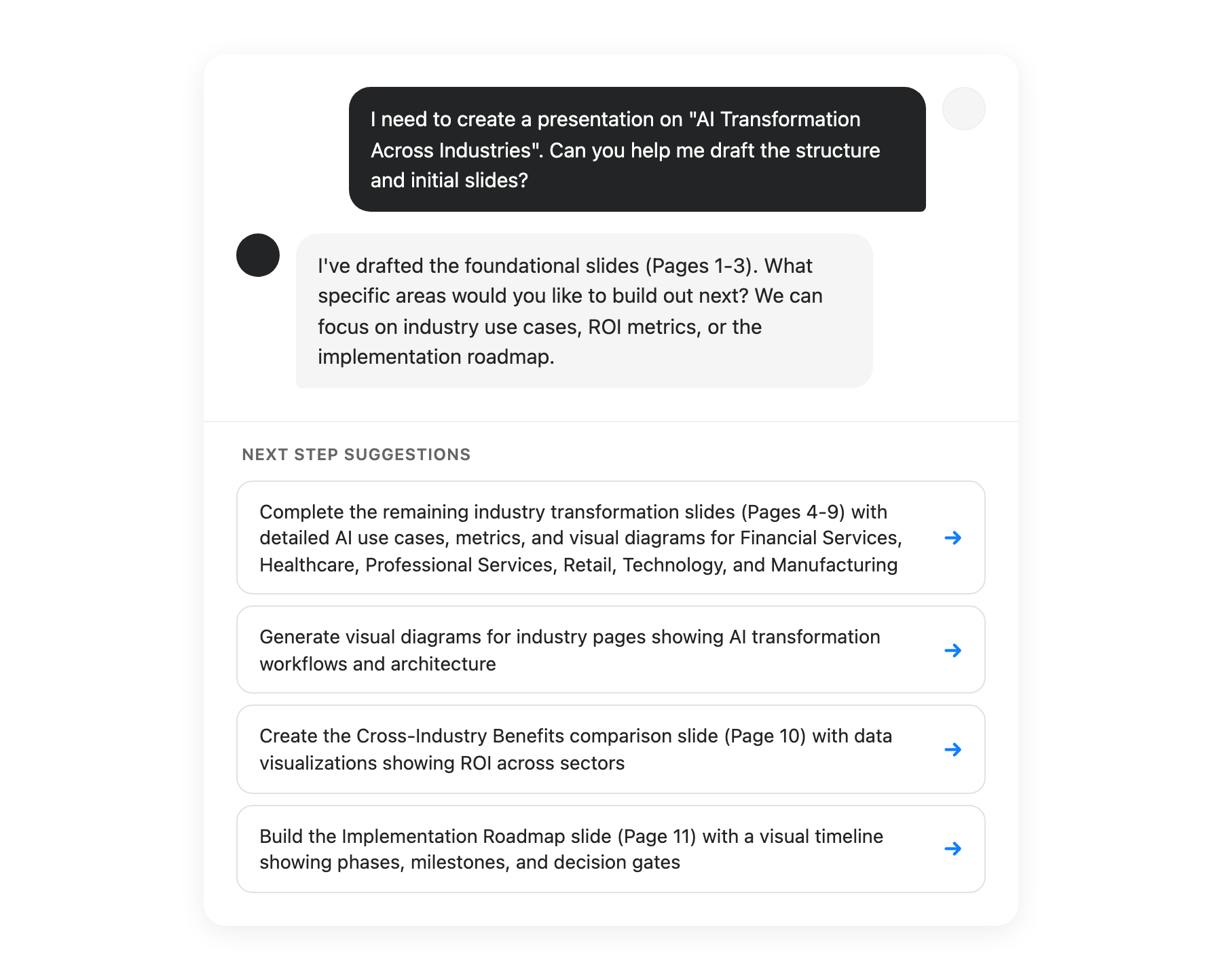
- Automatic Analysis: Based on current project state.
- One-Click Execution: No typing required.
- Contextual: Recommendations tailored to your content.
Looking for older versions? for complete history. Contact us