
How to Find Your Remote Desktop Password
When connecting to your Claw VM's remote desktop, you'll be asked for a VNC password. Here's where to find it.
1
Go to Your Claw Dashboard
Navigate to genspark.ai/claw and sign in to your account. You'll see your VM management page.
2
Find the Remote Desktop Section
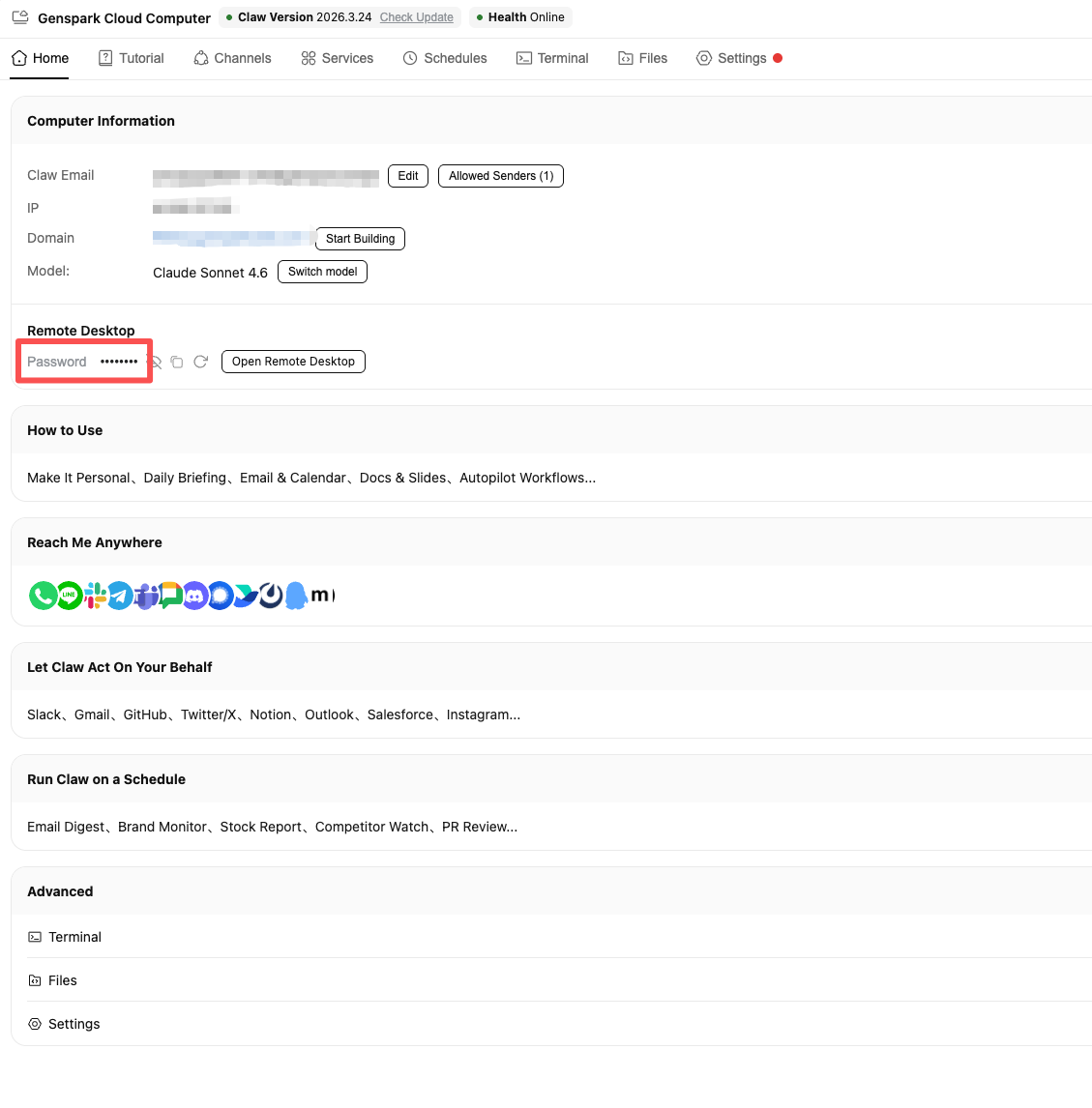
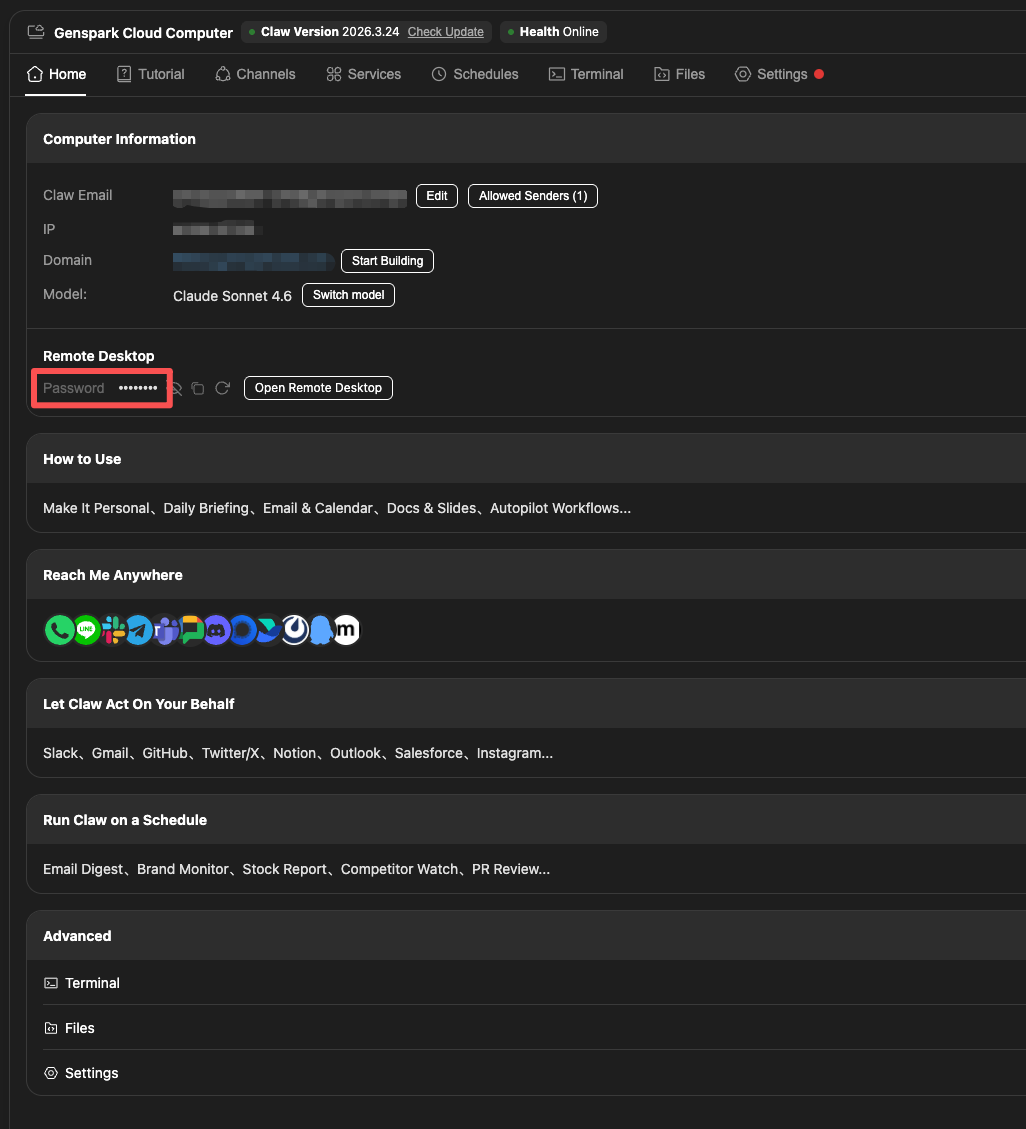
On the Home tab, scroll down to the Remote Desktop section. Your VNC password is displayed here (hidden by default).
3
Reveal and Copy the Password
Click the eye icon to reveal the password, then click the copy icon to copy it to your clipboard. Paste it into the VNC password dialog to connect.
4
Reset Password (Optional)
If you've forgotten your password or want a new one, click the reset icon next to the password field. A new password will be generated and the VNC service will restart automatically.