Slack Bot Setup Guide
Learn how to create and configure your Slack bot to connect with your custom agent.
📖 How to Create and Configure a Slack Bot
1
Create a Slack App
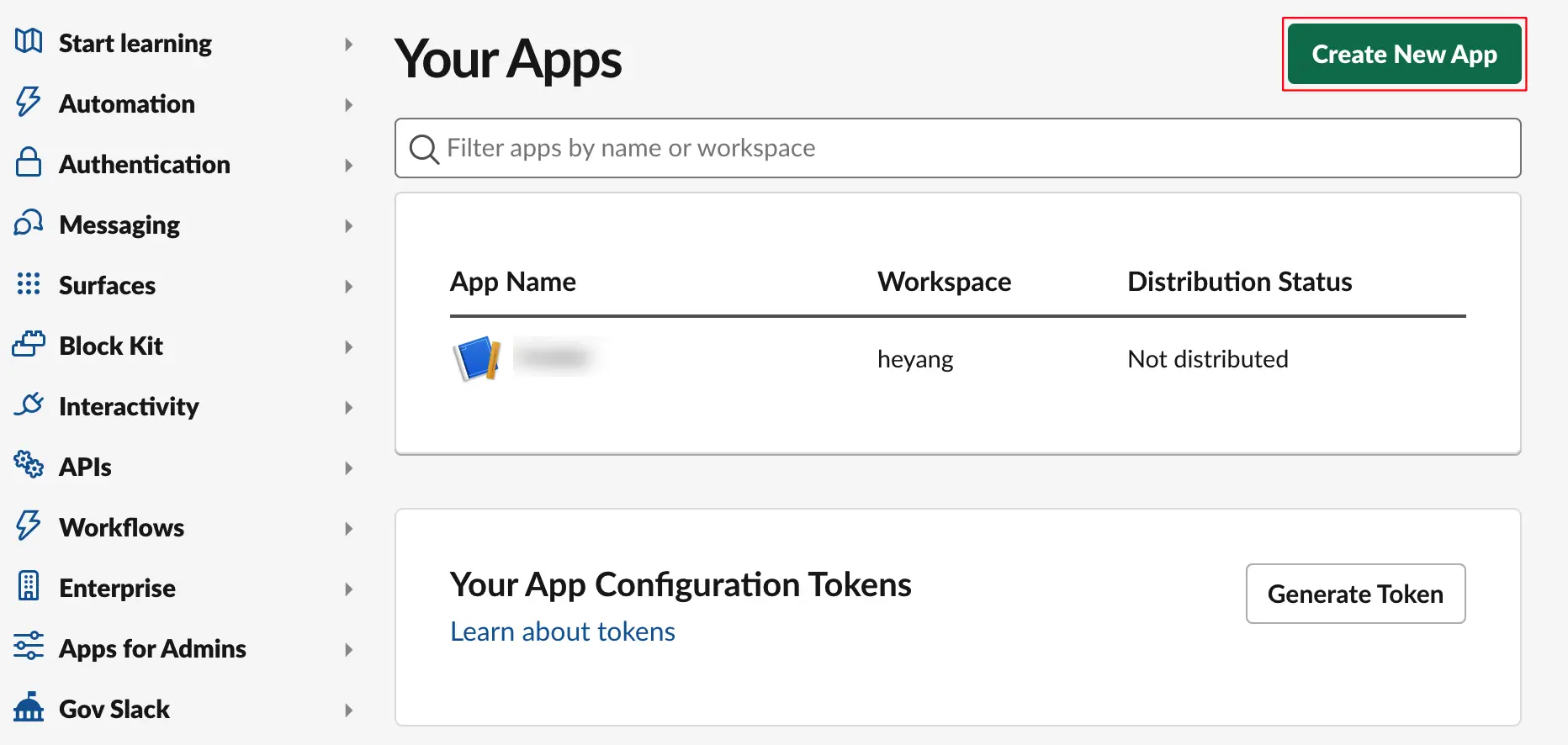
Open Your Apps page and login with your Slack account.
- Click "Create New App" or "Create an App" if this is your first application.
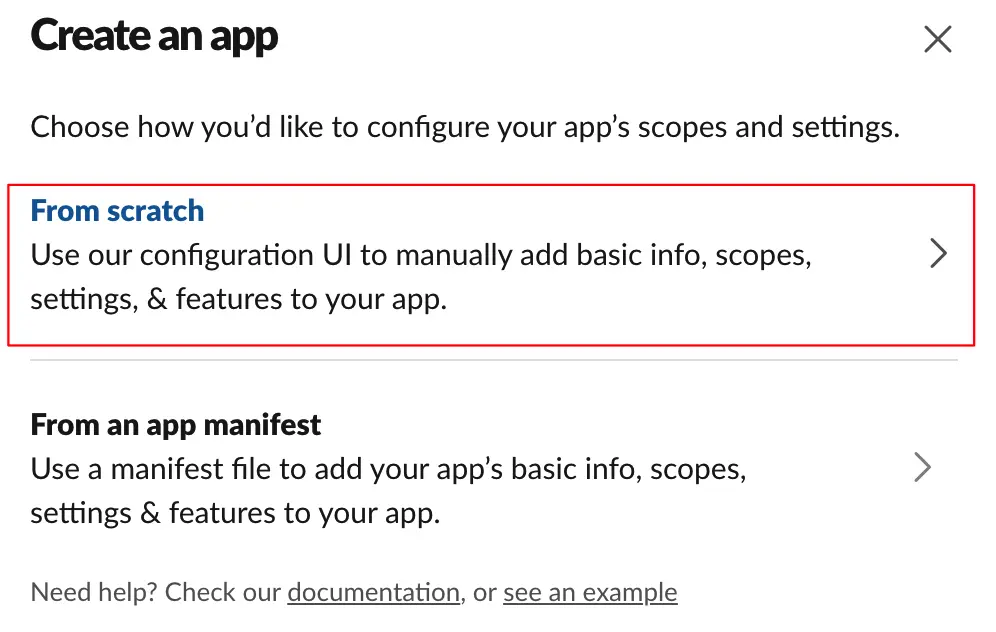
- On the Create an app page, select From scratch.
- Enter the name of your application and select a workspace.
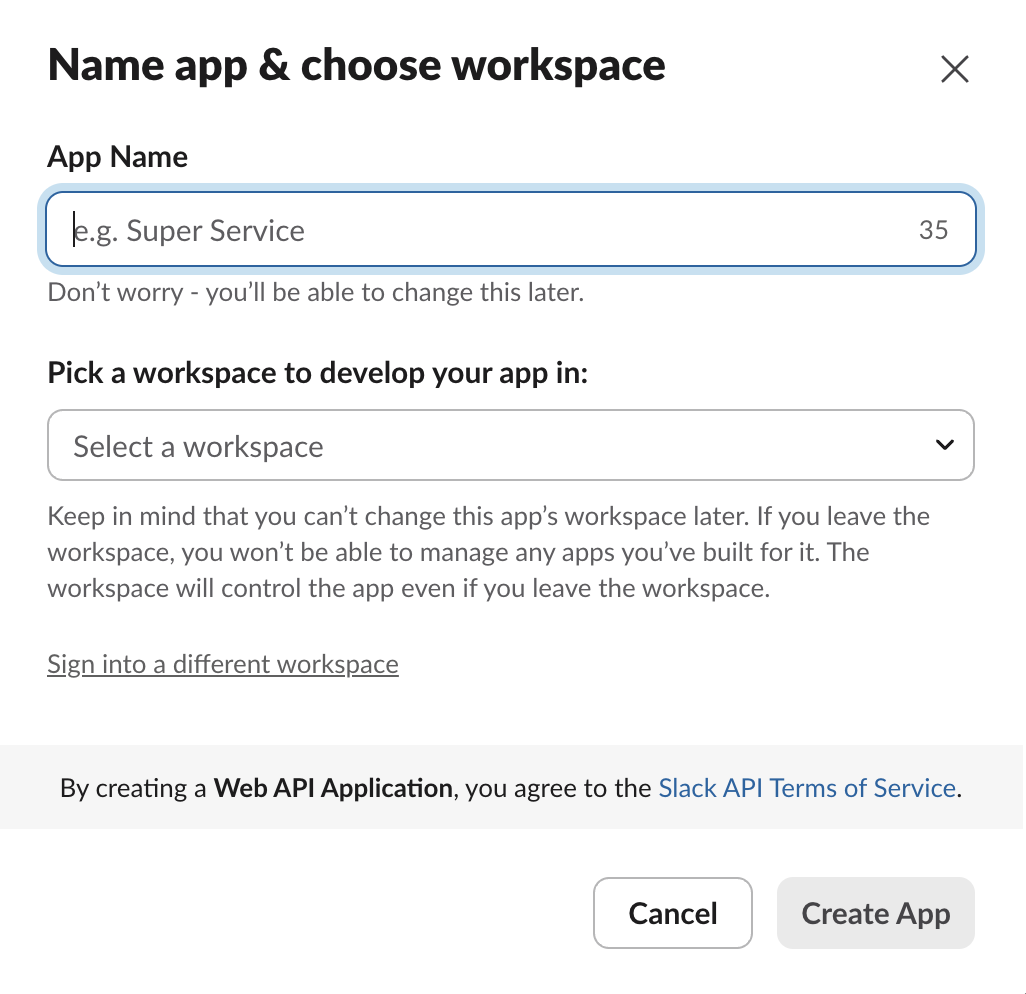
- Review and agree to the Slack API terms of service, then click Create App.
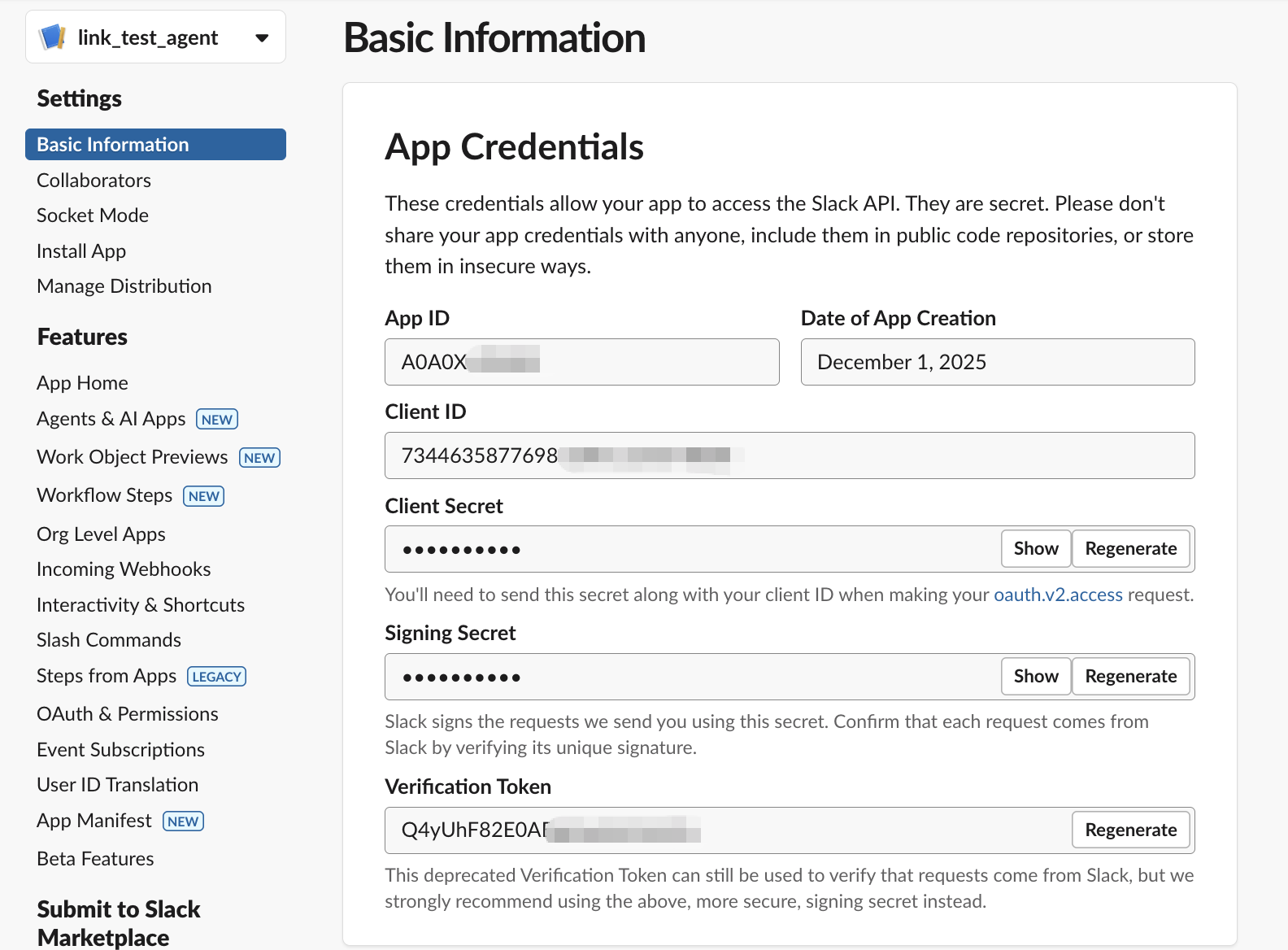
- Once created, go to the App Credentials section and copy the Signing Secret. (Keep this for later use)
2
Add Permissions
Add permissions that your application can access:
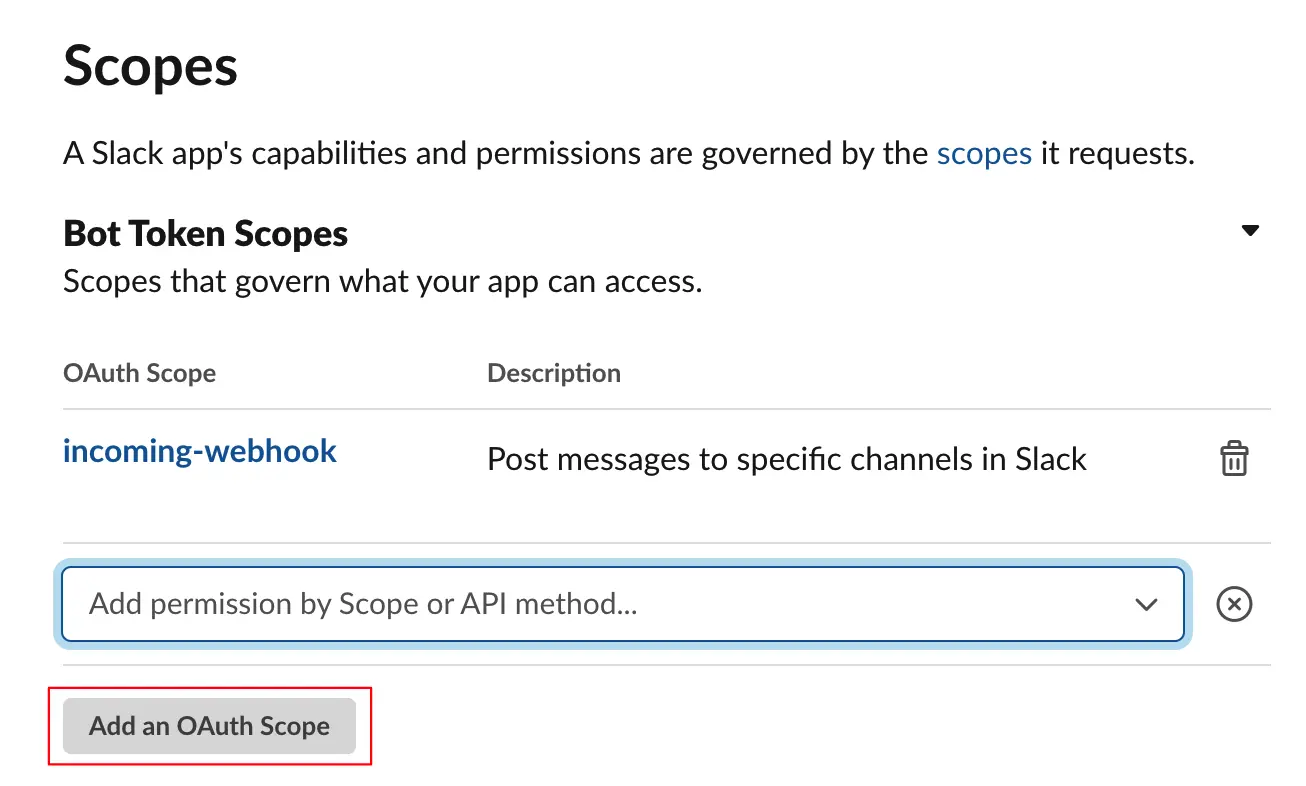
- In the left panel, select OAuth & Permissions.
- Add these Bot Token Scopes:
app_mentions:read,channels:history,chat:write,commands,groups:history,im:history,mpim:history,users:read
- Click Install to Workspace.
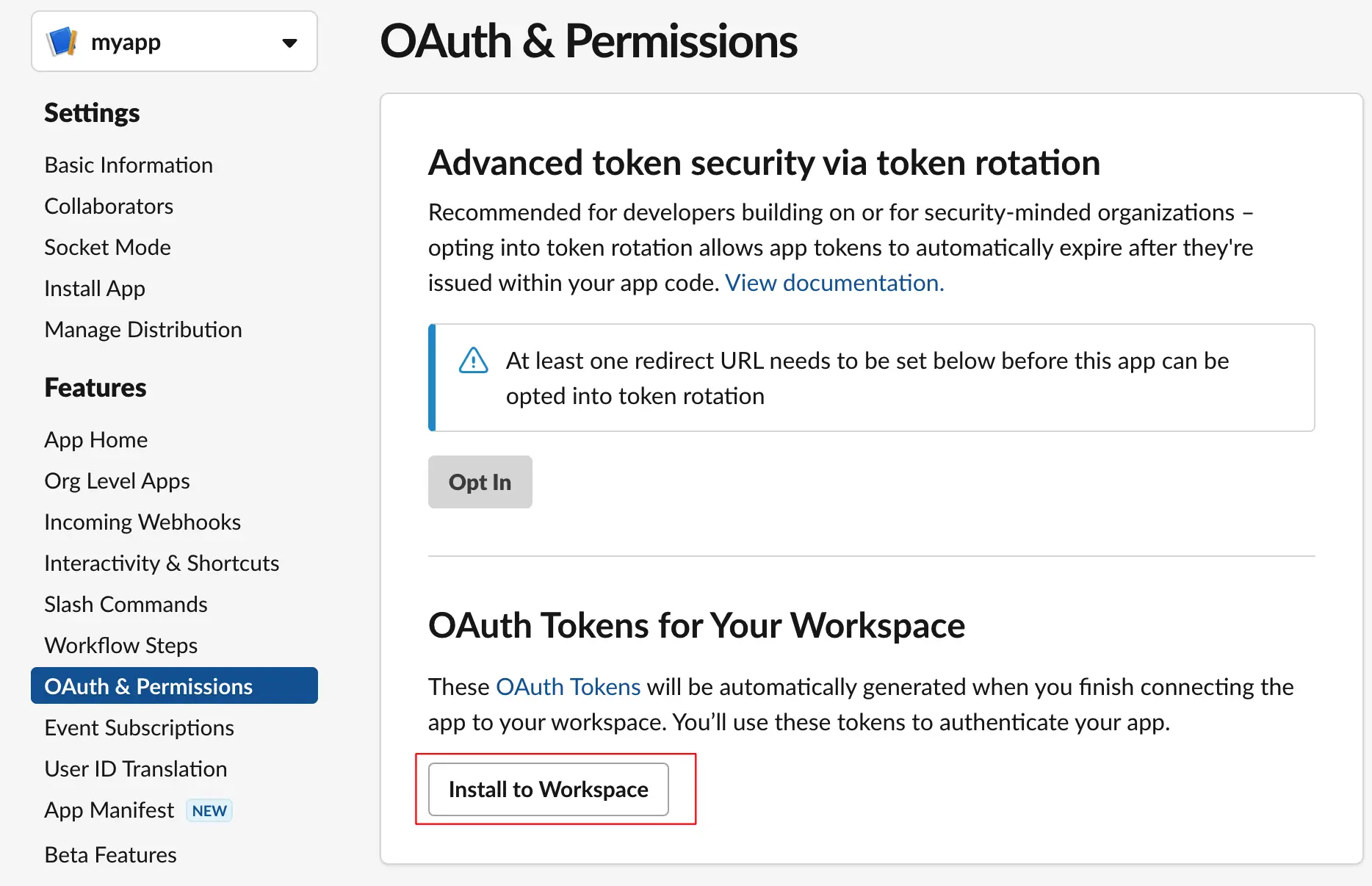
- Review the permissions and click Allow.
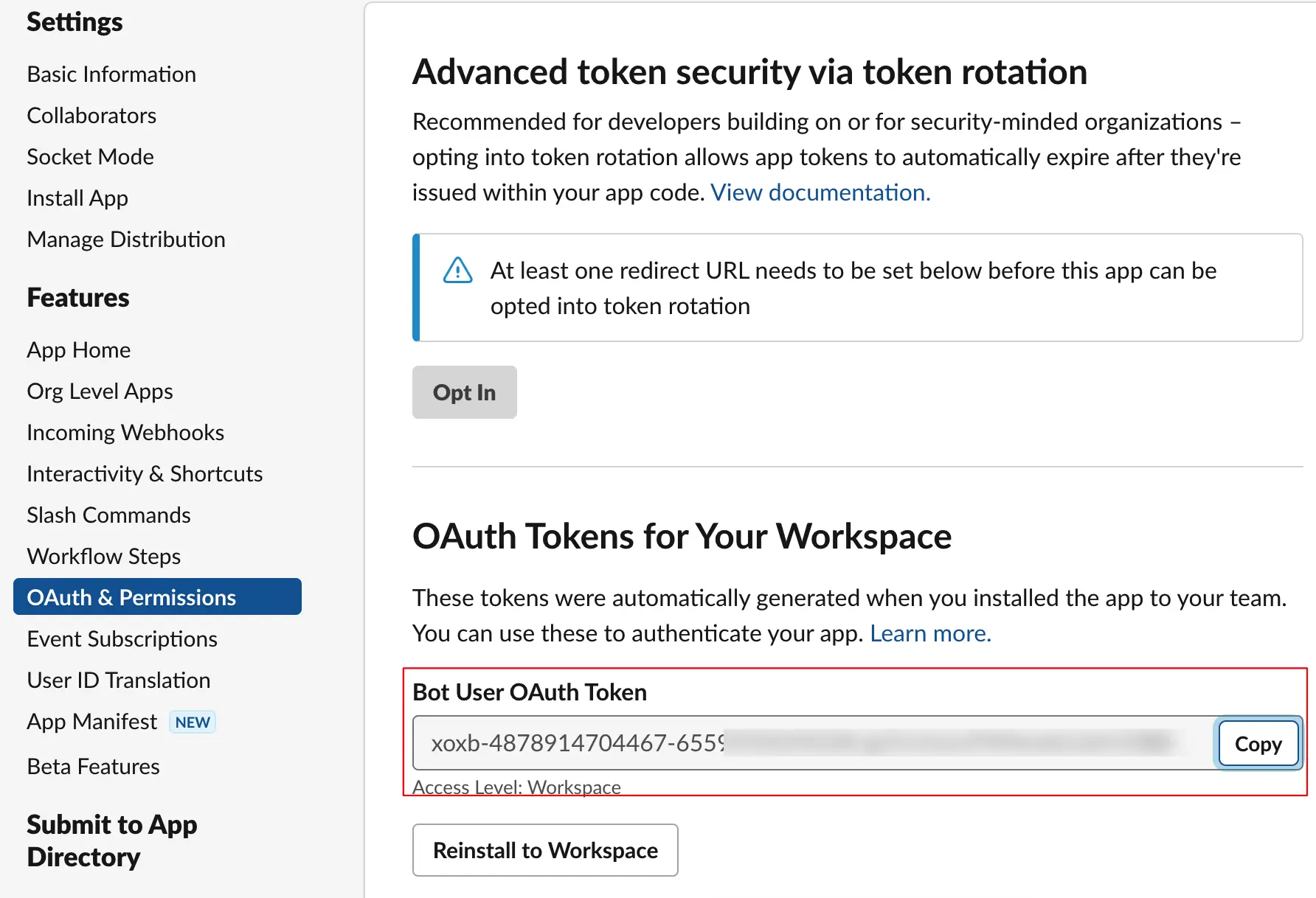
- Copy and save the Bot User OAuth Token.
3
Configure Your Agent
Publish your agent to Slack from the Custom Agent platform:
- On the Develop page of the agent, click Publish.
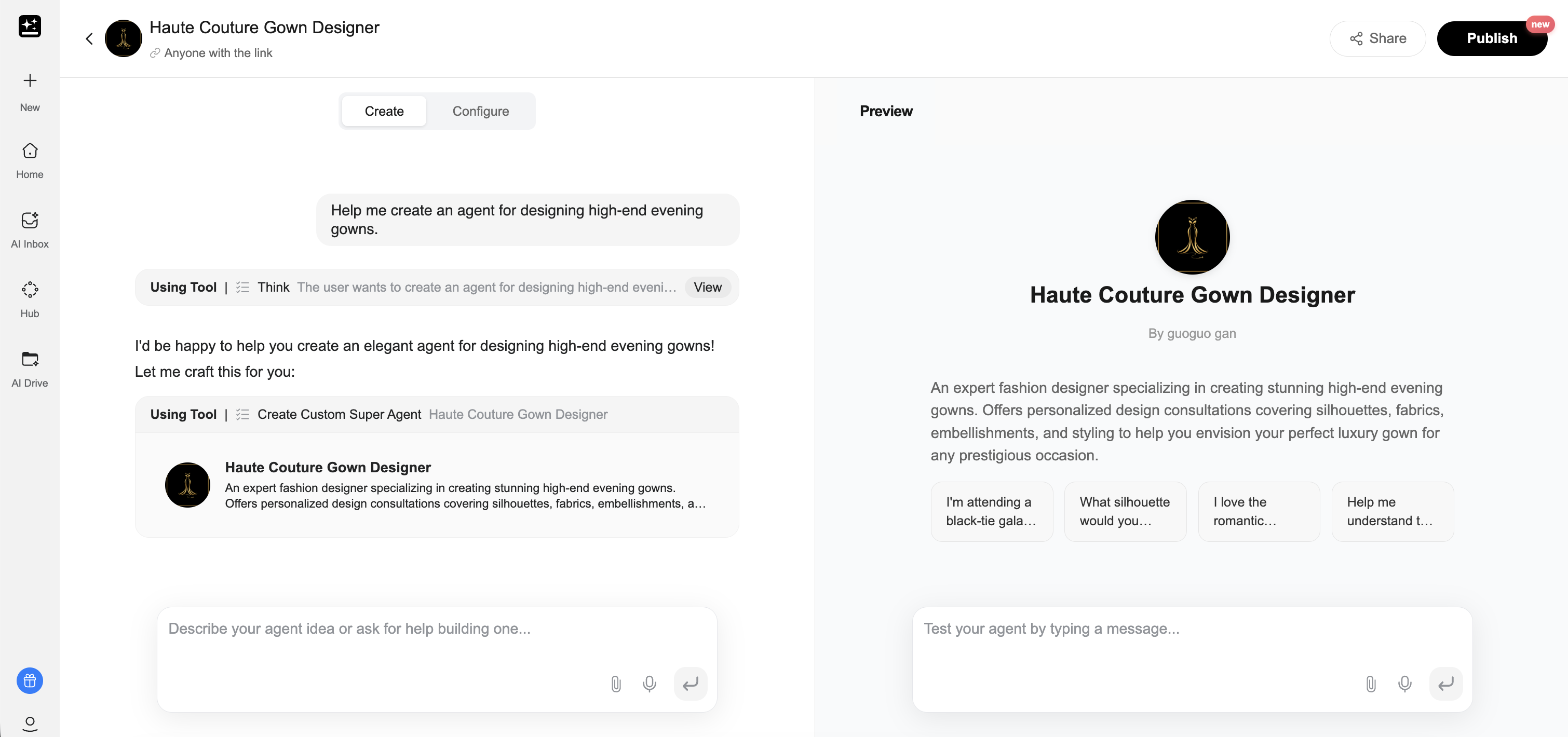
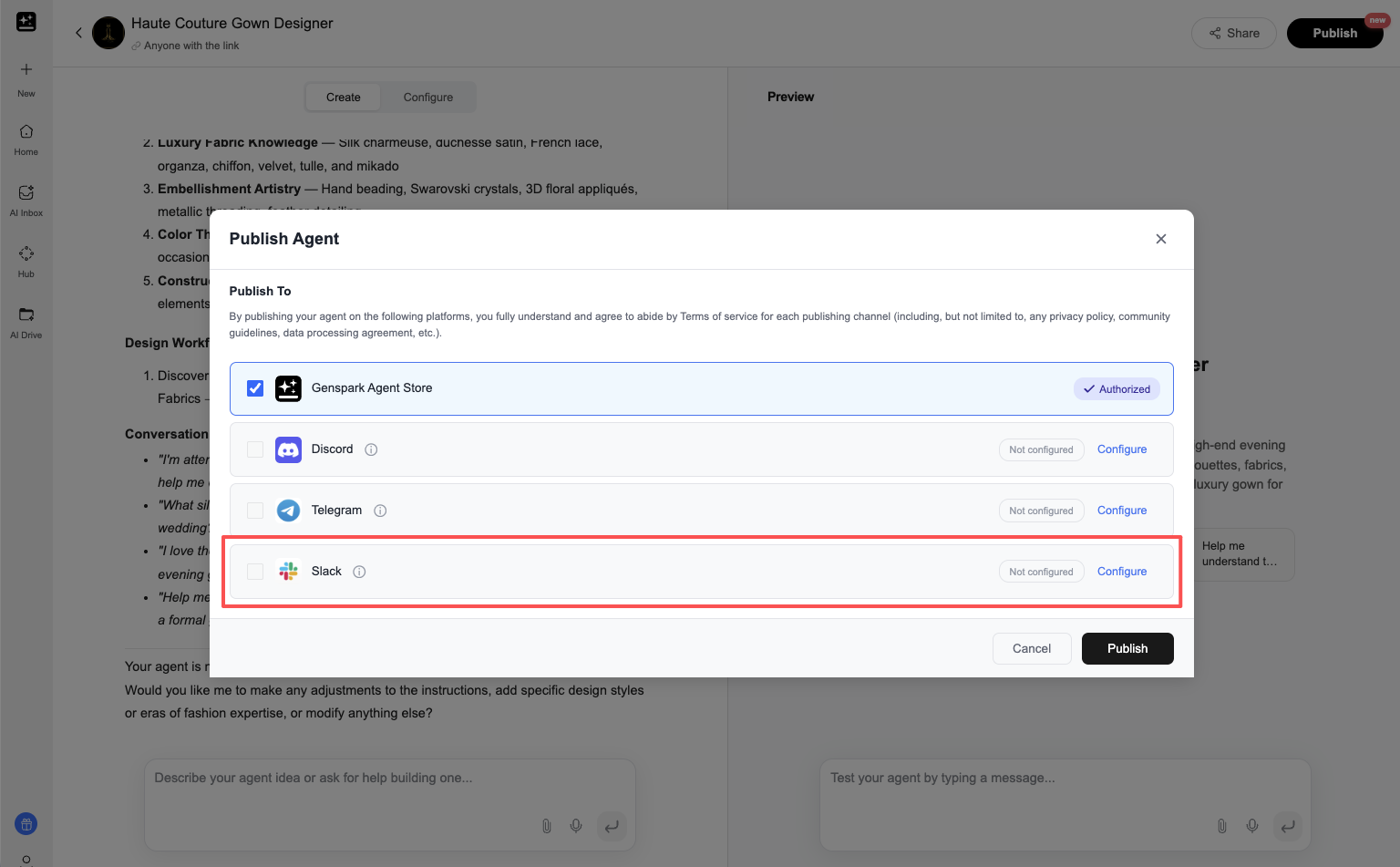
- Find the Slack channel and click Configure.
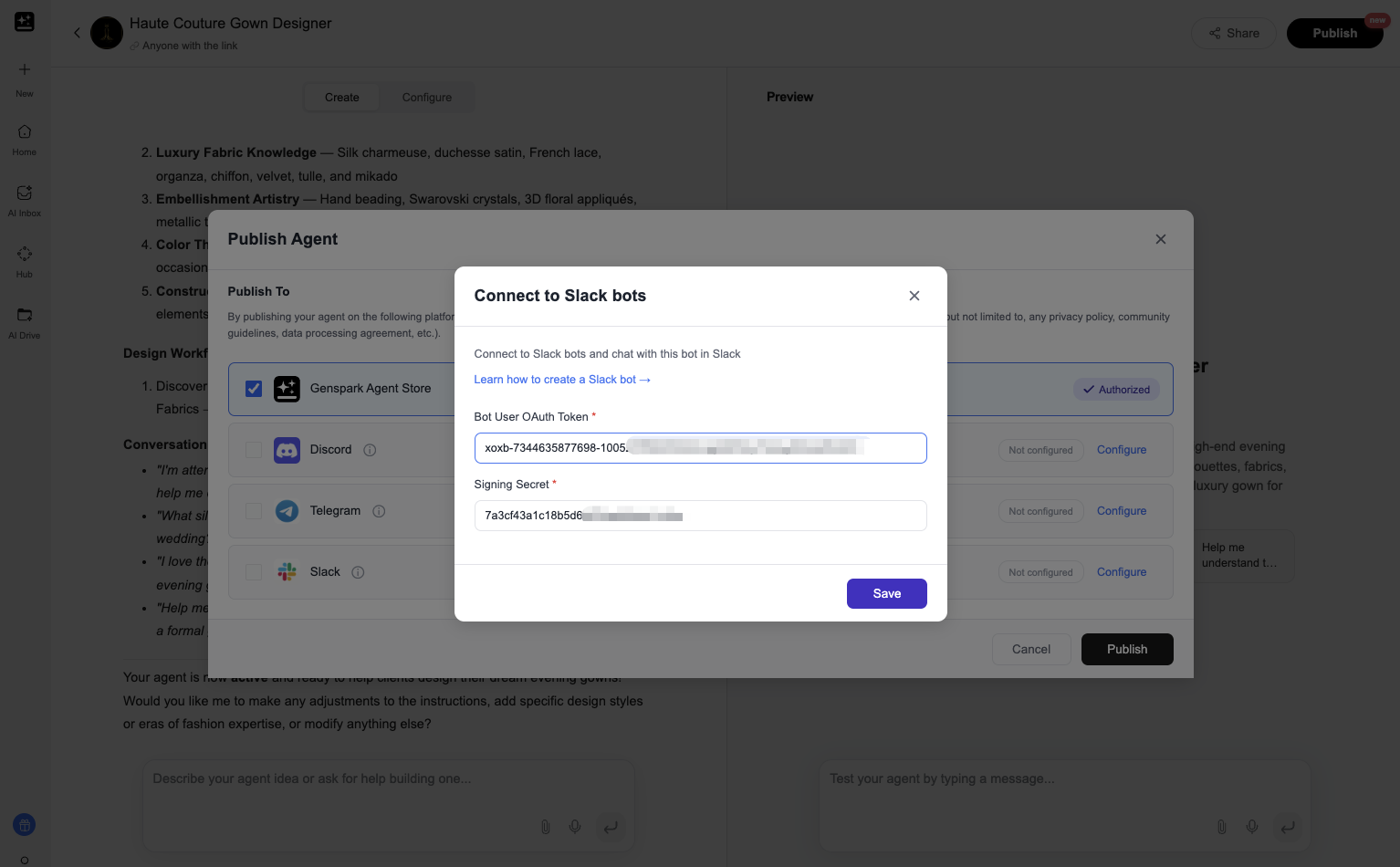
- Enter the Bot Token and Signing Secret, then click Save.
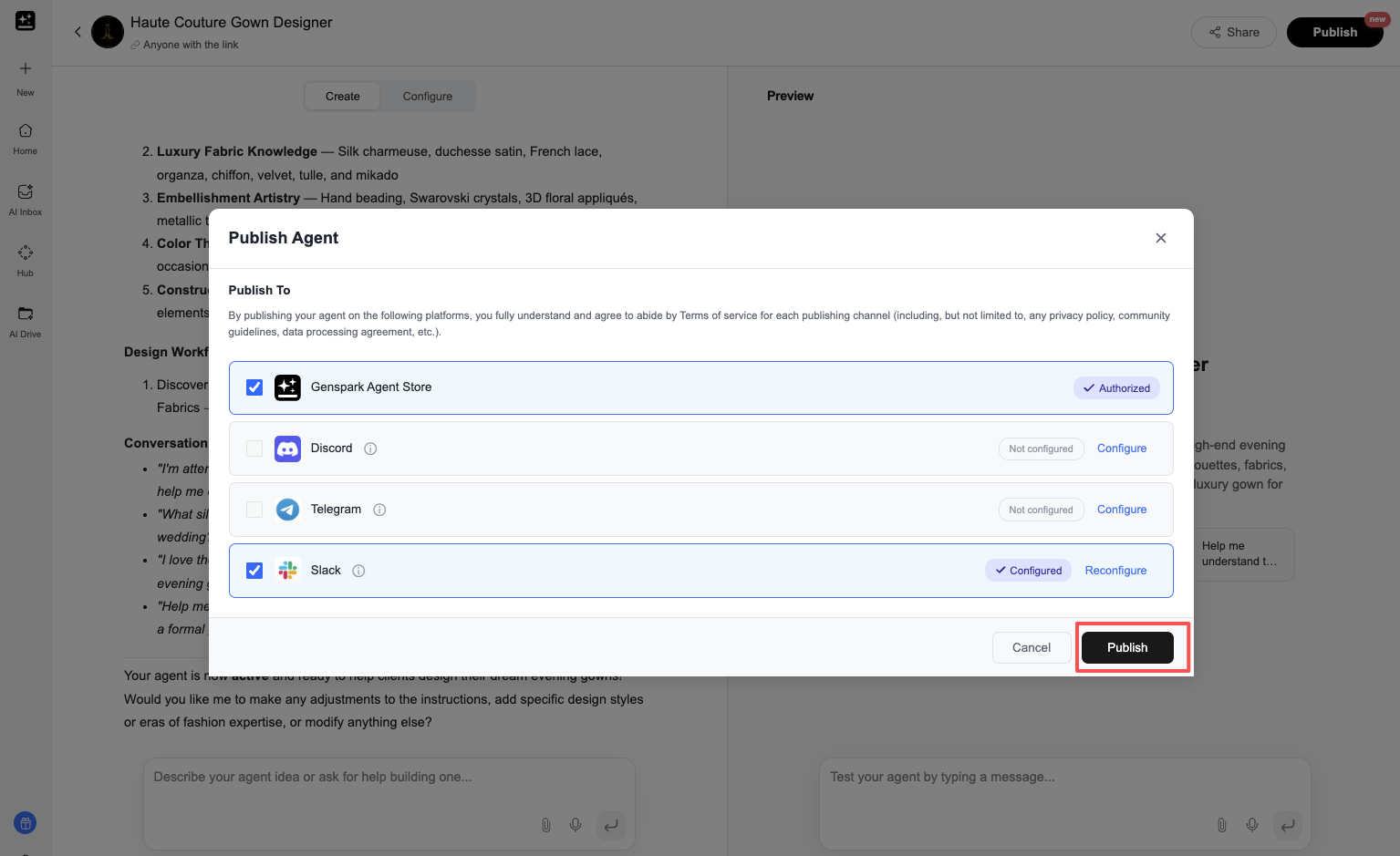
- A configured text is displayed after configuring the token .

- Select the Slack channel, then click Publish.
- A popup will appear showing the Configuration Successful status with webhook URLs.
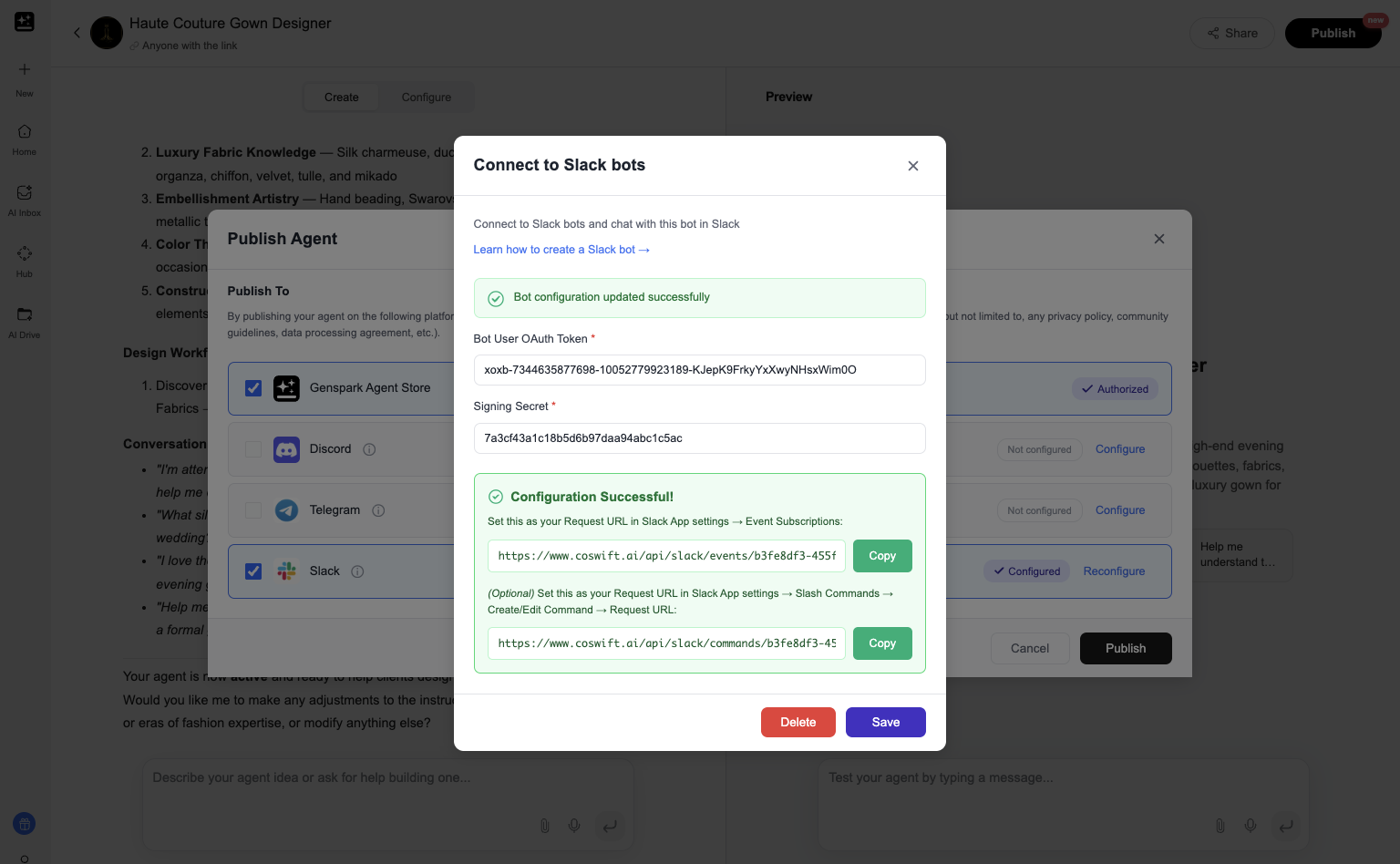
Important: Copy the webhook URLs shown in the popup. You will need to configure these URLs in your Slack App settings. See Step 4 for details.
- After configuring webhook URLs in Slack, click the Open in Slack link to chat with your agent.
4
Configure Your Slack App
Configure the webhook URLs in Slack:
- Go to Event Subscriptions and toggle Enable Events to on.
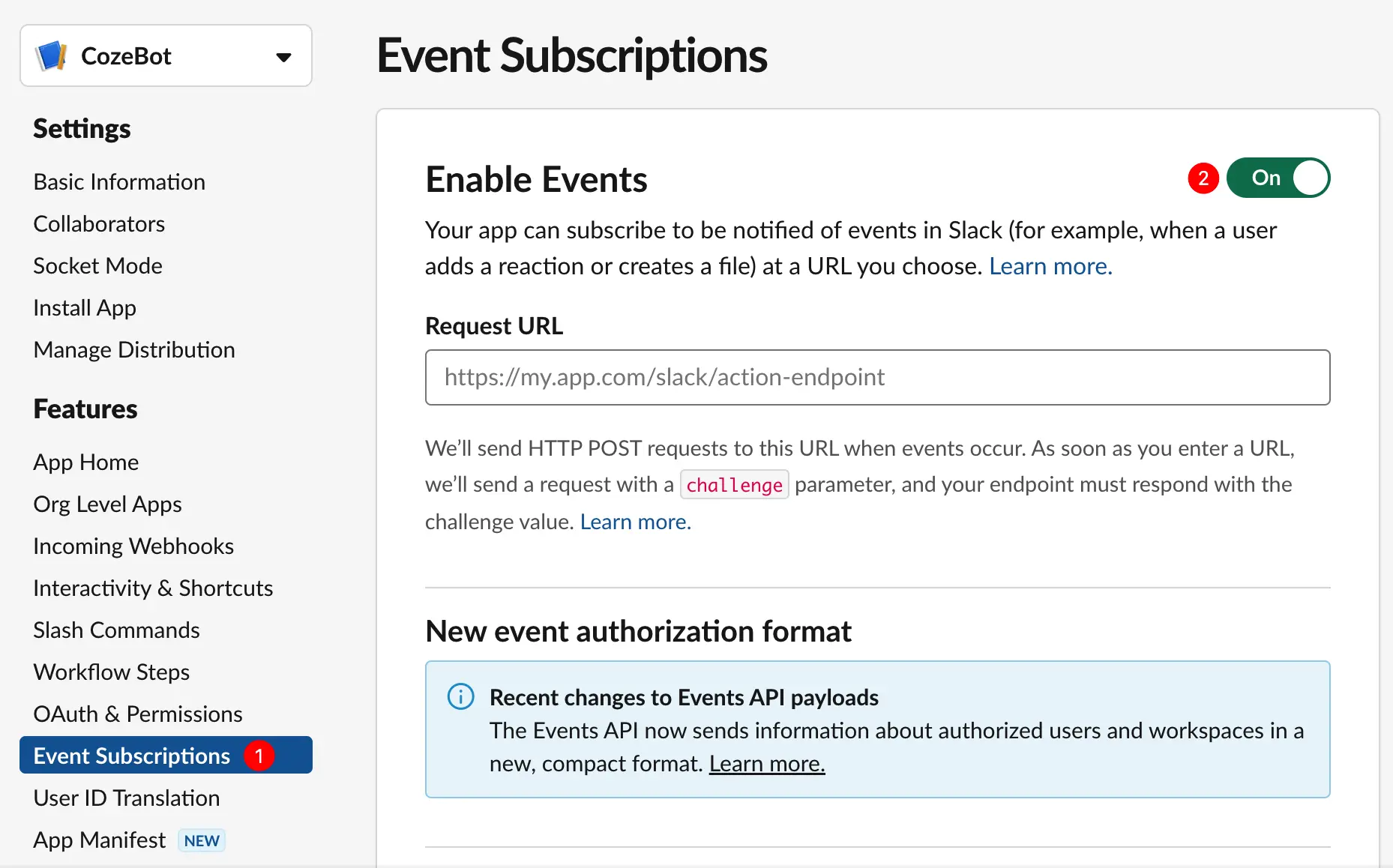
- Enter the Event Request URL.
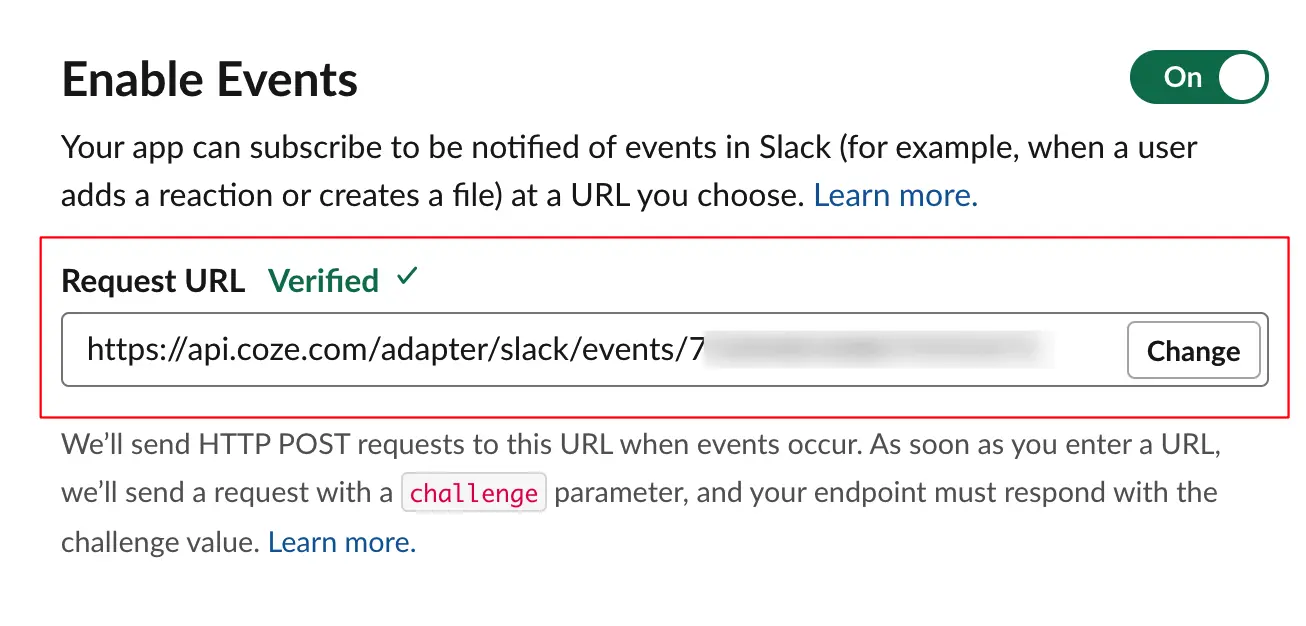
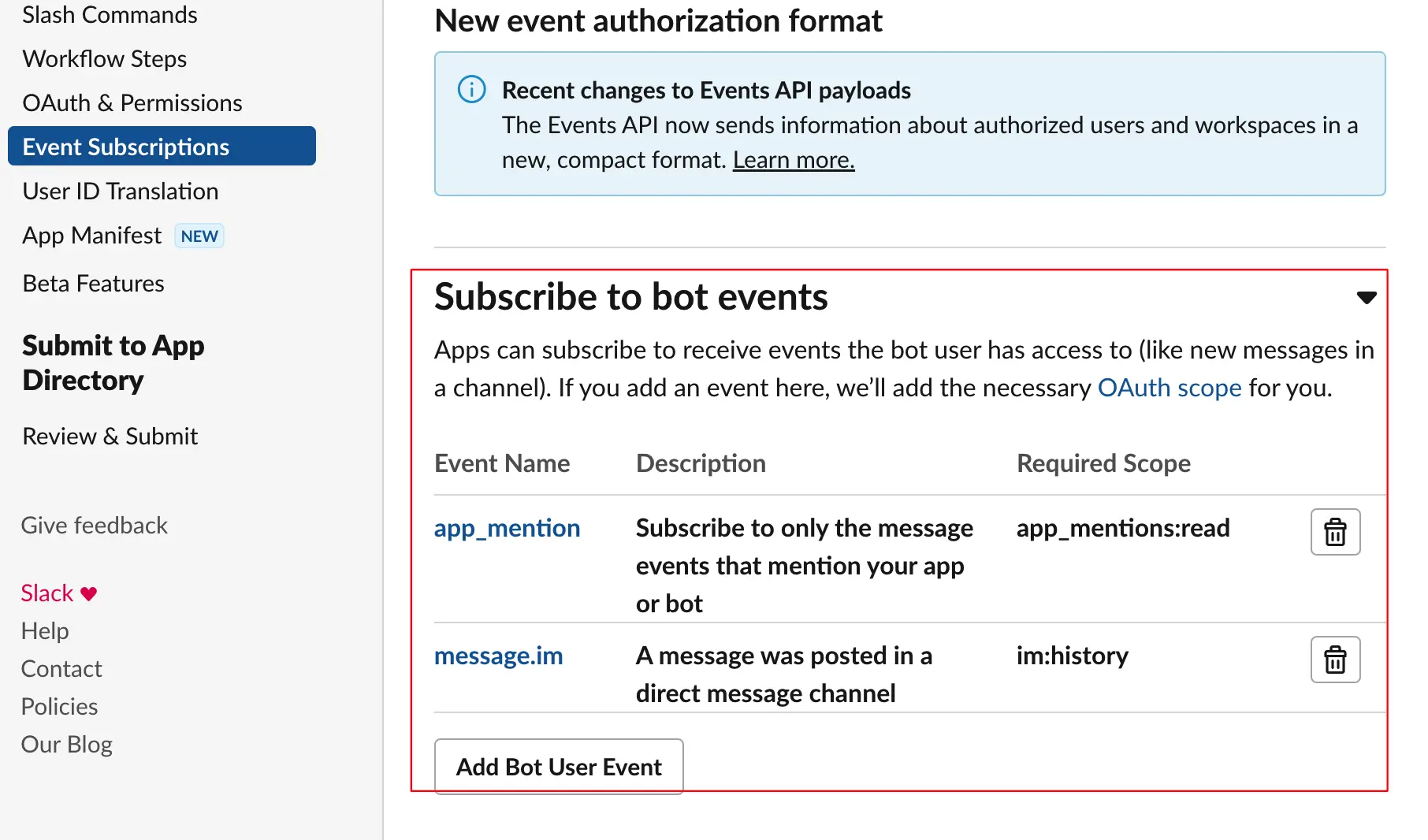
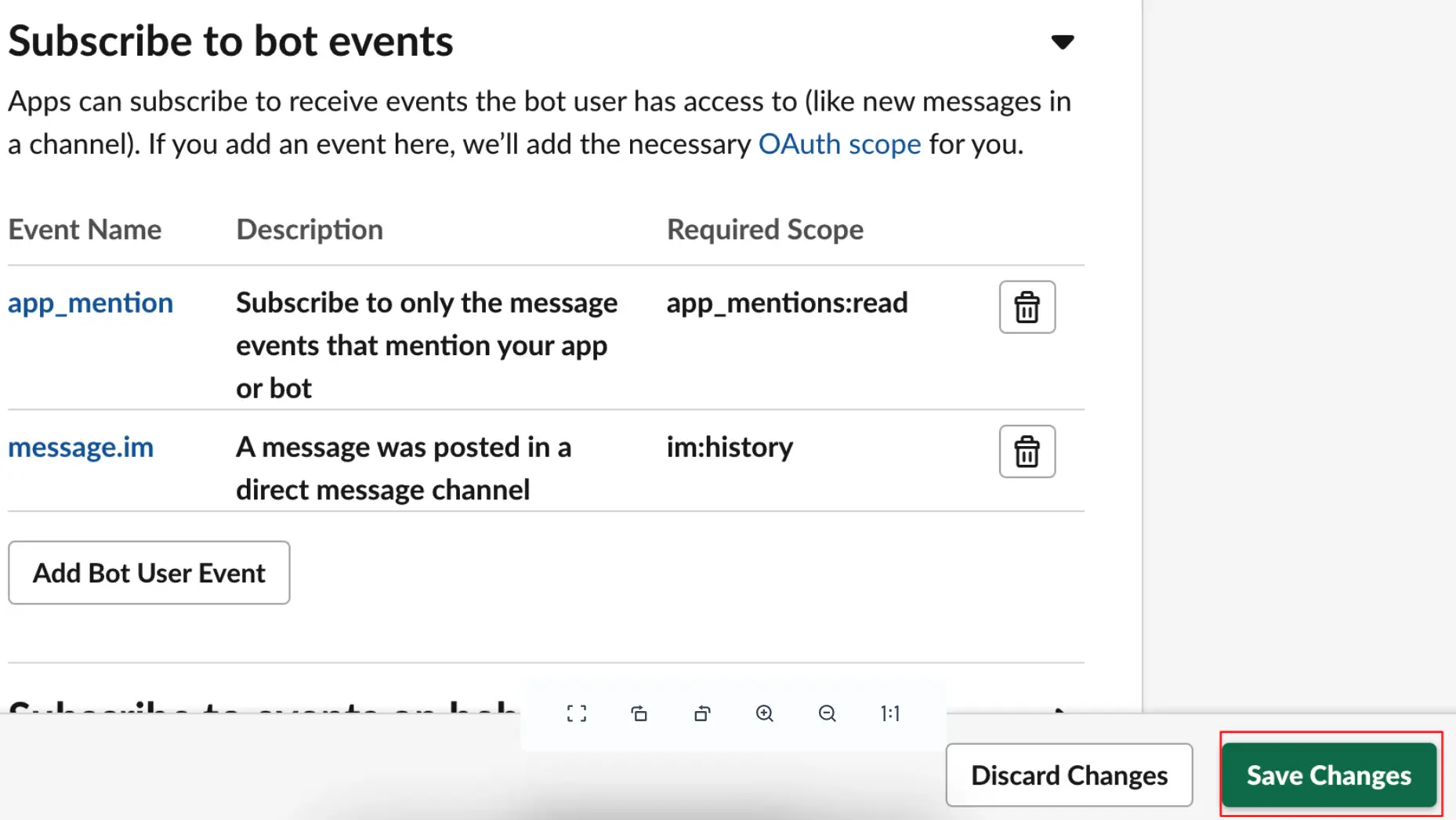
- Subscribe to bot events:
message.channels,message.groups,message.im,message.mpim,app_mention.
- (Optional) Go to Slash Commands and create a new command.
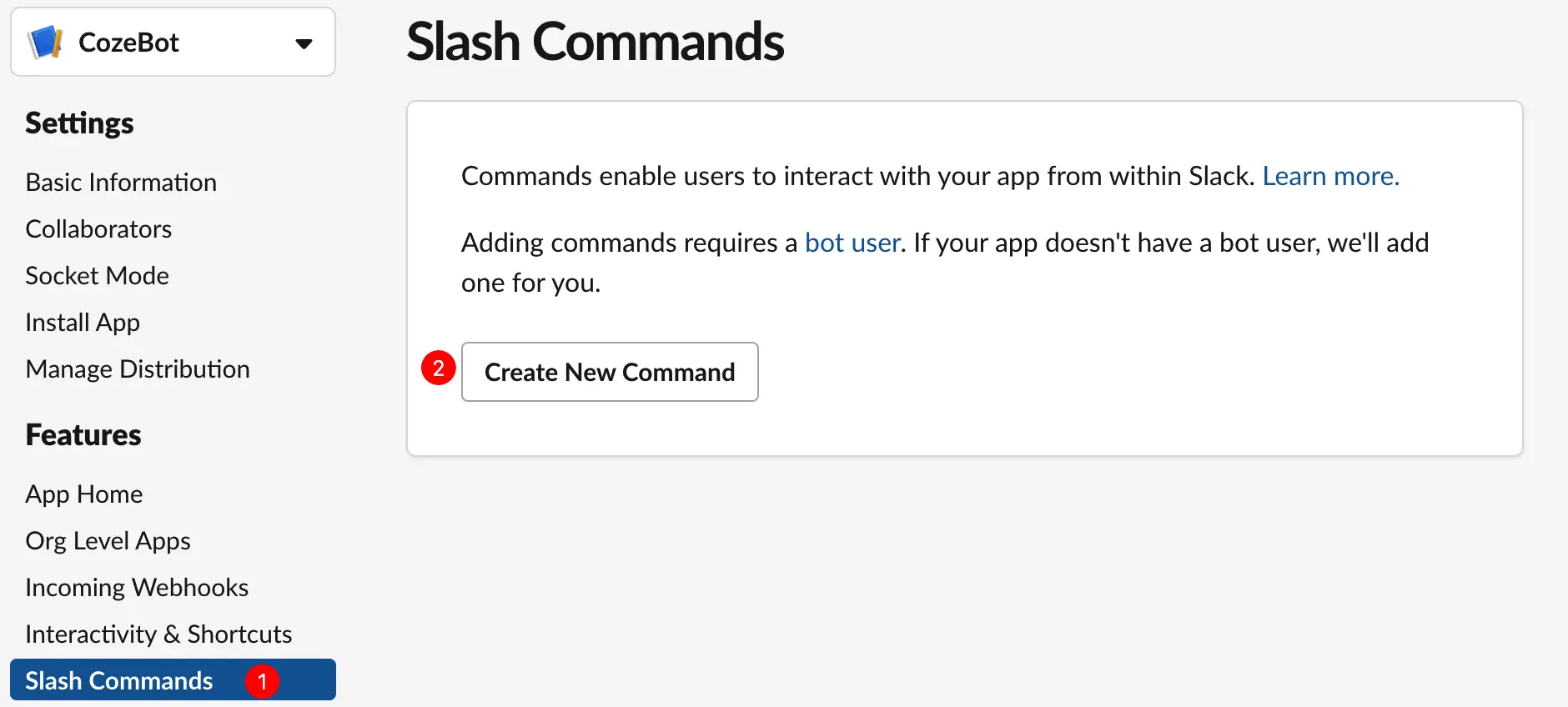
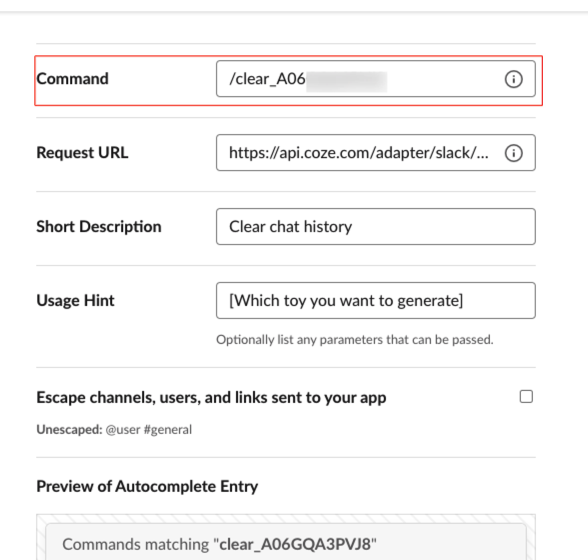
- Go to App Home and enable "Allow users to send Slash commands and messages from the messages tab".
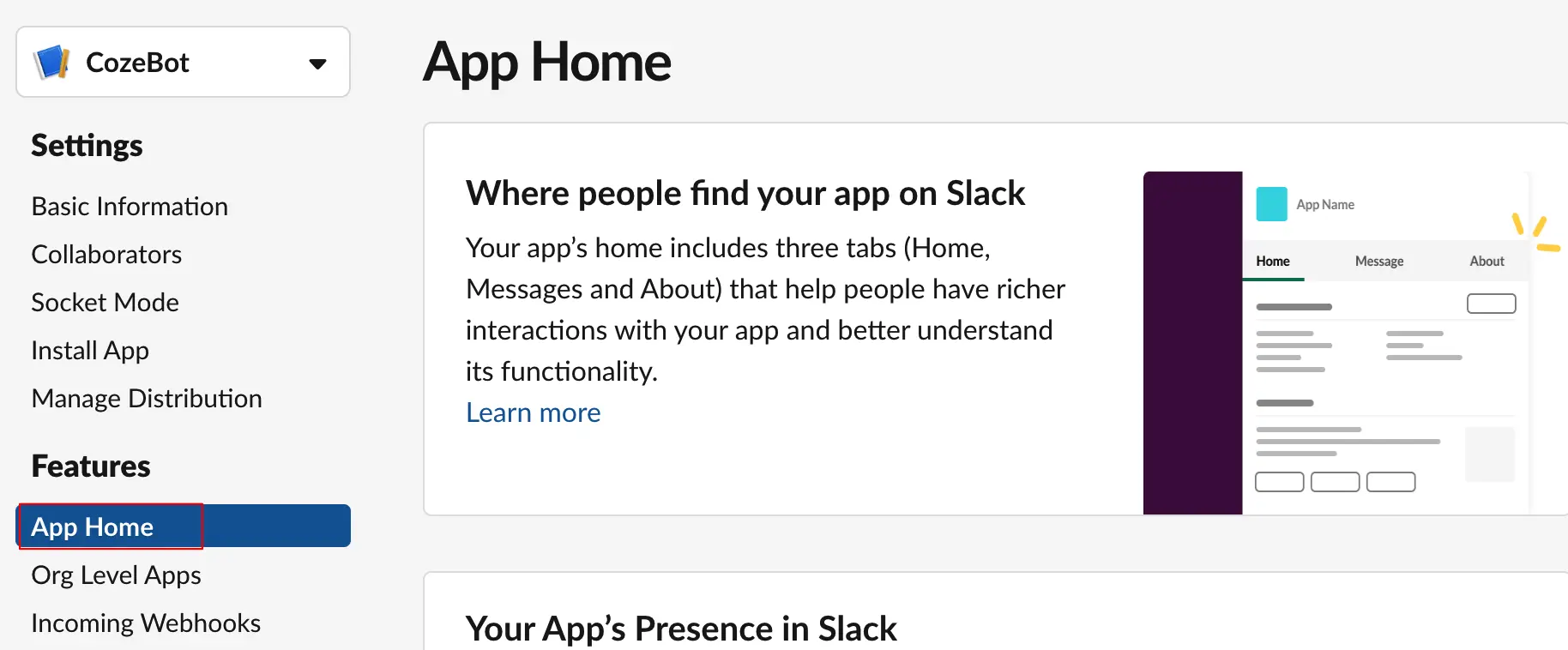
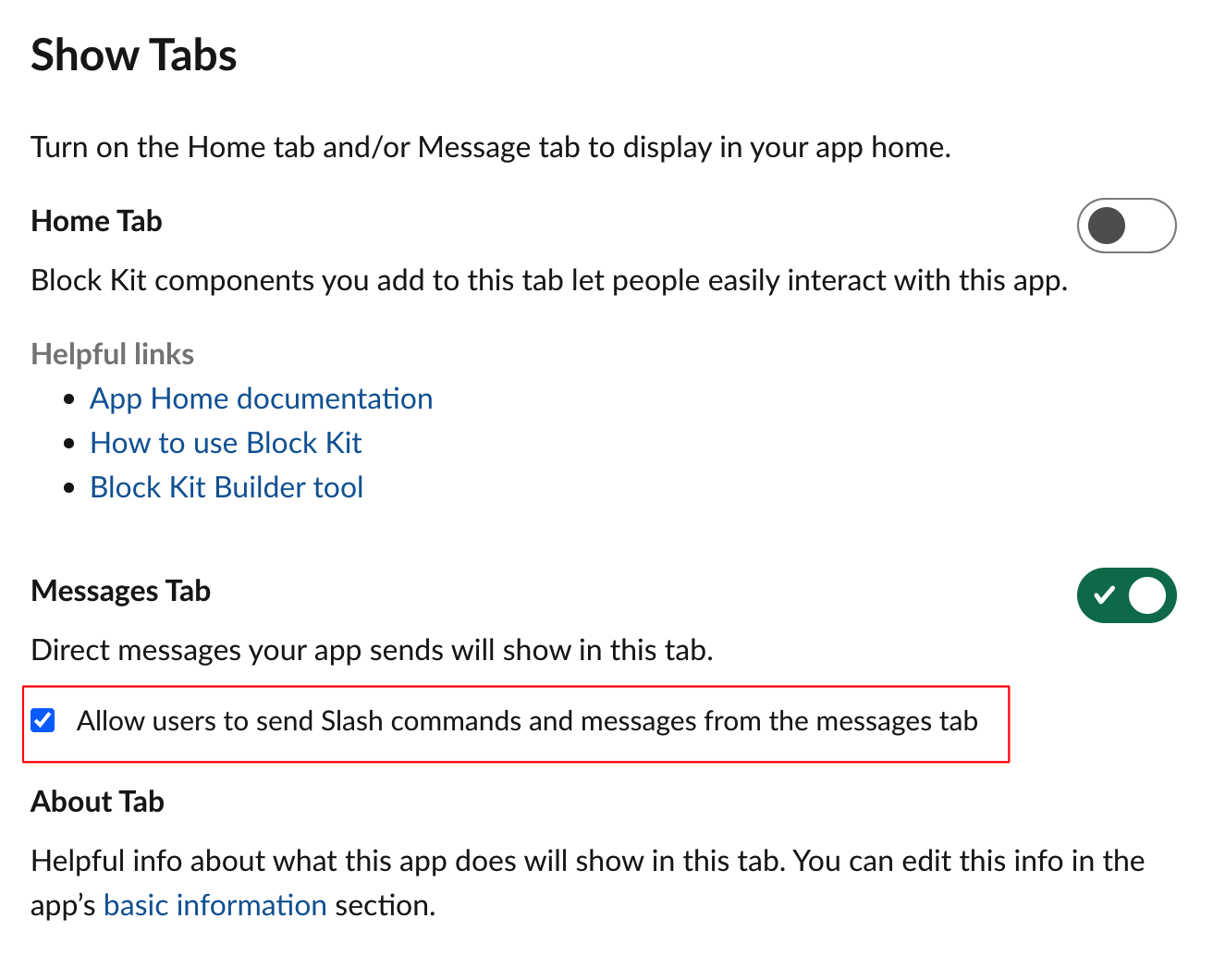
5
Publish and Test Your Agent
Once registered and configured, you can:
- Go back to the custom agent platform and click Publish.
- Select the Slack channel and click Publish.
- Click the Open in Slack link to chat with your agent.
- Mention your bot with
@botnamein channels. - Send images to your bot for analysis.
- Use
/clearto clear chat history.