Installation Guide & FAQ
Everything you need to know about installing and using Genspark in Slack
Installation Steps
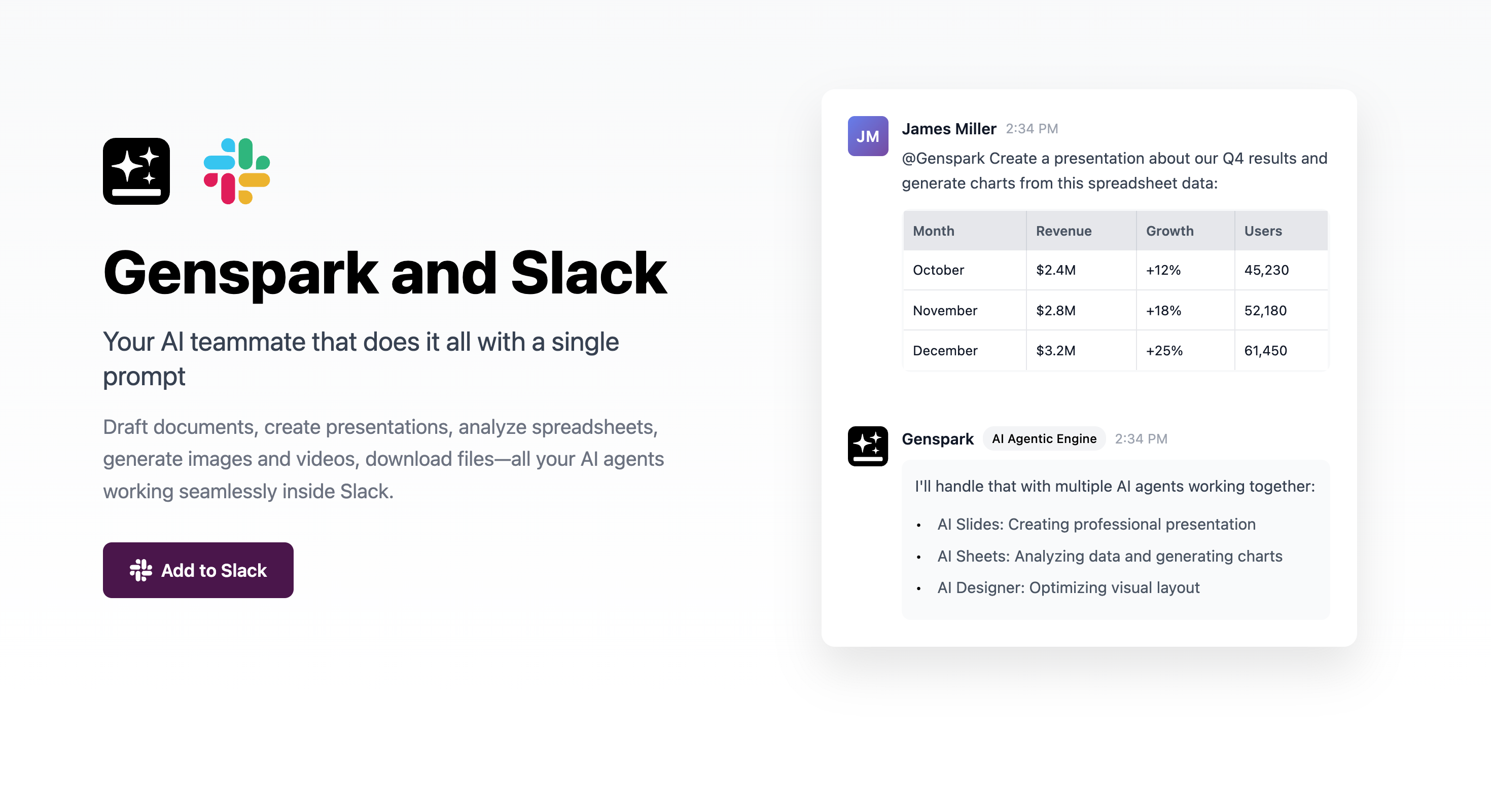
Start from the main page
Visit the Genspark and Slack landing page and click "Add to Slack" to begin the installation process.
Review OAuth permissions
Slack will show you the permissions Genspark needs to work effectively in your workspace. Review these carefully before proceeding.
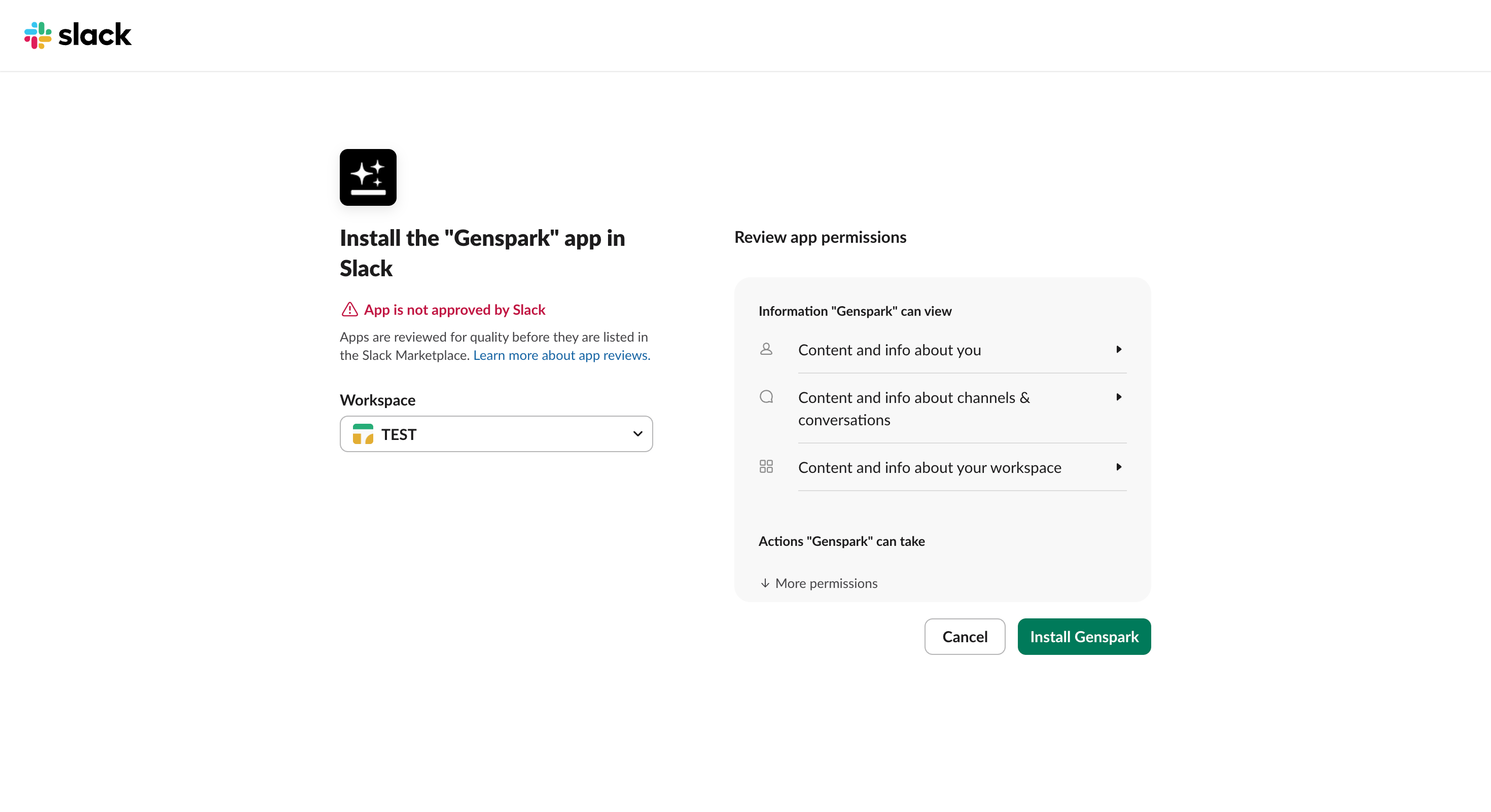
Why these permissions?
Genspark needs these permissions to read your messages when mentioned, send responses, and interact with you in channels and DMs. All permissions are standard for Slack apps and your data remains secure.
What does "This app is not approved by Slack" mean?
During installation, you may see this message. Slack maintains strict security standards for third-party apps, and any app must undergo an approval process. Genspark has been submitted to Slack for review and we are actively working with their team to ensure compliance with their guidelines.
I see "This app isn't listed in Slack Marketplace", what can I do?
If you're a Workspace Owner, you can disable the "Only allow apps from the Slack Marketplace" setting in your workspace settings. Go to Settings & Administration > Manage apps > App management settings, then reinitiate the installation process.
Review workspace permissions (if needed)
If your workspace has app installation restrictions, you may need admin approval. Workspace admins can manage app permissions through Settings & Administration > Manage apps > App management settings.
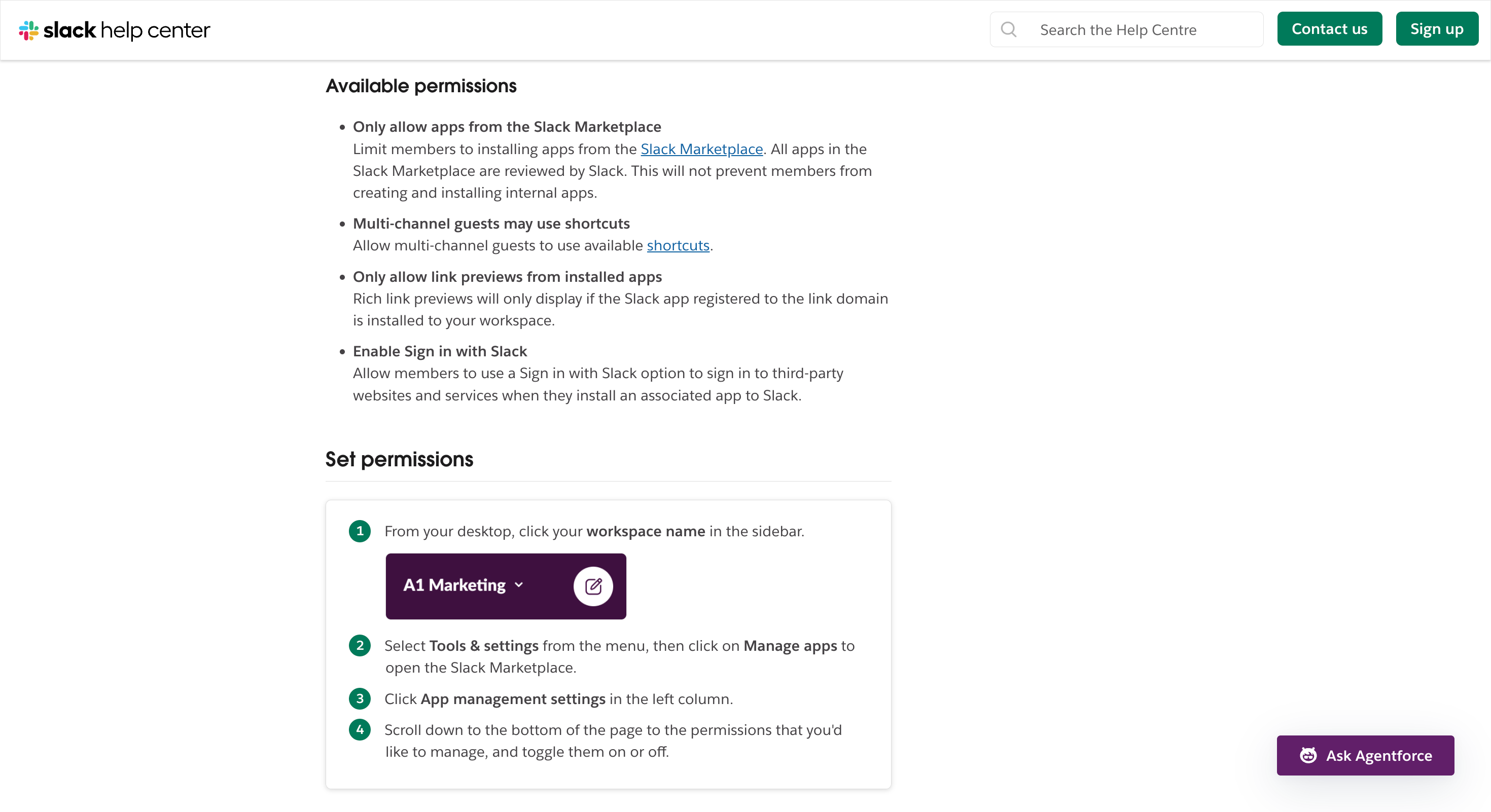
Admins can configure app installation permissions
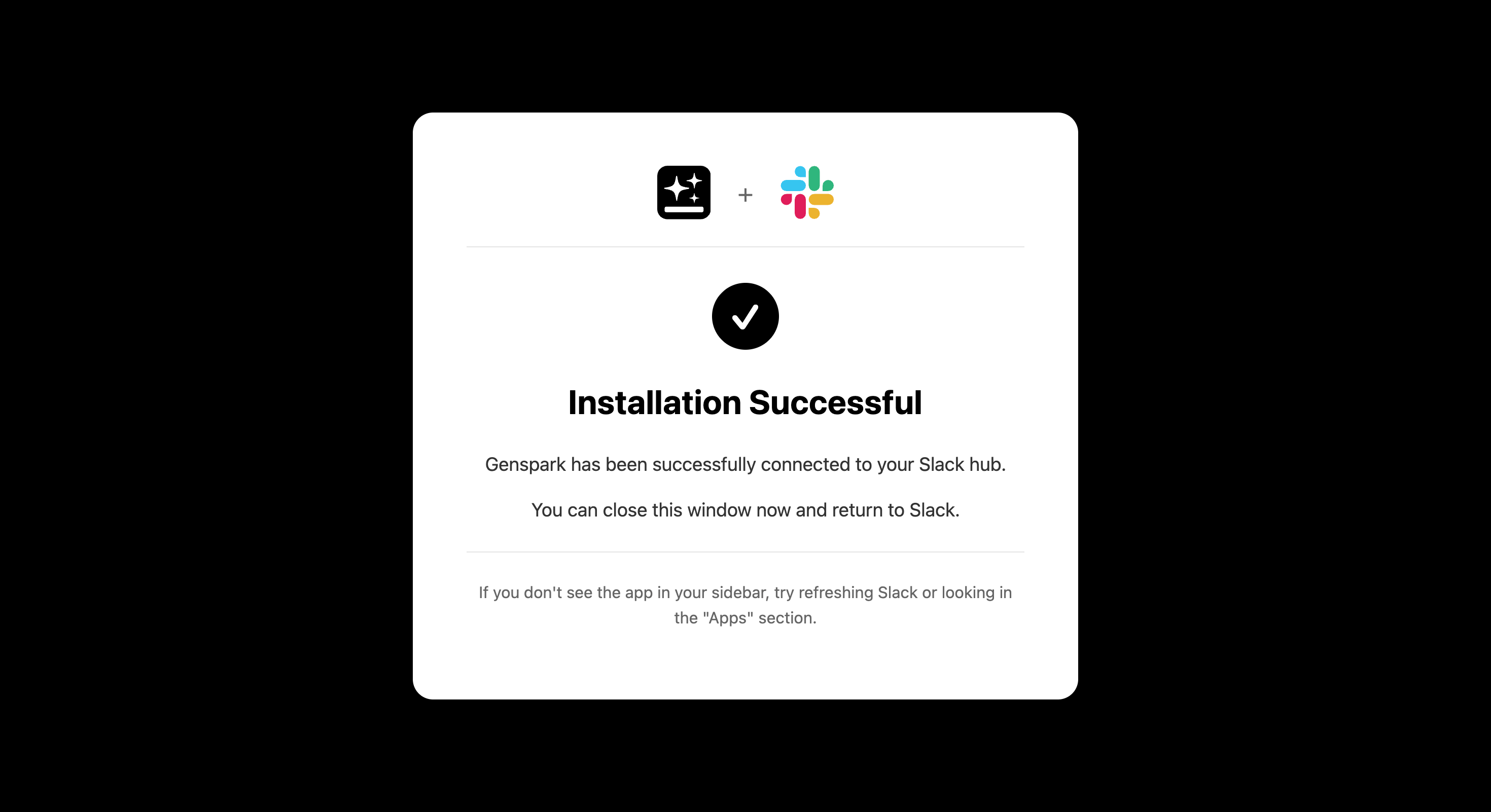
Installation complete
Once approved, you'll see a success message confirming that Genspark has been added to your Slack workspace.
Start using Genspark
You can now interact with Genspark in multiple ways: add it to your top bar for quick access, send direct messages, or mention it in any channel.
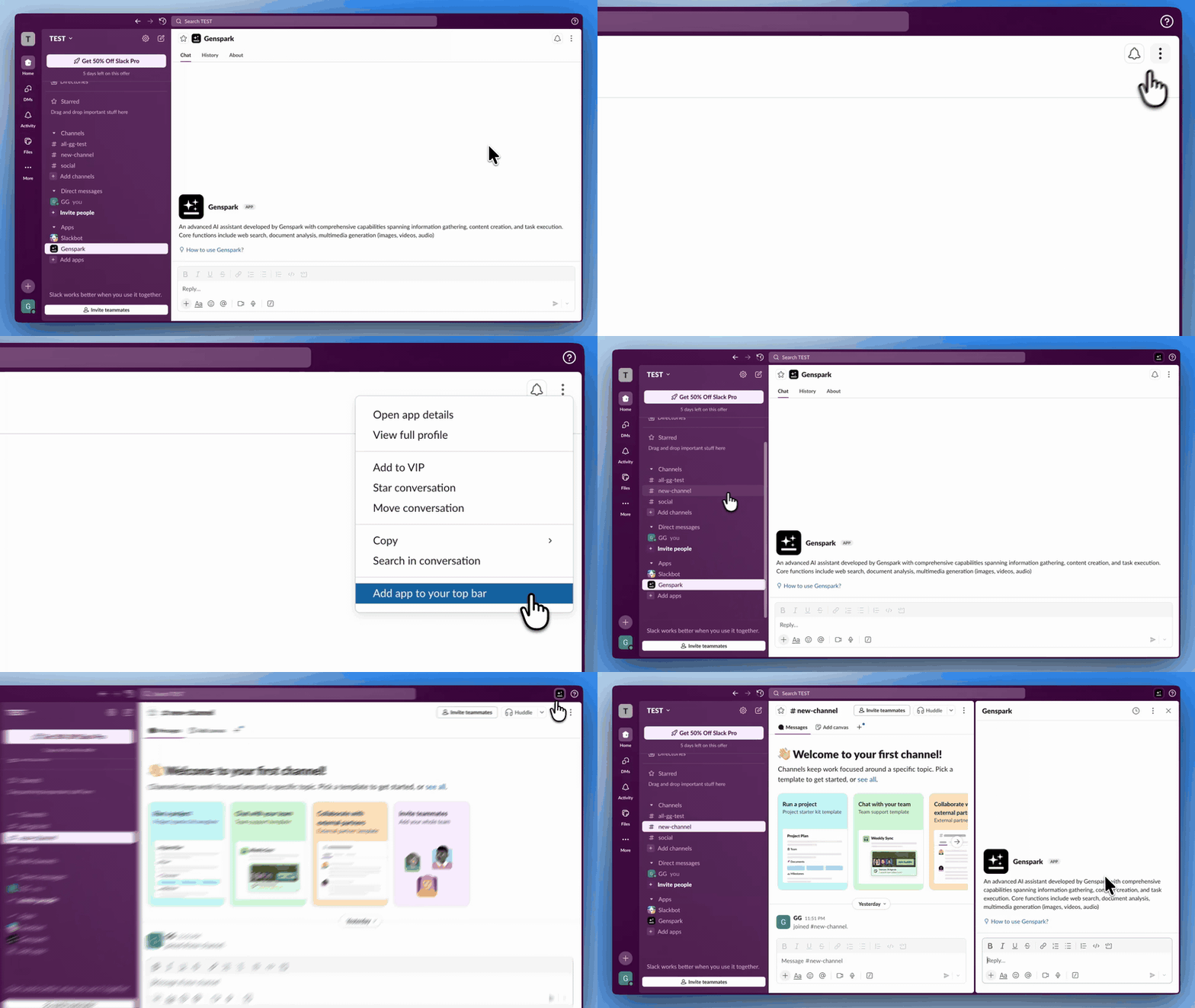
Add Genspark to your top bar for quick access
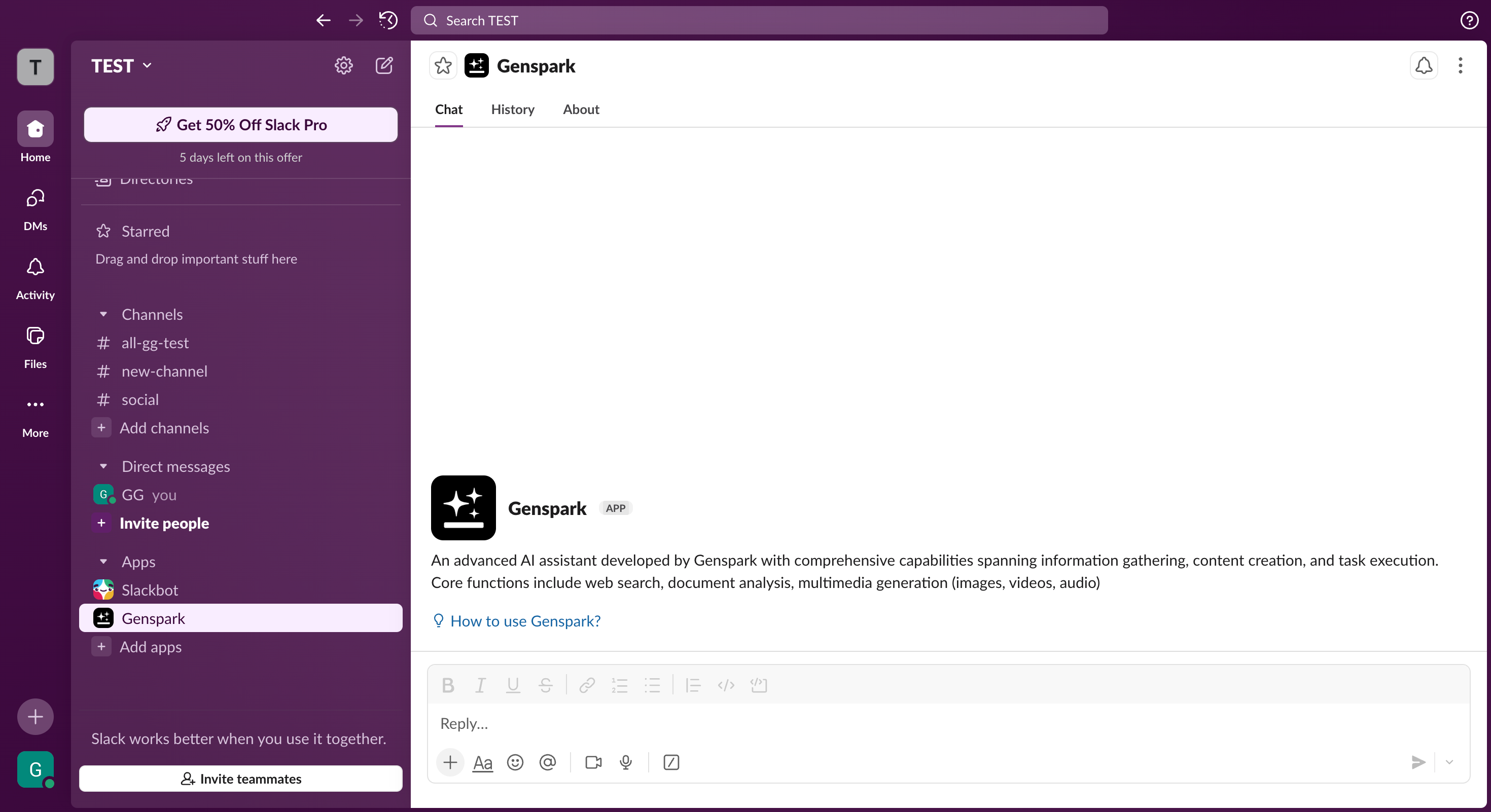
Send DMs for private conversations
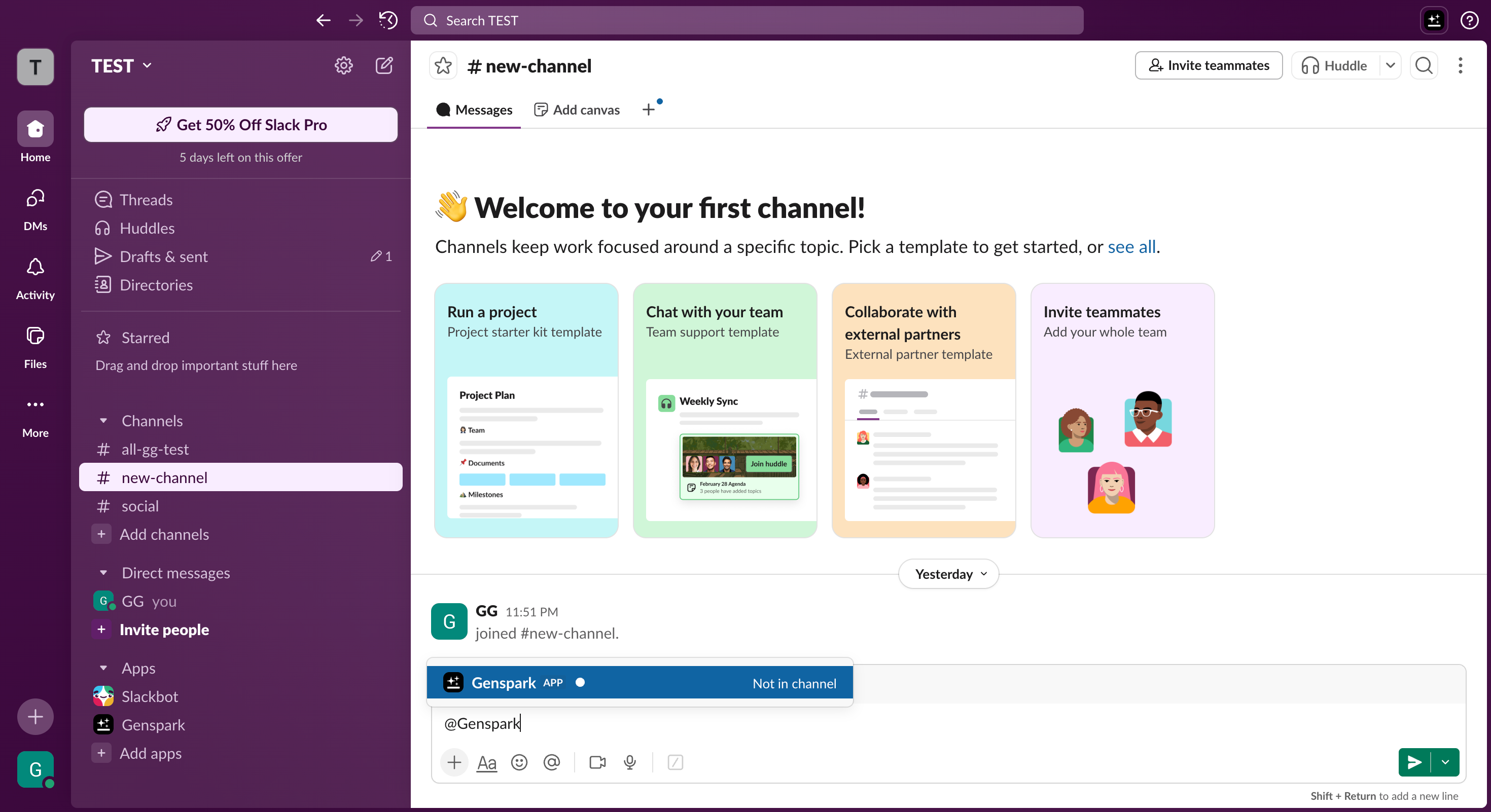
Use @Genspark in any channel or thread
Frequently Asked Questions
What permissions does Genspark need?
Genspark requires standard bot permissions to read messages where it's mentioned, send responses, and access basic workspace information. It cannot read messages in channels unless explicitly mentioned.
Can I use Genspark in private channels?
Yes! You can add Genspark to any private channel by inviting it. Just type /invite @Genspark in the channel where you want to use it.
How do I get started after installation?
Simply mention @Genspark in any channel or send it a direct message with your request. For example: '@Genspark create a presentation about our Q4 results' or 'Help me analyze this data.'
What can Genspark help me with?
Genspark can create documents, presentations, and spreadsheets; generate images and videos; analyze data; conduct research; and automate file downloads. It brings together multiple AI agents to handle complex tasks.
Is my data secure?
Yes. Genspark only accesses messages where it's explicitly mentioned. Your data is processed securely and follows Slack's security standards. We never read or store messages from channels where Genspark hasn't been mentioned.
How do I remove Genspark from my workspace?
Workspace admins can remove Genspark at any time from the Slack App Management page. Go to Settings & Administration > Manage Apps, find Genspark, and click Remove App.
What does "This app is not approved by Slack" mean?
During installation, you may see this message. Slack maintains strict security standards for third-party apps, and any app must undergo an approval process. Genspark has been submitted to Slack for review and we are actively working with their team to ensure compliance with their guidelines.
I see "This app isn't listed in Slack Marketplace", what can I do?
If you're a Workspace Owner, you can disable the "Only allow apps from the Slack Marketplace" setting in your workspace settings. Go to Settings & Administration > Manage apps > App management settings, then reinitiate the installation process.
Ready to Get Started?
Install Genspark now and bring the power of AI agents to your Slack workspace
Add to Slack