

AI SlidesTry Now
AI Slides
What is AI Slides?
AI Slides is Genspark's intelligent presentation agent. Instead of just generating a deck and handing it to you, it builds the deck around you — following your needs, your content, and your brand.
- Built around you — Already have a template or brand style? It follows them. Want something new? It designs from scratch.
- Conversational by design — It understands your goal and talks it through with you first, then structures and builds the deck.
- A full presentation workspace — Your deck builds live on a canvas beside the chat. Point at anything to change it, queue up batch edits, verify the facts, add speaker notes, and present with a speaker console.
- Expert Skills, not just templates — Apply 100+ built-in expert Skills, or save your own style as a reusable Skill.
- A real built-in computer — It can actually run code, so data analysis, calculations, and charts are computed accurately rather than guessed.
- Multimedia and document conversion — Add AI-generated or web images, and import existing files (PDF, Word, Excel, PPT) to build from.
Learn more about AI Slides: https://www.genspark.ai/blog/genspark-ai-slides

Quick Start
Get started in three simple steps:
-
Go to AI Slides
Click "AI Slides" at the bottom of the Genspark homepage, or select it from the "New" menu in the sidebar.
-
Describe what you want to create
Enter your topic, goal, or key message. You can also upload documents for AI to analyze and extract key insights.
Sample prompts:
Create a 10-slide presentation on renewable energy trends in 2024
Build a pitch deck based on my uploaded business plan
Make a sales presentation for our new SaaS product
-
Get your presentation
AI Slides automatically researches, structures, designs, and generates a complete, visually compelling deck, building it page by page in the Slides workspace right beside the chat. Review, refine, and export as PDF, PPTX, or Google Slides.
Choose Your Mode
Before you write your prompt, take five seconds to set the modes at the top of AI Slides. There are three choices, and they make a big difference to your result.
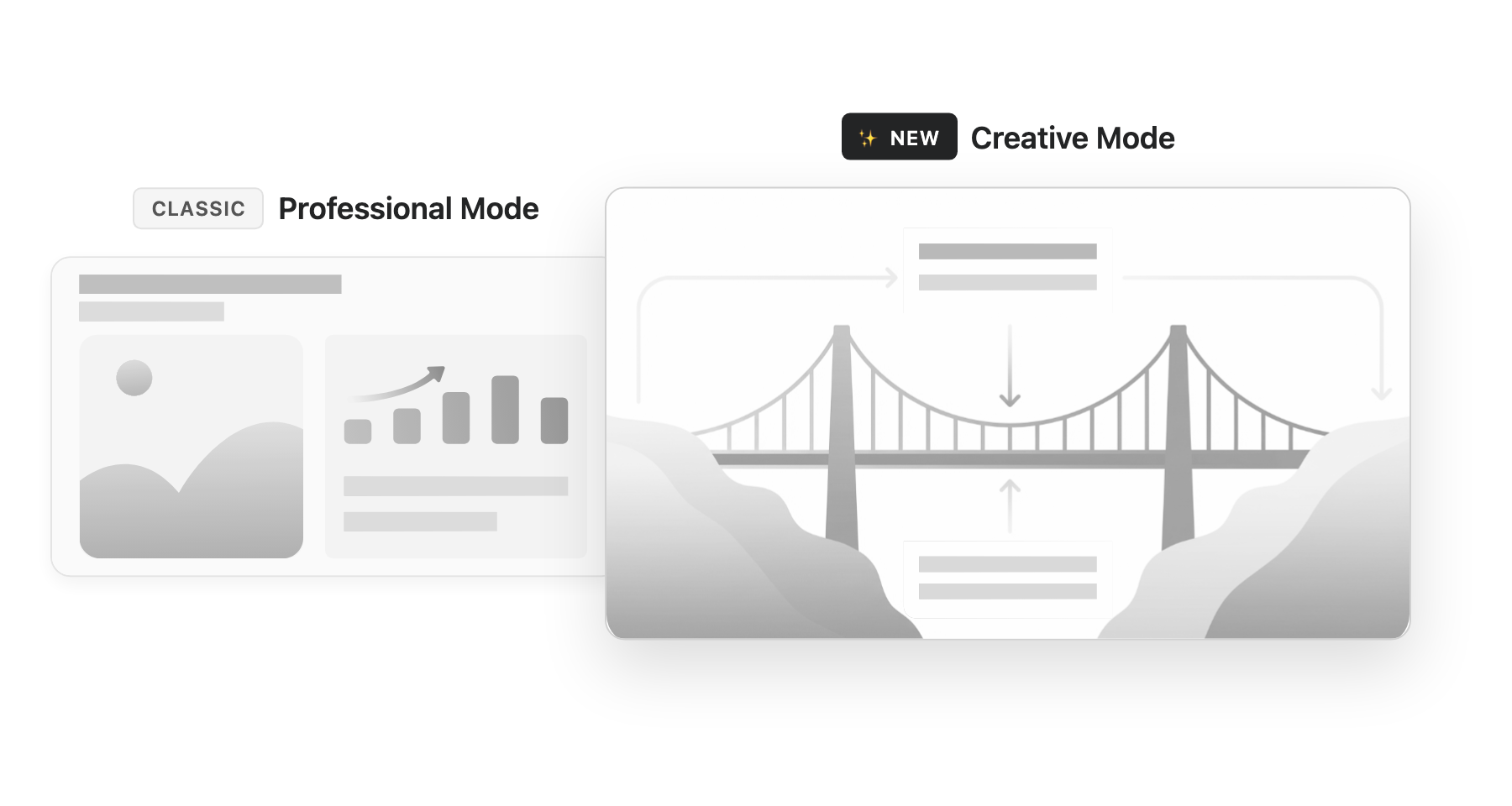
Professional vs Creative
This sets the overall style direction:
- Professional — Clean, structured, business-oriented. Best for sales proposals, internal reports, and consulting decks.
- Creative — More visual impact, with richer colors and imagery. Each slide is designed as a complete visual, like a poster. Best for brand campaigns, product launches, and marketing materials.
Quick rule: presenting to clients or executives → Professional; presenting to consumers → Creative.
A few things to know about Creative Mode:
- It supports multiple aspect ratios (16:9, 4:3, 1:1, 3:4, 9:16, 21:9), making it suitable for posters, social media carousels, knowledge cards, and more.
- You can choose the image generation model (e.g. GPT Image 2 or Nano Banana Pro) and paste reference images to guide the style.
- Draw to edit is on by default — mark anywhere on a slide with the pen, marker, or box tool, then describe your change. AI regenerates just that part while keeping the rest intact.
Note: Once a project is created, its mode cannot be changed. To switch modes, start a new project.
Guide Mode
By default, you type one prompt and get instant slides — fast and effortless. Guide Mode takes a different approach: AI acts as your presentation consultant, walking you through a structured consultation before building a single slide.
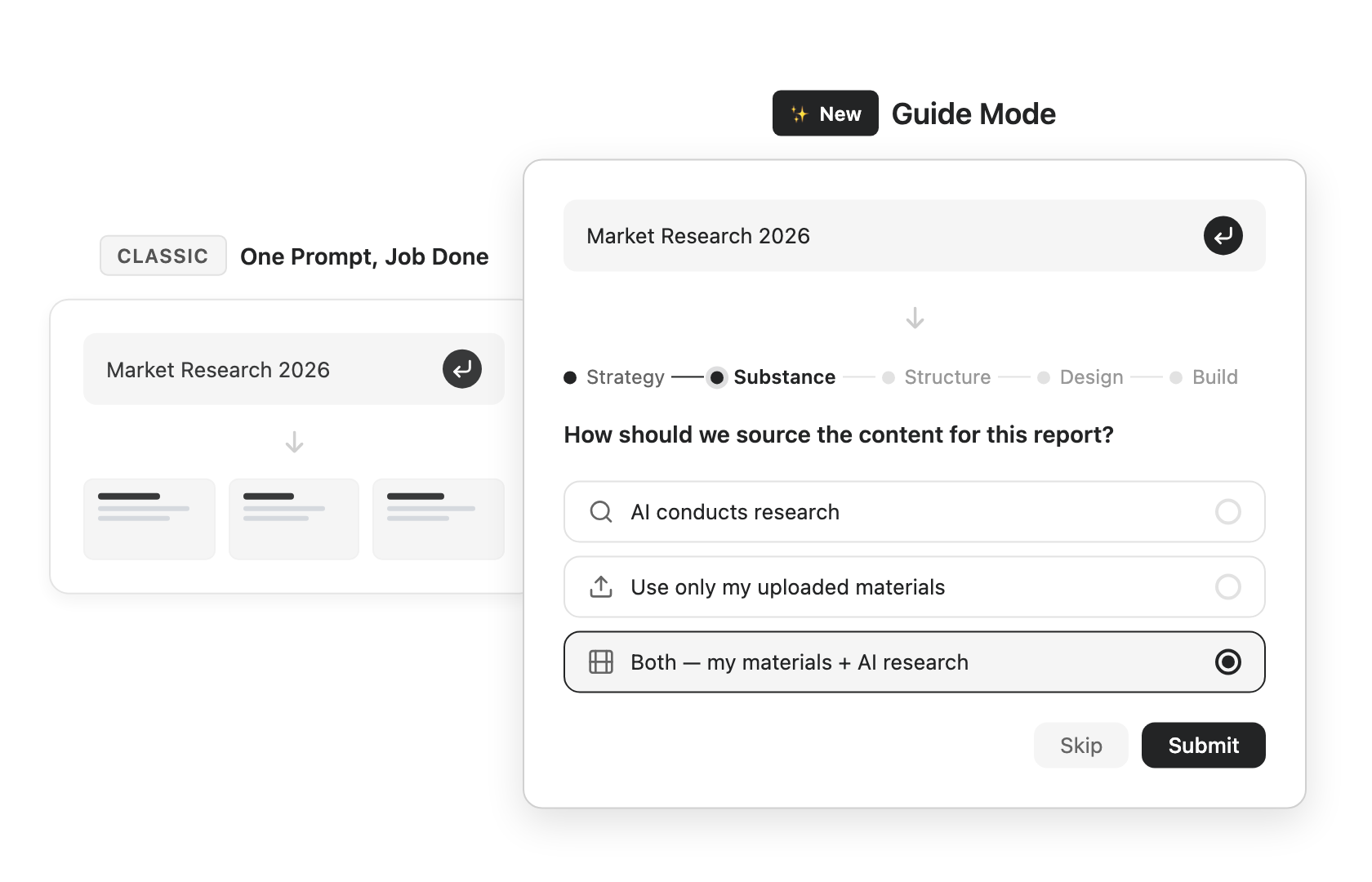
The difference is the role it plays. In the default mode, AI acts like an executor — once it understands your request, it builds the deck as fast as possible. In Guide Mode, it acts like a co-creator — a professional mentor that keeps discussing with you, sparks ideas, and confirms the outline with you before generating the final deck.
How to choose:
- Just want a quick result → leave Guide Mode off.
- New to AI Slides, building something complex or formal, or want control over every detail → turn Guide Mode on.
Standard vs Ultra
This sets the model quality:
- Standard — Fast and economical, good for everyday decks. Uses 0.5× credits using Genspark Gen-1 model.
- Ultra — The best choice for high-quality decks, with stronger reasoning and output. Uses 1.0× credits.
Quick rule: choose Standard when you want a fast deck, Ultra when you want the best quality.
Enterprise model policies: if your organization restricts AI model vendors (Team Admin → Connectors → "Restrict AI Model Vendors"), AI Slides automatically picks every model it uses — including the Standard and Ultra tiers — from your approved vendors. Members don't need to change anything.
Writing Effective Prompts
The key to a great deck is writing your prompt from the outcome. A vague prompt like "make a deck" leaves AI guessing who it is for, how long it should be, and what to cover.
Start with three essentials
Open your prompt with three things:
- Audience — who is it for? (Clients? Team? Executives?)
- Length — roughly how many slides?
- Structure — how should the content be organized?
Instead of "make a marketing deck", write something like:
Build a Gen Z marketing strategy deck, 5 slides, conclusion first, covering market analysis, target audience profile, and marketing strategy
The more specific you are, the sharper the output.
Not sure how to phrase it? Just turn on Guide Mode and leave the rest to AI — it will walk you through and clarify what you need.
Add more detail when it helps
- Data source — "use 2024 data", "cite authoritative sources"
- Tone — "professional business", "young and energetic", "minimalist"
- Reference style — paste a screenshot of a deck you like
- Your own files — drag in a PDF, Word, Excel, or PPT and build from it
Prompt templates for common scenarios
- Sales proposal — "Build a sales proposal from [your company] to [client company], [N] slides, conclusion first, emphasizing the product value for the client."
- Internal report — "Build a [topic] quarterly review report, [N] slides, structured as current state, achievements, issues, and next-quarter plan."
- Training material — "Build a [topic] training deck, [N] slides, for beginners, with a hands-on case per chapter."
Slide Skills
Slide Skills are AI Slides' most powerful way to get expert-quality decks and keep your style consistent. Skills replace the older idea of templates — and go far beyond them.
What is a Skill?
A traditional template only reuses a visual look. A Skill packages expert thinking + design together. It tells AI not only how the deck should look, but also how to think, how to organize the content, and how to build the argument. Think of it as the way an expert works, packaged for reuse.
Use built-in Skills
Genspark ships with 100+ expert Skills, covering a wide range of work scenarios — Corporate Strategy, B2B Sales, Professional Training, Academic Research, Marketing, Data & KPI, Fundraising, Consulting, Product Management, and more.
- On the AI Slides home screen, browse the Skills library below the input box. Switch between Featured and category tabs to explore.
- Click the Skill you want to apply.
- Enter your prompt — AI generates the deck following that Skill's expert approach.
With a Skill applied, the structure, the reasoning, and the visual style all follow how an expert would actually do it: a sales proposal uses a sales director's framing, a strategy analysis uses a consultant's frameworks.
Save your own Skill
Beyond the built-in library, you can save your own style as a reusable Skill — especially useful for reusing a brand template across your team. Your saved Skills appear under the My Skills tab.
The most common case is that you already have your own PowerPoint or PDF template. Open the New Skill dialog from the Skills library and choose how to start:
- Save my presentation as a template — upload a PowerPoint or PDF to turn your existing deck into a reusable Skill. This is the path most people use.
- I already have a skill package — import a
.zipSkill that someone shared with you. - I'm starting from scratch — build a custom Skill from the ground up.
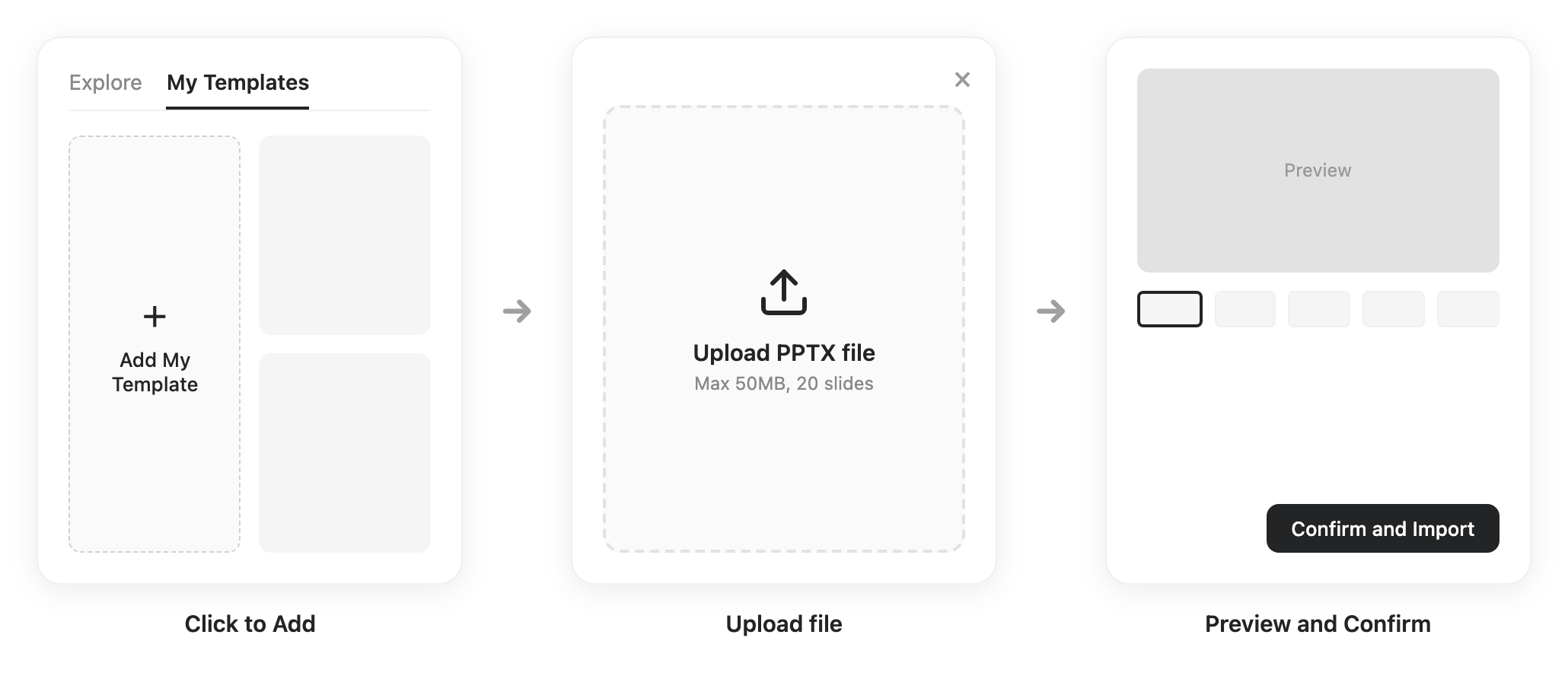
You can also save a deck you are currently working on: click the ⋮ menu at the top of the workspace → "Save as Skill".
For client work: you can do the same with a client's brand — look up their colors and style, save it as a Skill, and apply it whenever you build a deck for them. It is a small touch that makes clients feel understood.
Reuse a project on the fly: You can also start a new project, paste the link of a project whose style you like, and tell AI to use it as the basis for your new deck.
Share a Skill
Every Skill you own has a Share panel — share it like a doc, with one link, instead of exporting a .zip and sending files around:
- Open one of your Skills and click Share.
- Invite specific people by email, or set General access to "Anyone with the link" and copy the link.
Recipients can preview the Skill and import their own copy. You stay in control — remove a person or disable the link at any time; copies people already imported remain theirs.
Team Skills: publish to your whole organization
Person-to-person sharing spreads a Skill one colleague at a time. Team Skills publish it to everyone at once, so your whole team builds decks one consistent way — the company proposal framework, a department's brand style, a report format that took years to refine. A new employee can build a polished, on-brand deck on day one. Available on both the Team and Enterprise plans.
- Members — open your Skill, click Share, and set General access to "Organization". This submits the Skill for admin review.
- Admins — review submissions in Team Admin → Skills and approve or reject (with a reason). Email and in-app notifications keep the loop moving on both sides.
- Once approved, the Skill appears in the "Team Skills" tab of the Skills gallery for every member and activates automatically — no importing needed. When the publisher updates it, everyone gets the latest version.
Charts & Data Visualization
Presentations often stall on diagrams — process flows look uneven, org charts get tangled, and data charts mean a separate trip to Excel. AI Slides handles all of this internally, and because it actually runs code, the numbers behind your charts are computed accurately.
Charts you can generate directly
- Business process flows — order-to-delivery, user journeys
- Org charts — clean hierarchies
- 2x2 matrix analysis — competitor positioning, prioritization
- Funnel charts — sales and conversion funnels
- Gantt charts and timelines — project schedules, milestone planning
- Data charts — bar, line, pie, radar, and more
These are just the most common types — basically any chart you can think of, AI Slides can produce.
How to generate them
Specify what you want directly in your prompt:
Build a 10-slide product launch plan. One slide needs a 2x2 competitor analysis (by price and functionality), and another needs a user growth funnel.
You can also hand AI a data file and ask it to visualize it:
Use this sales spreadsheet to create a monthly trend line chart, a product-line comparison bar chart, and a regional distribution heatmap
Not sure which chart fits? Just ask — "What is the best chart for this content?" — and let AI recommend one. It often picks the most fitting type, sometimes one you would not have thought of.
Refining Your Slides
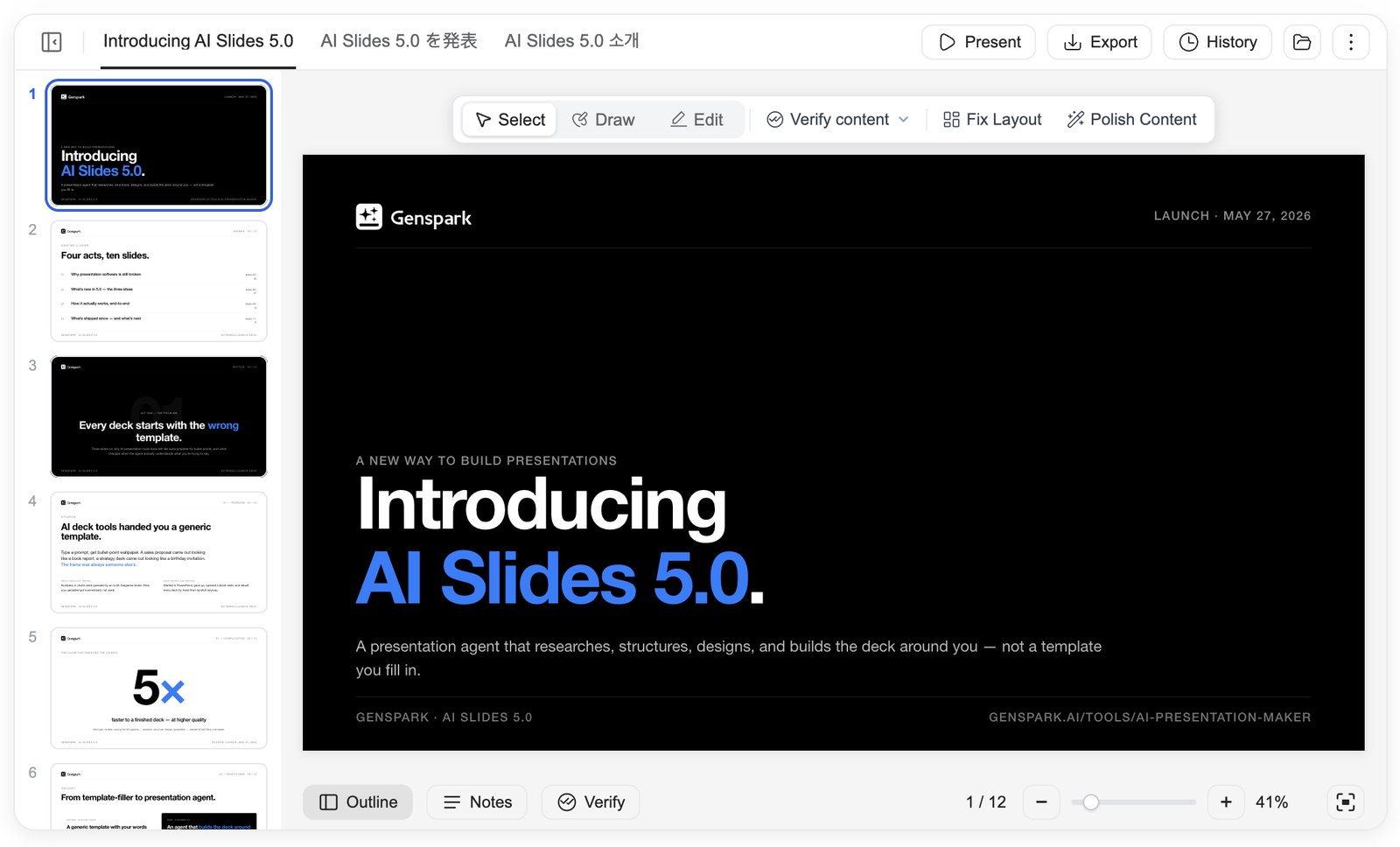
Your deck lives in the Slides workspace: an outline rail on the left shows every slide at a glance, the current slide sits center stage, and the chat stays right beside it — so you can talk to AI and watch every change land in real time. Above the slide, a toolbar switches between three ways of working: Select, Draw, and Edit.
Point at what you want changed
In Select mode, click any element on a slide — a title, a paragraph, an image, a chart. The element attaches to the chat box, labeled by type; describe what you want, and AI changes exactly that spot while keeping the rest of the design intact.
Mark up the whole deck, send once
Review your deck the way you would go through a printed draft. Switch to Draw, then circle things with the Pen, highlight with the Marker, or drag a Box around a region — and jot a short note on each mark. Annotations stay put as you flip through pages, collecting into the Edit queue at the chat box. When you have marked up everything, click "Send N edits" once: AI works through the whole batch while you grab a coffee or join your next meeting, and you come back to review the results in one pass.
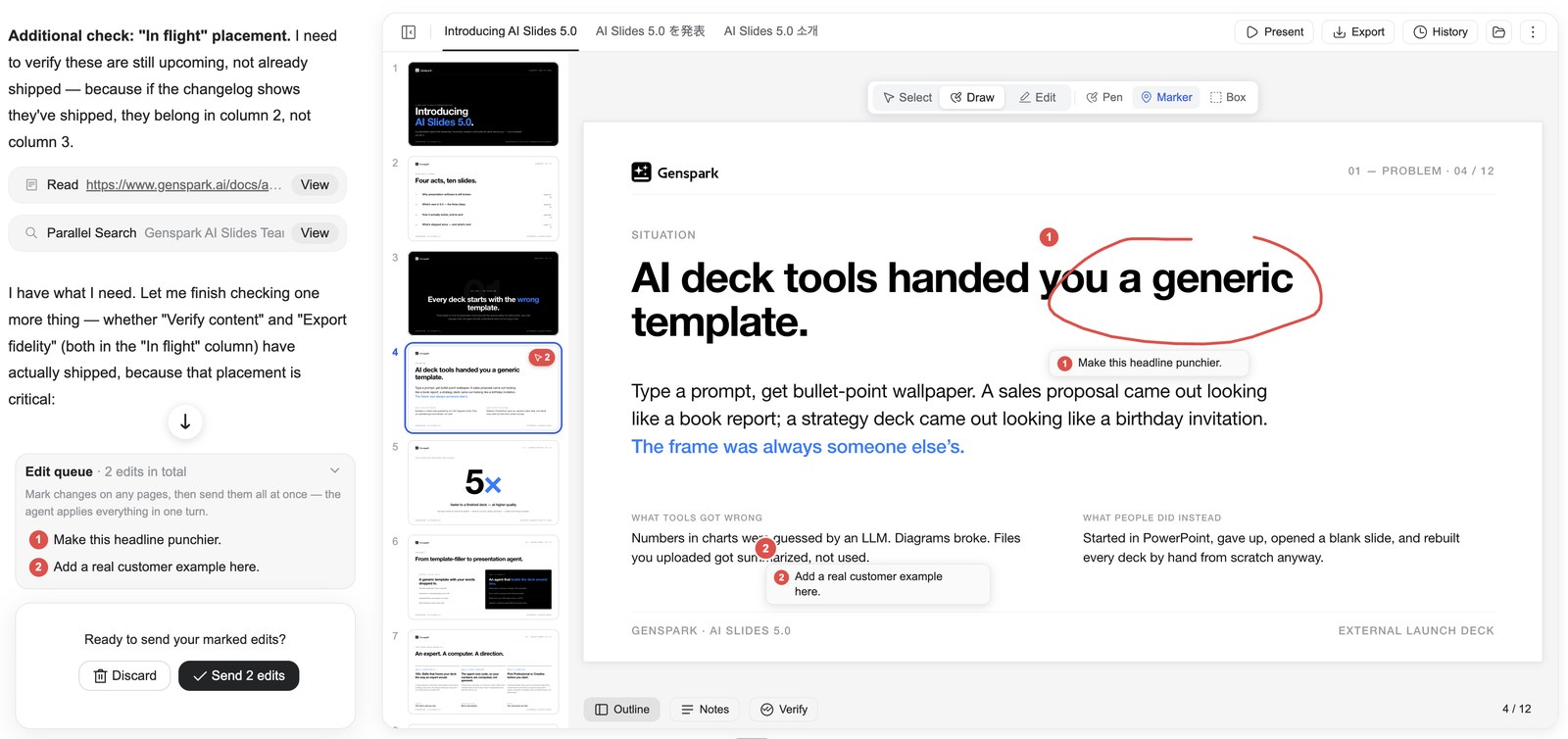
Changed your mind about a mark? Remove it from the queue before sending, or click "Discard" to clear the current page or all pages.
AI Edit
The toolbar also offers one-click AI refinements. The available options depend on your mode:
- Professional Mode — Fix Layout (detect and fix overlap, overflow, and misalignment) and Polish Content (improve logic and layout while matching the current style).
- Creative Mode — Enrich Content, Simplify Content, and Redesign Layout.
The built-in editor — full manual control
Sometimes you don't want to ask AI — you just want to grab that title and move it yourself. Switch to Edit in the toolbar and the slide becomes directly editable, right on the canvas: no page change, the chat and AI stay by your side, and manual edits do not consume credits.
- Work with elements like a design tool — click to select, drag to move, use the handles to resize and rotate. Marquee-drag to select several elements, then align, distribute, or group them, and reorder layers (bring forward / send back). Right-click any element for cut, copy, paste, and duplicate.
- Format text in place — double-click into any text and type. The floating toolbar covers font, size, color, bold/italic/underline/strikethrough, alignment, line height, and letter spacing.
- Fine-tune images — replace an image, crop it freely or to a shape or ratio, round its corners — or open Change Focus and drag a dot on a miniature of the original photo to choose exactly which part stays in frame.
- Manage pages from the rail — drag thumbnails to reorder; right-click a page to add, duplicate, copy, paste, or delete slides.
- Edit speaker notes — type directly in the Notes panel while you edit.
- Undo anything — undo any action in a single step (and redo just as easily), and the History panel keeps full version snapshots; manual edits and AI edits share the same history. Changes save automatically, and if the deck changes while you are editing — say, AI finishes an edit — you will be shown the newer version and choose how to proceed, with no silent overwrites.
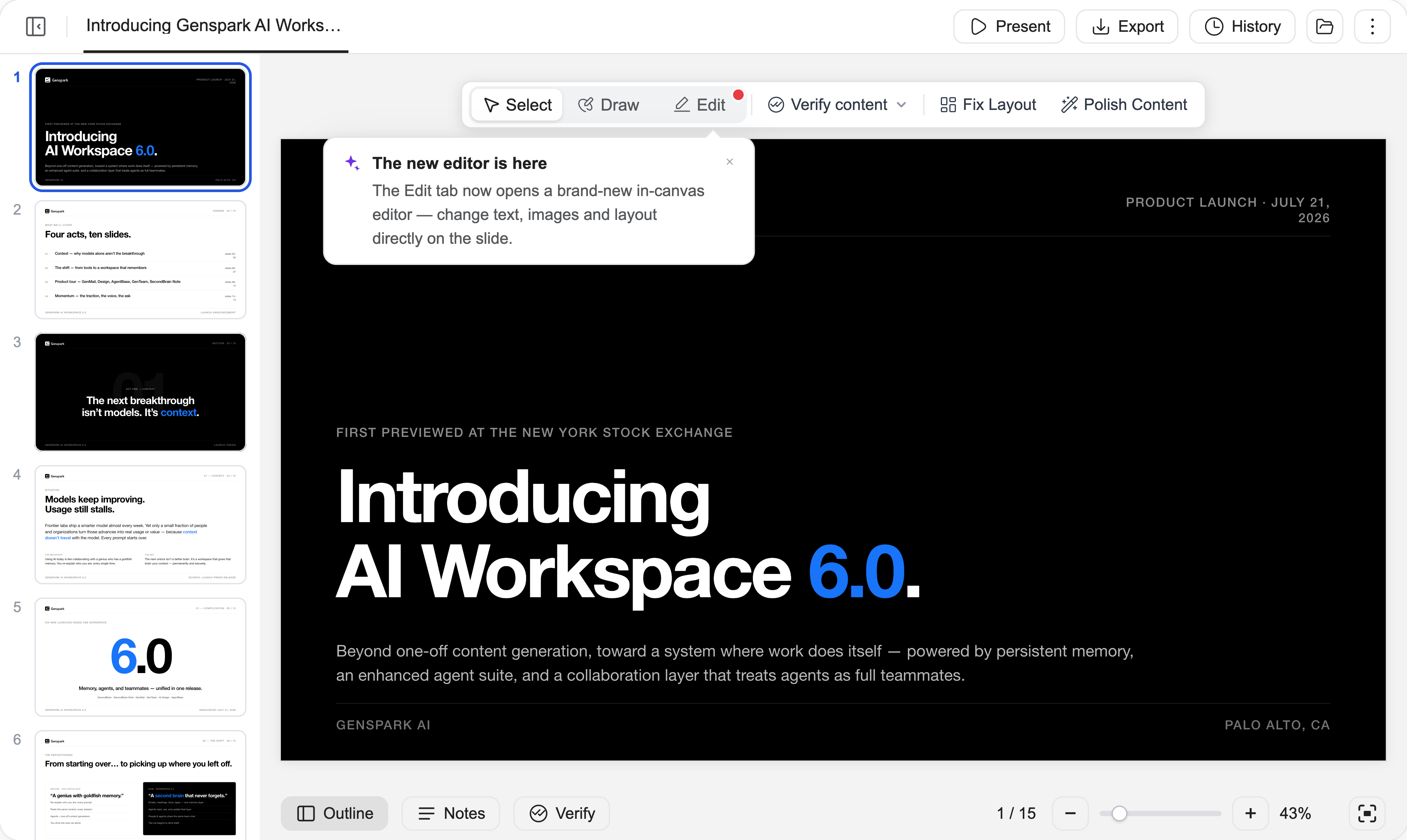
(The built-in editor is only available in Professional Mode)
Verify Content
Before an important deck goes out, have AI verify every figure and claim in it — checked against the web or against the files you uploaded:
- Click "Verify content" in the toolbar and choose "Verify this page" or "Verify entire deck".
- AI cross-checks facts, figures, sources, and calculations, corrects what is wrong, and leaves a verification mark on each checked slide with reference links.
- Review the marks to see what was checked and how. When you export to PPTX, the verification trail is written into the slide notes, so whoever receives the file sees the evidence behind every number.
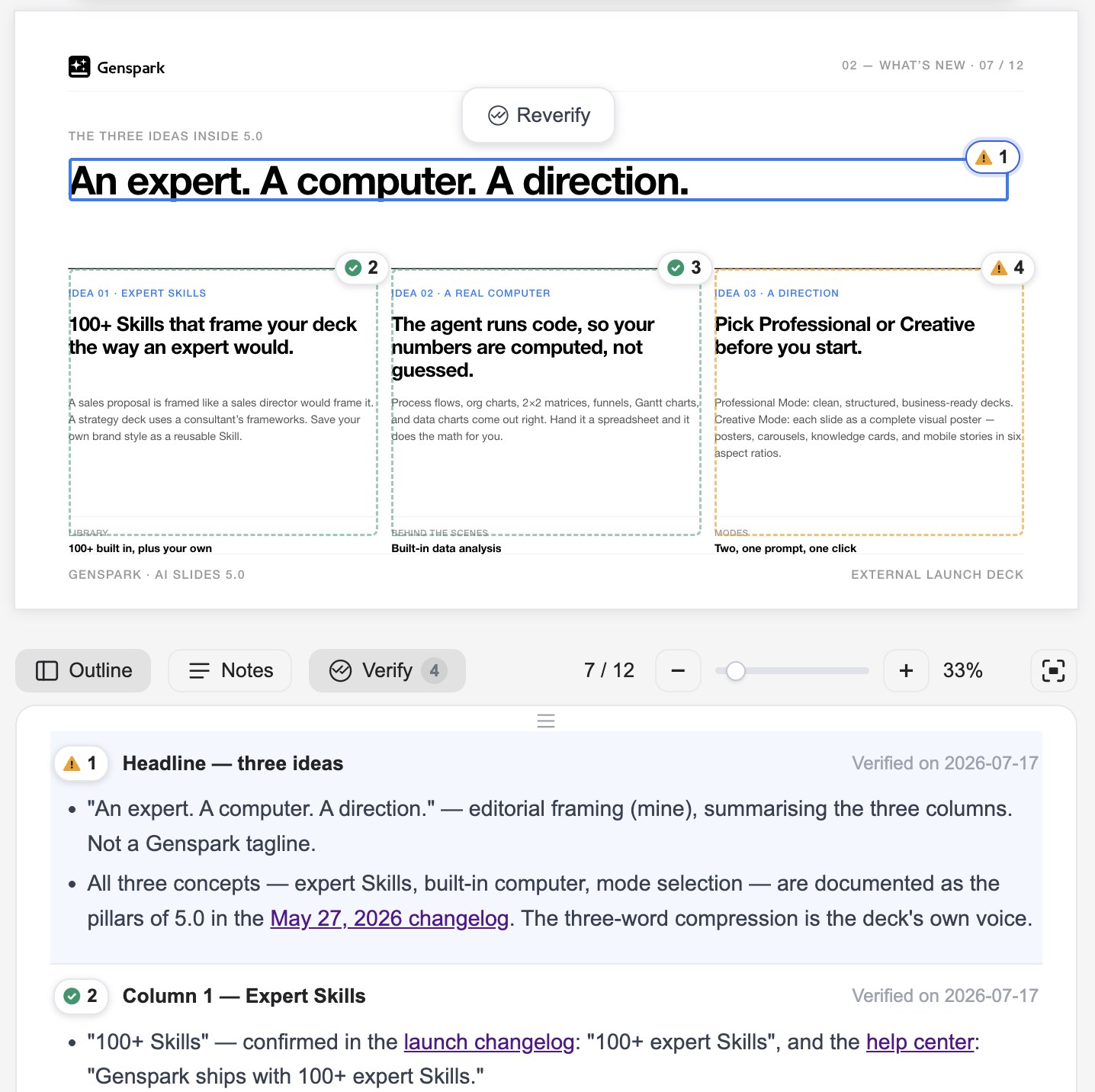
This step is especially valuable for sales proposals and reports, where solid data matters most. A reliable flow is: simple prompt → fast generation → verify → sharp result.
Present, Export & Share
Speaker notes
Once the deck is ready, shape your delivery. Open the Notes panel from the bottom toolbar to read and edit per-slide speaker notes — or have AI write them: click "Add notes" (for this slide, or for all slides), and AI first asks a few questions about the occasion, the audience, and the tone, then writes notes tailored to your answers.
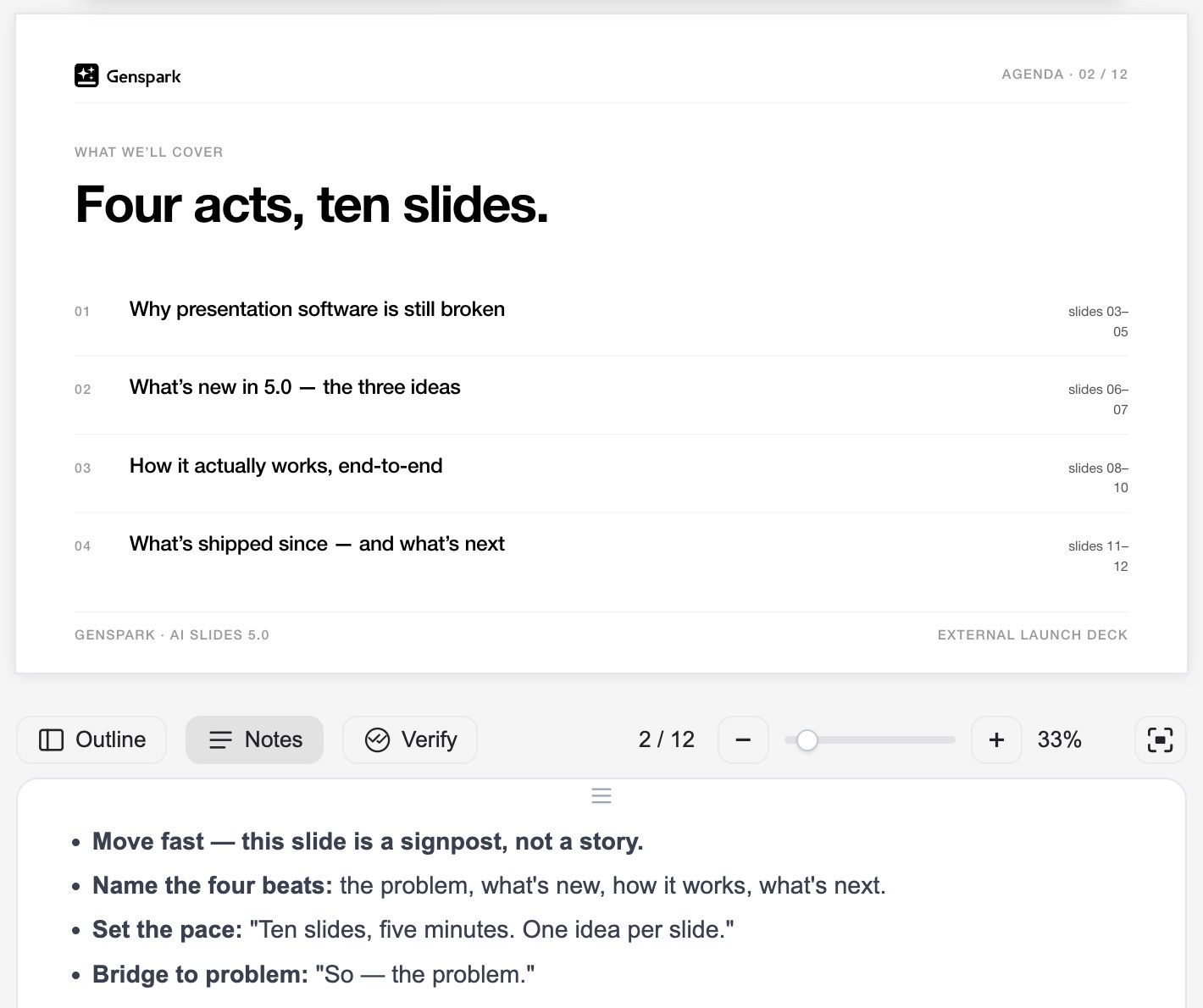
Notes are included when you export to PPTX, so anyone you hand the file to can present it smoothly too.
Present online
Present your slides directly in the browser, with no download required:
- Click "Present" at the top of the workspace.
- Choose "From beginning" or "From current slide".
- While presenting, use "Draw on page" to circle and underline things live for your audience.
Presenter view
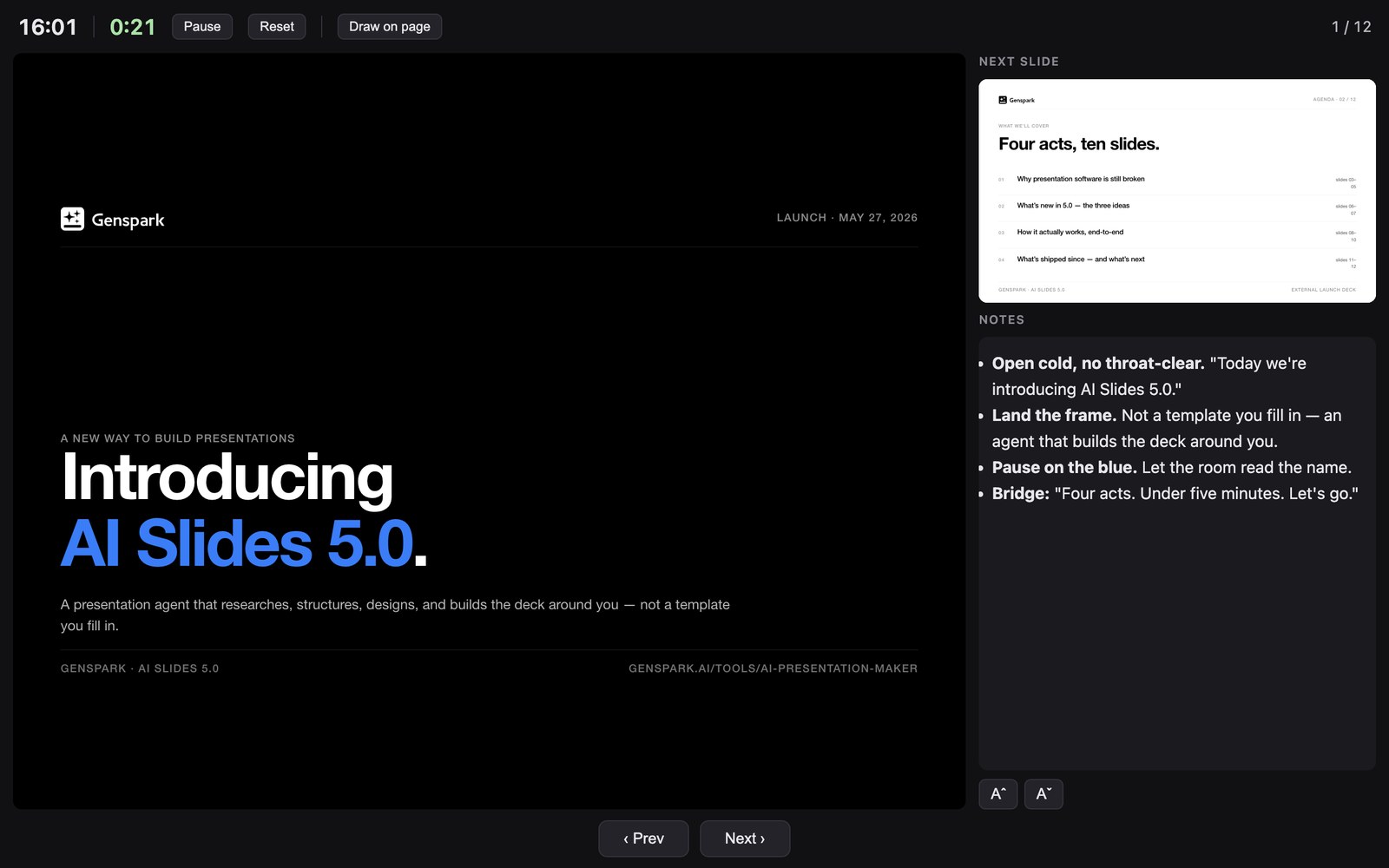
For the full on-stage setup, click "Present" → "Presenter view". A speaker console opens in its own window with the current slide, the next slide, your notes, and a timer — while the audience window shows nothing but clean slides. Move the audience window to the projector or the shared screen, make it fullscreen, and drive the whole show from your console; your cursor stays synced across both displays.
Export
Download your presentation as PDF, PPTX, or Google Slides (available for Plus, Pro, Team, and Enterprise users):
- Open your presentation, then click "Export" in the deck header's right-hand action row. Export appears only when a deck is open and editable — an embedded preview or an anonymous share viewer has no Export button.
- In the "Export Slides" dialog, choose a Format - PDF, PPTX, or Google Slides - and set a page range: All pages, or Custom range with From/To. Export stays disabled on an invalid range.
A quick decision rule:
- Still need to edit it → export PPTX to PowerPoint
- Sending it straight to someone → export PDF
- Collaborating with a team → export Google Slides
Make a Copy
Create a full, independent copy of your presentation as a new project — useful when adapting slides for a different client, translating into another language, or creating a variation without affecting the original. Click the ⋮ menu at the top of the workspace → "Make a Copy", or simply tell AI "make a copy" in the conversation.
Share
Share your presentation through Genspark's project sharing:
- Open the project share options.
- Invite collaborators by email, or change General Access to "Anyone with the link".
- If you choose "Anyone with the link", pick your sharing mode:
- Presentation share — final slides only; the creation process is not included.
- Project share — includes the full project and creation process.
Editing in Canva or Figma
Want more design control? Export your slides and continue editing in Canva or Figma for advanced customization.
Learn more: External Editing Guide
Tips & Saving Credits
Plan for clean, balanced layouts
Want professional-looking slides? Plan your content structure before generating. Start with an outline and keep the information volume consistent per slide. If a slide looks crowded, split it across multiple slides — you can always pause generation and adjust as you go. Try:
Create a comprehensive outline first, determine the content for each slide, and keep the information volume consistent per slide. Wait for my confirmation before starting production.
Keep your style consistent
Two approaches that work well:
1. Sequential creation — tell AI to generate slides one at a time:
Please create slides one by one, do not process in parallel
2. Style approval workflow — approve the first slide, then have AI match it:
Please create the first slide and wait for my approval of the style. Then create all remaining slides to match that exact style — same fonts, colors, spacing, and layout structure.
For long-term consistency, save your approved style as a Skill.
Save credits
AI generation is what consumes credits — manual edits in Advanced Edit are free. A few ways to make the most of your credits:
- Think first in a free AI chat. Building a deck spends credits on two things: thinking through the content, and producing the slides. You can do the "thinking" part for free — talk through your content and per-slide plan in a free AI chat (like Genspark's AI Chat), then hand the draft to AI Slides to produce. You only pay for production.
- Create with Ultra, reuse with Standard. Building a high-quality deck from scratch is worth the stronger model, so use Ultra when creating a reusable Skill. Reusing a finished Skill is far easier, so switch to the cheaper Standard for everyday decks built from it.
- Stop early. If the output isn't what you want, stop generation immediately instead of letting unused slides finish.
- Use Advanced Edit for small changes. Reserve AI generation for major revisions; use the free Advanced Edit for text, formatting, color, and layout tweaks.
FAQ
Why won't my presentation export, download, or preview?
Try these steps in order:
- Refresh and retry. Reload the page and reopen the presentation, then attempt the export again.
- Check your browser. Disable pop-up blockers for genspark.ai and make sure downloads aren't being blocked. Try Chrome or Edge if the issue persists.
- Try a different format. If PPTX won't export, try PDF (or vice versa) to narrow down where the issue is.
If it still won't export, contact support and share your project with [email protected] so we can look at it directly (see below).
Do exports cost credits?
No — exporting does not cost credits. Neither does manual editing (Advanced Edit) or saving a presentation. Credits are only consumed by AI generation.
I made a deck on a Free plan, how do I get the file
Exporting any format, requires a paid plan.
How do I share my project link with support?
On Free you can present in the browser and share a live link, but downloading needs an upgrade. Your deck is saved — nothing is lost — and it becomes exportable the moment you upgrade.
Support can only investigate a presentation if the project link is set to public.
- Open the agent or task containing your presentation.
- Click Share (top right of the project).
- Invite [email protected] as a Viewer
- Copy the link and paste it into your support email.
⚠️ Without public access, we can't open the project — this is the most common reason investigations get delayed.
Was this article helpful?