

SkillsTry Now
Skills
What Are Skills?
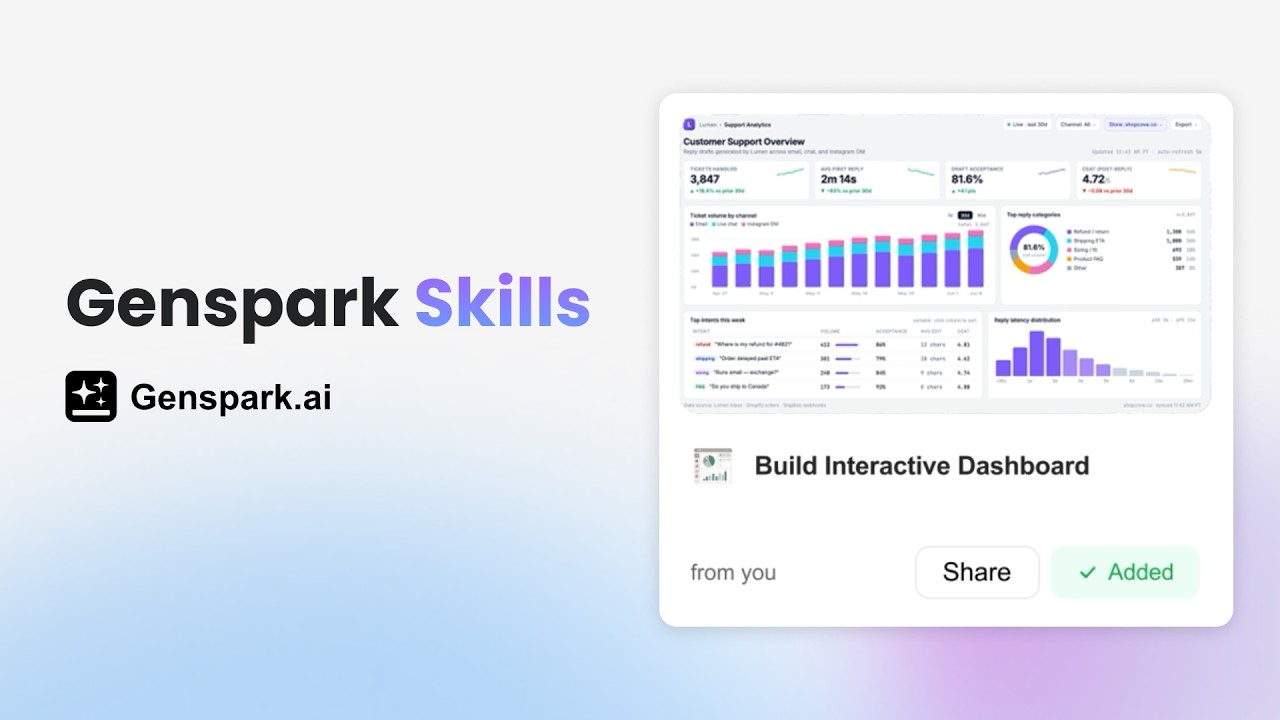
Skills are reusable AI tools built for specific jobs. Instead of rewriting the same instructions every time, you save a proven workflow once and apply it with one click — consistently, across any project.
A Skill is more than a template. It packages expert thinking, structure, and design so every output follows the same quality bar and reasoning, every time. A sales proposal Skill doesn't just look like a sales deck — it thinks like a sales director, structuring the argument, anticipating objections, and framing the value proposition.
Key Benefits
| Benefit | What It Means for You |
|---|---|
| Build once, reuse forever | Define a workflow once and apply it in one click from anywhere |
| Consistent output quality | Every result follows the same structure, tone, and expert reasoning |
| Community library | 100+ public Skills available to add with one click — no building required |
| Works across products | Skills enhance AI Slides, AI Docs, Super Agent, and more |
Who Skills Are For
Skills are for anyone who does recurring, structured work and wants more consistent results with less effort — including:
- Business and operations professionals building the same reports, proposals, or briefs regularly
- Sales and marketing teams producing pitch decks, proposals, and campaign briefs to a standard
- Researchers and analysts running repeatable data analysis or literature review workflows
- Product and engineering teams generating PRDs, release notes, and technical specs
- Team leads who want consistent output quality across a team without requiring everyone to write expert-level prompts
Skills vs. Templates
| Capability | Template | Skill |
|---|---|---|
| Visual style | Yes | Yes |
| Content structure | No | Yes |
| Expert reasoning | No | Yes |
| Reusable prompts | No | Yes |
| Works across products | No | Yes |
A Skill works like a packaged expert, while a template only reuses a layout.
Quick Start
Prerequisites
- A Genspark account (free or paid)
- No technical background required
Quick Start
- Browse Skills. From the Genspark homepage, click Skills in the left sidebar.
- Apply or create a Skill. Click any Skill card to preview it, then click Add & Use to apply it. Or create your own by clicking + New Skill.
- Get expert-quality results. AI follows the Skill's approach — structure, reasoning, and style — to produce consistent output. Review, refine, and export when ready.
Sample prompts to try:
Create a 10-slide investor pitch deck for a Series A SaaS startup
Write a competitive analysis report comparing the top 5 CRM platforms
Create a call prep brief for an upcoming sales meeting, including company background, recent news, likely priorities, and suggested talking points
When to Use a Skill
| Option | Best for |
|---|---|
| Standard prompt | One-off tasks you won't repeat |
| Existing Skill | Repeated work where a proven structure already exists |
| New Skill | Recurring work that isn't yet standardized, or work to share with a team |
| AI Slides + Skill | Presentations needing repeatable slide structure and visual consistency |
The Three Sources of Skills
| Source | Description |
|---|---|
| Community Skills | 100+ platform-curated Skills from publishers including Anthropic, OpenAI, and Genspark |
| Team Skills | Published by your organization, visible only to team members |
| My Own Skills | Skills you create, upload, or save yourself |
Feature & How-To Guides
Browsing and Using Community Skills
The Skills library contains 100+ verified Skills. They are not organized by content category — instead, you filter across three dimensions:
| Filter | Options |
|---|---|
| Publisher | Anthropic, OpenAI, Genspark, and others |
| Role | Sales / Marketer / Product Manager / Researcher / Engineer / Designer / Operations / Founder / Creator / General |
| Output type | Document / Research / Data / Chart / Code / and more |
To use a Community Skill:
- Go to Skills — the Community Skills tab is shown by default.
- Use the Publisher, Role, and Output filters to narrow results.
- Click a Skill card to view its description and preview.
- Click Add & Use to install it.
- Enter your prompt — AI generates output following that Skill's approach.
Running a Skill
- Select a Skill. In the SkillBar, click "Select a skill first" to choose from your installed Skills, or type
/to search by keyword. You can select multiple Skills at once. - Enter your prompt. Describe your request. Attach files if needed via the attachment icon or drag and drop.
- Watch execution in real time:
| What you see | What it means |
|---|---|
| Execution step cards | Each operation (search, read file, write code) shown as a collapsible card |
| Thinking | The AI's reasoning process (expandable) |
| Streaming output | Real-time text output |
- Retrieve your files. Deliverable files appear in the Output files drawer — click the folder icon in the top-right corner. Preview, download, or find past runs in the Task List (hamburger menu, top-left). Files are permanently stored in the cloud and can be downloaded at any time.
Building Your Own Skill
You don't need to be a developer. If you can describe how something should be done, you can create a Skill.
- Create for Myself (AI-guided) — Click + New Skill → Create for myself. The skill-creator Agent guides you through name, description, inputs, outputs, and tool permissions. Test it, then Save — it appears in your My Own Skills tab.
- Upload a Skill file — Click + New Skill → Upload. Drag and drop or select a file (
.zip,.skill, or.md; max 200MB), then click Save skill — ready to use immediately. A.zipfile must contain askill.mdwith a name and description. - Create for Team — the same flow as Create for myself, but the Skill is submitted for admin review. Once approved, it appears in every team member's Team Skills tab. Requires a Team Plan.
Sharing Skills
- Peer Share (email invite) — Open the Skill → click Share → enter the recipient's Genspark email. They accept via "Shared with me" on the Skills home page. Invites are valid for 30 days; recipients must have a Genspark account.
- Team Publish (Team Plan required) — Share → Team tab → Publish to Team. After admin approval (if required), the Skill appears in every member's Team Skills tab. When you update the Skill, members see an "Update available" prompt.
- Public Link — Share → Public link tab → Create public link. Copy and send the link — anyone can preview and install after signing in. Use Regenerate to invalidate the old link, or Revoke to disable it entirely. Public Link recipients install a snapshot copy that does not sync with future updates.
Managing Your Skills
Click Manage Skills at the top of the Skills page to open the management panel.
| Tab | What it shows |
|---|---|
| Installed | All Skills you've installed |
| Received | Invitations shared with you via email |
| Sent | Skills you've shared with others |
- Uninstall — hover a Skill card → click Uninstall. Can be reinstalled at any time.
- Update a Team Skill — click the "Update available" badge when it appears.
- Delete — click Delete on any Skill in My Own Skills. This is permanent and cannot be undone.
- Modify — online editing is not supported. Edit locally → delete the old version → re-upload via + New Skill → Upload.
Connecting External Services (Connectors)
Connectors let Skills read live data from your external apps. Connect once; every Skill that needs the service uses it automatically.
To connect: click Connectors at the top of the Skills page, find the service using the search box, click Install (or Connect), and complete OAuth authorization. The service then shows as "Connected." To disconnect, click Uninstall or Disconnect next to any connected service.
| Category | Services |
|---|---|
| Communication | Gmail, Google Calendar, Outlook Email, Outlook Calendar, Microsoft Teams, Slack, LINE |
| Productivity & Files | Google Suite, Google Drive, Google Contacts, Outlook Contacts, Microsoft 365, OneDrive, SharePoint, Notion, Box, Confluence, DocuSign, Dropbox |
| CRM & Sales | Salesforce, HubSpot, Pipedrive, Mailchimp, Affinity CRM |
| Developer | GitHub, Jira, Linear, Deep Wiki, Chart Server |
| Data Sources | Hacker News, Supabase Database, Airtable |
| Project & Ops | Intuit QuickBooks, monday.com, ClickUp, Stripe, PayPal, Greenhouse, Ashby, Asana |
| Other | Google Chat, X (Twitter), Reddit, Merge.dev, Unified.to, Zapier, Ramp |
Some Skills require a Connector before running — they will block and prompt you to connect first.
My Skills
All Skills you create, import, or save appear under the My Skills tab — your personal collection, always one click away. From here you can launch, share, publish, or delete any Skill.
Troubleshooting
A Skill ran but I can't find the output files — where do I look?
- Click the folder icon (top-right) to open the Output files drawer.
- Check the Task List (hamburger menu, top-left) for past run records.
- Review the execution step cards for any failed steps.
- If the Skill requires a Connector, confirm it's connected before re-running.
My Peer Share invite expired — what do I do?
Open the Skill → Share → Email tab and resend. Invites expire after 30 days.
I updated my Skill but team members don't see changes — why?
Updates aren't pushed automatically. Members need to click the "Update available" prompt on their Skill card.
I can't find the Team Publish option — why?
Team Publish requires a Team Plan. Without one, clicking Create for Team or the Team tab redirects to the upgrade page.
FAQ
What is the difference between a Skill and a template?
A template reuses a layout. A Skill packages expert reasoning, content structure, and reusable prompts — and works across multiple Genspark products.
When should I use a standard prompt instead of a Skill?
Use a prompt for one-off tasks. Use a Skill when you want the same structure, style, and reasoning applied consistently every time.
When should I create a Skill instead of just prompting Super Agent?
When you're rewriting the same detailed instructions repeatedly, need consistent quality across a team, or want to share a proven workflow.
Can I turn a good project into a Skill later?
Yes — save any strong project as a Skill from My Skills. The approach is captured and immediately reusable.
Do I need technical skills to create a Skill?
No. The Create for myself path is fully AI-guided — answer questions in plain language and the Agent builds it for you.
Can I use Skills on mobile?
Skills run in the browser-based Super Agent Sandbox. Check the Genspark mobile app for the latest supported features.
How do I share a Skill with my team without making it public?
Use Peer Share for specific individuals, or Team Publish (Team Plan required) for your entire organization.
Can I edit a Community Skill after adding it?
Not directly. Use it as a reference and create your own version with Create for myself.
Was this article helpful?