

SecondBrain NoteTry Now
SecondBrain Note
What is SecondBrain Note?
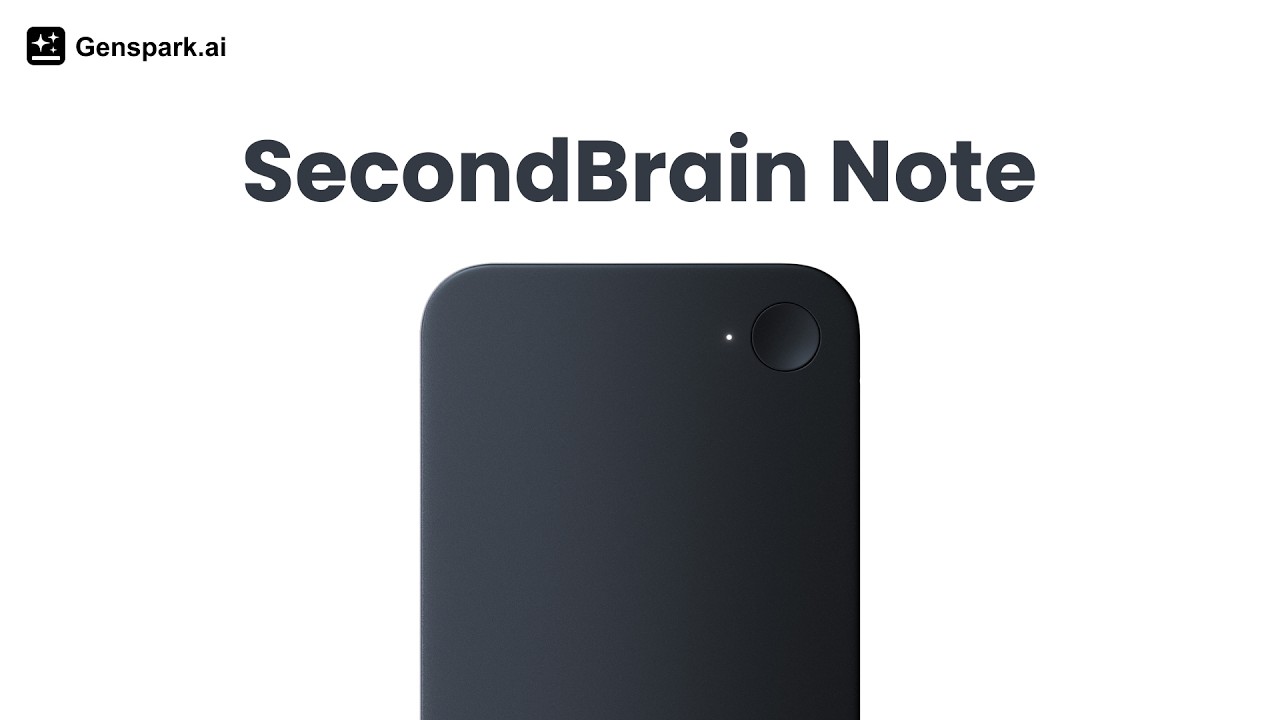
SecondBrain Note is Genspark's hardware device that captures, transcribes, and summarizes everything you hear and say, turning real-world conversations into structured, searchable notes automatically.
- Capture from the real world — Record meetings, conversations, and ideas using dedicated hardware or the Genspark mobile app
- AI-powered output — Transcriptions and full summaries generated automatically, no manual note-taking required
- Deeply integrated — Syncs with the Genspark app, GenMail, and your SecondBrain data sources for a unified AI memory
SecondBrain Note can be purchased at shop.genspark.ai.
Quick Start
Step 1: Download the Genspark App
Download "Genspark" in the App Store or Google Play and complete user registration.
Step 2: Device Pairing
- Press and hold the device button for 3 seconds to power on — it enters pairing mode automatically and the blue indicator light flashes.
- Open the Genspark app and tap AI Notes at the bottom.
- Tap Start Pairing:
- Tap the SecondBrain Note button from the homepage, or
- Tap AI Notes and then + Device.
- Match the last 4 digits of the serial number (SN) on the packaging to identify your device.
- Tap your device to connect — the blue light turns off when paired.
- Tap Get Started to begin.
Note: If connecting in a room with many devices, use the SN search box to find yours quickly. A scrollable list appears when multiple devices are detected.
Using the MagSafe Wallet
- Place the SecondBrain Note into the inner pocket of the wallet.
- With the cardholder opening facing down, attach magnetically to the back of your phone.
- If your phone doesn't support magnetic attachment, use the included magnetic strip on your phone case.
- The wallet doubles as a phone stand.
Phone case compatibility: The device works through most standard phone cases for general recording. For phone call recording specifically, thinner cases work best since the V.C.S. sensor picks up vibrations through the phone's speaker. Very thick rugged cases may reduce call recording quality but won't affect open-air meeting or voice memo recording. If call recordings sound muffled, try a thinner case or remove the case during calls.
Charging the Device
SecondBrain Note uses magnetic charging.
- Connect the included USB-C cable (Type-C input, 4-pin magnetic output) to the device.
- On successful connection: indicator light flashes green + single vibration.
- Fully charged: indicator light stays solid green.
- Disconnect the cable — light turns off.
Charging works the same way with the device inside the MagSafe wallet.
What's in the Box
- SecondBrain Note × 1
- MagSafe Wallet × 1
- USB-C Charging Cable × 1
- Metal Ring × 1
- Quick Guide × 1
- Safety & Warranty Guide
Recording Consent & Privacy
Before recording other people, make sure you comply with applicable recording, privacy, and biometric laws. Laws vary by country and by U.S. state, and some jurisdictions require consent from all participants before a conversation can be recorded. If participants are in different locations, follow the stricter rule.
You are responsible for:
- Notifying participants before recording starts
- Obtaining any consent required by law
- Stopping the recording if someone does not consent
- Avoiding recording in sensitive or confidential settings unless you are clearly permitted to do so
SecondBrain does not obtain consent on your behalf or determine whether your recording is lawful. If you are unsure, consult your legal counsel.
Recording Notes
- Starting a recording:
- Hardware button — Long-press for 2 seconds (white breathing light appears, single vibration)
- In-app — Tap the new button inside AI Notes and choose "Record with SecondBrain Note"
- Marking highlights: During a recording, a short press on the device button marks an important moment (a single vibration). These appear as highlights in your generated notes for quick reference.
- Ending a recording: Long-press the button for 2 seconds — LED turns off, two vibrations confirm.
Output depends on recording length:
| Recording Length | Output |
|---|---|
| Under 2 minutes | Transcription only |
| Over 2 minutes | Full summary + transcription |
Real-time transcription is not available in the current release. Notes are generated after the recording ends.
Note Source Indicator: A device icon appears next to any note created via SecondBrain hardware, distinguishing it from notes made through other methods.
Data Transfer
After recording, audio files save automatically on the device. To transfer:
- Connect the device to the Genspark app via Bluetooth.
- Files transfer automatically.
Quick Transfer (Wi-Fi):
- After connecting, a "Fast Transfer" prompt appears in the top-right corner — tap it.
- The app switches from Bluetooth to a direct Wi-Fi connection with the device.
- Stay in the app until the transfer completes.
- The app automatically restores Bluetooth mode when finished.
Offline Usage
Can SecondBrain be used without a phone?
Yes — the device records independently while your phone is off. Once your phone reconnects, notes transfer automatically and summaries are generated. However, the device requires a phone connection for full functionality (transcription, summaries, syncing).
Adding Notes
Tap Add New in the app to create notes in three ways:
| Method | Description |
|---|---|
| AI Meeting Record With Phone | Uses the app's built-in AI (no hardware required) |
| Record with SecondBrain | Uses your connected SecondBrain hardware |
| Import Audio File | Upload an existing audio file for transcription |
Photo Integration: During a recording, take a photo directly from the app — it embeds in your generated notes with optional accompanying text.
SecondBrain Data Sources
You can connect SecondBrain to a variety of different sources, including first-party data, imported data, external connectors, or manual entry. For example, email, CRM applications, Genspark projects, and more.
Super Agent Integration
Once your data sources are connected, the Super Agent can act on your SecondBrain data:
- Check and triage your email
- Query records in HubSpot or Salesforce
- Create slides from your notes
- Summarize meeting recordings
- Generate weekly reports
Credits & Billing
How It Works
SecondBrain Note separates recording from processing:
- Recording happens entirely on the device — no internet, no credits, no limits. Press the button, talk, done.
- Processing (transcription + AI summary) happens after the recording syncs to Genspark. This is where minutes and credits come in.
When a recording syncs, the app automatically transcribes the audio and generates a summary. That processing step is what counts against your monthly minutes.
What's Free
Every SecondBrain Note purchase includes 300 free transcription minutes per month. No Genspark subscription required. These minutes cover both transcribing your recordings and generating AI summaries.
The 300-minute allowance resets each month.
After Your Free Minutes
| Membership | Monthly Transcription | After Free Minutes |
|---|---|---|
| No subscription (Note hardware only) | 300 minutes/month included | ~5 credits per minute |
| Plus | Unlimited | — |
| Pro | Unlimited | — |
Without a subscription: Once you've used your 300 included minutes for the month, new recordings that sync draw from your daily free credit allotment (100 credits/day) at approximately 5 credits per minute. When your daily credits run out, processing pauses until they reset the next day. You can also purchase credits individually or sign up for a Plus or Pro plan for unlimited transcription.
With Plus or Pro: Transcription and summarization are unlimited — record as much as you want without worrying about minutes or credit costs. This applies across all your devices.
Warranty & Returns
For full details, see the Safety & Warranty Guide. To file a warranty claim, contact [email protected] with a description of the issue and photos or video showing the defect.
Returns:
- Returns are accepted within 30 days of receipt.
- Only unopened, sealed boxes are eligible for return.
- No returns accepted after the 30-day window.
- Device must be in original condition with all packaging and accessories.
- If your device is defective or arrived damaged, it's covered under warranty (see above).
Who pays for return shipping:
- Unopened returns — you are responsible for the cost of the return shipping label.
- Faulty or defective product — Genspark covers the return shipping cost.
Recording Consent, Privacy & Responsible Use
Recording laws vary by country and by U.S. state. In some places, you may need consent from all participants before recording. Because rules differ, you should always be transparent, notify people before recording starts, and obtain any consent required by law.
SecondBrain does not obtain consent on your behalf or determine whether a recording is lawful.
Before You Record
Before starting a recording, make sure you:
- Tell people clearly that you want to record
- Obtain any consent required by law
- Confirm that the setting is appropriate for recording
- Avoid recording private, sensitive, or confidential conversations unless you are clearly permitted to do so
- Follow the stricter rule if participants are in different locations
A device light, app status, or other visible indicator may help signal that recording is happening, but that alone is not enough. You should still notify people directly.
Simple Ways to Notify People
You can use plain language like:
- "I'd like to record this so I can review my notes later. Is that okay with everyone?"
- "Just a heads-up: I'm using SecondBrain to record and summarize this conversation."
- "Before we continue, I want to let you know this conversation may be recorded. Please let me know if you're not comfortable with that."
When Consent May Be Required
Consent requirements depend on where people are located and what kind of conversation is being recorded.
Keep these points in mind:
- Recording laws vary by country and by U.S. state
- Some jurisdictions require consent from all participants before recording
- If participants are in different locations, you should follow the stricter rule
- You are responsible for understanding whether consent is required in your situation
Best Practices
Use these best practices every time you record:
- Notify participants before recording starts
- Be specific about what is being recorded
- Ask before beginning, not after
- Give people a real chance to decline
- Stop recording when the conversation ends
- Record only what you need
- Handle recordings responsibly and share them only as appropriate
Good practice:
- Explain what SecondBrain is doing
- Ask for permission in a clear, direct way
- Make sure people understand they are being recorded
Avoid:
- Starting a recording without notice
- Relying only on a device indicator or screen status
- Leaving recording on longer than needed
- Recording "just in case" in situations that may be sensitive
Sensitive Situations
You should be especially careful in sensitive or confidential settings.
Avoid recording unless you are clearly permitted to do so, including situations such as:
- Healthcare or medical conversations
- Legal or financial discussions
- HR or workplace investigations
- School or student-related situations
- Private customer, client, or patient information
- Conversations involving confidential business information
- Any place where people reasonably expect a high level of privacy
When in doubt, do not record.
What to Do If Someone Says No
If someone does not consent:
- Do not start recording.
- Stop recording immediately if it has already started.
- Do not pressure the person to agree.
- Continue without recording, if appropriate.
- Delete the recording if it captured someone who did not agree and you are not clearly permitted to keep it.
Respecting someone's choice is part of responsible use.
Need More Help?
For additional device guides and troubleshooting, visit the SecondBrain support page. For anything not covered there, email [email protected].
Troubleshooting
Device won't appear when scanning for nearby devices
- Make sure Bluetooth is enabled on your phone.
- Keep the hardware clip within close range of your phone during pairing.
- Check that the clip has sufficient battery charge.
- Restart the clip and try scanning again.
- If multiple devices appear, use the SN search box to locate yours by the last 4 digits of the serial number on the box.
Recording started or stopped unexpectedly
- Avoid placing the clip where it may be accidentally pressed.
- Check the clip's button sensitivity — a short press marks a highlight; a long press starts or stops recording.
- If an accidental recording was created, you can delete it from the notes list in the app.
Notes didn't sync after the meeting
- Make sure your phone is unlocked and the Genspark app has been opened at least once since reconnecting.
- Check that Bluetooth is still active — the clip syncs over Bluetooth, not Wi-Fi.
- If the sync still hasn't completed, open the app and navigate to AI Notes — the note should appear with a pending status and resume automatically.
- If the note is missing entirely, check that the clip had enough storage and battery to complete the recording.
Summary wasn't generated — only a transcript appeared
- Recordings under 2 minutes produce a transcript only. If your meeting was longer, check that the full recording synced correctly.
- If the recording was interrupted mid-session, only the synced portion will be processed.
App lost connection to a data source (Gmail, Outlook, Notion, etc.)
- Integration tokens can expire over time, especially for Outlook.
- Go to Home → select your account, disconnect the affected account, and reconnect it.
- After reconnecting, your data will resume syncing automatically.
SecondBrain isn't reflecting recent emails or files
- Some integrations sync on a schedule rather than instantly — allow a few minutes after connecting.
- If data is still missing after several minutes, disconnect and reconnect the integration from Home → Feed Your Brain.
FAQ
Is my data secure?
Your recordings are encrypted during transfer and processed through Genspark's enterprise-grade security framework, which is certified with SOC 2 Type II and ISO 27001. Once a recording is transferred to the app, the local file on the device is deleted immediately. Your data is only accessible to you.
How do I use the device across multiple platforms?
On a PC, download the Genspark software or log in via the web browser at genspark.ai. After logging in with your account, you can access shared cloud recording files and historical information across multiple devices.
How do I update my device firmware?
Before updating, make sure: (1) the device has sufficient battery power, (2) the device is not in recording mode, and (3) the device is connected to the Genspark app. Then follow the in-app prompts to install the update. Keeping firmware up to date ensures the best and most current user experience.
Can it be shared by multiple users?
The device cannot connect to two phones at the same time. Once connected to one phone, other phones won't be able to discover or connect to it. However, you can log in with the same account on another phone to connect to the device and access cloud data. You can also view history on the PC or web version. To switch to a different account, unpair the device from the current account first.
How do I find my serial number (SN)?
You can find it in two places: (1) on the label printed on the recorder's packaging box, or (2) in the Genspark app — connect your device and go to the device settings page where the serial number is displayed.
Can I use headphones when recording a phone call?
No. In call recording mode, the vibration conduction sensor (V.C.S.) captures voices through vibration from the phone's earpiece speaker. Using a headset while recording calls is not supported.
How do I force a restart?
If the device freezes or becomes unresponsive, press and hold the button until the device reboots with a single vibration. This will not clear any pairing or connection information.
What recording modes does the device support?
Two modes: (1) Open recording — for meetings, voice memos, interviews, lectures, medical use cases, etc. (2) Phone call recording — place the device in the magnetic card holder and attach it to the back of your phone. The vibration conduction sensor picks up sound directly from the phone's speaker.
Does it support continuous recording?
Yes. With a full charge, it supports up to 35 hours of continuous recording.
How many minutes are free, and what happens after that?
For free users: The SecondBrain Note hardware includes 300 free minutes each month. Once you've used those, transcription and summaries draw from your daily free credit allotment (100 credits/day, ~5 credits per minute). When your daily credits run out, processing pauses until they reset the next day — or you can upgrade to a Plus or Pro plan for unlimited transcription. Recording itself is always free; only AI processing uses credits.
For Paid members (Individual, Team, and Enterprise): You can get unlimited meeting notes across all channels — up to 24 hours per day, tracked by member ID and shared across your devices.
What should I do if my device is lost?
Don't worry about data leakage — after each recording is transferred to the app, the local file on the device is deleted immediately. If the device has been linked to your account, others won't be able to access it or bind it to another account. You can still log in to the app to access your recordings.
Where is the microphone located?
The device has four MEMS microphones plus one vibration conduction sensor (V.C.S.). The four MEMS microphones are at the top and on the left and right sides of the card. The V.C.S. is located inside the device.
Can I connect multiple SecondBrain Note devices to one account?
My device is defective or arrived damaged. What do I do?
Email [email protected] with a description of the issue and photos or video of the defect. The team will review your case and, if confirmed as a product quality issue, send a replacement unit at no charge. You'll be responsible for shipping the defective unit back (see return addresses above).
Where does SecondBrain Note deliver?
SecondBrain Note currently ships to United States, Japan, and South Korea. We are actively working to expand to more regions. If you are outside these countries, check shop.genspark.ai for latest availability.
Need a replacement cable or additional accessories?
The charging cable and accessories are not available to purchase on its own. If your cable is defective, lost, or worn out, email [email protected].
Was this article helpful?