

Genspark DesignTry Now
Genspark Design
What is Genspark Design?
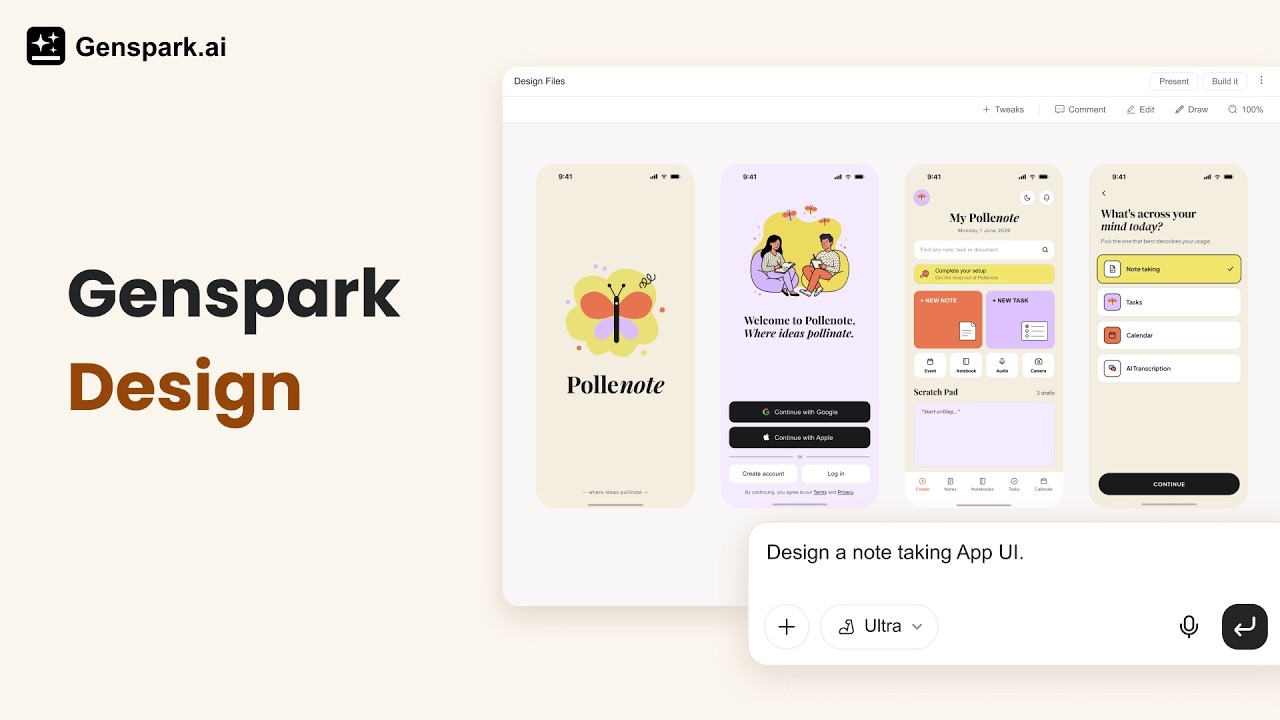
Genspark Design is an AI-powered creative suite that takes you from a rough idea to a professional, production-ready design — entirely through conversation. No design software skills required.
Describe what you need in plain language, and Genspark Design handles the concept, layout, color, imagery, and interactivity. Whether you're a product manager sketching a prototype, a marketer creating event posters, or a founder building a landing page, the AI does the heavy lifting while you stay in control.
- What you can build: UI prototypes · websites · posters · animations · presentations · marketing assets · documents
- Who it's for: Product managers, marketers, founders, engineers, and creators who need professional design output without Figma or Canva expertise.
- Try it now: Open Genspark Design.
Quick Start
- Describe your design in the input box — be as specific or open-ended as you like.
- Optionally attach context via the + button: a Figma file, screenshot, GitHub repo, or a Design System.
- Send — your design is generated at the highest quality by default. The AI may ask clarifying questions, but it may also start straight away — include the size, colors, type, and style you want up front.
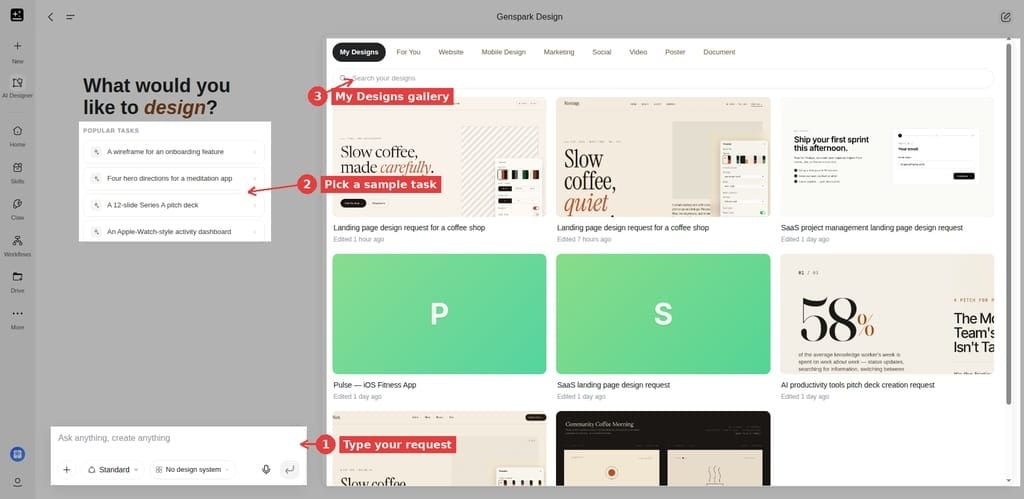
Tip: Not sure where to start? Click any Popular Tasks example below the input box — it fills a ready-made prompt you can edit before sending.
Core Concepts
Key Terms
| Term | What it means |
|---|---|
| Canvas | Right-side panel where your design lives and is edited |
| Chat panel | Left-side panel where you talk to the AI |
| Design System | Saved brand style (colors, fonts, components) applied automatically to every design |
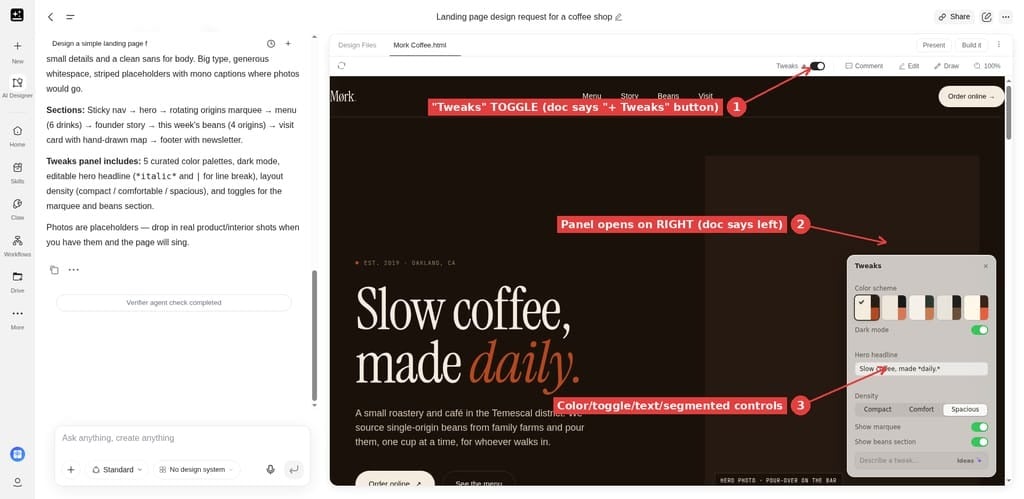
| Tweaks | Live parameter controls for real-time fine-tuning — no re-prompting needed |
| Build it | One-click export of your design as a runnable website or app |
| Verifier | An optional quality check the agent can run in the background; it only messages you when it finds something to fix |
| Remix | Copy a shared design to create your own editable version |
| History panel | A list of earlier versions of a project |
Design Types
Just describe what you want; the AI picks the right type automatically.
| Type | Best for |
|---|---|
| Prototype | Interactive apps, UX flows, SaaS dashboards |
| Slide deck | Pitch decks, reports, training materials |
| Poster | Events, social media, print assets |
| Video / Frame Movie | Product intros, logo animation, multi-shot ads |
| Wireframe | Low-fidelity layout exploration |
| Flipbook / Paged Book | Lookbooks, whitepapers, technical manuals |
What Design Can Connect To
Genspark Design has its own toolset: it can connect to GitHub, browse a repository, import files, work with Figma, capture elements from a web page, and search images. Two things to keep in mind:
- Attaching a repository as context gives the agent a snapshot of the files you attach — small text and code files, filtered and capped — for that message. It isn't a live connection to your whole repo, and the agent doesn't run your code.
- Using a tool — for example, importing files from a repo — brings those files into the project.
For coding work in a full developer environment, use Genspark Code.
What Design Costs
Genspark Design is billed in credits.
- Credits only — not Free Quota. Genspark Design isn't covered by Free Quota on any plan. For what Free Quota covers, see Membership Plans.
- Billed as the agent works — not by page or unit. Credits are used as the agent builds the design, and each image, video or audio generation is charged on top — so asking for lots of images is a common way a project gets expensive.
- Retries and redraws cost again. Re-running a change or redrawing is a new, billed generation, so a back-and-forth fix loop adds up.
- Where to see it: open Credit Usage → Design in your account. For how credits are counted and charged, see the Credits Guide.
Feature & How-To Guides
Creating a Design
- From scratch — type a description, attach optional context, then send.
- From a template — browse the For You gallery → click a design → Remix.
- Multiple directions — open multiple chats within one project (each has independent memory).
Adding context to your prompt: Click the + button in the input box to attach supporting materials — local files, images, or docs; files from your AI Drive; a Figma file; a GitHub repository; a reference to one of your past designs; a web element grabbed from any webpage; or a saved Skill or Design System. The more context you give upfront, the closer the first generation will be to what you need.
Editing on the Canvas
| Tool | How to use | Best for |
|---|---|---|
| Tweaks | Adjust sliders and color pickers in real time | Global parameters: colors, spacing, text |
| Edit | Click any element, then modify it in the panel | Changing one specific element. Edit targets the element you select; simple text and style changes usually apply directly. If a change can't be applied directly, it's handled as a new chat generation, which can re-bill and may affect other elements. |
| Comment | Pin feedback on the Canvas, then send it all at once | Descriptive feedback ("change this to blue") |
| Draw | Sketch with the red brush or add sticky notes, then send | Visual instructions: arrows, circled areas |
Edit Safety: Protect Your Work
A common frustration is a small change that redraws work you wanted to keep. A few habits prevent it:
- Change one thing at a time. Small, separate edits are easier to keep than one big rework.
- Use Edit for a single element, and Comment to pin several notes and send them together.
- Simple text and style changes usually apply directly — often with no redraw and no extra credit cost.
- If a change can't be applied directly — or it's a layout, structure or new-element change — it's handled as a chat generation. That re-bills and may affect other elements, so check the result before continuing.
- Duplicate the project before a big change, so the version you like stays intact.
- The History panel is read-only. It shows earlier versions, but it can't roll back to one.
Design System
- Click Design System below the input box → Create New.
- Enter a brand description; import assets (Figma .fig / GitHub / codebase / uploaded files).
- AI extracts colors, fonts, and components — review and confirm.
- Reuse it across every project. You can also extract a Design System from any existing design via the Share menu → Create design system from this project.
Exporting
| Output | How to trigger | What it's for |
|---|---|---|
| Present | Click Present in the top bar | Fullscreen playback; arrow keys to flip pages; Speaker Notes for slide decks |
| Build it | Click Build it → Website / App | A runnable website or app. It stays inside Genspark Design — a developer handoff is a separate route |
| ZIP (project source) | Click Download — its own button next to Build it in the top bar; disabled while a generation is running | The project's source files — not just a developer handoff document |
| PNG | Export menu → Export image (poster designs) | A raster image |
| PSD | Export menu → Export PSD (poster designs) | A layered PSD — one Photoshop layer per design layer. Some effects may not rasterize; the export still downloads, minus those layers |
| MP4 | Export settings dialog | Video |
| PPTX | Say "Export as PPTX" in chat | Editable slides. Styling is approximate — effects PowerPoint can't represent are dropped |
| Say "Export as PDF" in chat | A print-ready file, produced through your browser's print dialog |
The Export menu with PNG and PSD appears on poster designs. For PDF and PPTX behavior, see Export Fidelity & Troubleshooting.
Export Fidelity & Troubleshooting
- PDF is rendered by your browser, not by Genspark. The auto-print pop-up is often blocked — allow pop-ups and try again, or use the download link the agent posts. Background colors can be dropped depending on your print settings.
- PPTX styling is approximate — that's expected. Complex effects (gradients, filters, blend modes, custom shapes) aren't representable as PowerPoint objects and may be dropped.
- No vector output. There is no SVG, Adobe Illustrator (.ai), or EPS export; the PSD is layered raster.
- If an export looks blank or fails, try once more. Rendering can miss an asset on the first pass.
Sharing & Collaboration
- Share link — Share icon in the top bar → Anyone with the link (public) or Restricted (email invite).
- Roles — Viewer / Editor / Owner.
- Duplicate — a full copy of the project including files and conversations.
- Add to Hub — the ⋯ menu in the top bar → adds the project to your Hub, a shared team workspace with persistent context.
- What a public link exposes — A public link lets anyone with the URL view the design and its source files, version history, and downloads — no sign-in required.
- Revoke a link — To cut off access, set the project back to private (Restricted); anyone using the link then loses access.
Managing Your Projects
- Find your designs in the My Designs gallery on the Design home page. Click a design to reopen it.
- Duplicate a project from its menu to keep a copy you can experiment on.
- Remix a shared design to create your own editable version.
- Rename or delete a project from its menu in the My Designs gallery. Deleting a project can't be undone.
Quick Reference
Canvas Toolbar
| Location | Controls |
|---|---|
| Top-right | Tweaks · Edit · Comment · Draw |
| Top bar | Present · Build it · Download · Share · ⋯ menu (Bookmark, Add to Hub) |
| Canvas tabs | Design System |
Troubleshooting
The Tweaks panel is empty — what do I do?
Say "Make this tweakable" in the chat — the AI will generate controls automatically.
Build it is grayed out — why?
Build it activates once generation is complete. It's disabled while a generation is running, and it isn't available for every design type. Wait for the task list to finish; if it stays grayed out, the design type may not support Build it.
It generated something I didn't ask for.
Add more detail to your prompt; specify the design type, target audience, dimensions, or visual style. Attach reference screenshots. Use the Comment or Draw tools to point to exactly what needs changing.
A run fails, freezes, or comes back blank.
Try these in order:
- Reload the project and check whether the run actually finished — the canvas can lag behind the chat.
- Ask again. A new run is a new charge.
- Duplicate the project to keep a clean copy before you retry.
Still stuck? Report it with the project link: open the project, click Share, and invite [email protected] as a Viewer.
An export is missing, blank, or won't open.
- Missing from the menu: some formats depend on the design type — the Export menu with PNG and PSD appears on poster designs.
- PDF or PPTX problems: see Export Fidelity & Troubleshooting.
- A format is locked: export availability can vary by plan.
For more known issues and fixes, see Common Issues.
FAQ
I want to undo a change.
Genspark Design has no one-click undo. The History panel shows earlier versions, but it's read-only — you can look, not roll back. Asking the AI to revert starts a new, billed generation, and it may not reproduce the exact previous state. Make changes one at a time, and Duplicate the project when you reach a version you want to keep.
Can the code from Build it go straight to production?
It runs as-is, but have a developer review it before deploying.
How is this different from AI Slides?
Genspark Design is a full creative canvas (websites, apps, videos, posters, code). AI Slides is purpose-built for presentations with PPTX / Google Slides export. For pitch decks, either works. For prototypes, visuals, or video — use Genspark Design.
Can I use my designs commercially?
Genspark Design is intended for personal and commercial work. Ownership, commercial use, and what you can create are covered by our policies.
Why did other parts of my design change when I only asked for one edit?
Small edits (text, color, style) are written straight into your design. Big edits (layout, structure, new elements) are sent to the AI as a prompt, so the AI rebuilds that part — and may change more than you asked. To stay safe: one change at a time, use Edit for a single element, and Duplicate before a big change.
Why was I charged for edits I didn't keep, or for a generation that failed?
Design bills for the work the AI does, not for what you keep — so a discarded redraw or a retry still uses credits. Generations blocked before they start are refunded automatically.
Can I edit a design without the AI regenerating it?
Partly. Simple text and style/Tweaks edits are applied directly — no redraw, no credit cost. There is no full manual-edit mode and no element locking; anything else goes through the AI as a generation.
Why doesn't my PDF or print export match the design?
PDF exports come from your browser's print dialog, so they follow your print settings — and browsers block the pop-up or leave out background colors by default. PPTX is approximate, since PowerPoint can't represent every effect. Neither export is an exact copy of the design.
What does a share link expose?
A public link grants read to anyone with the URL.
What's included in my plan, and do the promos cost credits?
Design is on every plan and is credit-only — not covered by Free Quota.
Can Design use my GitHub repo or the tools Super Agent can?
Yes — Design works with GitHub, Figma, web capture, and image search. Connecting GitHub gives it persistent repo tools; attaching a repo with + attaches a snapshot of small files to that message only. Either way, Design reads your code, it doesn't run it.
How do I control how many images it generates?
There's no cap and no approval step — Design decides how many images to make, and may make more than you asked for. State an exact number, start with a small sample set, then request the rest once you've picked a direction. These are prompt instructions, not enforced limits.
How do I get better-looking output?
Give it a Design System, attach reference images or a Figma file, and describe the design type, size, style, and audience before you send. Use Comment or Draw to point at exactly what to change, and refine one element at a time.
Was this article helpful?