

AI Meeting NotesTry Now
AI Meeting Notes
What is AI Meeting Notes?
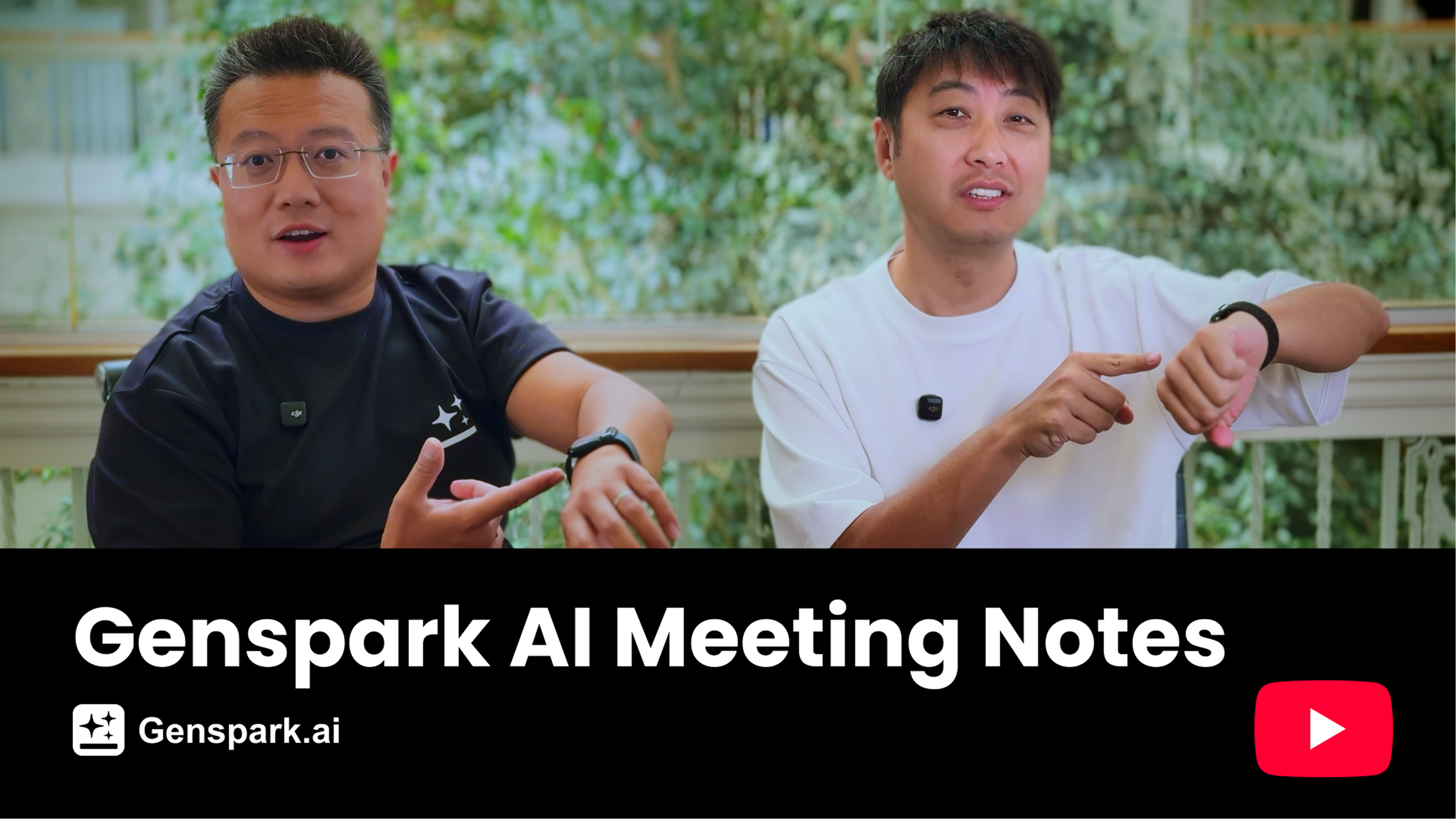
Genspark AI Meeting Notes is the world's first AI meeting notes tool for Apple Watch, also available on iOS, Android, and Web. Just double-tap on your Apple Watch or tap once on your phone to instantly turn any meeting into comprehensive, professional meeting notes.
Learn more about AI Meeting Notes: https://www.genspark.ai/blog/genspark-ai-meeting-notes
Quick Start
- Open the Genspark app and go to AI Meeting Notes
- Tap Connect Calendar to link your Google Calendar or Outlook — this lets the app show your upcoming meetings and enables Meeting Bot to join them automatically
- Tap + New to start recording. When the meeting ends, tap End to generate your notes
- The system automatically analyzes the recording and produces meeting notes with a full transcript. You can then ask AI questions about the meeting content
AI Meeting Notes is available on web, mobile app, and Apple Watch.
Feature & How-To Guides
Meeting Recording
- Language support: All major languages are supported
- Recording length: No time limit
- Audio source: Records via your device's microphone only (system audio is not supported)
- Recording interruptions: Recording auto-resumes if interrupted. If the app closes, reopen it or tap Resume to pick up where you left off
- Generating notes: Tap End to upload. Keep the app open until progress passes 50% to avoid upload failures
- If generation fails: On web, click the Resume button on the recording entry to re-upload. On mobile, reopen the app to automatically retry. On Apple Watch, swipe left on the entry and tap the phone icon to regenerate
- Import audio: Available on the mobile app and web
- Live notes: During recording, you can jot down notes in the notes input box at any time — they'll be used as additional context when generating your meeting summary
Meeting Notes Management
- Edit notes: Click anywhere in the meeting notes area to edit (undo and version history are not supported in the current version)
- Copy transcript: Transcripts can't be edited directly, but you can copy the full content with one click
- Delete a recording: On mobile, swipe left on the entry and select Delete. On desktop, click the three-dot menu (⋯) to the right of the entry and select Delete
- Chat: Ask AI questions about your meeting content. Responses appear in the chat stream and won't overwrite your original meeting notes
- Search: The search bar on the main page searches across all meeting titles and summaries. Inside a transcript, you can search for specific keywords and jump to where they appear
Sharing & Export
- Share with participants: After the meeting ends, expand the Participants section on the meeting notes detail page and click Share with X participants — the system will automatically email the notes to all attendees
- Export to Google Docs: send notes or full transcript to a new Google Doc; ready-to-open link; one-time auth scoped only to files it creates
- Email sharing: You can also type "send email to [email protected]" in the chat box, and the system will send the notes via the Genspark team email ([email protected])
- Share link: Generate a shareable link — set General Access to "Anyone with the link," or invite specific team members by email, then copy and share the link
- Save as PDF: Export your notes as a PDF, great for printing or archiving
- Save to Notion: If you have Notion installed, you can save your meeting notes to Notion with one click
Apple Watch
- System requirements: watchOS 10.0 or later
- Installation: After installing the Genspark app on your iPhone, the Watch app will automatically install on your Apple Watch. If it doesn't, manually install it from the Available Apps section in the Watch app on your iPhone
- Recording a meeting: Open the Genspark app on your Apple Watch and tap to start recording. You can switch apps or turn off the screen during recording — it keeps going in the background. When you're done, tap to stop, and the recording will automatically sync to your iPhone and the web
Meeting Bot & Calendar Integration
Meeting Bot is an AI assistant that automatically joins your online meetings, records them, and generates meeting notes when they're done — no manual steps required.
Step 1 — Connect your calendar
Tap Connect Calendar on the AI Meeting Notes home screen to link your Google Calendar or Outlook (if you haven't done this already). Once connected, the Coming up section will show your public meetings for the next three days (private events are excluded).
Step 2 — Enable Auto-join
- Click the settings button in the top-right corner, go to Settings → AI Meeting Notes
- Under Meeting Bot, turn on Auto-join
With Auto-join on, Meeting Bot will automatically join and record all calendar meetings where a meeting link is detected. You can also start it manually for any specific meeting — just tap it in the Coming up section and hit Join Meeting.
Additional settings:
- Bot name: Customize the name shown in the meeting room — defaults to "Genspark Meeting Bot"
Supported platforms: Zoom, Google Meet, Microsoft Teams, Webex, GoToMeeting
Credits: Recording with Meeting Bot uses Credits, billed by actual recording time.
Note: Meeting Bot can only join meetings where a meeting link is included in the calendar invite. If there's no link in the invite, the Bot won't be able to join automatically.
Auto-share
When enabled, Auto-share automatically emails the meeting notes to all participants as soon as the meeting ends — no manual steps needed.
To turn it on: go to Settings → AI Meeting Notes and enable Auto-share.
Language Settings
There are two separate language settings in AI Meeting Notes, and they work independently:
1. Transcript language
The transcript is always auto-detected based on what was actually spoken. It accurately reflects the real speech — even in multilingual meetings where participants switch between languages, the transcript will capture each language as heard.
2. Meeting notes language
The language your final notes are generated in is controlled separately, via Settings → AI Meeting Notes → Notes Language:
- Auto detect (default): The AI reads the transcript and generates notes in the transcript's dominant language. You don't need to configure anything — it works automatically.
- Manual selection: If you choose a specific language, notes will always be generated in that language regardless of what language the meeting was held in.
FAQ
Why is my recording taking a long time to process?
Possible causes:
- Unstable network connection during upload
- The app was closed before the upload completed
- The server is handling a high volume of requests
What to do:
- To prevent this: Make sure you have a stable connection before uploading, and keep the app open until progress passes 50%
- If it already failed: Check your connection and reopen Meeting Notes to trigger a re-upload
What should I do if there's no sound after recording on web?
Cause:
- The wrong microphone device was selected
What to do:
- Make sure you've selected the correct microphone before you start recording
- Check the audio waveform right after starting — it should show activity
- If there's no waveform, stop the recording, switch your microphone in the browser settings, and try again
Can I download the original audio file?
To protect user privacy, Genspark does not save or provide access to original audio files. Only the transcript text and meeting notes are available.
Why didn't Meeting Bot join my meeting?
Check the following:
- Is your calendar connected (Google Calendar or Outlook)?
- Is Auto-join turned on in Settings?
- Does the calendar invite include a meeting link (Zoom, Google Meet, Teams, etc.)?
- Do you have enough Credits in your account?
If everything looks good, try disconnecting and reconnecting your calendar.
My "Coming up" meetings disappeared and Meeting Bot stopped joining automatically. What happened?
Your calendar connection has likely expired. Calendar integrations, especially Outlook, use time-limited access tokens. Once a token expires, Genspark can no longer read your calendar, so the Coming up section goes blank and Meeting Bot stops joining automatically.
To fix it, go to AI Meeting Notes → Connect Calendar, disconnect your current calendar, and reconnect it. After reconnecting, your upcoming meetings should reappear in the Coming up section and Meeting Bot will resume auto-joining.
Was this article helpful?