

Super AgentTry Now
Super Agent
Super Agent takes a whole job. You describe the finished thing and add the files. It plans the steps, runs them on a cloud computer, and hands back files you can open: a report, a deck, a spreadsheet, a working page, a set of images. A long job can run for up to 2 hours, and it keeps going after you close the tab.
Two modes run it. New Super Agent gives each project its own cloud computer. Classic is the original mode, with no cloud computer behind it. Both stay available, and the mode is chosen before a chat starts.
What is Super Agent?
Super Agent is the agent you hand a job to. You don't assemble tools or write a chain of prompts. You say what the output is, attach what it needs, and it works through the steps until there's something to open.
The machine behind the run does the work. In New Super Agent, each project gets a fresh cloud computer (not the Claw subscription; see Its own cloud computer). A project is the workspace one task runs in: its chat, its files and its computer. That's why the result is a file you can open.
How it works through a request
It breaks the request into steps, picks tools for each one, and keeps the working files between steps. Ask for a market report and it searches, reads, writes and formats.
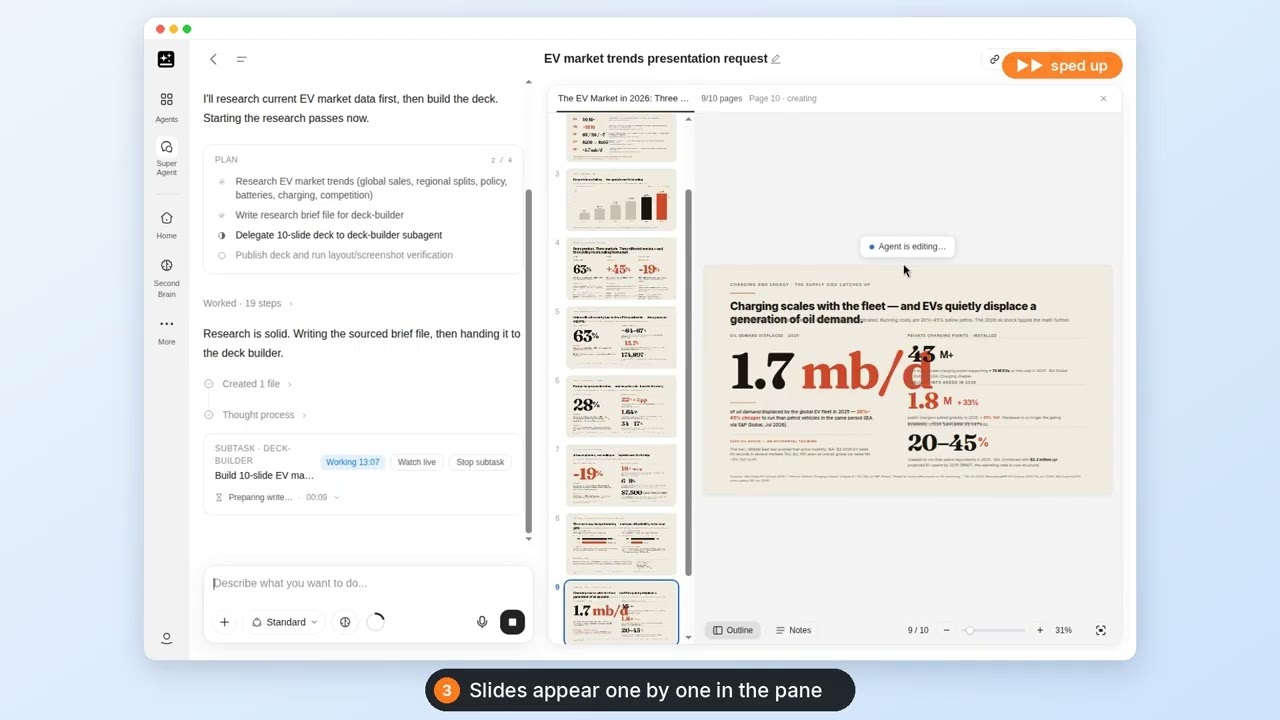
A slide request comes back as a deck built on the cloud computer, with a deck card in the chat and the pane. Its viewer has Export → Export as PPTX and Export as PDF. AI Slides comes in only through Edit in Genspark AI Slides or Save as editable slides project.
A document request gives a document card (Export PDF, Edit in Genspark AI Docs) or a real .docx on request. Spreadsheet analysis runs in Python and returns a real .xlsx when asked, and AI Sheets is for a sheet you'll keep editing. Design opens from a link with your brief filled in, for a design to keep refining.
Works with the apps and tools you already use
Super Agent works from what you attach and what you've connected. In the composer's + menu, Browse Local Files attaches a file and Choose from cloud computer opens a picker that reads your Genspark storage, not the project's cloud computer. Attaching files lists every row. The Connectors row turns individual connectors off: inside an open chat for that chat, on the home box remembered by the browser for later chats. Connectors and integrations covers each connector.
What you can do
Seven jobs cover most of what people bring to Super Agent. Paste a prompt into the composer; Quick start shows where. Rows 1, 5, 6 and 7 name a file or meeting notes, so attach those first. All fourteen recipes are at the end, under Recipes.
| What you get | Prompt to paste | Full recipe |
|---|---|---|
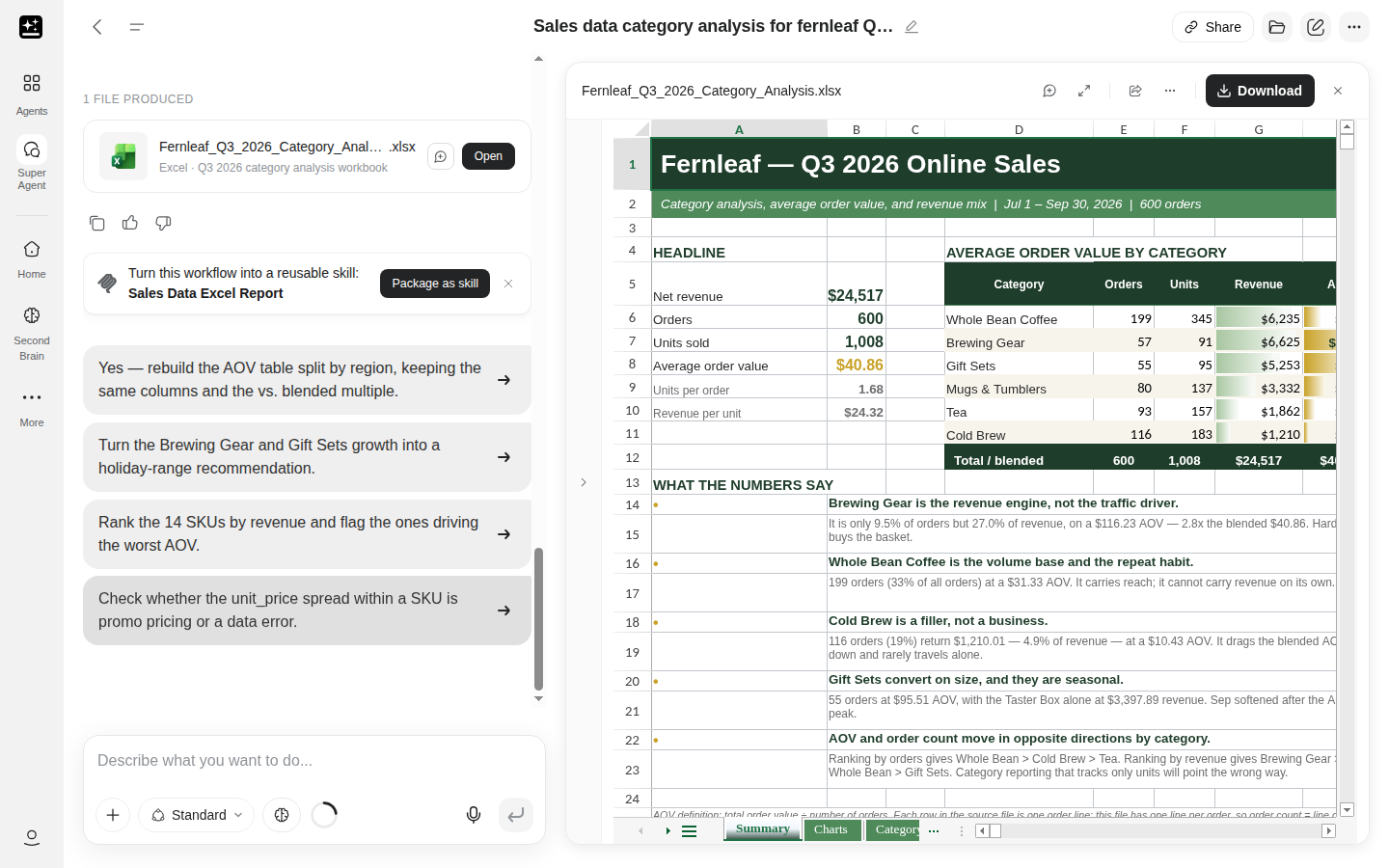
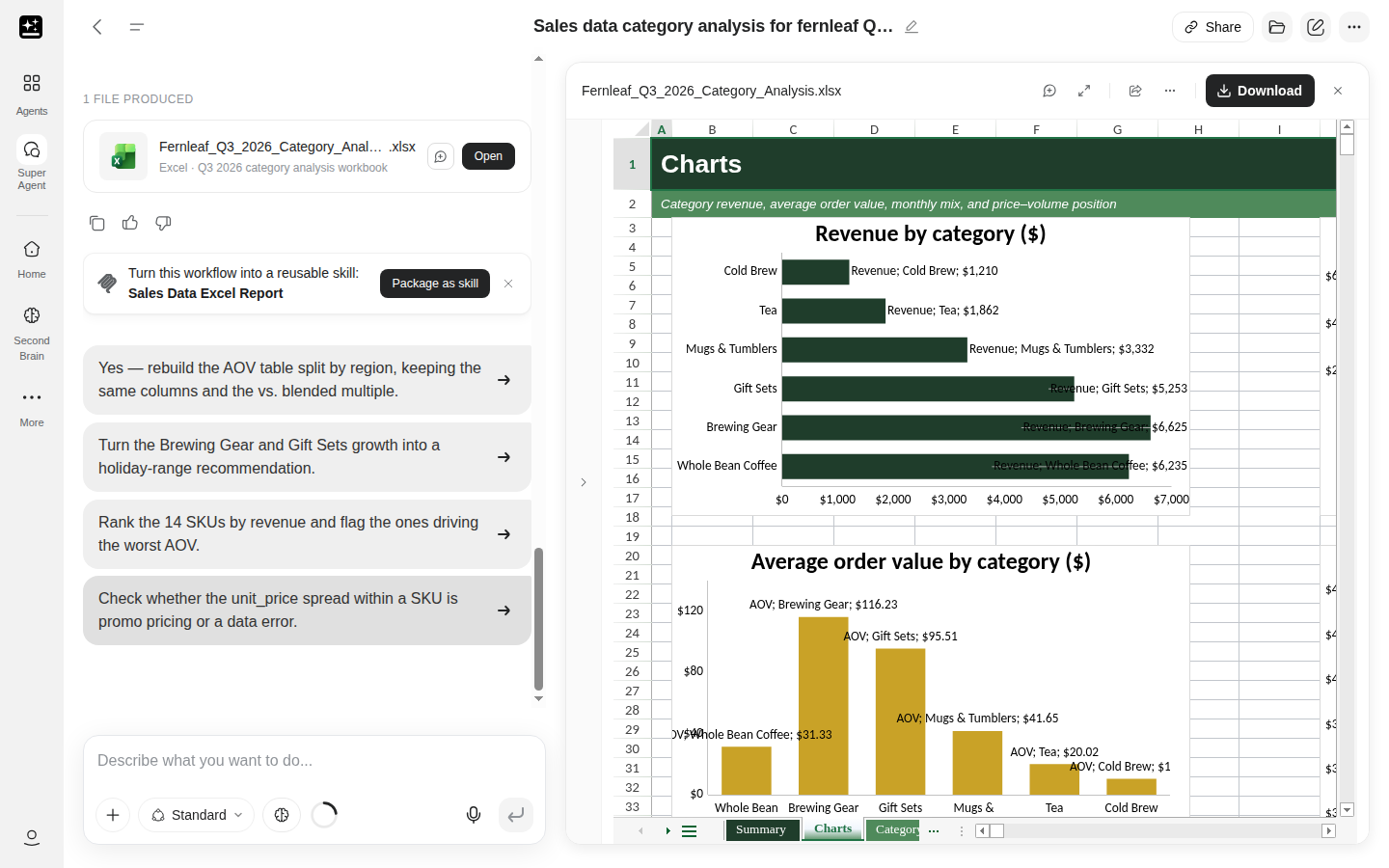
| A finished file from the files you hand it | Analyze the sales data from my uploaded file and build a category analysis with charts and an average-order-value table | Recipe 1 |
| A workflow saved as a skill you can run again | Score a customer's renewal risk from their recent emails, tickets, and usage — save as a skill. | Recipe 2 |
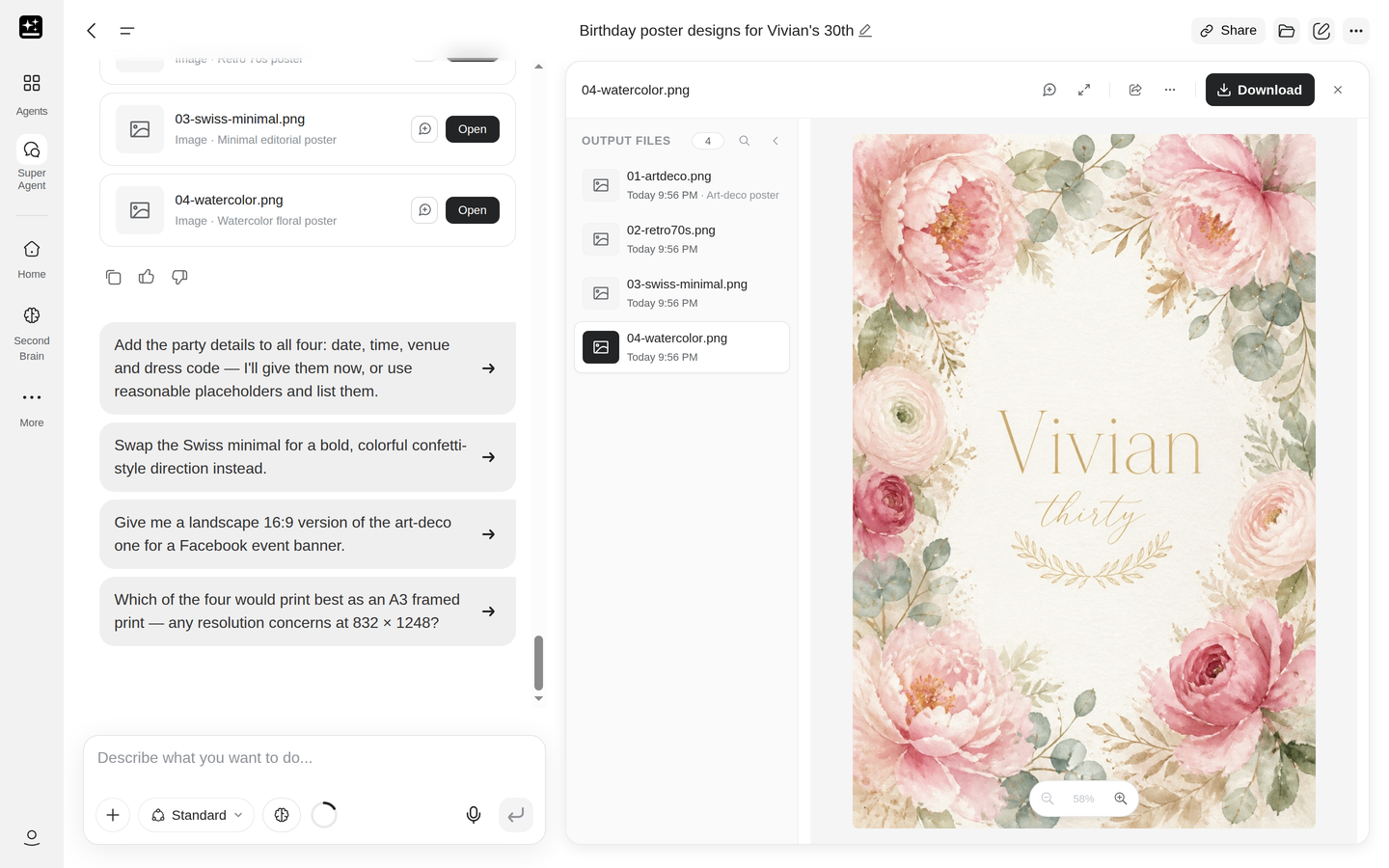
| A set of posters in different styles | Create four different style birthday posters for my friend Vivian's 30th celebration | Recipe 3 |
| A research report or a deck | Research electric vehicle market trends and create a 10-slide presentation with key insights | Recipe 4 |
| A small web page from a brief | Create a product landing page for my smart water bottle based on the uploaded product brief | Recipe 5 |
| A recap of the week from meeting notes | Give me a weekly recap from this week's meeting notes — wins, decisions, blockers, next steps. | Recipe 6 |
| A finished file from a long job | Research the last three years of earnings calls on these filings and build a sourced 30-page competitor report | Recipe 4 |
Two sections sit above the rest of the tour: what a run costs and what to do when a run stalls. For anything else that goes wrong, start at the symptom table.
Super Agent can also call a person or business for you, and send text messages. Both need a membership, phone setup, and credits.
Where everything is
| What you want | Where it is |
|---|---|
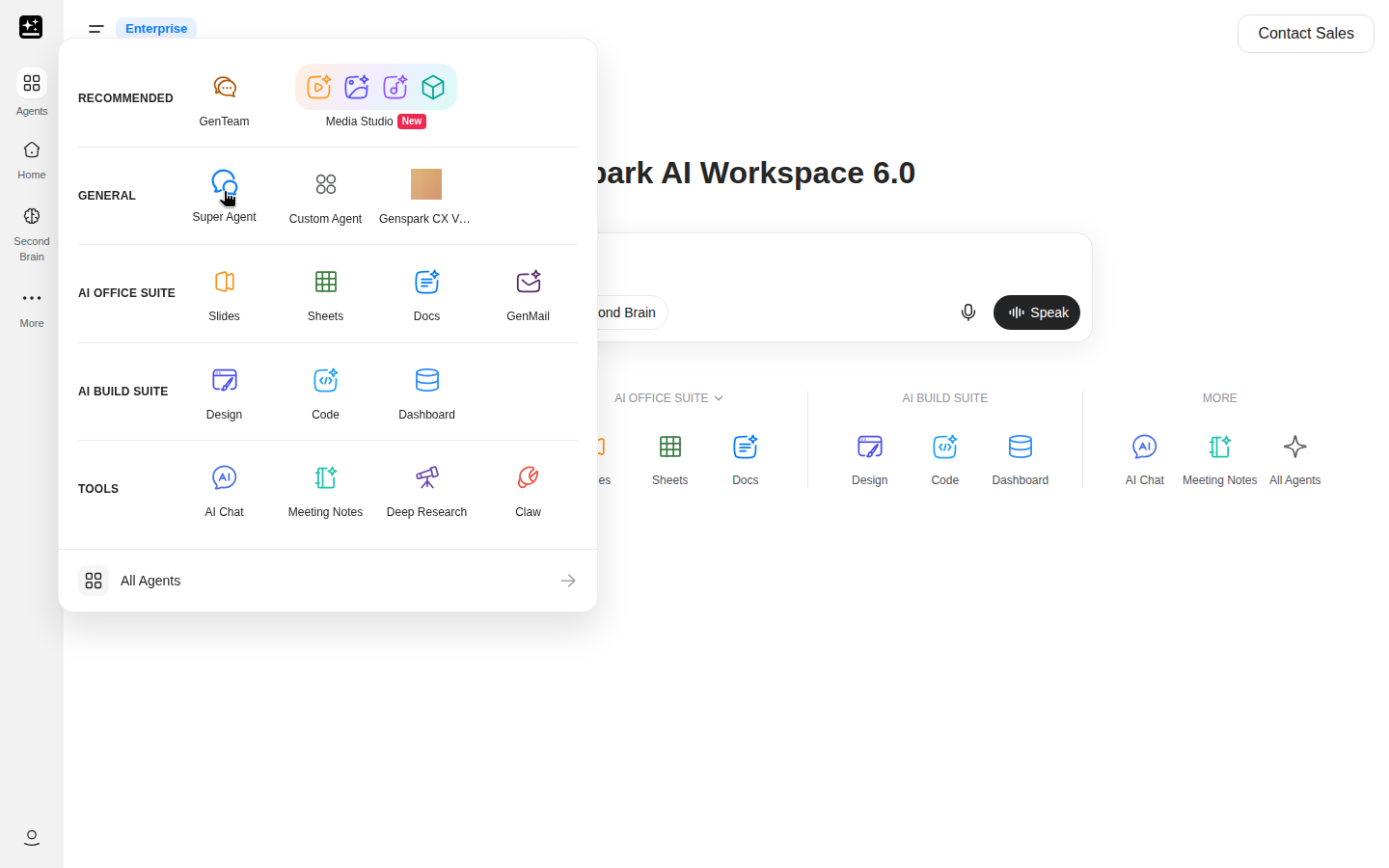
| Start a task | The chat box on the Genspark home page, or Agents → General → Super Agent |
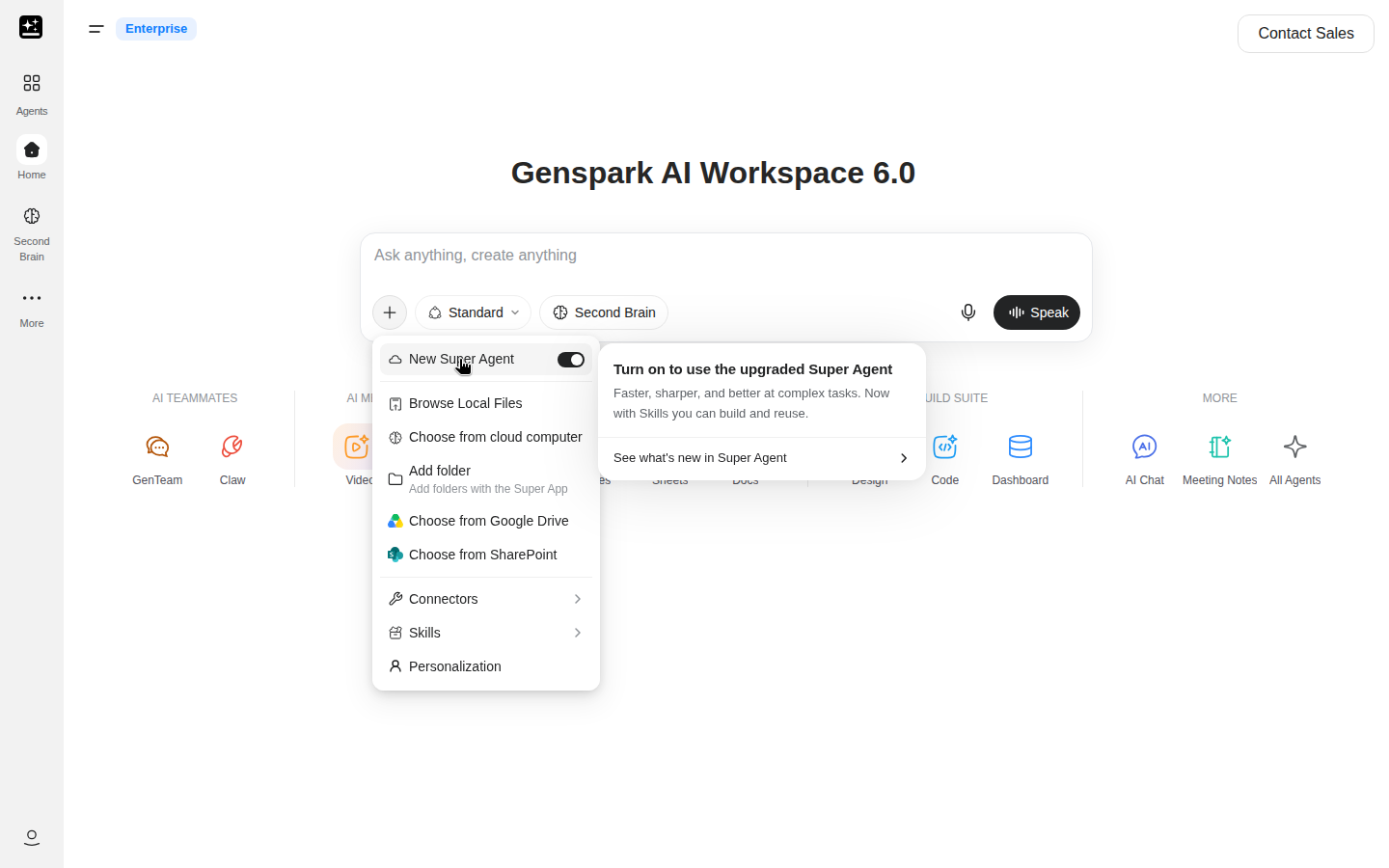
| Turn New Super Agent on or off | + in the composer → New Super Agent switch, first row |
| Attach a file or pick one from a drive | + → Browse Local Files or Choose from cloud computer |
| Use a skill | + → Skills, or / once the composer is in New Super Agent |
| The files a run produced | Output files in the right pane, or the {n} FILES PRODUCED heading in the chat |
| Share one file without the project | Share this file in the pane's preview header |
| An earlier run | Tasks in the left panel on the home page, with Search Tasks |
Super Agent sits in General in the Agents menu, next to Custom Agent.
Quick start
Before you start: a Genspark account and the files the job needs. Which mode you get has the default for your plan. A plain-language brief is enough to begin.
- Open the Genspark home page and click the chat box, or go to Agents → General → Super Agent. Both open the same composer, but the New Super Agent switch is only on the home page, so set the mode there first.
- Click + in the composer. On a paid plan the switch is already on, so check it; on a free account, turn it on. Its tooltip reads "Add files and more", and the first row is New Super Agent with an on/off switch.
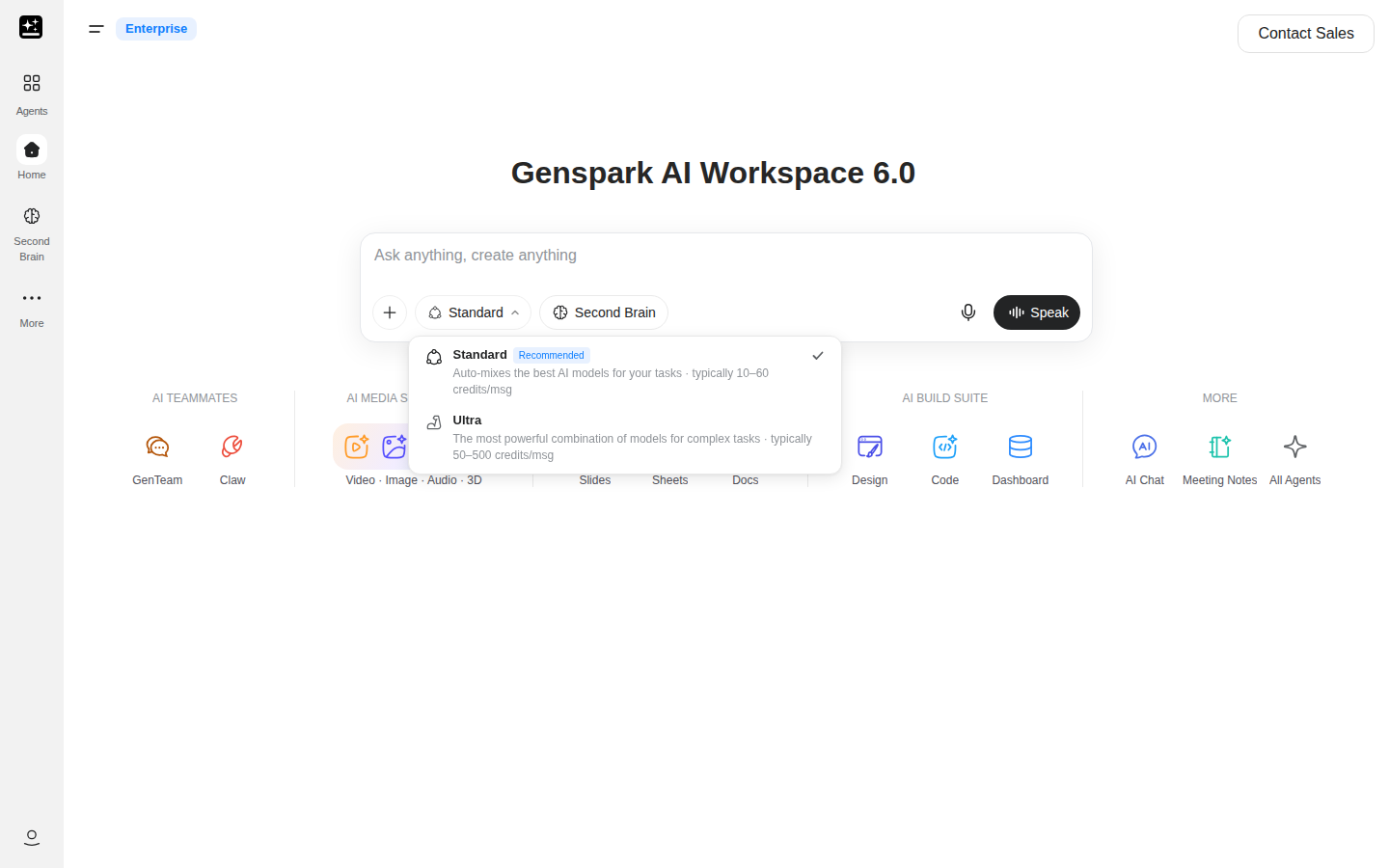
- Set the tier in the composer's tier picker: Standard for most work, Ultra when the job needs more. It opens on your last tier, so check it. The panel shows a typical range for each, and the Standard and Ultra section has the bands.
- Attach the material: + → Browse Local Files to attach a file, or Choose from cloud computer for anything already in a drive or a note.
- Write the brief in three parts: the output you want, the files to use, and the constraint that matters, such as length, audience or format.
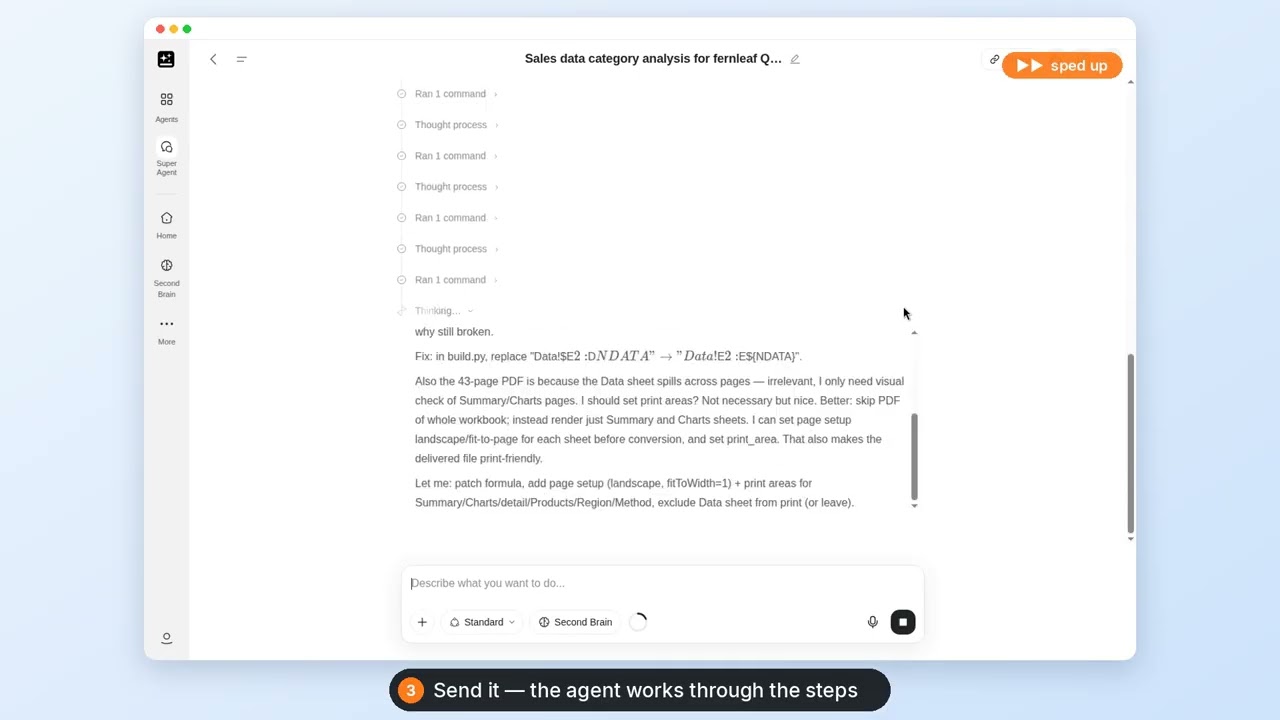
- Send it. The plan is a list of steps in the chat, and the work in progress shows in the right pane.
- When it finishes, the chat shows {n} FILES PRODUCED, with one card per file. A card carries Open or Download and opens the file in the pane; Output files has the same list.
Closing the tab doesn't end the run. The work continues on the server, and reopening the project from Tasks shows the turn where it got to. The mode is set in the home page composer before you send, and a chat keeps the mode it started in.
Which mode you get
New Super Agent is the default on paid plans, on desktop web, in a phone browser and in the App. Most free accounts start in Classic and can switch New on from the + menu. The choice is remembered per browser.
Hovering the row shows a card: "Turn on to use the upgraded Super Agent" and "Faster, sharper, and better at complex tasks. Now with Skills you can build and reuse."
Keep credit use down and read what a run costs
Credits are what a run spends, and two things decide the spend before it starts: the tier the composer is set to, and the work the job needs. A turn is one message from you and everything the agent does to answer it; "msg" in the picker means the same. A New Super Agent turn is larger than a chat answer because it plans, runs code and handles files.
Standard and Ultra
Both modes offer Standard and Ultra, and Standard is the default. The picker shows a typical range for each:
- Standard: typically 10–60 credits/msg.
- Ultra: typically 50–500 credits/msg.
Long chats, retries and big files cost more than the range suggests. You can switch tier between messages, and the change applies from your next message. The picker remembers your last choice, so check it before you send.
What Free Quota covers
Free Quota is the weekly allowance on personal Go, Plus and Pro plans. While it covers a turn, the Standard row shows "Uses free quota" instead of the 10–60 range. Ultra bills credits, and video and music always do.
A free account and a Team or Enterprise seat have no Free Quota, so every turn bills credits there.
When Free Quota runs out, the next turn moves to credits automatically, or waits for your choice if Ask First is on. Membership Plans has how it accrues and what it covers.
What a run costs before it starts
New images, video and music are confirm-first. The agent asks one short form before generating anything: the style, the ratio, and the model with its price. Video and audio show a price card before the run starts.
A text job's cost shows after the turn, in the credit history.
Habits that keep the cost down
- Start a new chat for a new task. A long chat costs more than a short one.
- Keep the tier on Standard unless the job needs Ultra.
- Attach the reference once and name it in the prompt. A second attempt is a second turn.
- Ask for the shape you want in the first message: length, sections, format, audience.
- Aim a job at one clear output. A string of small ones costs more.
Check what you spent
Your balance and the record of what each turn used are in the Credits Guide. If a charge doesn't match, read the two Troubleshooting Guide entries first: a balance that dropped and a Free Quota charge. When you contact support, what to send support lists what to include.
A turn can also be refused before it starts, when the balance is too low for the mode. The credit floor has the message and the fix.
Recover a stuck or failed run
A run stalls for a small set of reasons, and the chat or the pane usually says which one.
The connection drops
"Connection lost. It will reconnect automatically." needs nothing from you. If a reply stops with "Connection interrupted, reply incomplete", choose Reconnect. A message marked "Not sent" has Resend, which sends it again.
The cloud computer fails its health check
Two messages point at the machine, not the task: "Your Cloud Computer is failing its health checks…" and "We couldn't start a Cloud Computer for this project right now…". Neither is about your prompt.
Both ask you to wait a few minutes before you retry. Then send your next message in the same project. If the health check can't be recovered, the computer is recycled and the chat asks for a new project; a computer that couldn't start is replaced with a new one. Files already delivered stay in the project.
The computer is recycled
A project's cloud computer is temporary. When it's recycled, the chat ends with a message that says so:
"The Cloud Computer for this project has been recycled and can't be restored, so this conversation can no longer continue. Files already delivered to this project remain available. Please start a new project to continue working."
View delivered files opens what came out before the recycle. Start a new project opens a fresh workspace. Scratch files don't survive; Working files and the project says what to ask for.
A long job reaches its turn limit
A turn can run for up to 2 hours and a large number of steps. When it reaches the limit, the chat says so:
"This turn reached its time limit. Files completed so far are saved in the Files panel — you can ask me to continue from there."
The chat keeps going. Produced files stay in the project, and "continue" in the same chat picks the work up. Nothing needs re-attaching, and splitting the job is optional.
An empty balance stops a run part way too, and the credit floor covers that. A question nobody answers for 10 minutes ends the turn; replying continues it.
Classic and New Super Agent compared
Classic is still the original Super Agent, and it's still usable. The difference that matters is the machine behind the run.
| Classic Super Agent | New Super Agent | |
|---|---|---|
| What runs the task | The original engine | A cloud computer for each project |
| Best for | Quick everyday tasks and small edits | Long, multi-step jobs that produce files |
| Small tasks | Quick, with no cloud computer behind it | Same tasks, on the project's cloud computer |
| Long jobs | Multi-step work, mostly in sequence | Up to 2 hours per turn, and it keeps running when you close the tab |
| Skills | Not available | Save, run and share skills |
| Per-file limit | 100 MB | Larger, by plan; the numbers are under File limits |
| An old chat | Stays Classic | Can be continued; see Continue an old Classic chat |
Continue an old Classic chat
Old Classic chats carry a bar: "This chat is on the previous Super Agent". Continue in New Super Agent starts a new chat in the new mode, with the old chat's title; a Continued from your earlier chat card links back.
The old messages aren't shown. The agent reads the old history once, on its first turn, so it picks the work up, and a very long chat is shortened in the middle. Delivered files aren't copied across, but the agent gets their links.
The Classic chat stays usable, and its bar changes to "You continued this chat in New Super Agent", with Open it to go back. Continuation is for paid accounts on the web and your own chats.
What New Super Agent does
Three things separate the new mode from Classic: the cloud computer, skills, and larger files. The computer comes first, because it makes the other two possible.
Its own cloud computer
"Gets a fresh computer for every project." That's the short version in the product. It means a virtual machine that belongs to the project, separate from every other project and from your own computer.
Note: "Cloud Computer" in Super Agent's interface means the sandbox for one project. The Claw Cloud Computer subscription is separate; Genspark Claw covers it.
On that machine the agent can run code in Python and shell, work with files, read public web pages through search, fetch and crawl, and preview the HTML it writes.
The computer is isolated per project. The agent writes to AI Drive only when you ask it to, and a link to a file exists when someone makes one with Share this file.
Long jobs and parallel work
A run keeps going after you close the tab, and the project holds the files it produces along the way.
Each project has its own cloud computer, so several projects can work at once. Inside one project, one turn runs at a time: a message sent during a turn is folded into it, with 3 seconds to edit or cancel.
For a big job the agent can split the work into parts that run at the same time.
Super Agent First Run
Files and sessions
A run reads the files you attach, works in a project workspace, and delivers files back to the chat and the right pane. Where a file came from and where the result lands are separate steps, each with its own limit.
Attaching files
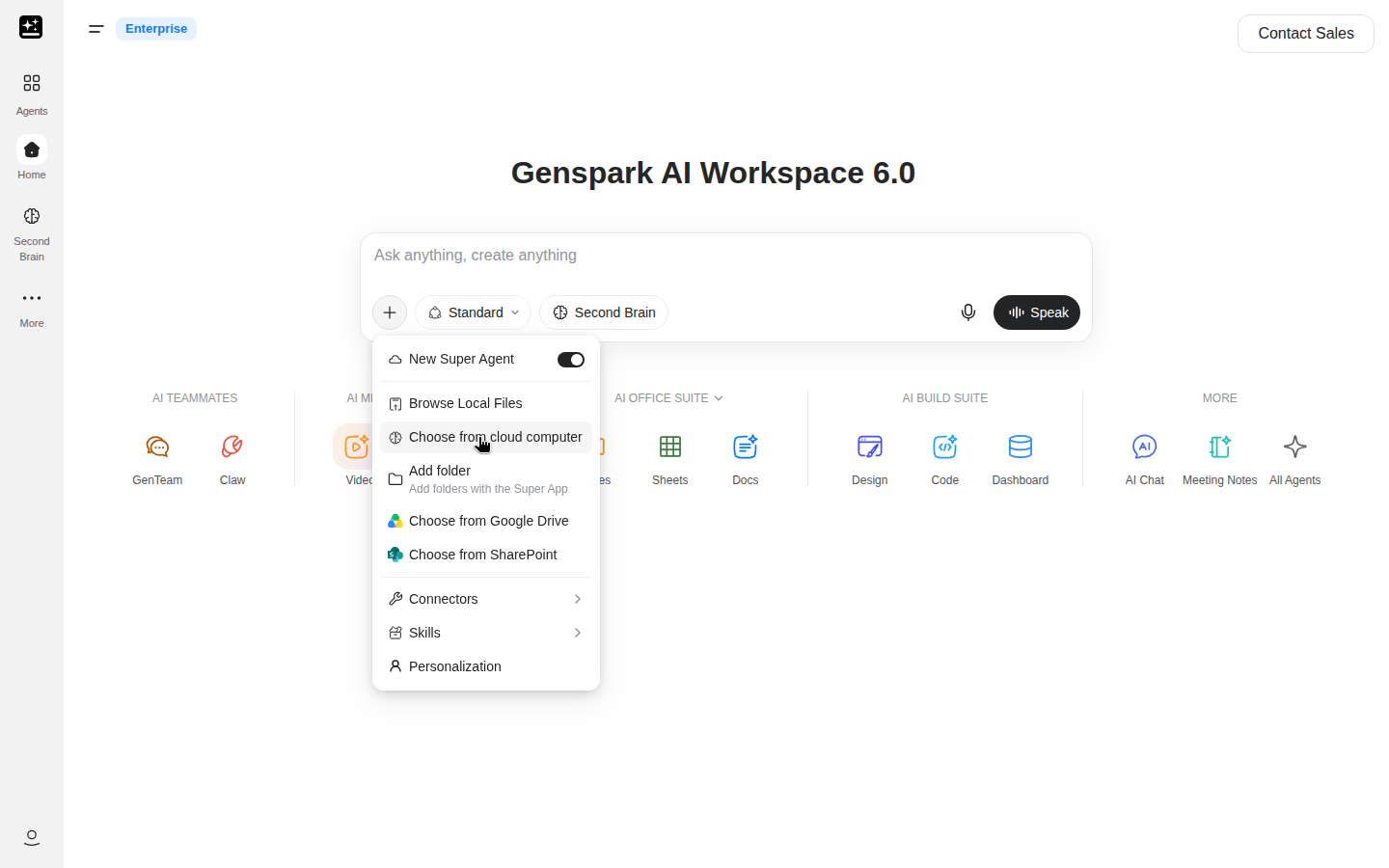
The + button in the composer carries the whole list:
- Browse Local Files attaches a file to the message.
- Choose from cloud computer opens the SecondBrain picker. My Drive, Genspark Project and Notes always show; Team Drive, Team Brain and Work Hub appear when you have one. Picked items go with the next message only, up to 30, and a folder counts as one. Only the project's owner sees this row. A collaborator in a shared chat still sees Choose from AI Drive.
- Add folder appears in New Super Agent on a computer browser, not on a phone or tablet, and says "Add folders with the Super App", which opens superapp.genspark.ai.
- Choose from Google Drive and Choose from SharePoint appear once those connectors are connected.
- Connectors switches individual connectors off for this chat.
- Skills and Personalization sit under the same +.
File limits
| Limit | Free | Paid |
|---|---|---|
| One file | 500 MB | 1 GB |
| One message, all files together | 5 GB | 5 GB |
Classic and the agents that don't run on a cloud computer stay at 100 MB per file. When a file is too big, the composer names the limit: "{fileType} size limit is {maxSize}MB" for a single file, and "Total attachment size is too large (max {maxSize}GB)." for the message. Images have a separate limit of 80 in one conversation, shown as "Maximum 80 images allowed in total conversation".
The files you get back
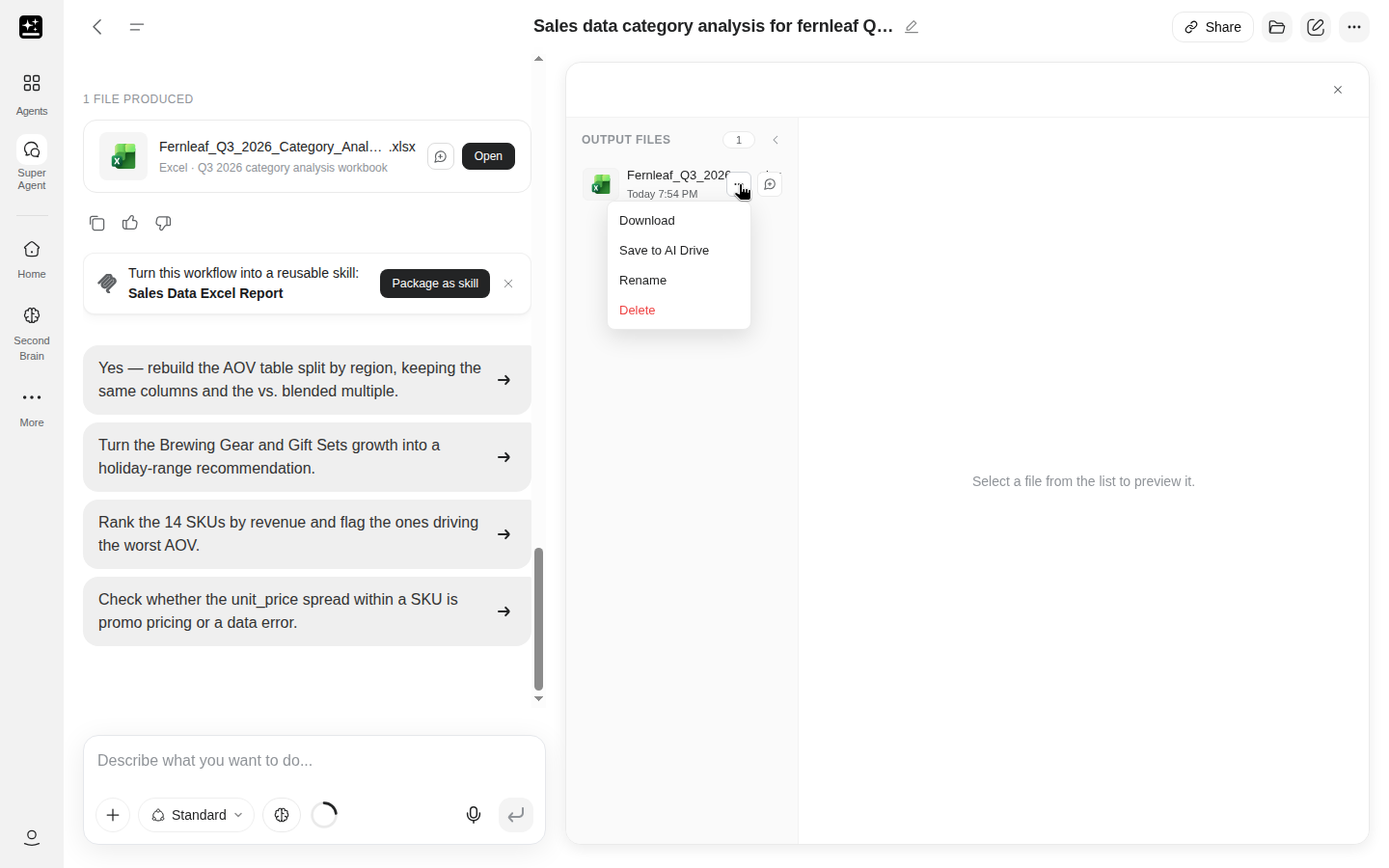
Files arrive under a heading in the chat that counts them: {n} FILES PRODUCED. One card per file sits under it, carrying Open when the file can be previewed and Download when it can't, and clicking a card opens it in the pane. The same files are listed under Output files in the right pane, one list with a preview of the file you open.
Each file row carries Rename and Delete. Deleting asks "Delete file?" and warns "…permanently removed from this project. This can't be undone." Search files at the top of the pane finds one by name in a project with many.
Delivered files stay in the project, so you can open, download or share one later without the chat.
Working files and the project
Files the agent creates but doesn't deliver are scratch. They live on the project's computer until it's recycled and they don't appear in Output files. Ask for anything that matters to be delivered.
The workspace sleeps when idle and wakes with the project, delivered files and scratch files alike. Scratch files are lost only when the computer is recycled.
Share one file
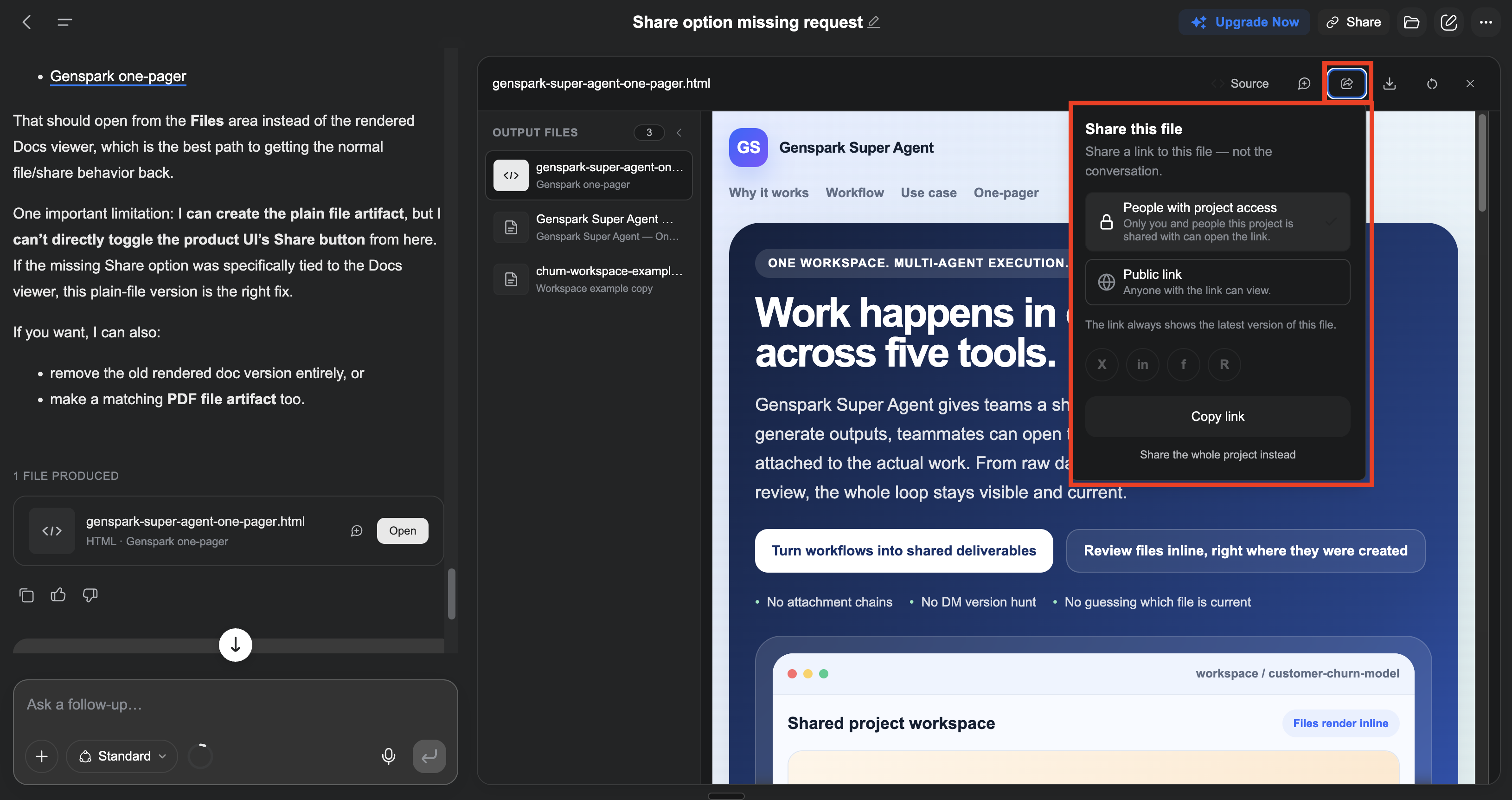
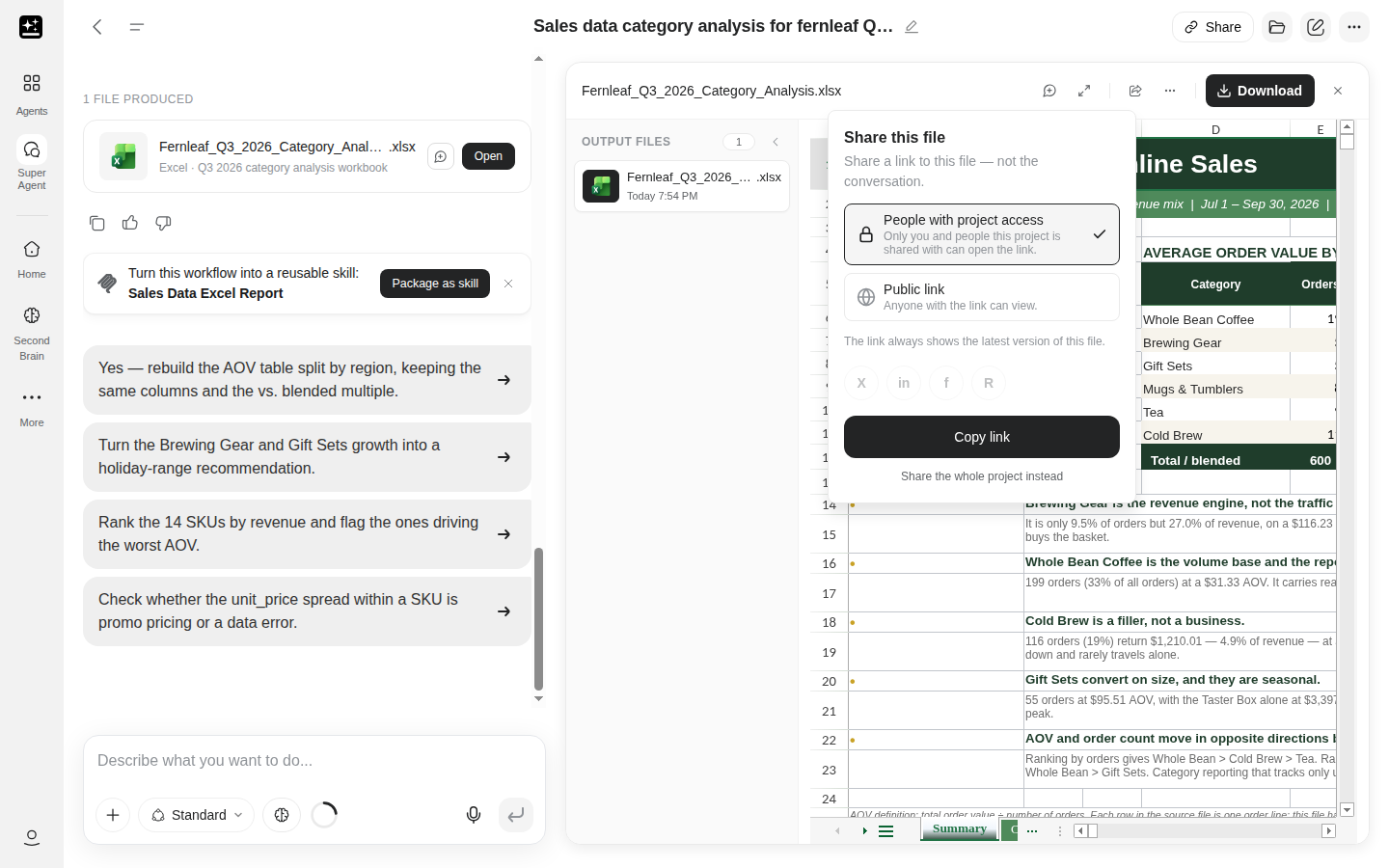
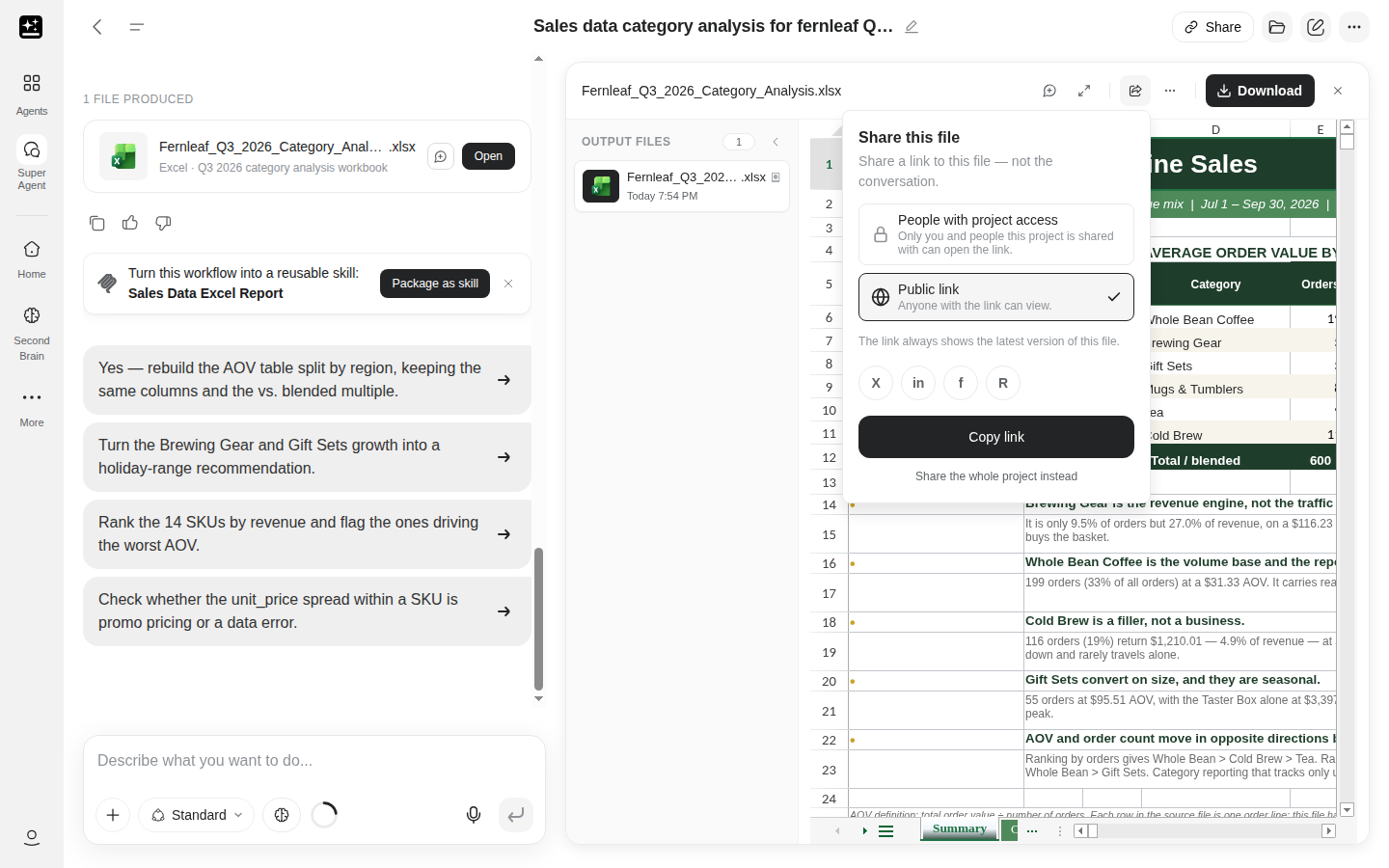
Open a delivered file in the pane, where Share this file sits as an icon in the preview header. It opens a small popover, and its line sets the boundary: "Share a link to this file — not the conversation." Only the project owner sees Share this file, Rename and Delete.
- People with project access shares with everyone who can already open the project.
- Public link carries "Anyone with the link can view." Choose Copy link to take it.
- "The link always shows the latest version of this file." A link to a document you keep editing follows the edits.
- Share the whole project instead switches to project sharing when the reader needs the rest of the context.
Two things change the answer:
- If your organization admin has turned link sharing off, Public link shows "Link sharing is disabled by your organization admin."
- For an archive, the link shares the archive: "This shares the entire archive, including every file inside it."
People who open a shared file can Report it.
Keep a copy in AI Drive
A delivered file can be saved to AI Drive from the preview pane or its row menu, into My Drive or a shared drive. Storage rules and plan limits are in AI Drive. In AI Drive's list view, hover a file and choose Super Agent to start a run from that file; the grid view has no such action.
Skills
A skill is a workflow you save once and run again. The steps, the prompt pattern and the output shape are kept, so a weekly job is one step to start.
Turn a workflow into a skill
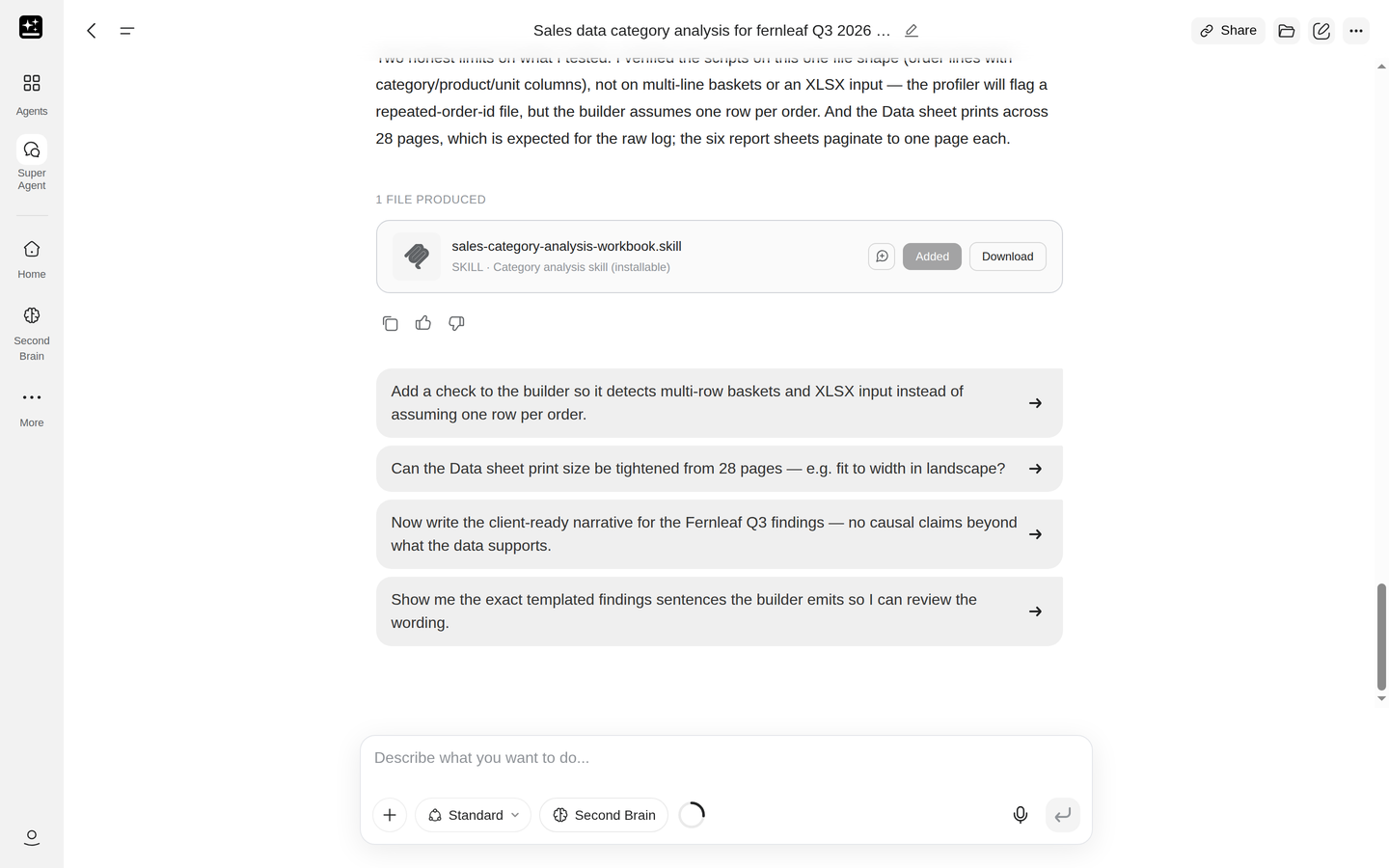
Ask for it in the chat: "Save this workflow as a skill". The agent packages the workflow you ran and hands back a <name>.skill file card.
The skill reaches your library when you click Add to my skills on that card, which then reads "Added".
A run that looks reusable also gets an offer card: "Turn this workflow into a reusable skill: {name}", with Package as skill and Not now.
Two receipts name a skill after the fact. "In your skill library · {slug}" with View in Skills comes in chats started from New Skill → Create for myself. "Saved to your skill library · {slug}" comes when a chat saves edits to a skill you already own, with no library link. A chat that edits a skill without saving it shows a note card: Say "save the skill" if you want to keep it.
Run a skill
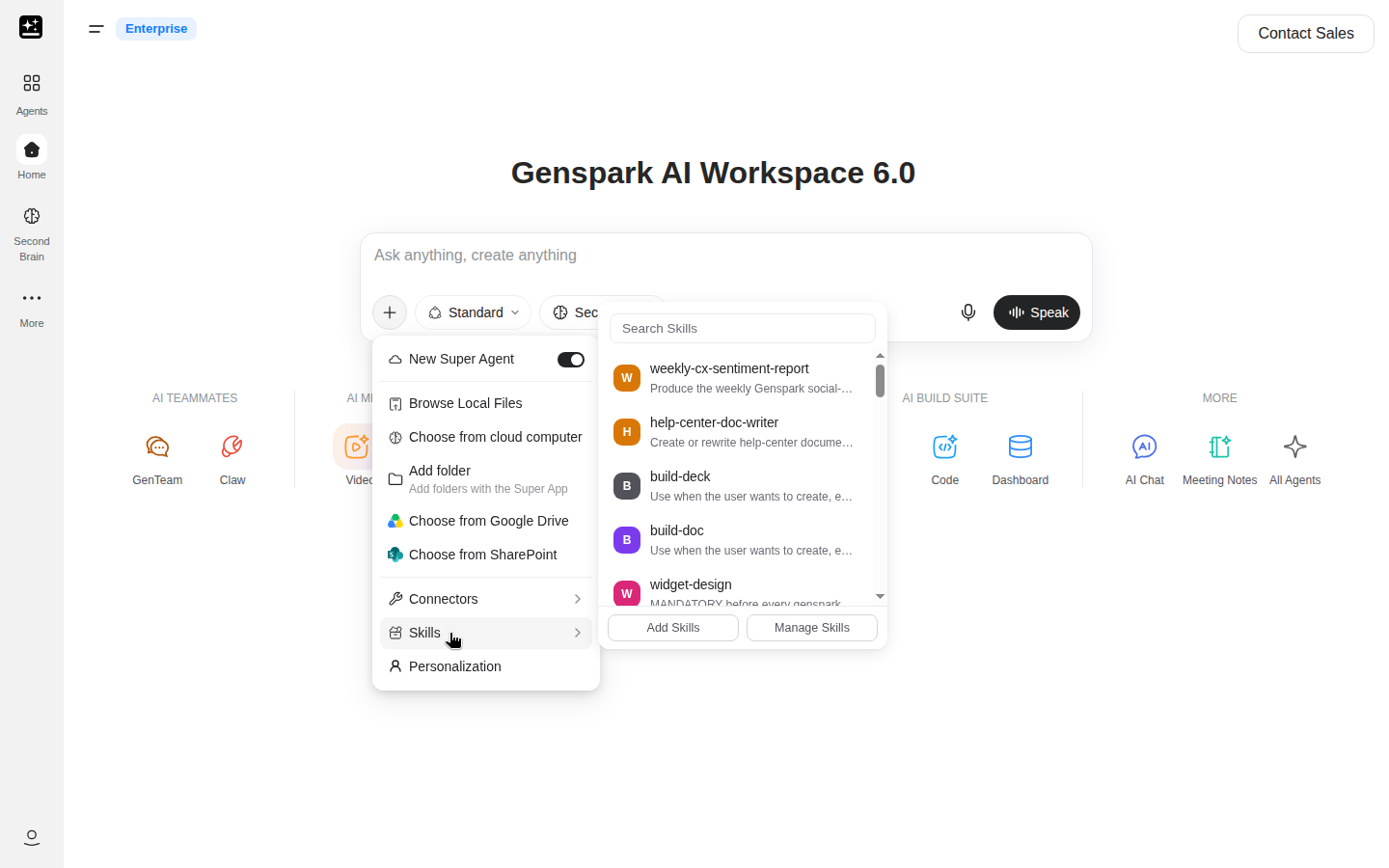
Open + → Skills. The submenu carries Search Skills, Add Skills and Manage Skills, and an empty library reads "No skills yet" with "Browse skills to add your first one". Picking a skill puts it in the composer for this turn.
Typing / and the skill name is faster once you know what you want. The slash list shows skills only while the composer is already in New Super Agent; + → Skills is the only row that switches the mode.
The skill library
On desktop web the library lives in Settings under Skills, and on mobile web and in the App it's the Skills page. + → Skills → Manage Skills opens it from the composer. Its tabs are Community, Team (on a team plan), Mine, Received and Sent, and the cards carry Use, Edit, Share, Uninstall, Customize and Update, with filters for Role, Output and Publisher. A skill you haven't added shows Add & Use.
New Skill offers four starts: Create for myself ("Private to your account"), Create for {team} on a Team plan, Start from a community skill, and Upload. Skills covers what each tab does and how a skill is built.
Share a skill
Share {name} opens three tabs. Email sends the skill to a person, who accepts it in the Received tab of their library; an invite nobody answers expires after 30 days.
Team publishes with Publish to {org}, and any member of a paid Team or Enterprise org can publish. Review by an organization admin is on by default: the Team tab shows "In review" while it waits and "Live for your team" once approved. An admin can turn review off, so publishing goes live straight away. An admin can also limit publishing to admins, and only then does "Only org admins can publish skills to {org}." appear.
Public link creates a link with Create public link, good for 30 days, with Copy, Regenerate and Revoke beside it. Anyone who opens the link gets Add to my skills.
Troubleshooting
Find the symptom in the table, then read the entry. Most are a single step.
| Symptom | What to do |
|---|---|
| The chat says the connection was lost | Wait, reconnect or resend |
| The run stopped at its time limit | Say continue in the same chat; your files are kept |
| The computer is failing its health checks | Wait, then send again |
| The chat says the computer was recycled | Your delivered files are still there |
| The turn won't start at all | Check the credit floor |
| My old chat is still on Classic | Continue it in the new mode (paid accounts) |
| A skill I saved isn't in the picker | Skills are in the new mode and in Settings |
| A file won't attach | The limit depends on your plan |
| A link the agent gave me stopped working | Open the file from its card |
| The output ignored my attachment | Name the file and check it's on the message |
| The run cost more than I expected | Read the credit history |
The turn won't start: the credit floor
New Super Agent checks your balance before a turn starts. If it's too low, the chat tells you and links to adding credits; the Credits Guide covers top-ups.
Custom Agents don't have this floor. A turn that runs out of credits part way through stops, and the files it produced so far are kept in the project.
My old chat is still on Classic
Continue an old Classic chat has the bar and the button. On a free account the chat stays in Classic, and a fresh chat with New Super Agent switched on starts with no memory of it, so attach the files again.
A skill I saved isn't in the picker
Skills run in New Super Agent only, so an open Classic chat has no Skills row. + → Skills on the home page switches the composer; typing / doesn't, and the slash list shows skills only in the new mode.
If the skill is still missing, one of four things happened:
- Add to my skills was never clicked on its
.skillcard. - You're on mobile web or in the App.
- Your organization turned Skills off.
- The library is full at 80 skills.
A file won't attach
The limit depends on your plan and on the file, and the error names it. See File limits for the sizes and both messages.
Split a large file into smaller ones.
A link the agent gave me stopped working
Links the agent writes into the chat can stop working after a couple of hours. The file itself doesn't expire: open it from its card in the chat or from Output files, and use Share this file when someone else needs a link they can rely on.
The output ignored my attachment
Name the file in the prompt and say what to do with it: "use the numbers in Q3.csv", "match the layout of the attached deck". If the file went with an earlier message, point back to it: "use the report I attached earlier".
Check the attachment is on the message you sent, then ask again with the file named. For a reference image, attach it to the same message and say which part to follow: the palette, the layout, or the type.
FAQ
Getting started
What's the difference between New Super Agent and Classic?
New Super Agent runs the task on its own cloud computer, so it can write files, run code and finish a long job. Classic is the original mode, with no cloud computer. See Classic and New Super Agent compared.
Which plans get New Super Agent by default?
Paid plans do. Which mode you get has the free-account default and where the choice is remembered.
Can I switch mode in the middle of a chat?
No. A chat keeps the mode it started in. Start a new chat from the home page to use the other one.
Can it run several tasks at once?
Each project has its own computer, so several projects can run at once. Inside one project one turn runs at a time. Long jobs and parallel work covers the parts a big job gets split into.
Does New Super Agent use more credits?
Not because of the mode. A New Super Agent turn can cost more overall because it does more: multi-step work, code, files and more tool calls. See What a run costs for the ranges and the habits that keep them down.
Does it work on a free account?
Yes. Most free accounts start in Classic, and Which mode you get covers switching it on. A free account has no Free Quota, so every turn bills credits. What Free Quota covers has the rest.
Files
How large can a file be?
It depends on your plan and on the mode. File limits has the sizes and both error messages.
Where do the finished files go?
Into the project, under a {n} FILES PRODUCED heading in the chat and in Output files in the right pane, where you can open, download, rename or delete them. A file can also be saved to AI Drive, and Membership Plans has plan details.
What survives when the computer is recycled?
Delivered files do. They stay in the project and can still be opened and shared. The computer is recycled has the message and the two buttons.
Can I share one file without the whole project?
Yes. Share this file makes a link to that file alone, not the conversation. Project access and a public link are the options, and Share one file has the labels.
Skills questions
Are skills available in Classic?
No. Skills run in New Super Agent only. A skill I saved isn't in the picker has the fix.
How do I share a skill with my team?
Share {name} → Team → Publish to {org}. It needs a Team or Enterprise plan. Share a skill has the review and the public link.
Do skills cost credits?
Running a skill is a normal New Super Agent turn, so it costs what that turn costs: the tier and the work.
Cost and long runs
Why did one turn use so many credits?
Turns cost more when they run long, retry, or handle big files, and Ultra costs more than Standard. What a run costs has the ranges and the habits that bring the number down.
What happens if a long job stops?
Say "continue" in the same chat; your files are kept. A long job reaches its turn limit has the message.
Is there a minimum balance to start?
Yes. The balance is checked before a turn starts, and a low one gets a message with a link to adding credits. The credit floor has the rest.
Can I schedule a task to run every week?
Not in Super Agent: the agent can't run scheduled jobs. Workflows is where a recurring task lives.
For teams and admins
Where does the work run, and how do files leave it?
Each project gets its own isolated cloud computer. The agent writes to AI Drive only when you ask it to, and a link to a file exists when someone creates one with Share this file. Delivered files leave the project when you download them, share them, or save a copy to AI Drive. See Can an organization admin turn off link sharing?.
Can an organization admin turn off link sharing?
Yes. With link sharing off, Public link shows "Link sharing is disabled by your organization admin.", and People with project access still works. Existing public file links become members-only. The line is under Share one file.
Do skills need review before the team can use them?
By default, yes: an organization admin reviews a team publish before the team can use it, and can turn that review off. A public link skips review. See Share a skill.
How are Enterprise credits billed?
Enterprise credits are set per contract, not by the plan tiers listed here. Membership Plans covers the consumer plans, and your agreement covers the rest.
Recipes
Fourteen recipes, in four groups. Each one has what it's for, what to prepare, the steps, a prompt, what you get and what to do when it stalls.
Everyday jobs
1. Hand it files and get a finished file back
For: a spreadsheet, a PDF or a set of documents that needs work done and a file at the end.
Prepare: the source files, the output format you want, and any rule that matters, such as the columns, the currency or the reader.
Steps:
- Open + → Browse Local Files, or Choose from cloud computer for a file that's already in a drive or a note.
- Name the file in the prompt and say what to do with it. "The attached sales file" is clearer than "this data".
- Say what comes back: a spreadsheet, a report, or a table inside a document.
- Check Standard is selected, then send it.
- Open the card, check the totals against the source, then Download or Share this file.
Analyze the sales data from my uploaded file and build a category analysis with charts and an average-order-value table
You get: a spreadsheet with the analysis, plus the reading in the chat. Both stay in Output files in the right pane.
If it stalls: a file over the limit is refused before the run, with the limit named. If the run finishes but ignores the file, the prompt didn't tie it to the task: see the output ignored my attachment.
Related: File limits, and AI Drive when the file already lives there.
2. Create and use a skill
For: a job you repeat with different inputs every time.
Prepare: one run you're happy with, or the steps written out in order. A skill copies a workflow, so a bad run makes a bad skill.
Steps:
- Run the job once in New Super Agent until the output is right.
- Ask for the skill: say "Save this workflow as a skill". The agent packages the workflow and hands back a
<name>.skillcard in the chat. - Click Add to my skills on the card. It reads "Added", and the skill is in your library.
- Next time, open + → Skills and pick it, or type
/and its name once the composer is in New Super Agent. Swap the specifics for the new case. - To share it, open Share {name} in the library and use the Team tab.
Score a customer's renewal risk from their recent emails, tickets, and usage — save as a skill.
You get: a <name>.skill card, and the workflow in your library once you add it, running the same shape on new material.
If it stalls: a Classic chat won't package a skill. You can also build one in the library from New Skill → Upload or Start from a community skill. See A skill I saved isn't in the picker.
Related: Skills, and the Skills article for building and editing one.
3. Make images or posters that match a reference
For: a poster, a set of images or a visual that has to follow a brand, a template or an example you already have.
Prepare: the reference image, the exact words that must appear, the ratio, and how many versions you want to compare.
Steps:
- If you have a reference image, attach it with + → Browse Local Files, and add "Use the attached poster as the layout reference." to the prompt.
- Say which part to follow. Palette, layout, type and mood are separate instructions, and naming one gets a closer match than "make it look like this".
- Give the words for the image exactly as they should appear.
- Send it. A short form asks for the style, the ratio and the model with its price before anything is generated.
- Pick the version closest to the brief, then ask for one change at a time on that image.
Create four different style birthday posters for my friend Vivian's 30th celebration
You get: images in Output files, each one downloadable on its own.
If it stalls: the form is waiting for a choice, and nothing runs until it's answered. If the images ignore the reference, attach it again to the next message and name the part to follow.
Related: The output ignored my attachment for a reference that keeps drifting.
4. Research a topic and deliver a report or deck
For: a topic you need gathered, weighed and shaped for a reader, with the sources in one place.
Prepare: the question, the reader, the length, and the period the research should cover. A broad topic with no period is the version that stalls.
Steps:
- State the question and the reader in the first line: "for a product team deciding next quarter".
- Ask for the shape: a report with sections, or a deck.
- Give the period and the sources you trust. The agent reads public web pages, and AI Drive, SecondBrain notes, connected services and past projects too.
- Send it. Ultra is worth it on a research task that has to hold a lot at once.
- Read the sources before you read the conclusion. If a claim has no source, ask for one.
Research electric vehicle market trends and create a 10-slide presentation with key insights
You get: a deck that renders in the project, or a report as a document, with the research behind it in the chat.
If it stalls: cut the period and the scope in half and ask again. More on a run that hits the turn limit: a long job reaches its turn limit.
Related: AI Slides for editing the deck afterwards.
Super Agent Research
5. Build a small web page from a brief
For: a landing page or a one-page site you can host anywhere.
Prepare: the brief, the copy, and any logo or image the web page has to use. Real copy in the brief gets a closer result.
Steps:
- Attach the brief and the assets with + → Browse Local Files.
- Ask for one self-contained
.htmlfile. That's the file type Super Agent delivers for web pages, and it keeps the web page portable. - Open it in the pane. Rendered shows the web page and Source shows the code.
- Ask for changes by naming the section: "the pricing block", "the hero image".
- Download the
.htmlwhen it's right. Putting it online is a separate step with your own host.
Create a product landing page for my smart water bottle based on the uploaded product brief
You get: one .html file with its styles and scripts inside it, previewed in the pane.
If it stalls: a page that comes back unstyled usually means the brief named a framework or a file that wasn't attached. Restate the brief as plain HTML and send it again.
Related: Delivered files for where the .html lands.
6. Weekly recap from meeting notes
For: the Monday summary of what was decided, what moved and what's stuck.
Prepare: the week's meeting notes in a place the picker can read, or an export you can attach.
Steps:
- Open + → Choose from cloud computer and pick where the notes are.
- Name the week, not "recently". A date range keeps the recap to the right notes.
- Ask for the four sections you'll actually use: wins, decisions, blockers, next steps.
- Ask for owners on the next steps.
- If it should go out as mail, ask for the draft in the same chat. It arrives as an email card with Send; sending needs a connected Gmail or Outlook account, and it goes nowhere until you send it.
Give me a weekly recap from this week's meeting notes — wins, decisions, blockers, next steps.
You get: a recap in the chat, a file if you asked for one, and an email draft when you want to send it.
If it stalls: if the week's notes aren't in the picker, export them and attach the file with Browse Local Files instead.
Related: SecondBrain for the notes it holds.
Decks and data
7. Deck from a past deck
For: a new deck that has to look like one you already made.
Prepare: the old deck as a .pptx, and the new content in whatever form you have it.
Steps:
- Attach the
.pptxwith + → Browse Local Files. - Say which parts of the old deck to keep: the master, the section headers, the chart style.
- Give the new material, or attach it.
- Send it. The deck is built in the project, and its card opens the viewer.
Use my last product launch deck as a template and create a new one for the November feature release.
You get: a deck in the project. Small mechanical changes to an uploaded .pptx can be made directly. Anything structural is better rebuilt from the brief. To get a .pptx out, open the deck and use Export → Export as PPTX in its viewer.
If it stalls: a deck that drifts from the template usually got too little of the old one. Name the slides to copy and the ones to leave out.
Related: AI Slides for editing the deck afterwards.
8. Analyze a spreadsheet and chart it
For: numbers in a sheet that need a finding and a chart, not a description of the columns.
Prepare: the CSV or spreadsheet, the question, and the grouping that matters, such as month, region or category.
Steps:
- Attach the file with + → Browse Local Files.
- Ask for the finding first and the chart second. A chart of everything shows nothing.
- Say what to plot: the measure, the grouping and the period.
- Ask for the table next to the chart, with the totals it used.
- Check two numbers by hand before you use the result in a deck. If they don't match, say which column is wrong.
Take the attached monthly sales file, find the three categories with the biggest change, chart them, and add a table with the totals and the change.
You get: a spreadsheet with the chart and the table, and the reading in the chat.
If it stalls: a workbook with several sheets needs the sheet named in the prompt. Say which one to read.
Related: File limits when the workbook is large.
9. Download papers or pull data from public pages into AI Drive
For: gathering sources into one place you can keep.
Prepare: the list of sources or the topic, and a folder in AI Drive to drop them in.
Steps:
- Give the list, or the topic and the number you want.
- Say where they go: "save them to my AI Drive".
- Name the web page or the site when you have it. A direct URL beats a description.
- Send it in Standard.
- Check what arrived. A page behind a sign-in won't be there.
Download 10 influential research papers on solar energy and save them to my AI Drive
You get: the files in AI Drive, and a list in the chat of what was found and where each one went.
If it stalls: a page that needs a sign-in can't be read. Give it a public URL or attach the file you already have.
Related: AI Drive for the folder and the storage.
Media and conversion
10. Make a video
For: a short video from photos, a script or a product shot.
Prepare: the images or clips, the ratio for where it will run, and the words that must appear.
Steps:
- Attach the images and say the order if it matters.
- Describe the video: the product, the mood, the format.
- Read the price card. Video shows the cost before it generates.
- Confirm to run it.
- Ask for a change to one scene when most of it is right.
Make a short product video from these photos of the bottle, square format, with the line "Cold for 24 hours" on the opening frame.
You get: a video file in Output files.
If it stalls: nothing runs until the price card is confirmed. If the video is close but the text is wrong, ask for the text change on its own.
Related: Media Studio for video beyond the basics.
11. Convert or translate a document
For: the same document in another format or another language, with the layout kept.
Prepare: the source file, the target language or format, and a note on anything that must not change, such as a table or a chart.
Steps:
- Attach the file with + → Browse Local Files.
- Name the target language or the format you need.
- Say what has to survive: "keep the tables and the page order".
- Send it in Standard for a short document, Ultra when it's long or the layout is dense.
- Compare the first page and one table before you send it on.
Translate the attached deck to Japanese and keep the layout the same. Keep the numbers and the product names in English, and tell me which slides you couldn't fit.
You get: a new file in Output files, with the original still in the project.
If it stalls: a dense layout is the usual cause. Split the file into two halves and convert each one.
Related: Delivered files for where both versions sit.
Sharing, modes and cost
12. Share one file or the whole project
For: getting a result to someone without handing over the whole chat.
Prepare: the file name, and whether the person needs the rest of the project.
Steps:
- Open the file from its card or from Output files.
- Choose Share this file in the pane's preview header.
- Pick People with project access for the team, or Public link for someone outside it.
- Choose Copy link.
You get: a link to one file, separate from the conversation.
If it stalls: an organization admin can turn link sharing off, and Public link says so. More in Can an organization admin turn off link sharing?.
Related: Share one file.
13. Continue an old Classic chat in New Super Agent
For: an old conversation you want to keep going with the cloud computer and skills.
Prepare: a paid account, and the old chat.
Steps:
- Open the old chat.
- Choose Continue in New Super Agent in the bar above the composer.
- Send the next instruction about the work already in the chat. The agent read the old history on its first turn.
Continue from the deck in this chat, and add a competitor slide that compares the two products on price and battery life.
You get: a new chat with the old title, a Continued from your earlier chat card linking back, and the agent working from the old history.
If it stalls: continuing an old chat is for paid accounts on the web. My old chat is still on Classic explains what to do.
Related: Classic and New Super Agent compared.
14. Keep credit use down
For: the same job at a lower cost, without losing the output.
Prepare: the task, the output shape, and the files. Everything the first turn needs, in the first turn.
Steps:
- Open a new chat and set Standard.
- Attach the files and paste the prompt below.
- Fill the two brackets before you send.
- If the reply names something missing, answer it in the same chat.
- Check the credit history after a run that felt expensive.
Do this in one pass and tell me if anything is missing before you spend time on it. Task: [what you need]. Output: [format, length, sections]. Use only the attached files.
You get: the same output from a shorter conversation.
If it stalls: a turn that won't start means the balance is under the floor. See the credit floor.
Related: What a run costs.
Related pages
Custom Agent builds an agent of your own with its own instructions. New Custom Agent chats run on the same engine as New Super Agent, with the same Standard and Ultra tiers. Existing Classic chats stay Classic. Typing @ and an agent's name in the home composer starts the chat with that Custom Agent. Building, editing, sharing and the Store belong to Custom Agent.
Super App is the desktop app, and it adds Add folder to the + menu. Super App has the install and the tabs.
Realtime Voice is the spoken interface, on its own surface. Limits are in Realtime Voice.
Was this article helpful?