

AI image
AI Image
AI Image makes or edits one picture from a prompt or a reference image. You describe what you want, pick a model, and get a grid of results you can edit, remix, download or turn into a video.
It has its own 5-hour limit and its own billing rules, and neither is part of Free Quota. The limit and the credit rules come right after Quick start, because they're what most people ask about.
What is AI Image?
AI Image: one picture, generated or edited. You type a prompt, optionally attach a reference image, and AI Image returns one, two or four pictures, depending on the count you set. Each chat is saved as a project, so you can come back and keep editing.
It doesn't build boards, decks, pages or videos. When the job is bigger than one picture, another product takes it, and Where AI Image stops has a start point for each.
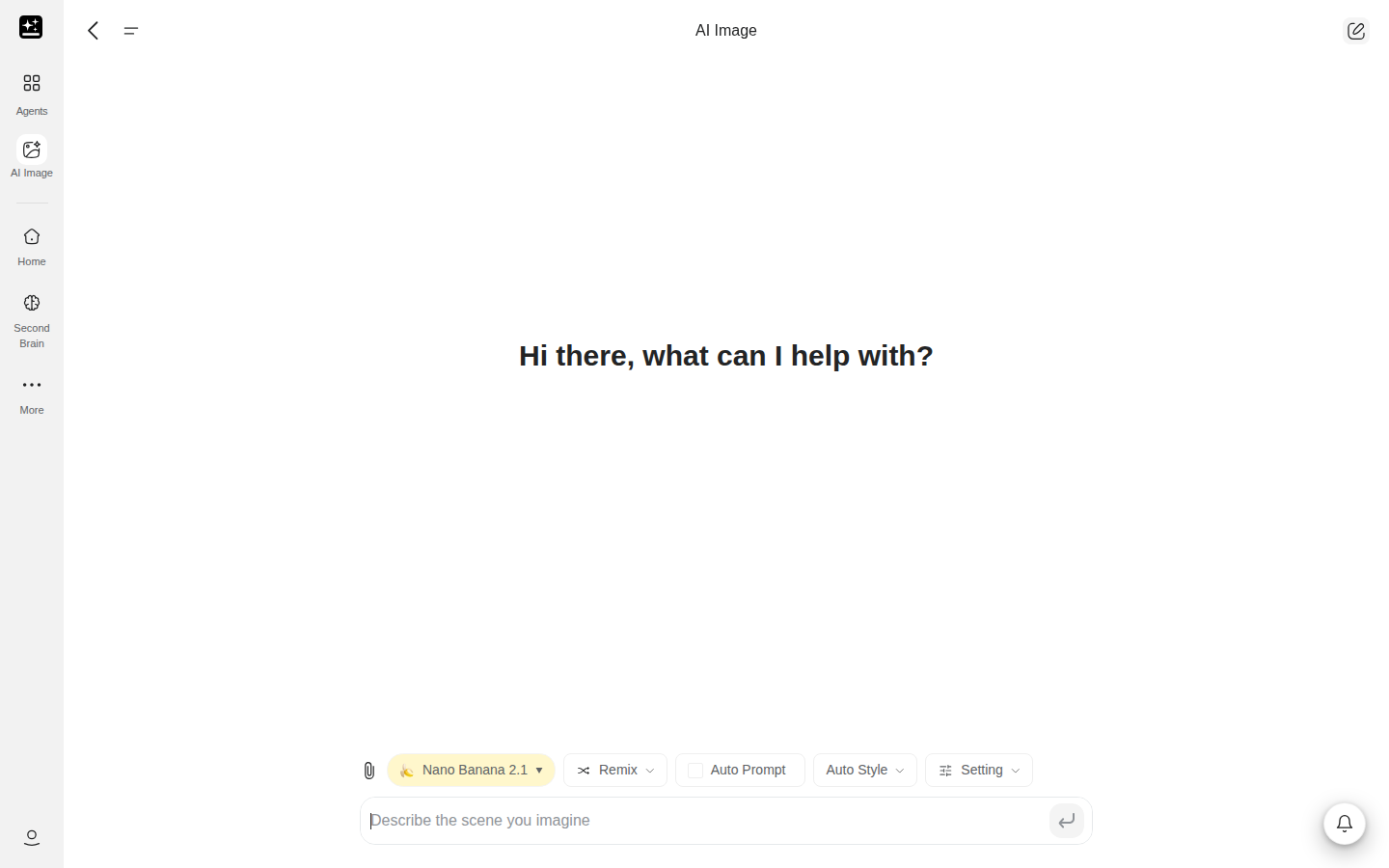
The controls on the start page are:
- A model button that lists every image model, with a price level and a multiplier on each row.
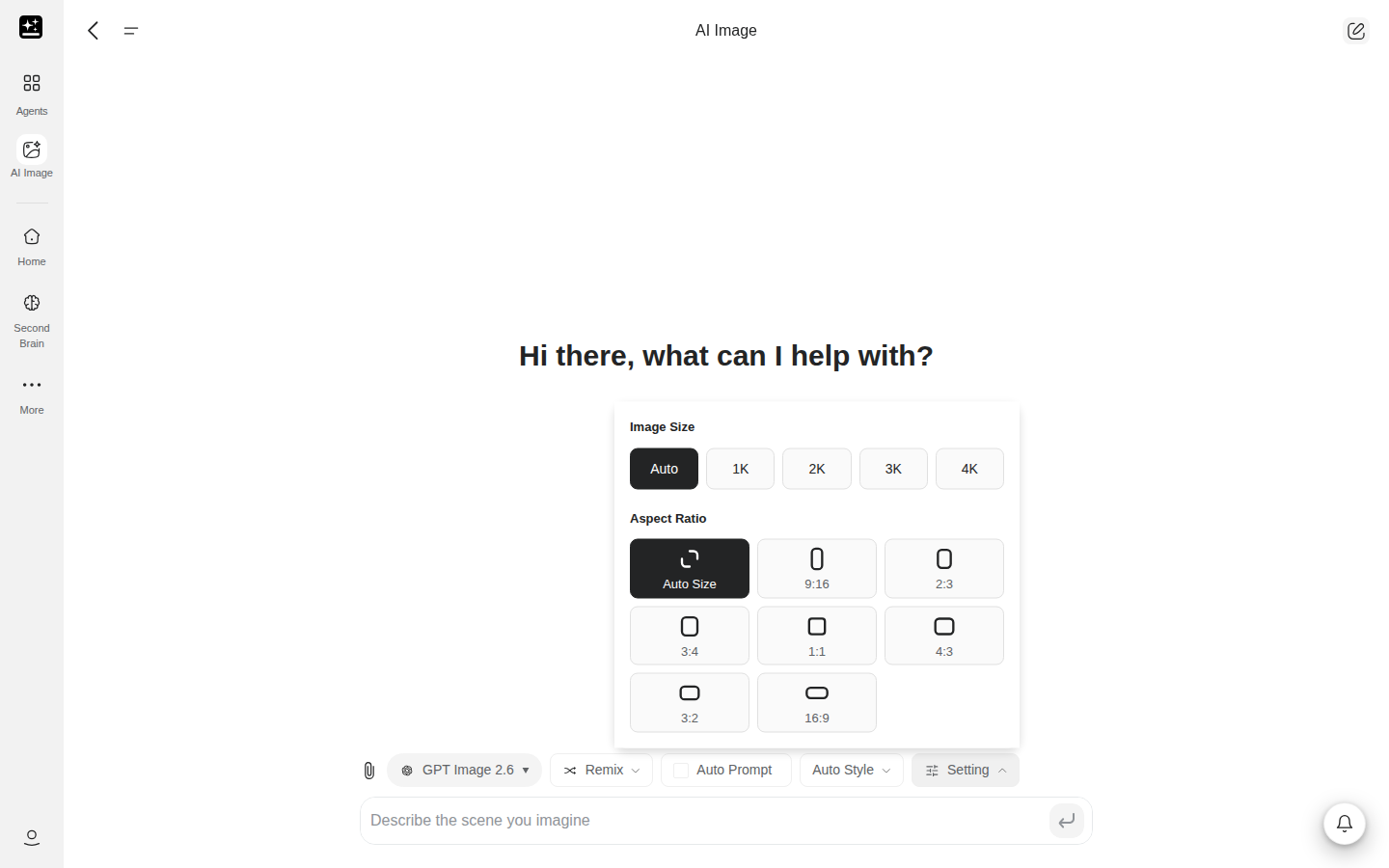
- A Setting button for image size, quality, aspect ratio and how many images to make.
- Auto Style, Camera and Auto Prompt buttons that shape the picture without changing your words.
- A toolbar on every result for redoing, remixing, editing and turning it into a video.
The product name is AI Image. Some older pages call it the "AI Image Agent". They mean this product.
What you can do
Six jobs cover most of what people bring to AI Image. Paste the prompt, then change the subject to your own. Setup notes sit in the last column. All fifteen recipes are at the end, under Recipes.
| What you get | Prompt to paste | Full recipe |
|---|---|---|
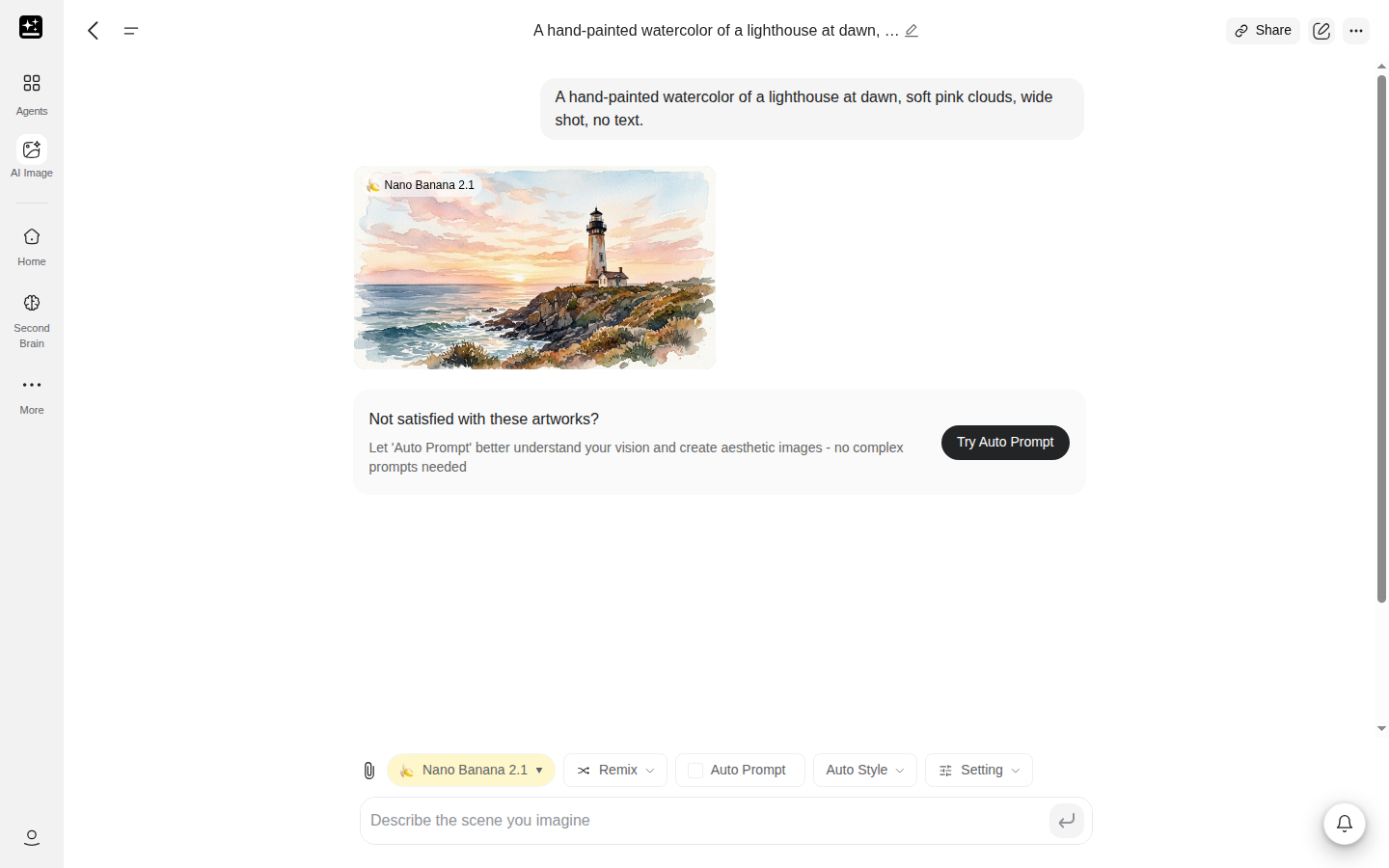
| A picture from a description | A hand-painted watercolor of a lighthouse at dawn, soft pink clouds, wide shot, no text. | Make an image from a prompt |
| A picture from a model you chose, with the model shown | Create a clean product-style photo of a ceramic mug on a wooden table, soft window light. | Pick a model and check which one you got. Start on a row tagged No credit cost if your picker shows one. |
| One part of a picture changed, the rest left alone | Keep everything the same. Change only the sky to a warm sunset. | Edit one part, keep the rest. Attach the picture first. |
| A new scene with the same face or character | Use the attached photo as the reference. Keep the face, hairstyle and pose, and place the person in a rain-lit city street. | Use a reference photo. Attach the photo first. |
| A picture with readable words in it | A square social post that reads 'OPEN LATE FRIDAY' in large white letters on a dark blue background. Use only that text. | Put readable text in an image |
| A sharper, larger or background-free version of a photo | Make this photo sharper and larger; keep the skin natural. | Sharpen, enlarge or remove a background. Attach the photo first. |
Two sections right after Quick start apply to every job: the 5-hour limit and what costs credits.
Where everything is
| What you want | Web | App |
|---|---|---|
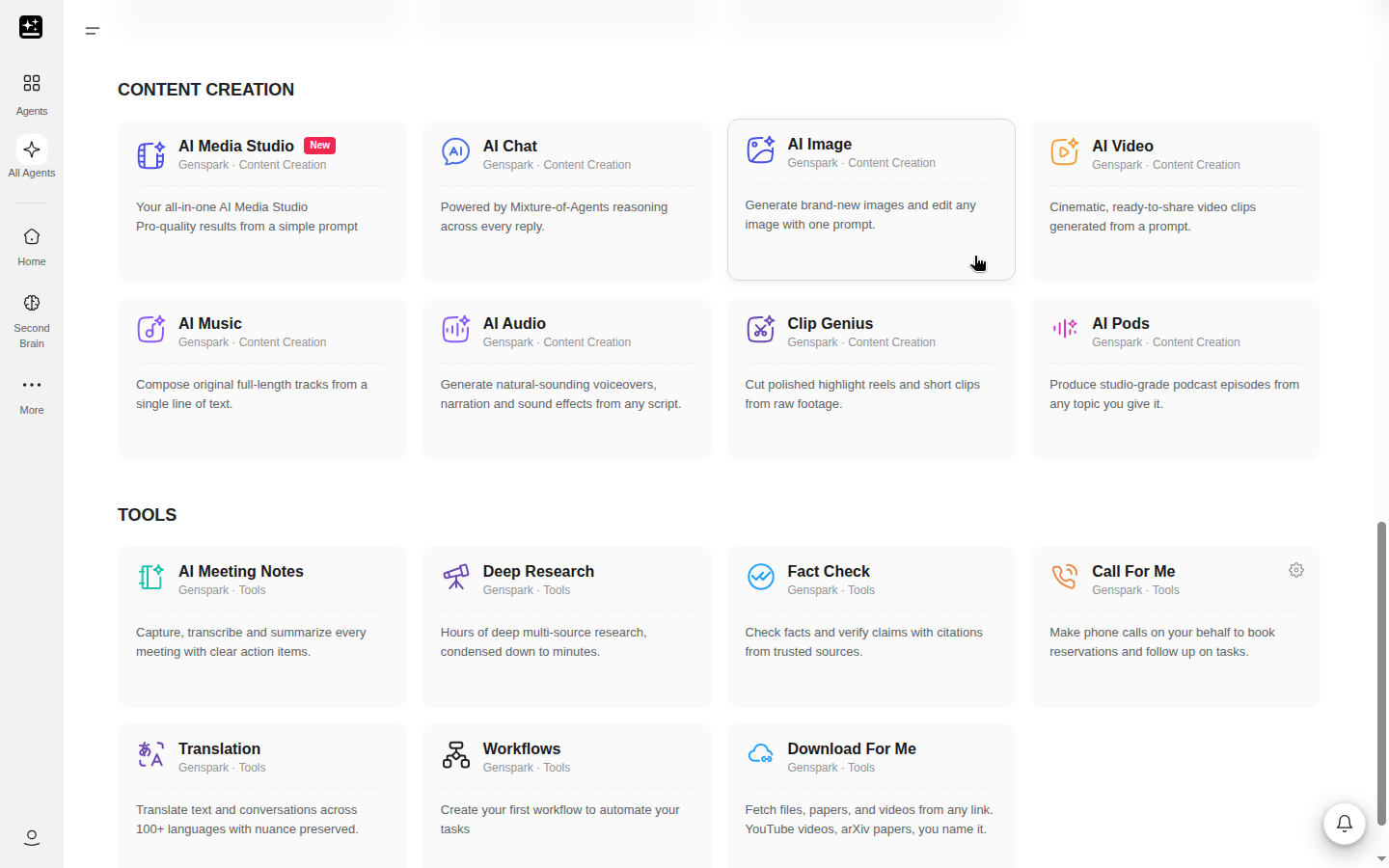
| Start a picture | Content Creation → AI Image on the home page, or All Agents → Content Creation tab → AI Image card | AI Image in the home grid, or All Agents → Content Creation → AI Image |
| Choose a model | The model button above the prompt box | Select Model |
| Size, quality, ratio, count | Setting, above the prompt box | Image Settings, which holds Aspect Ratio, Image Size, Expand, Remove BG and Unblur |
| Pick a look | Auto Style | Style |
| Let the product rewrite your prompt | Auto Prompt toggle | Auto Prompt |
| Attach a reference | The attach control beside the prompt box | The attach control beside the prompt box |
| Redo, remix or edit a result | The toolbar on the image, and the side editor when you click it | The same actions on the result |
| Find an earlier picture | The chat list in the sidebar, or Recents on the AI Image start page | The chat list |
The app needs version 2.9.2 or later to show AI Image. The app screen has no generation count and no quality control. If your phone browser's home grid doesn't show AI Image, open All Agents and use the Content Creation tab.
Quick start
Before you start: a Genspark account and an idea for one picture. You don't need to pick a model first, because the picker stays open for the whole chat.
- Open AI Image from Content Creation → AI Image, or from All Agents → Content Creation → AI Image. In the app, open AI Image from the home grid.
- Type a prompt. Say the subject, the setting and the look, such as "a hand-painted watercolor of a lighthouse at dawn".
- Open the model button and choose a model. If you aren't sure, keep the default. The price level and the Credits or No credit cost tags on each row show what a model costs (What costs credits).
- Open Setting and check Image Size, Aspect Ratio and the generation count. Leave a control on Auto and the model chooses.
- Send the prompt. The chat shows "Creating image tasks..." and then a grid of results, each with the name of the model that made it under it.
- Change a result with the toolbar on the image, or click it to open the side editor. You can also type an edit in the chat, such as "change the background to a beach".
- Use Download image to keep the picture you want.
AI Image 5-hour limit
AI Image has a usage limit of its own: a fixed 5-hour window per user, counted in images. Your first counted image starts the window. New chats don't reset it. It isn't hours of use.
The limit counts only images that cost no credits. An image that bills credits never counts toward it. Plus, Pro and Team seats have the same size of window. Free accounts and Go accounts have no 5-hour limit, because every image on those plans uses credits. The size of the window is a set number of images, and it can change.
The window is shared between the web and the app. It isn't shared with AI Chat, which has its own spend-based limit. It also isn't part of Free Quota. Images made in Media Studio on the free path count against the same window, since both products use the same image models.
What you see depends on your plan. On Plus and Pro from September 18, 2026, the composer shows one of three messages while the selected model, size and quality are on the free list:
| What you see | What it means | What to do |
|---|---|---|
| This image model at no credit cost | The window has room, and this model, size and quality are free. | Nothing. Keep working. |
| Your plan's free image models now use credits · AI Image 5-hour limit resets at | The window is spent, so images from the free list now bill credits. | Keep going if you have credits, or wait until the time shown. |
| You've used up the AI Image 5-hour limit for your plan's free image models and run out of credits. Get credits, upgrade your plan, or wait until {time} for it to reset. | The window is spent and the credit balance is empty. | Choose Get credits, upgrade, or wait for the time shown. Pro accounts see the same line without "upgrade your plan". |
When the window is nearly used up, AI Image shows "Approaching 5-hour limit." above the prompt box on Plus, Pro and Team, including Plus and Pro from September 18, 2026. Standard members then keep going on credits, and the composer strip reads "Your plan's free image models now use credits · AI Image 5-hour limit resets at {time}".
Plus and Pro accounts from before September 18, 2026, and Team seats, see a different message when the window is spent: "AI Image 5-hour limit reached. Resets {time}". On those plans, AI Image stops until the reset, and buying credits doesn't change that. If Genspark can't tell when the window ends, the message says "Resets shortly". Which plan you're on decides which of these you'll see.
The strip shows only while the selected model, size and quality are all on the free list. Pick a charged option and the strip goes away, because that image bills credits and doesn't touch the window.
What costs credits, by plan
Every image is billed one of two ways: free inside your plan, or on credits. Which one applies depends on your plan and on the model, size and quality you choose. Find your plan below. If you aren't sure which Plus or Pro section is yours, check the date your subscription started.
Free accounts
Every image uses credits from the daily grant. There's no 5-hour limit and no No credit cost tag in the picker. Images carry a Genspark watermark. The free grant has a lifetime cap, and the number lives in Credits Guide.
Go accounts
AI Image isn't covered by Go, so every image uses credits. The composer strip reads "AI Image requires credits". With no credits left, it reads "AI Image is not covered by Genspark Go and requires credits." There's no 5-hour limit and no watermark.
Images Go members make in Media Studio don't count toward the AI Image 5-hour limit. Go pays credits for every image.
Plus and Pro from September 18, 2026
If your subscription started on or after September 18, 2026, or you came back after a lapse of more than 14 days, a set list of models, sizes and quality settings is free. The picker marks those rows No credit cost. The editing tools are free too. Plus and Pro get the same free list.
Whether an image is free depends on the model, the size and the quality together, so the picker is the list to trust. Everything else uses credits, for Plus and Pro alike. That includes premium models, Extra High and Max quality, 4K and some other sizes.
The free list counts toward the 5-hour limit. When the window is spent, free-list images keep working on credits, so nothing blocks. With no credits left, the out-of-credits message appears. Buying credits lets you continue.
If you leave quality on Auto or leave it out, AI Image picks the highest free option at your size. The default model is the lowest-cost one on the free list.
Standard members don't get a confirmation before a charged image. The Credits badge on the size or quality option is the signal.
Plus and Pro from before September 18, 2026
If your subscription started before September 18, 2026 and stayed active, almost every model is free until December 31, 2026. A lapse of up to 14 days still counts as continuous. Pro pays nothing extra. Plus pays credits only for 4K on a few models and for the top quality settings of two models.
When you pick a charged option, AI Image asks first. The dialog reads "This option uses credits" and "This model, size, or quality isn't included in your plan's free image models. Continuing will use credits." Choose Continue with Credits to go ahead, or Got it, don't ask again to stop the question.
On these plans, the 5-hour limit blocks AI Image when it's spent, and buying credits doesn't lift it. After December 31, 2026, the rules for subscriptions from September 18, 2026 apply. Membership Plans and Credits Guide carry the plan-level wording.
Team seats
Team seats follow the rules for Plus and Pro from before September 18, 2026. They're billed like Plus. The 5-hour limit blocks AI Image when it's spent. The rules have no end date.
One wallet for every product
Credits come from one wallet that every Genspark product draws on, so a credit spent on an image is a credit another agent can't use. A failed or blocked image isn't charged (Image blocked).
Generation count matters here. Choosing 2 or 4 makes that many images, and each one is billed. Keep credit use down has the steps.
Next: Model picker covers the controls these labels sit in.
Model picker and Setting
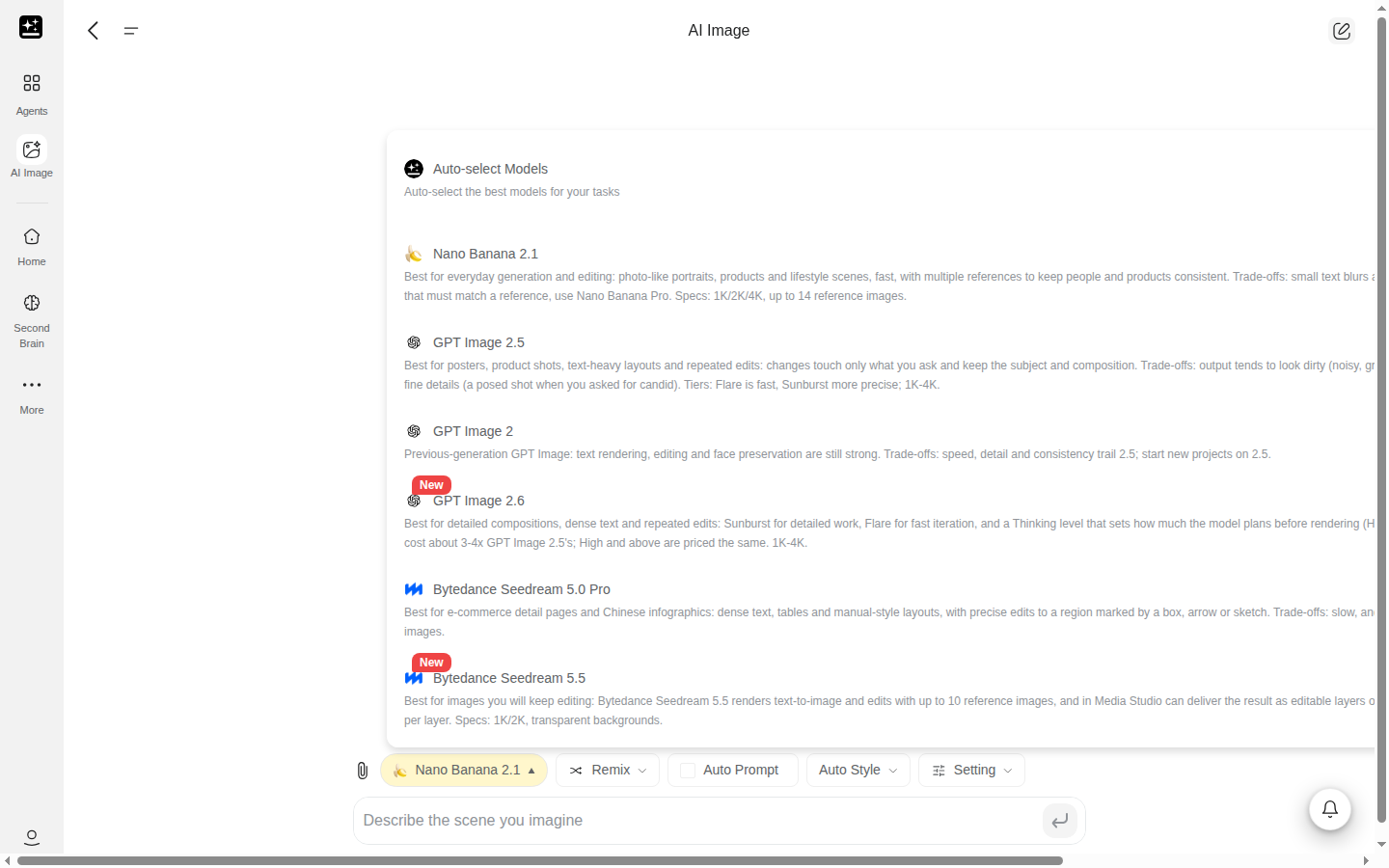
The model button above the prompt box lists every image model. The first row is Auto-select Models, described as "Auto-select the best models for your tasks". Every row shows the model's name, a price level from $ to $$$$ and a multiplier such as "2×" that compares its cost with the base model. There are no groups, which is different from AI Chat.
Everyone sees the same models. Only billing differs by plan. The picker stays open for the whole chat, so you can change models between prompts. A New badge marks a model for 14 days after it launches. Models are added and retired over time, so the picker is the list to trust. The label under each result names the model that made it.
On Plus and Pro from September 18, 2026, free rows carry No credit cost in place of the price pill. The tag hides while your 5-hour window is spent. A model with no free setting carries no tag. Read the price level and the Credits badges together, and don't treat a missing tag as a rule.
Setting
Setting holds the controls the selected model supports. Each section shows only if the model has it.
| Control | What it does |
|---|---|
| Image Size | Auto, 0.5K, 1K, 2K, 3K or 4K, depending on the model |
| Quality | Auto, Low, Medium, High, Extra High or Max, depending on the model. One model uses its own words |
| Aspect Ratio | Auto Size, plus the ratios the model offers, from 1:1, 16:9 and 9:16 to 21:9 and 9:21 |
| Generation count | 1, 2 or 4 pictures per prompt |
Some models add their own options. A model that has no ratio you chose uses the closest ratio with the same orientation. Models that only edit offer Auto and nothing else. With the ratio on Auto, an edit follows the proportions of the reference image. A ratio you set is always honored. On Plus and Pro from September 18, 2026, a Credits badge marks any size or quality option that bills credits.
Style, camera and prompt tools
Auto Style opens a picker with Search styles... and Filter by category. The category list starts at All Categories and includes looks such as Realistic, Anime, Watercolor, Oil Painting, 3D, Cartoon, Minimalist and Pop Art.
Camera turns on camera controls: Camera, Lens, Focal Length and Aperture.
Auto Prompt is a toggle that rewrites your prompt before it goes to the model.
There's no negative prompt. To keep something out of a picture, say so in the prompt, for example "no text".
If you've saved prompt presets, a Using preset button appears. It doesn't show otherwise.
Edit, reference and remix tools
Every result has a toolbar on hover.
- Recreate runs the same model again.
- Remix attaches the image to the prompt box as a reference, so your next prompt builds on it.
- Image to Video opens AI Video in a new tab.
Click a result to open the side editor:
- Draw to Edit lets you brush an area and describe the change.
- Remove Background cuts the subject out.
- Erase removes what you brush.
- Expand extends the picture past its edges.
- Image Unblur sharpens and enlarges an image.
- Image to Video starts a clip from the picture.
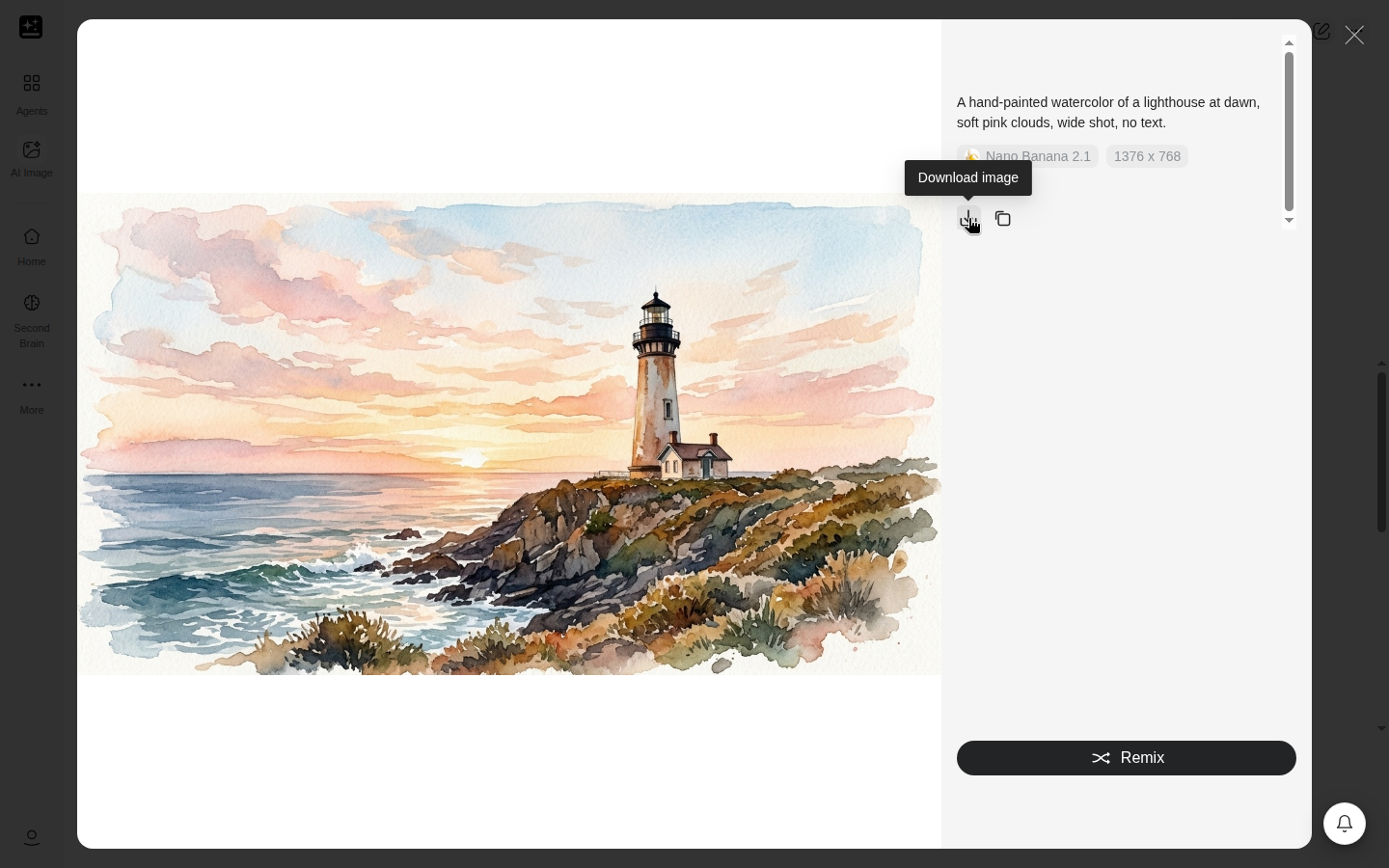
- An info panel shows the prompt, the model and the style.
- Download image saves the picture, and Back to Gallery returns to the results.
You can also type an edit in the chat, such as "change the background to a beach". Four edit tools with the same price are on the free list for Plus and Pro from September 18, 2026: eraser, fill, outpaint and object removal.
Attaching reference images
Attach any image type with the attach control. Each file can be up to 100 MB, and a conversation holds up to 80 images. A file over the size limit shows "{fileType} size limit is {maxSize}MB". Past the image limit the chat reads "Maximum 80 images allowed in total conversation". On desktop, image markers let you point at which reference you mean.
How many references one model uses at once depends on the model, so don't count on a fixed number.
Find and save your images
Each AI Image chat is saved as a project in the sidebar. Recents on the AI Image start page shows your five latest, with View all for the rest.
Download image in the side editor is the save path. There's no Save to AI Drive, Save to Notion or Copy button on an AI Image reply. To use a picture in another product, download it and attach it there. The one direct handoff is Image to Video.
Images made on the Free plan keep their watermark after an upgrade or expiry. An image keeps the copy it was made with.
Where AI Image stops
AI Image makes or edits one picture. When the job needs a board, a deck, a page or a clip, another product takes it. There's no button from AI Image to most of them, so the handoff is a download and an attach.
| What you want | Where to start |
|---|---|
| A board of image, video, audio and 3D work, with layers and a timeline | Media Studio |
| A poster, page, logo, menu or brand system | Genspark Design |
| Images inside a larger job | Super Agent |
| Images inside a deck | AI Slides |
| A video made from a picture | Image to Video on a result |
| An answer in text about an image | AI Chat. It reads images and never makes them |
| Plan and credit detail | Membership Plans, Credits Guide |
| An error or a page that won't load | Troubleshooting |
Starting from a preset page, such as a headshot, anime or photo-editor page, opens the same AI Image with a prompt filled in. Logo, menu, thumbnail and mockup pages open Genspark Design.
Media Studio uses the same image models. Images made there on the free path count against the same 5-hour limit. Super Agent can send an exact edit of a face, a logo or a label to AI Image. Images that Super Agent makes at default quality on its default model use Free Quota, and none of them count against the AI Image limit.
Troubleshooting
Find your symptom in the table.
| Symptom | What it usually is | Where to go |
|---|---|---|
| You hit the 5-hour limit and you have credits | The window is spent, and your plan decides what happens next | AI Image 5-hour limit |
| Credits were taken on an image you thought was free | The model, size or quality isn't on the free list, or the window was spent | Credits used on a free image |
| An image was blocked | The prompt or input failed a content filter | Image blocked |
| The size or ratio isn't what you set | Auto lets the model choose, and not every model offers every size | Wrong size or ratio |
| A model is missing, or isn't the one you picked | Models are added and retired over time | Model missing |
| An edit changed too much | The edit wasn't limited to an area | Edit changed too much |
| The result ignores your prompt or reference | The prompt or reference needs one clear subject | Result ignores the prompt |
| Letters in the picture are wrong | Text in images needs exact words in quotes | Garbled text |
| You can't find an earlier picture | Chats are saved as projects | Find and save your images |
| The chat won't load or finish | Usually a timeout on Genspark's side | Slow or won't finish |
| A watermark is on the picture | The picture was made on the Free plan | Watermark |
Credits used on a free image
Three things cause it. The model, size or quality isn't on the free list, such as 4K or a higher quality setting. You're on Free or Go, where every image uses credits. Or the 5-hour window was spent, and free-list images were running on credits. The composer strip and the Credits badge show it before you run. A generation count of 2 or 4 makes that many images, and each is billed. What costs credits has one section per plan.
Image blocked
If a prompt or input fails a content filter, the chat shows a message such as "NSFW content detected. No credits were charged. Please avoid NSFW content." Failed and blocked images aren't charged. Change the prompt or the reference image and try again.
Wrong size or ratio
Open Setting and check that Image Size and Aspect Ratio are set, because Auto lets the model choose. Not every model offers every size or ratio, so a model without your ratio uses the closest one with the same orientation. An edit with the ratio on Auto follows the reference image.
Model missing
The picker changes as models are added and retired. Open the model button to see what's there now. The label under each image shows the model that made it. If a model you used is gone, pick another and run the prompt again. Why models are removed explains retirements.
Edit changed too much
Use Draw to Edit to limit the change to an area you brush, or Erase to remove one thing. Say "keep everything else the same" in the prompt. One model adds an edit precision option with Standard and Precise settings.
Result ignores the prompt
Use one subject per picture and put it first. For a face or likeness, attach a reference photo and say what to keep. If the result still misses, try another model or add one constraint at a time.
Garbled text
Put the exact words in quotes and say to use only that text. If letters come out wrong, fix that area with Draw to Edit or try another model. AI Image has no separate text-editing tool.
Slow or won't finish
A timeout on Genspark's side is the usual cause. The site won't load (524) and The app is slow, stuck, or won't open cover the steps.
Watermark
Images made on the Free plan carry a Genspark watermark. Plus, Pro, Go, Team and Enterprise images don't. An image keeps the copy it was made with after an upgrade or expiry.
FAQ
Getting started
What does AI Image do?
It makes or edits one picture from a prompt or a reference. It has its own model picker, its own 5-hour limit and its own billing rules. What is AI Image? covers what it does.
Can I make images in AI Chat?
No. AI Chat reads images and never makes them. Make pictures in AI Image.
How do I find my generated images?
Each chat is saved as a project in the sidebar, and Recents on the AI Image start page lists the latest five. Find and save your images has the steps.
Plans and limits
Is AI Image free?
It depends on your plan. Free and Go accounts use credits for every image. Plus and Pro accounts have a free list of models, sizes and qualities, and everything else uses credits. What costs credits has one section per plan.
Is AI Image part of Free Quota?
No. It has its own limit and its own billing. Free Quota covers other products.
Does AI Image share a limit with AI Chat?
No. AI Image counts images in its own 5-hour window. AI Chat has a separate window. AI Image 5-hour limit has the details.
How do I upgrade to remove the watermark?
Plus, Pro, Go, Team and Enterprise images don't carry the watermark. An image keeps the copy it was made with, so an old image keeps its watermark after you upgrade. Membership Plans has the plans.
Teams and admins
Do Team seats have the 5-hour limit?
Yes. Team seats follow the rules for Plus and Pro from before September 18, 2026, and the limit blocks AI Image when it's spent. The billing rule is in Team seats.
What are the terms for Enterprise?
Enterprise terms follow your organization's agreement. Ask your workspace admin or your Genspark contact.
Can I use AI Image pictures commercially?
Commercial use in Membership Plans covers it.
What happens to my images and prompts?
The AI Data Retention setting is under Settings → Account. On a Team or Enterprise plan, it reads "Because you are on a Team or Enterprise plan, you are opted out of AI Data Retention."
Recipes
Fifteen recipes in five groups. The first six are the ones in the table at the top.
Make a picture
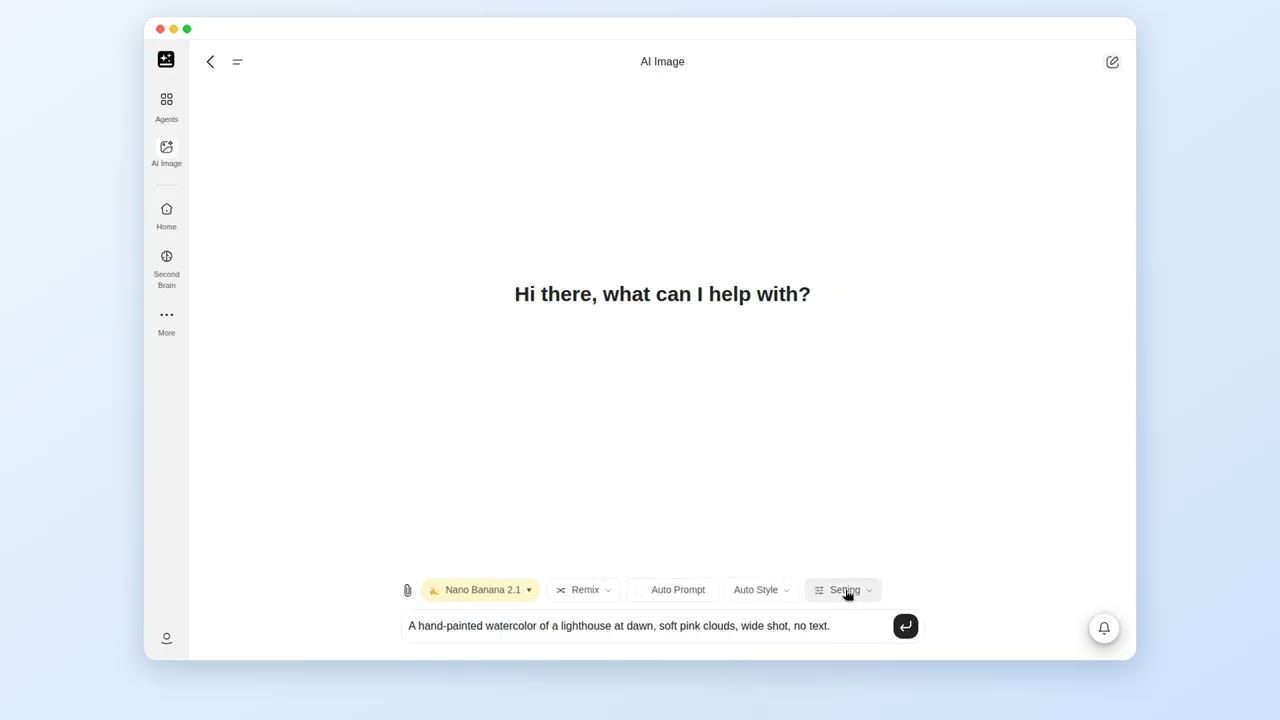
1. Make an image from a prompt
For: one picture from a description, with nothing to attach.
Prepare: the subject, the setting and the look you want.
Steps:
- Open AI Image and type the prompt.
- Open Setting and check Image Size and Aspect Ratio.
- Send it and read the grid.
- Use Download image on the one you want.
A hand-painted watercolor of a lighthouse at dawn, soft pink clouds, wide shot, no text.
You get: a grid of pictures, each labeled with its model.
If it stalls: if the picture misses the look, add the style and the light, such as "soft morning light", and send again.
Related: Model picker and Setting, Style, camera and prompt tools.
AI Image: a prompt typed, sent, and the first picture downloaded
2. Pick a model and check which one you got
For: a result from a model you chose, with the model confirmed.
Prepare: nothing. If your picker shows No credit cost, start there.
Steps:
- Open the model button and choose a model. On a Plus or Pro account from September 18, 2026, try a row tagged No credit cost first.
- Paste the prompt below and send it.
- Read the label under each result. It names the model that made it.
- To compare, open the model button, pick another model, and send the same prompt. The chat keeps the first results in view.
Create a clean product-style photo of a ceramic mug on a wooden table, soft window light.
You get: pictures labeled with the model you picked.
If it stalls: if the label shows a model you didn't pick, check whether Auto-select Models is chosen.
Related: Model picker and Setting, What costs credits.
Edit and extend
3. Edit one part, keep the rest
For: one change to a picture you already have, such as the sky or a background.
Prepare: the picture to change.
Steps:
- Attach the picture, or click one of your results to open the side editor.
- Paste the prompt below, or use Draw to Edit, brush the area and describe the change.
- Send it.
- Compare the result with the original.
Keep everything the same. Change only the sky to a warm sunset.
You get: the same picture with one area changed.
If it stalls: if more than the sky changed, use Draw to Edit to brush only the sky, or say "keep everything else the same" again. Edit changed too much has more.
Related: Edit, reference and remix tools.
4. Use a reference photo and keep a face or character consistent
For: a new scene with the same person or character.
Prepare: one clear photo of the person or character, and the scene you want.
Steps:
- Attach the photo with the attach control.
- Paste the prompt below and say the scene.
- Send it, then use Recreate or Remix to stay close to the same look.
Use the attached photo as the reference. Keep the face, hairstyle and pose, and place the person in a rain-lit city street.
You get: the person in the new scene.
If it stalls: if the face drifts, use one subject per photo and one clear reference, and try another model. Result ignores the prompt has more.
Related: Attaching reference images, Make a consistent set.
5. Put readable text in an image
For: a social post, a sign or a card with words in it.
Prepare: the exact words, in the order you want them.
Steps:
- Write the exact words in quotes.
- Say where they go and how they look, such as large white letters on a dark background.
- Say to use only that text.
- If a letter is wrong, use Draw to Edit on that area.
A square social post that reads 'OPEN LATE FRIDAY' in large white letters on a dark blue background. Use only that text.
You get: a picture with the words on it.
If it stalls: if letters come out wrong, fix that area with Draw to Edit or try another model. AI Image has no separate text tool.
Related: Garbled text.
6. Sharpen, enlarge or remove a background
For: a photo that's soft, small or has a background you don't want.
Prepare: the photo.
Steps:
- Click the photo, or attach it in a new chat.
- To sharpen and enlarge it, choose Image Unblur in the side editor. It's a no-credit edit for Plus and Pro.
- For a cutout, choose Remove Background.
- From a gallery or Recents, open the image and choose Upscale.
- For a specific size, ask in the chat, for example "upscale this 2×". The side editor has no upscale-factor control. You can also paste the prompt below.
Make this photo sharper and larger; keep the skin natural.
You get: a cleaner version of the photo, with the original still in the chat.
If it stalls: if the result looks over-processed, ask again with "keep it natural".
Related: Edit, reference and remix tools.
7. Extend an image
For: a picture that needs more room around it.
Prepare: the picture.
Steps:
- Click the result to open the side editor.
- Choose Expand.
- Follow the prompts the tool shows, then download the result.
You get: a larger picture with new content at the edges.
If it stalls: if the new area doesn't match, describe the scene in a typed edit, such as "extend the beach to the left".
Related: Edit, reference and remix tools.
Control cost and settings
8. See what an image costs before you run it
For: knowing whether a picture bills credits.
Prepare: nothing.
Steps:
- Open the model button and read the price level and any Credits or No credit cost tag.
- Open Setting and look for a Credits badge on the size or quality you chose.
- Read the composer strip. It shows only while the model, size and quality are all on the free list.
- On Plus or Pro from before September 18, 2026, pick a charged option and read the dialog. Choose Continue with Credits to go ahead.
You get: a clear signal before you send.
If it stalls: if you see no tag, read the price level. A missing tag isn't a promise that a model is free.
Related: What costs credits.
9. Set ratio, size, quality and count
For: a picture in a specific shape and quality.
Prepare: where the picture will be used.
Steps:
- Open Setting.
- Choose Aspect Ratio for the shape, such as 16:9 for a wide image.
- Choose Image Size and Quality.
- Choose the generation count. Each picture is billed.
- Send the prompt.
You get: pictures in the shape and size you chose.
If it stalls: if the shape isn't what you set, the model may not offer that ratio and used the closest one. Wrong size or ratio has more.
Related: Setting.
10. Keep credit use down
For: more pictures from the same credits.
Prepare: nothing.
Steps:
- Choose rows tagged No credit cost when your picker shows them.
- Set the generation count to 1 while you're trying ideas.
- Read the composer strip before you send.
- Raise size or quality only for the picture you keep.
You get: fewer charged images.
If it stalls: if credits were taken anyway, see Credits used on a free image.
Related: What costs credits.
Keep a look, save and reuse
11. Make a consistent set
For: several pictures that share a look or a character.
Prepare: one reference image you like.
Steps:
- Attach the reference image, or use Remix on a result you like.
- Write the scene for each picture and send them one at a time.
- Use Recreate to get more versions of the same scene.
- For a large set, a Story bible in Media Studio is the dedicated tool.
You get: pictures that stay close to the reference.
If it stalls: if the look drifts, keep the same reference in each prompt.
Related: Use a reference photo.
12. Find, download and save images
For: a picture you made earlier.
Prepare: roughly when you made it, or a word from the prompt.
Steps:
- Open the chat list in the sidebar, or open Recents on the AI Image start page.
- Open the chat.
- Click the picture and choose Download image.
- To use it in another product, attach the downloaded file there.
You get: the file on your device.
If it stalls: there's no Save to AI Drive or share button on an AI Image reply, so download the picture to keep it.
Related: Find and save your images.
13. Turn an image into a video
For: a moving clip from a picture.
Prepare: the picture.
Steps:
- Hover the picture and choose Image to Video, or choose it in the side editor.
- AI Video opens in a new tab.
- Finish the clip there.
You get: a video started from the picture.
If it stalls: if the new tab doesn't load, see Slow or won't finish.
Related: Where AI Image stops.
When a result is blocked or wrong
14. When a result is blocked or wrong
For: a result that was blocked, or one that misses.
Prepare: the prompt that failed.
Steps:
- Read the message. A blocked image shows "NSFW content detected. No credits were charged. Please avoid NSFW content."
- Change the prompt or the reference and send again.
- If the result is wrong, change one thing at a time: the prompt, the reference, the model.
- Use Draw to Edit to fix one area.
You get: a new result, with no charge for the blocked one.
If it stalls: a result you don't like isn't refunded here. Membership Plans has the refund terms.
Related: Image blocked.
15. Commercial use and watermarks
For: using a picture outside Genspark.
Prepare: your plan and where the picture was made.
Steps:
- Read Commercial use in Membership Plans.
- Check whether the picture was made on the Free plan. Those carry a Genspark watermark.
- Download the picture you need.
You get: a clear read on what applies.
If it stalls: if you need terms beyond Membership Plans, ask your workspace admin or your Genspark contact.
Related: Watermark.
Was this article helpful?