

AI DocsTry Now
AI Docs
AI Docs creates, edits and exports documents from a prompt. You pick a format, describe the document, and refine it by chatting, selecting text or, in some formats, editing by hand. Every change is saved as a Save Point, so you can go back to an earlier version.
The format is locked once a document has content, so choose a format before you write the prompt.

What is AI Docs?
AI Docs is Genspark's document creation agent. It writes a document from your prompt, applies a layout and structure, and lets you change it afterward without starting over.
AI Docs can:
- Three output formats: Word, Web Doc and Markdown.
- Prompt-driven editing: ask for a new document, or select text and ask for a change.
- Sources you attach: attach images, PDFs, Word files or links, and AI Docs uses them as sources.
- Export: Word, PDF, a separate browser tab, or Markdown from Markdown documents.
- Version history: each change creates a Save Point you can preview and roll back to.
Learn more in the AI Docs blog post.
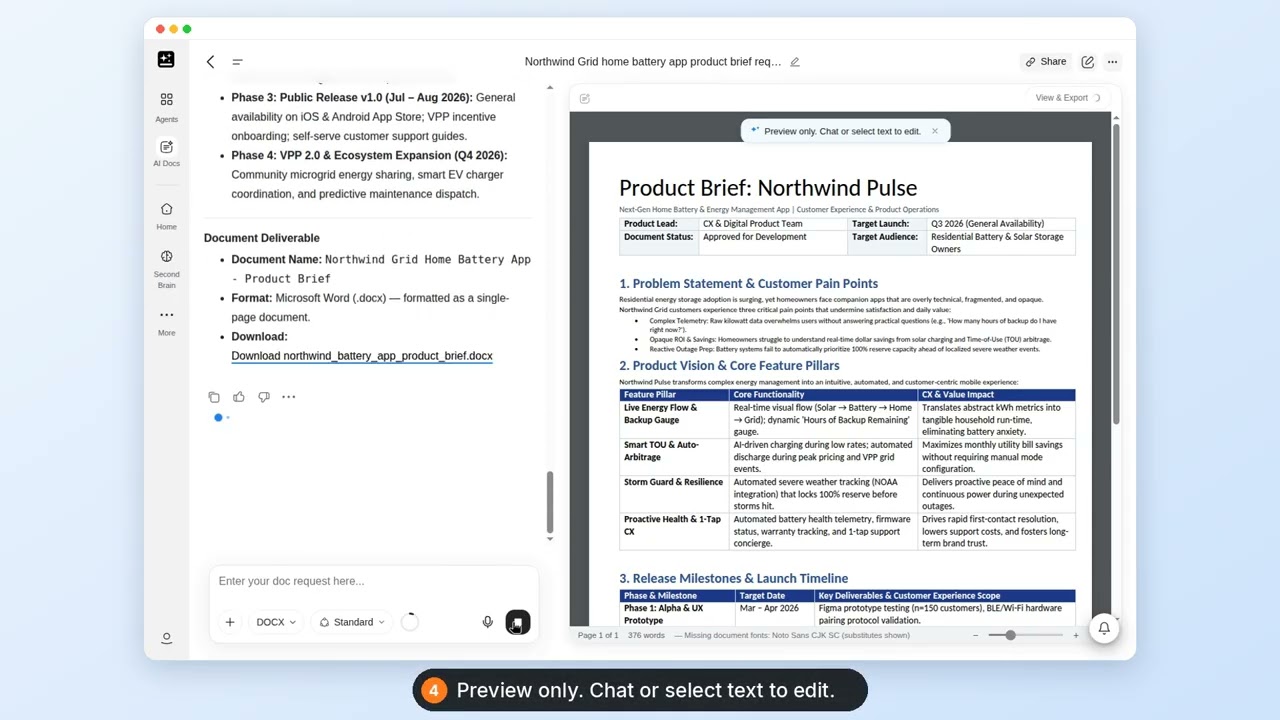
AI Docs overview: a prompt typed, a document generated, and then exported
What you can do
Six jobs cover most of what people bring to AI Docs. Paste the prompt, then change the subject to your own. All the recipes are at the end, under Recipes.
| What you get | Prompt to paste | Full recipe |
|---|---|---|
| A resume for a job | Create a professional resume for a software engineer position from my attached resume. | Write a resume |
| A designed menu | Design a menu for a boutique coffee shop with coffee, tea and dessert categories. | Design a menu or flyer |
| A typed document from a handwritten page | Convert this handwritten class schedule to a formatted electronic document. | Turn a photo into a document |
| One paragraph rewritten | Rewrite this in a more professional tone. | Rewrite one part |
| A report, built in sections | Write a two-page report on remote work trends. Start with the outline only. | Build a long document in sections |
| A file to send | No prompt. Use View & Export. | Export a document |
Quick start
Before you start: a Genspark account and an idea for one document.
- Open AI Docs. On the web, hover Agents in the sidebar and choose AI Docs in the Office Suite section. You can also click the AI Docs card in the OFFICE SUITE section of the homepage, or go to genspark.ai/ai_docs. In the mobile app, AI Docs opens a template screen.
- Under Output format, choose Word, Web Doc or Markdown. Word is selected by default. The choice is permanent once the document has content. Choose a format compares them.
- Describe the document. Name the type, the audience and anything it has to include, such as "a one-page resume for a software engineer". Attach any files or links you want used as sources.
- Send the prompt. If you chose Web Doc and didn't say which layout you want, AI Docs asks one question first. Web Doc layouts lists the choices.
- Refine the document by chatting, by selecting text, or by editing by hand where the format allows it.
- Click View & Export to save it as a file.
📷 Screenshot placeholder — id: ai-docs-start · still · width: 1440 px · captured: no · surface: the AI Docs start page · sequence: Output format with Word, Web Doc and Markdown → the prompt box and Mode menu → the template area
Choose a format
| Format | Edit by hand | Export choices | Use it for |
|---|---|---|---|
| Word | No, preview only. Chat or select text to change it. | Download Word Document, PDF, copy | A Word file you'll send or print |
| Web Doc | Yes in the Web page layout. No in the Printable layouts. | Word, PDF, separate browser, copy | A page-style document, or a printable one with page numbers |
| Markdown | Yes, in the Markdown editor | The same as Web Doc, plus Markdown | Content-first writing, technical docs, version control |
The format picker greys out once a document has content or while AI Docs is working. If you try to switch, it reads "To use a different format, please start a new project." and offers Start New Project. There's no conversion after generation. The one exception is a Word document, which you can open as a separate copy with Edit a Copy in Document Editor (desktop only).
Web Doc layouts
On your first Web Doc, AI Docs asks one question, labeled Format, with three choices. If your prompt already says which one you want, it skips the question.
- Web page: a flowing document that scrolls like a web page.
- Printable · A4 — best for Word / PDF export: real pages with page numbers, running headers and a table of contents.
- Printable · US Letter: the same, on US Letter pages.
Pick a format and layout
| If you want to | Choose | What to know |
|---|---|---|
| Send or print a Word file | Word | You change it by chatting or selecting text. It can't be edited by hand. |
| A printable document with page numbers and a table of contents | Web Doc, then Printable · A4 — best for Word / PDF export | Use Printable · US Letter for US Letter pages. Printable layouts can't be edited by hand. |
| A page that scrolls and that you edit by hand | Web Doc, then Web page | Autosave about a second after you stop typing. |
| Content first, technical docs or version control | Markdown | Edit by hand in the Markdown editor. It's the only format with Export as Markdown. |
Editing a document
AI Edit
Select text for a precise AI edit without regenerating the whole document. This works in every format.
- Select text with your mouse. The selected content appears above the chat box, and the chip reads "Ask Genspark to improve writing...".
- Type your instruction, such as "Rewrite this in a more professional tone", "Expand this section with specific examples", "Translate this paragraph to Spanish" or "Make this more concise".
- Send it to let AI Docs rewrite the selection.
Editing a selection happens through the chat box. There's no in-place rewrite control or right-click menu.
Manual Edit
You can edit by hand in a Markdown document, and in a Web Doc that uses the Web page layout. Word documents and Web Doc Printable layouts are preview only. Edit any document shows how to change those.
There's no Save button. Your edits save on their own shortly after you stop typing, about a second in a Web Doc and about half a second in Markdown. They're included when you export, even right after editing. Manual edits cost nothing.
Edit any document
Word documents and Web Doc Printable layouts can't be edited by hand, but you can change them by prompting.
- Open the document.
- Highlight the text you want to change. This works in every format. In a Word document, you can also click a table or an image to target it.
- Describe the change in the chat bar on the left.
Attach files and links
The chat box takes images, PDFs, Word files and other file types, up to 100 MB per file and 5 GB per message. AI Docs can also read links you paste, including web pages and YouTube videos. Use them as source material, as a style reference, or as the page you want typed up.
Export
Click View & Export in the top right of the document. On mobile, the button is a download icon. The button appears once the document has content. While AI Docs is working it shows a spinner and won't open. If you try to export then, the message reads "The AI is updating this document. Export again when it finishes." The menu depends on the format:
- Word: Download Word Document, Export as PDF, Edit a Copy in Document Editor, Make a Copy.
- Web Doc: Export as Word Document, Export as PDF, Open in separate browser, Make a Copy.
- Markdown: Export as Markdown, Export as Word Document, Export as PDF, Open in separate browser, Make a Copy.
Open in separate browser opens the document as a web page in a new tab. That's the HTML view, not a file download. Make a Copy duplicates the document into a new project, so you can edit the copy on its own. It's hidden on documents you can only view. Edit a Copy in Document Editor is on desktop only. It saves a separate copy to AI Drive, and edits to it don't change the original document.
Exporting to Word, PDF or Markdown needs a paid plan.
When an export needs a plan, the dialog is titled "Export Document" and its button reads "Download with Plus". Open in separate browser and Make a Copy don't need a paid plan.
Export follows the Save Point you're previewing. If you're viewing an older Save Point, that older version is what exports. Check the version before you export.
Version management
AI Docs tracks every change as a Save Point.
- Each AI prompt creates a Save Point. If the content didn't change, none is created.
- A manual edit creates a Save Point named "[Manual Edit]". Consecutive manual changes by the same person merge into that Save Point. A second editor or a version conflict starts a new one.
- A document started from a template names its first Save Point after the template.
- A Save Point holds the full document state and the modification information.
To use Save Points:
- Hover the Save Point-N dropdown in the upper left of the editor.
- Look through the earlier versions, newest first.
- Select one to preview it. An overlay over the chat box reads "Unsatisfied with recent changes?" and offers Rollback to that Save Point, or Back to latest version.
- Click Rollback to, then confirm. The dialog is titled "Revert to Previous Version". Click Revert now to go ahead, or Cancel to stay.
The dropdown appears only once there's more than one Save Point. It's hidden on mobile and in documents you can only view.
Common uses:
- Recover deleted content. Find the Save Point from before the deletion, preview it to confirm, then roll back.
- Compare approaches. Try version B with AI, compare it with version A, roll back if you prefer A, or try version C.
- Review how the document changed. Step through the Save Points.
Rolling back removes every Save Point after the one you chose and clears the conversation too. Can I recover my current work after rolling back? has the detail.
Where your documents are saved
| Place | What shows there |
|---|---|
| Sidebar project list | The document, as a project |
| Docs tab of your SecondBrain Library | The document |
| AI Drive | Exported files, saved under /Genspark/AI Docs. A link to the document, if you choose Save to AI Drive. A separate copy of a Word document, if you choose Edit a Copy in Document Editor. |
| Team Drive | The document, only if it's added to a Hub |
Who can see my documents? has the default visibility.
Share a document
Click Share in the page header. On mobile, it's in the … menu.
- People: add people by name or email and give each the Viewer or Editor role. There's no comment role.
- General access: Restricted limits the document to the people you added. Anyone with the link lets anyone on the internet with the link open it.
- Team and Enterprise: members also get Anyone in your organization. Depending on the admin's settings, they may also see Groups or By email options.
Only the owner can change sharing. Anyone else sees "Only the owner can modify sharing settings".
If your organization turns off Public link sharing, you can't make a link public. The dialog reads "Link sharing is disabled by your org admin". Links that were already public stop opening for people who don't have access. Can an organization admin turn off AI Docs or limit sharing? has the rest.
Credits and plans
Generation and chat edits are charged by usage. Manual edits cost nothing. The Mode menu in the chat box has two choices:
- Standard: "Auto-mixes the best AI models for your tasks · from 10 credits/page".
- Ultra: "The most powerful combination of models for complex tasks · from 40 credits/page".
| Plan | Standard | Ultra | Word, PDF and Markdown export |
|---|---|---|---|
| Free | Credits | Credits | |
| Go | Weekly Free Quota. The row reads "Included in Go". | Credits | Yes |
| Plus and Pro | Weekly Free Quota. The row reads "Uses free quota". | Credits | Yes |
| Team and Enterprise | Credits | Credits | Yes |
Open in separate browser and Make a Copy don't need a paid plan. Enterprise credit terms follow your organization's agreement. Ask your workspace admin or your Genspark contact.
Template Library
There are hundreds of templates. The gallery has category tabs for Business, Career & Portfolio, Education, Legal & Forms, Marketing, and Reports & Analysis, and a Blank document option. You'll find it on the AI Docs page and in the empty right pane before you start.
A template opens as a Web Doc with the template's content in it. Enter a prompt to customize it, then refine it with Manual Edit or AI Edit.
Recipes
Eleven recipes in three groups. The table at the top links to six of them.
Make a document
1. Write a resume
For: a resume for a specific job.
Prepare: your current resume as a file, or your work history to paste. AI Docs can't sign in to a profile page, so a link to one won't give it your details.
Steps:
- Open AI Docs and choose Markdown, or Web Doc with the Web page layout, if you want to edit by hand afterward.
- Attach your resume, or paste your details, and paste the prompt below.
- Send it and read the result.
- Select any line you want changed and ask for the change.
Create a professional resume for a software engineer position from my attached resume.
You get: a formatted resume document.
If it stalls: if the content is thin, paste your work history into the chat and ask again. The format can't change once the document has content, so start a new project to switch.
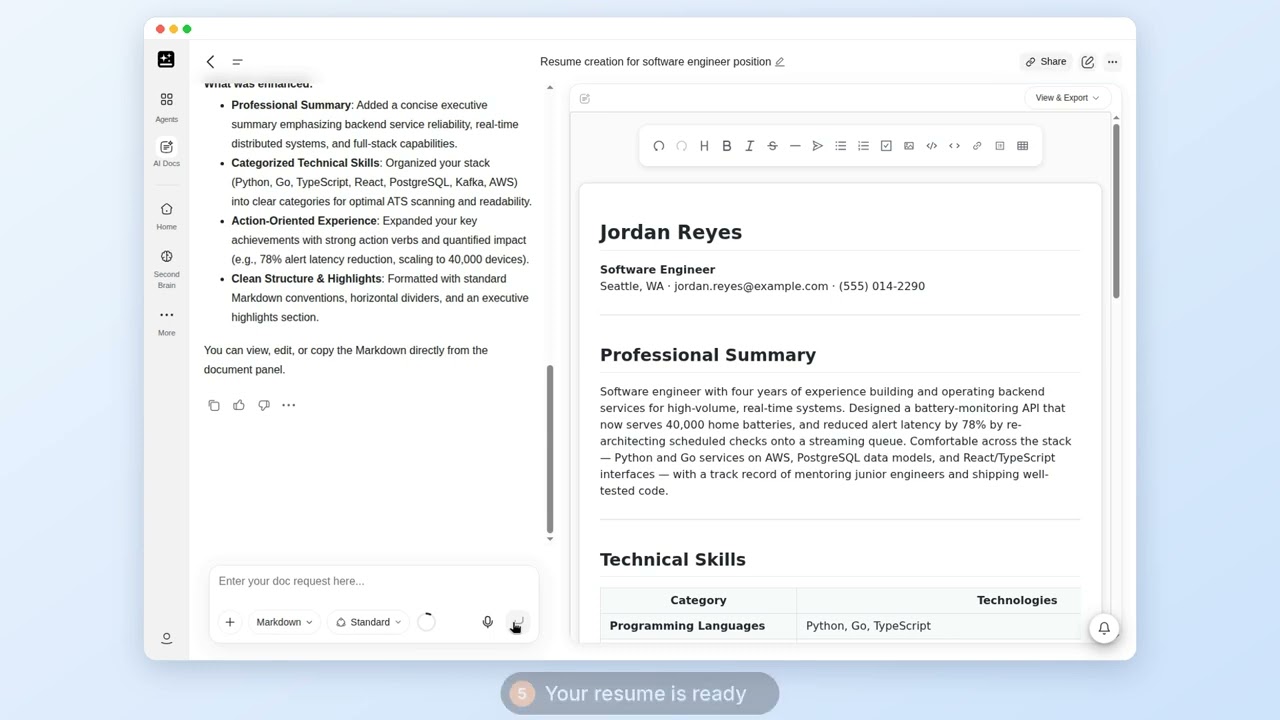
Write a resume: a resume attached, the document generated, and one line rewritten
2. Design a menu or flyer
For: a designed one-page document, such as a menu.
Prepare: the items, prices and any wording you want.
Steps:
- Open AI Docs and choose a format. For a page you'll print, choose Web Doc and pick a Printable layout.
- Paste the prompt below and list your items.
- Send it and review the layout.
- Ask for changes to a section by selecting it.
Design a menu for a boutique coffee shop with coffee, tea and dessert categories.
You get: a laid-out menu document.
If it stalls: if a section looks wrong, select it and describe the fix. For a different look, attach an image to take the style from.
Related: Web Doc layouts, Template Library.
3. Turn a photo into a document
For: a typed version of something handwritten or printed.
Prepare: a clear photo or scan of the page.
Steps:
- Open AI Docs and attach the photo.
- Paste the prompt below.
- Send it and compare the result with the page.
- Fix any wrong entries by selecting them and typing the correction.
Convert this handwritten class schedule to a formatted electronic document.
You get: a typed, formatted document.
If it stalls: check every name, time and number against the original, because handwriting can be misread.
Related: Attach files and links.
4. Start from a template
For: a document that already has a structure, such as a proposal or a one-pager.
Prepare: an idea of the document you need and the details to put in it.
Steps:
- Open the AI Docs page and look in the template gallery, or in the empty right pane.
- Pick a category tab, such as Business or Reports & Analysis, and select a template.
- Paste the prompt below, and replace the details with your own.
- Send it, then select any section you want changed and ask for the change.
Change this to a one-page proposal for a landscaping company. Keep the section order and replace the example text with mine.
You get: a Web Doc with the template's structure and your content.
If it stalls: if the template isn't close, choose Blank document and describe what you need.
Related: Template Library.
5. Write from a file or a link
For: a document built from material you already have, such as a PDF or a web page.
Prepare: the file, or the link you'll paste.
Steps:
- Open AI Docs and attach the file, or paste the link in the chat box.
- Paste the prompt below.
- Send it and check the result against the source.
- Select anything that's wrong or missing and ask for the change.
Write a two-page brief from the attached file. Put a short summary at the top, then one section for each main topic.
You get: a document built from your source.
If it stalls: check names, figures and dates against the source before you share the document.
Related: Attach files and links.
Edit and refine
6. Rewrite one part
For: changing the tone or length of a paragraph without touching the rest.
Prepare: a document with the paragraph in it.
Steps:
- Select the paragraph. It appears above the chat box.
- Paste the prompt below, or type your own instruction.
- Send it and read the change.
- If you don't like it, open the Save Point-N dropdown and roll back.
Rewrite this in a more professional tone.
You get: the selected text rewritten, with the rest unchanged.
If it stalls: if more than the selection changed, roll back to the earlier Save Point and select a smaller piece.
Related: AI Edit, Version management.
7. Build a long document in sections
For: a report or guide where quality matters more than speed.
Prepare: the topic and who will read it.
Steps:
- Ask for the outline only and read it.
- Ask for one section at a time, by name.
- After each section, select anything that needs changes and ask for the change.
- Export when every section is done.
Write a two-page report on remote work trends. Start with the outline only.
You get: a document built section by section.
If it stalls: if a later section drifts from the first, paste the outline into the chat and say to follow it.
Related: How long can a document be generated at once?, Version management.
8. Edit a Word document or a Printable Web Doc
For: changing a document you can't edit by hand.
Prepare: a Word document, or a Web Doc with a Printable layout.
Steps:
- Open the document.
- Highlight the text to change. In a Word document, you can also click a table or an image.
- Describe the change in the chat bar.
- Check the result in the preview.
You get: the change applied in the preview.
If it stalls: if you need to edit by hand, start a new project in Markdown, or in Web Doc with the Web page layout. For a Word document, you can also use Edit a Copy in Document Editor on desktop.
Related: Edit any document.
Save and send
9. Export a document
For: a file to send, print or archive.
Prepare: check which Save Point you're previewing, because that version is what exports.
Steps:
- Click View & Export in the top right.
- Choose Word, PDF, Open in separate browser, or Export as Markdown on a Markdown document.
- Open the file and check it.
You get: the file, or the document in a new browser tab.
If it stalls: if the button shows a spinner, AI Docs is still working. If it doesn't appear, the document has no content yet. If an export asks for a plan, see Export asks for a paid plan.
Related: Export.
10. Share a document
For: letting someone view or edit a document.
Prepare: the name or email of each person, or whether anyone with the link should be able to open it.
Steps:
- Click Share in the page header. On mobile, open the … menu.
- Add people by name or email, and choose Viewer or Editor for each.
- Or change general access to Anyone with the link.
- Send the link.
You get: a document the people you chose can open.
If it stalls: only the owner can change sharing. If the dialog reads "Link sharing is disabled by your org admin", your organization has turned off Public link sharing, so add people by name or email instead.
Related: Share a document.
11. Go back to an earlier version
For: undoing a bad edit.
Prepare: nothing.
Steps:
- Hover the Save Point-N dropdown in the upper left.
- Select a Save Point and preview it.
- If it's right, click Rollback to, then Revert now.
You get: the document as it was at that version.
If it stalls: rolling back removes everything after that version, including the later conversation. Preview first.
Related: Version management.
Troubleshooting
| Symptom | What it usually is | Where to go |
|---|---|---|
| I can't switch formats | The format is locked once the document has content | I can't switch formats |
| I can't edit a document by hand | Word and Printable Web Docs are preview only | Edit any document |
| View & Export is missing or shows a spinner | No content yet, or AI Docs is still working | Export |
| Export asks for a plan | Word, PDF and Markdown export need a paid plan | Export asks for a paid plan |
| The wrong version exported | Export follows the Save Point you're previewing | Export |
| The Save Point dropdown is missing | It shows only with more than one Save Point, and not on mobile or in view-only documents | Version management |
| Rolling back lost my work | Rollback removes later changes and the later conversation | Versions |
| A shared link won't open | Your organization may have turned off Public link sharing | Share a document |
I can't switch formats
The format is locked once the document has content, and while AI Docs is working. Start a new project and choose the format when you create it. Choose a format has the message the picker shows.
Export asks for a paid plan
Word, PDF and Markdown export need a paid plan. Choose Open in separate browser or Make a Copy instead, or upgrade from the dialog.
FAQ
Using AI Docs
Should I choose Word, Web Doc or Markdown?
Choose Word if the file will be sent or printed as a Word document. Choose Web Doc for a page-style or printable document. Choose Markdown if you care most about content, need version control, or write technical documentation. Pick a format and layout matches each goal to a choice.
Is AI-generated content accurate?
AI Docs is accurate most of the time, but check key information yourself before you rely on it.
How long can a document be generated at once?
There's no strict limit, and AI Docs doesn't cap the number of documents you can make. For complex documents, generate in sections for better control over quality.
Can AI Docs read a link or a file?
Yes. Attach images, PDFs, Word files or other files, or paste a link. Attach files and links has the size limits.
Versions
Can I recover my current work after rolling back to a previous version?
No. The confirm dialog says "Your current work will be lost and cannot be recovered." Every change after that version is removed, along with its Save Points. The conversation after that point is cleared too. Review the version before you click Revert now.
How do I delete unwanted Save Points?
You can't delete a single Save Point. Rolling back removes every Save Point after the one you roll back to.
Privacy, sharing and admin questions
Who can see my documents?
A new document is private to you. Team and Enterprise plans don't change that. To let others in, use Share a document: add people as Viewer or Editor, or use general access.
Can an organization admin turn off AI Docs or limit sharing?
An organization admin can disable AI Docs for all teams or for selected teams. A member who's blocked loses the AI Docs entry points. If they send a request anyway, they see "This feature is disabled under your organization's policy." Admins can't restrict output formats.
Sharing limits are organization-wide, not specific to AI Docs. An admin can turn off Public link sharing, block external email sharing, or limit sharing to groups. These apply to AI Docs documents like any other project.
Does AI Data Retention apply to my documents and prompts?
AI Data Retention controls model routing and whether prompts are logged. It doesn't delete documents or Save Points. On a Team or Enterprise plan, the setting reads "Because you are on a Team or Enterprise plan, you are opted out of AI Data Retention."
What happens when I delete a document?
The confirmation reads "Delete "{name}"? This action cannot be undone." There's no trash or restore in the interface.
Do documents appear in AI Drive or SecondBrain?
A document shows in your sidebar and in the Docs tab of your SecondBrain Library. It reaches AI Drive only as exported files or through Save to AI Drive, and Team Drive only if it's added to a Hub. Where your documents are saved has the details.
What does AI Docs cost?
Generation and chat edits are charged by usage, and manual edits cost nothing. Credits and plans has the Mode choices and what each plan uses. Enterprise credit terms follow your organization's agreement. Ask your workspace admin or your Genspark contact.
Was this article helpful?