

AI VideoTry Now
AI Video
AI Video makes a short video clip from a text prompt or from pictures you attach. You pick a model, set the size and length, and then extend, upscale, redo or download the result.
On most accounts, AI Video is now part of Media Studio. AI Video still opens, and it works as described below. The Try Media Studio dialog explains what you'll see when you arrive.
What is AI Video?
AI Video is a prompt-to-video tool. You type a prompt, optionally attach images, video or audio, and send it. Each result is a clip in a chat. Every chat is saved as a project, so you can come back and keep working on the same clip.
The controls above the prompt box are:
- A model picker that lists the video models, with a price multiplier on each row.
- A Setting panel for size, aspect ratio, length and how many versions to make.
- An Auto-select Models option that lets Genspark choose the model.
- A toolbar on every result for redoing, referencing, extending, upscaling and downloading.
It makes clips, not finished productions. It has no timeline editor, no board and no scene planning. When the job is bigger than one clip, Work with Media Studio and AI Image says where to go.
The product name is AI Video.
What you can do
Five jobs cover most of what people bring to AI Video. Paste the prompt, then change the subject to your own. All the recipes are at the end, under Recipes.
| What you get | Prompt to paste | Full recipe |
|---|---|---|
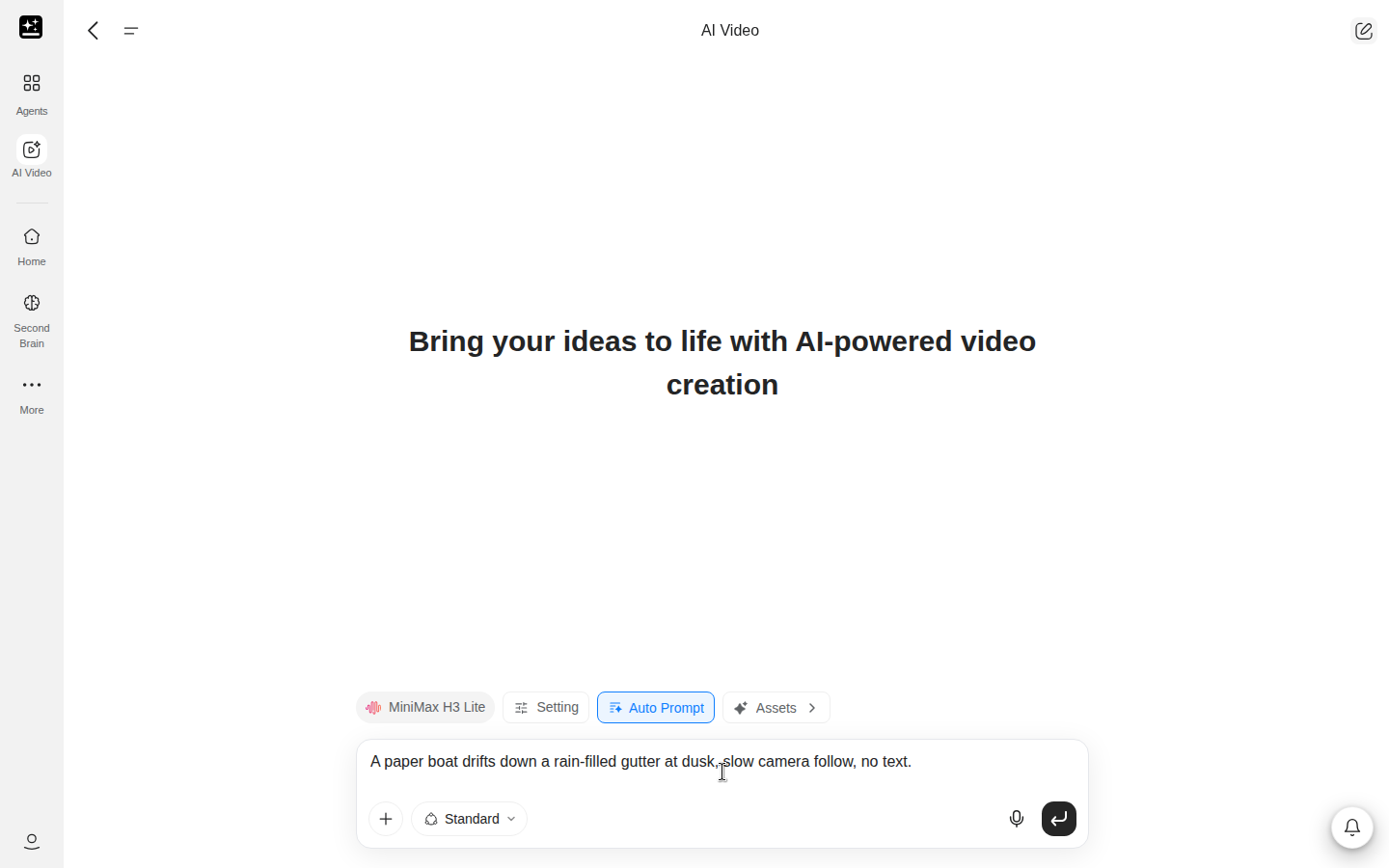
| A clip from a description | A paper boat drifts down a rain-filled gutter at dusk, slow camera follow, no text. | Make a clip from a prompt |
| A still picture brought to life | Animate this photo. The curtains move gently in a breeze and the camera pushes in slowly. | Animate a picture. Attach the picture first. |
| A longer clip from one you already have | Click Extend Generation on a result. | Extend a clip. |
| A preview before the full render | A product shot of a ceramic mug on a wooden table, soft window light, slow orbit. | Draft first, then render the final. Needs a model with a draft mode. |
| A clip that keeps the look of another | Use the reference clip for the camera move. Same move, but a red kite over a beach. | Reuse a look with a reference. Needs a model with Reference. |
Two sections apply to every job: What costs credits and the Free plan watermark and download rule.
Where to find AI Video
AI Video opens at AI Video. Where it's listed in the menus depends on your account:
| Your account | Where AI Video is listed |
|---|---|
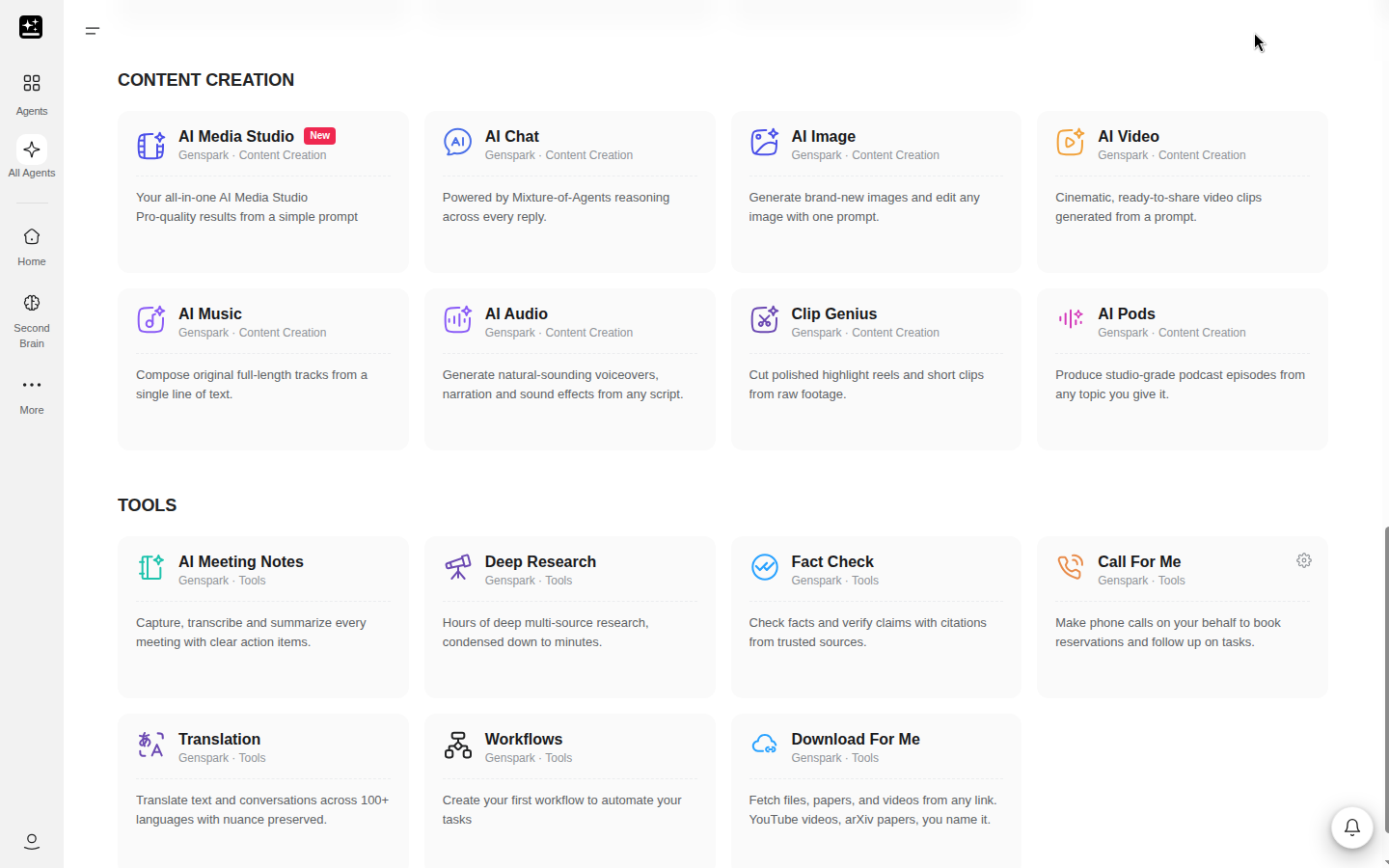
| Most accounts | The Content Creation card on the All Agents page, and the CONTENT CREATION popover on the home page, under GENSPARK APPS |
| Enterprise, or an organization that blocked Media Studio | The same places, plus Agents in the sidebar, under Content Creation |
The home page no longer has an AI Video icon in its top row.
On the mobile app, AI Video is a screen of its own.
Quick start
Before you start: sign in to a Genspark account with credits. What costs credits says how video is charged.
- Open AI Video from the Content Creation card on the All Agents page.
- If the Try Media Studio dialog opens, choose Not now to stay on AI Video.
- Open the model picker and choose a model, or turn on Auto-select Models.
- Open Setting and check Aspect Ratio and Duration. The defaults are 9:16 and 5 seconds.
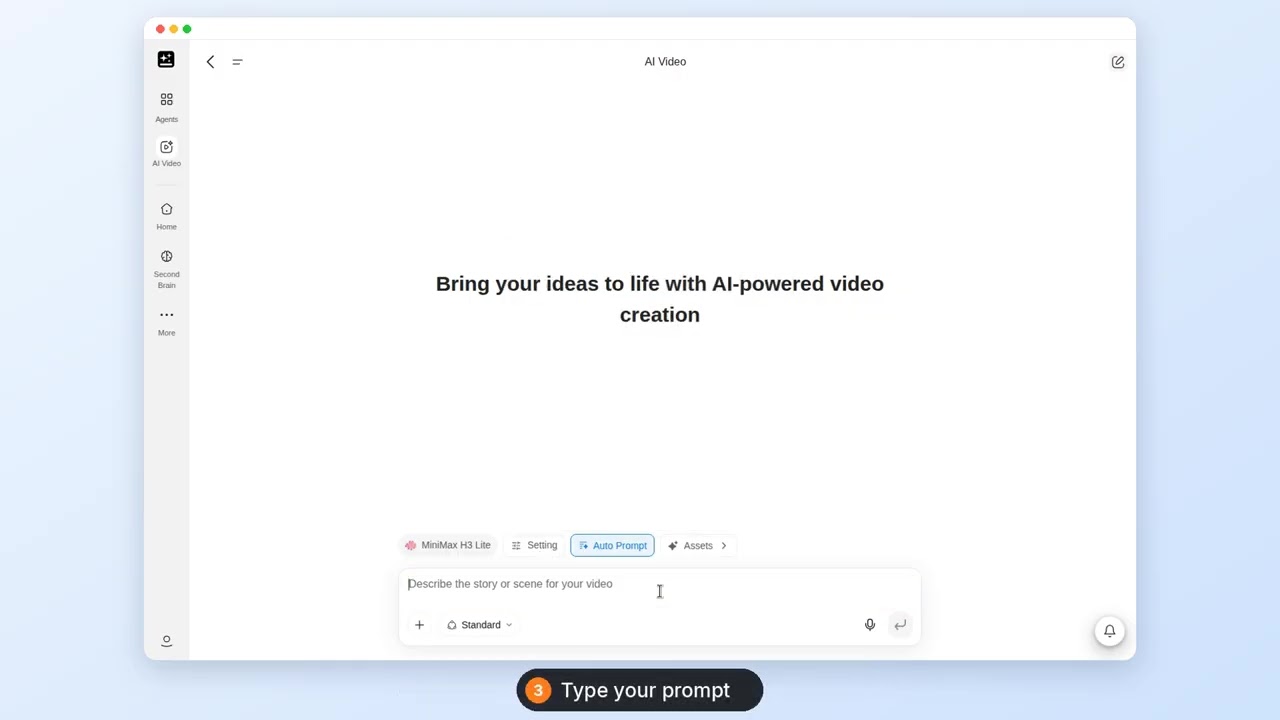
- Type your prompt. To animate a picture, attach it first.
- Send the prompt and play the result.
- Use the toolbar on the result to redo, extend, upscale or download it.
The Try Media Studio dialog
Media Studio now covers video, audio, music and images on one canvas. Because of that, AI Video shows a dialog called Try Media Studio. It reads: "AI Video is now part of Media Studio — one canvas for video, audio, music and images, with production skills built in. Continue there for the full toolkit."
| You choose | What happens |
|---|---|
| Open Media Studio | Media Studio opens |
| Not now, or closing the dialog | You stay on AI Video. The dialog returns the next time you open a blank AI Video page |
| Got it, don't show this again | The dialog stops appearing in this browser |
The dialog shows only when all of these are true:
- You're signed in and your account isn't Enterprise.
- You're on desktop web, not a phone or the mobile app.
- AI Video is blank, with no open project, no prompt and no handoff from another product.
- Your organization hasn't blocked Media Studio.
The Got it, don't show this again setting is saved per browser. It also covers the other older media pages: AI Image, AI Audio, AI Music, AI Pods and Clip Genius. An old AI Video project opens normally, and the dialog doesn't appear inside it.
Model picker and Setting
The model picker
The model picker lists every video model you can use. Each row shows a price multiplier, written as a number followed by "×". The picker doesn't show a credit price.
Some models can't take pictures. When you've attached an image, those models are greyed out. Models change over time, so pick from the list on your screen.
Setting
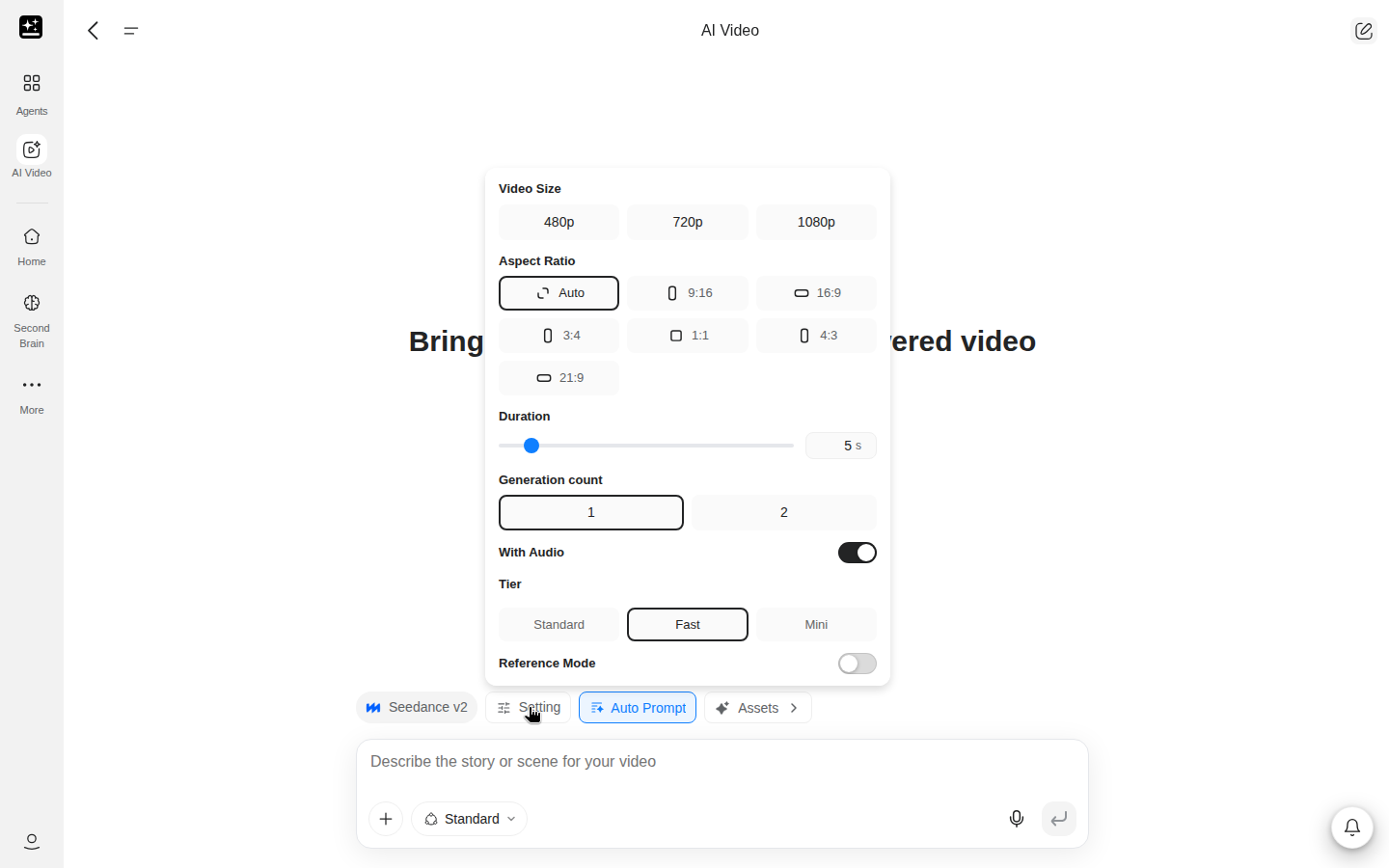
Setting holds the controls the selected model supports. Each control shows only if the model has it.
| Control | What it does |
|---|---|
| Video Size | Picks the resolution. Shows only when the model has more than one. |
| Aspect Ratio | Sets the shape of the frame. The default is 9:16. Auto is always offered, and the other ratios depend on the model. |
| Duration | Sets the length with a slider and a seconds value. The default is 5. Some models read Based on input, which means the length comes from the source you attached. |
| Generation count | Makes 1 or 2 versions of the prompt. The default is 1. |
Auto-select Models
Auto-select Models lets Genspark choose the model for you. It offers a choice of 16:9 or 9:16, and 5 or 10 seconds.
Work with a result
Every result has a toolbar. Which buttons show depends on the model.
| Button | What it does |
|---|---|
| Recreate | Runs the same prompt again. A new run costs credits like the first. |
| Reference | Uses the clip as a reference for your next prompt. Models that support it also have a Reference Mode setting. |
| Extend Generation | Continues the clip from where it ended. |
| Upscale Video | Raises the resolution. A few upscaler models are also in the picker. |
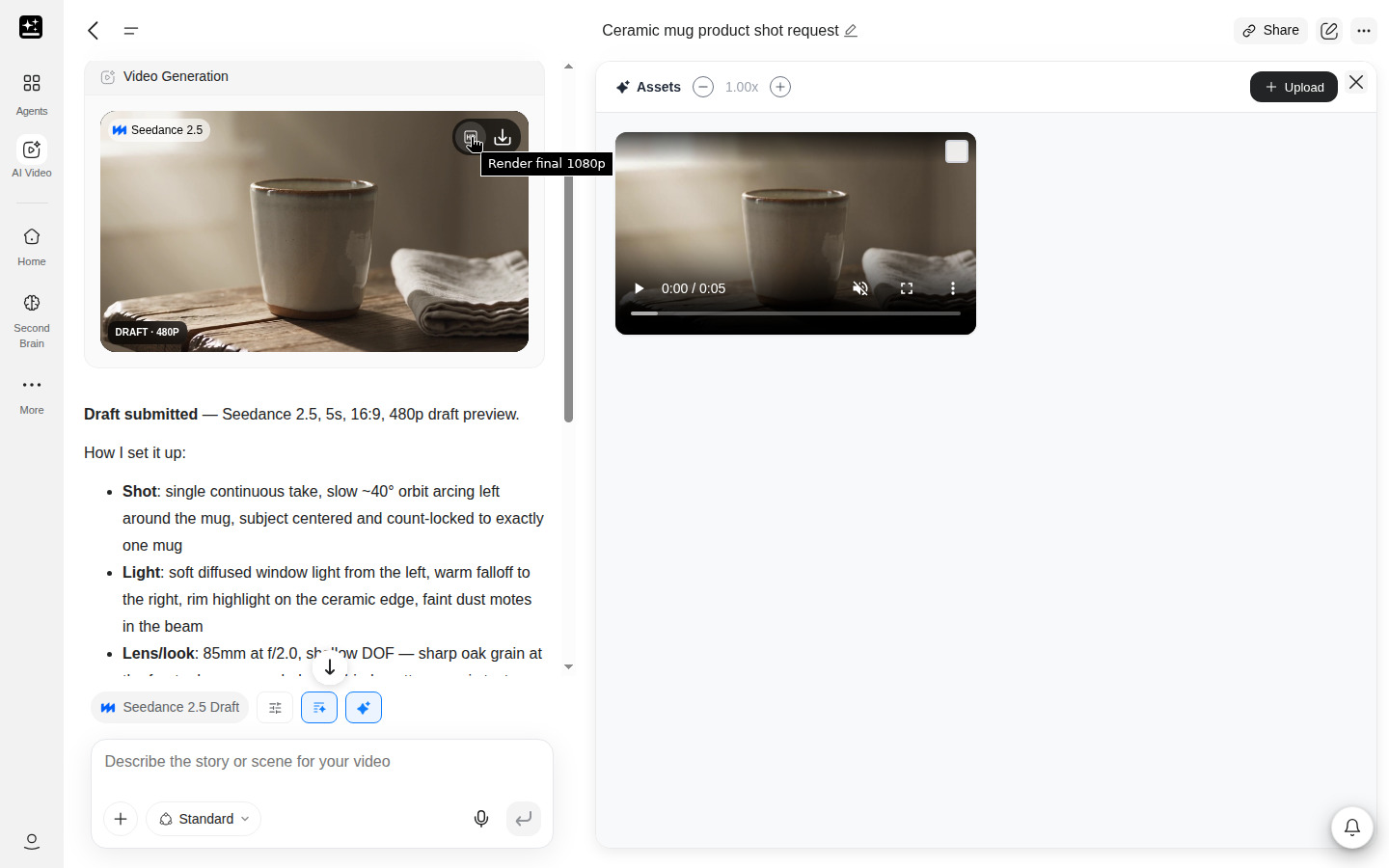
| Render final 1080p | Shows on a result labeled Draft · 480p. It renders the full version of a draft. |
| Add to Assets Library | Saves the clip to your assets. |
| Download | Downloads the clip as an MP4. Free plan: watermark and download has the Free plan rule. |
To merge clips or trim one, ask in the chat. There's no timeline to edit in AI Video.
What AI Video doesn't have
- There's no first-and-last-frame control. Describe where the clip should start and end in the prompt instead.
- There's no timeline editor. Merge and trim are chat requests.
- The picker doesn't list any avatar models.
Attach files
Attach pictures to animate them. You can also attach video and audio. A model that can't use an attachment type is greyed out.
| Limit | Value |
|---|---|
| File size | 100 MB per file |
| Pictures | Up to 80 per message, and each model sets its own count |
| Video formats | mp4, webm, m4v, mov, avi, mkv, wmv |
| Audio formats | mp3, wav, ogg, m4a, aac |
The 100 MB limit belongs to AI Video. Media Studio takes larger files.
What costs credits
AI Video uses credits. It isn't covered by Free Quota on any plan.
- The composer doesn't show a price before you send, and there's no confirmation step. The price multiplier on each model row is the only guide.
- Only successful clips are charged. If a generation fails, or a content filter blocks it, credits are refunded.
- Each Recreate is a new generation, and it costs the same as the first run.
Free accounts use their daily credits for video. The Credits Guide and Membership Plans have the daily amount and the lifetime allowance.
Credit amounts vary by model and settings, so the picker is the place to compare.
Free plan: watermark and download
Two Free plan rules apply to every clip.
- Clips made on the Free plan carry a Genspark logo watermark. Plus, Pro and Go clips don't carry one. 4K clips never do.
- On the Free plan, Download opens the pricing page. The button has a Plus tag.
Find, save, share and delete videos
Videos stay in the chat project. Open the project from your project list or history, then use Download on a clip. Downloads are MP4 only. There's no Save to AI Drive button. To use a clip somewhere else, download it and attach it there.
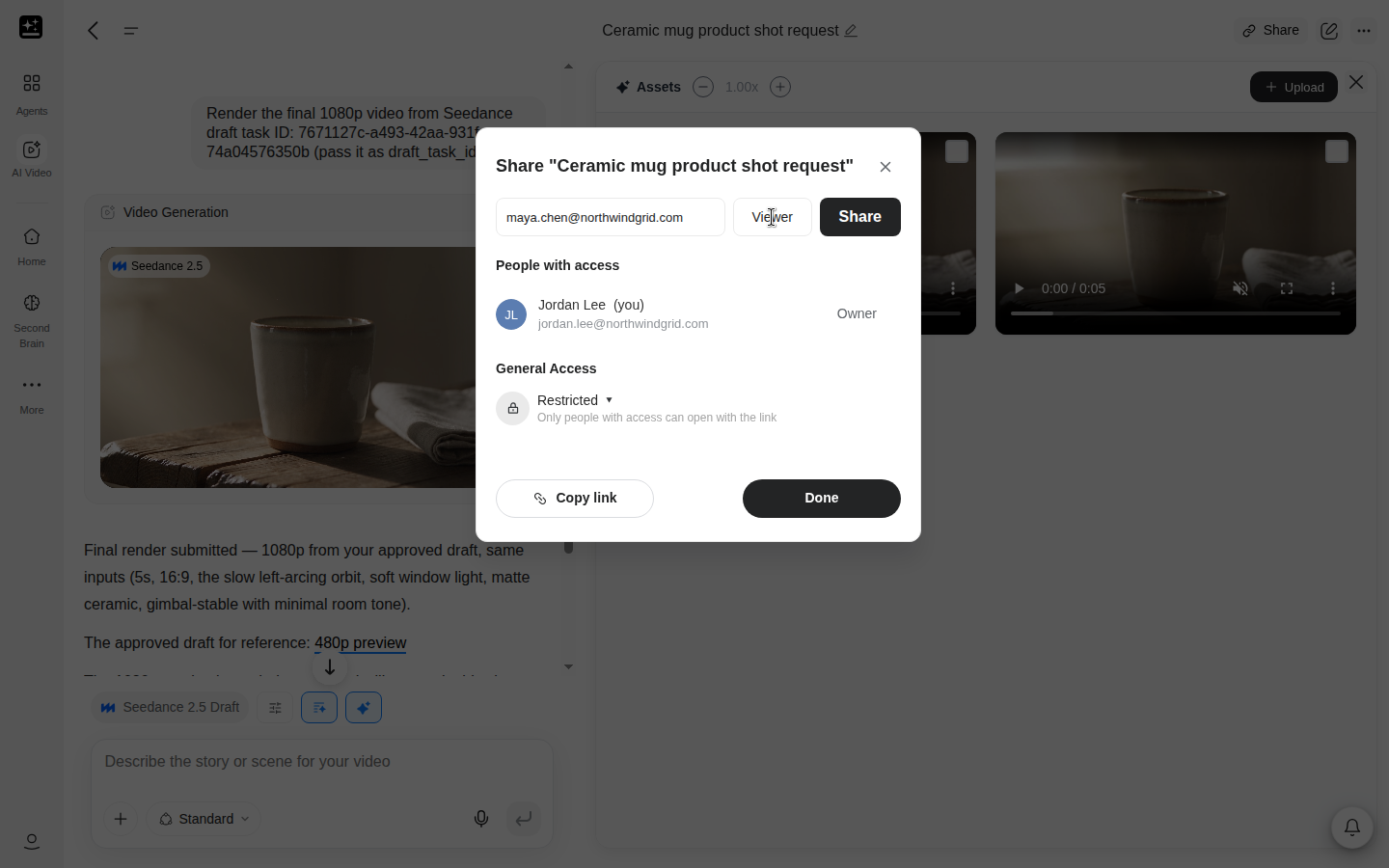
Share a project
AI Video uses the standard project share panel, not the Media Studio one.
- General Access has Restricted, Anyone with the link and Anyone in {org}.
- Copy link copies the link for the current setting.
- You can invite people as Viewer or Editor.
Delete a project
Only the owner can delete a project. Deleting removes it from your list. An organization's history-delete policy can block deleting.
Work with Media Studio and AI Image
AI Video has two handoffs from AI Image. Both use Image to Video.
- In the side editor of an AI Image result, Image to Video opens AI Video in a new tab with the picture attached.
- In the detail view of an AI Image result, Image to Video opens AI Video in the same tab and sends "Generate a video from this image."
The Try Media Studio dialog is the only way from AI Video to Media Studio. Nothing sends work from Media Studio to AI Video. Projects made in the old AI Video page aren't listed under Projects in Media Studio. Media Studio says the same.
When you need more than one clip, move to Media Studio:
| You need | Go to |
|---|---|
| One clip from a prompt or a picture | AI Video |
| A cut with several shots, a timeline, dubbing or 3D | Media Studio |
| A still picture | AI Image |
Recipes
Seven recipes.
1. Make a clip from a prompt
For: one clip from a description, with nothing attached.
Prepare: the subject, the setting and how the camera should move.
Steps:
- Open AI Video and choose a model.
- Open Setting and check Aspect Ratio and Duration.
- Paste the prompt below and change the subject.
- Send it and play the result.
- Use Download if it's what you wanted.
A paper boat drifts down a rain-filled gutter at dusk, slow camera follow, no text.
You get: a clip in the chat.
If it stalls: if the camera or the subject misses, add one clear camera instruction, such as "slow push in", and send again. Each send uses credits.
Related: Model picker and Setting.
2. Animate a picture
For: moving a still photo or illustration.
Prepare: one clear picture under 100 MB.
Steps:
- Open AI Video and attach the picture.
- Choose a model that isn't greyed out.
- Paste the prompt below and say what should move.
- Send it and play the result.
Animate this photo. The curtains move gently in a breeze and the camera pushes in slowly.
You get: a clip that starts from your picture.
If it stalls: if the model is greyed out, it can't take pictures. Choose another model. You can also start from AI Image with Image to Video.
Related: Attach files, Work with Media Studio and AI Image.
3. Extend a clip
For: continuing a clip you already made.
Prepare: a result in the chat.
Steps:
- Find the clip in the chat.
- Click Extend Generation on its toolbar.
- Play the extended clip.
You get: a longer clip that continues the first.
If it stalls: if there's no Extend Generation button, the model doesn't offer it. Check the toolbar on a result from another model.
Related: Work with a result.
4. Draft first, then render the final
For: checking a clip before paying for the full version.
Prepare: a model that makes drafts.
Steps:
- Make the clip as usual.
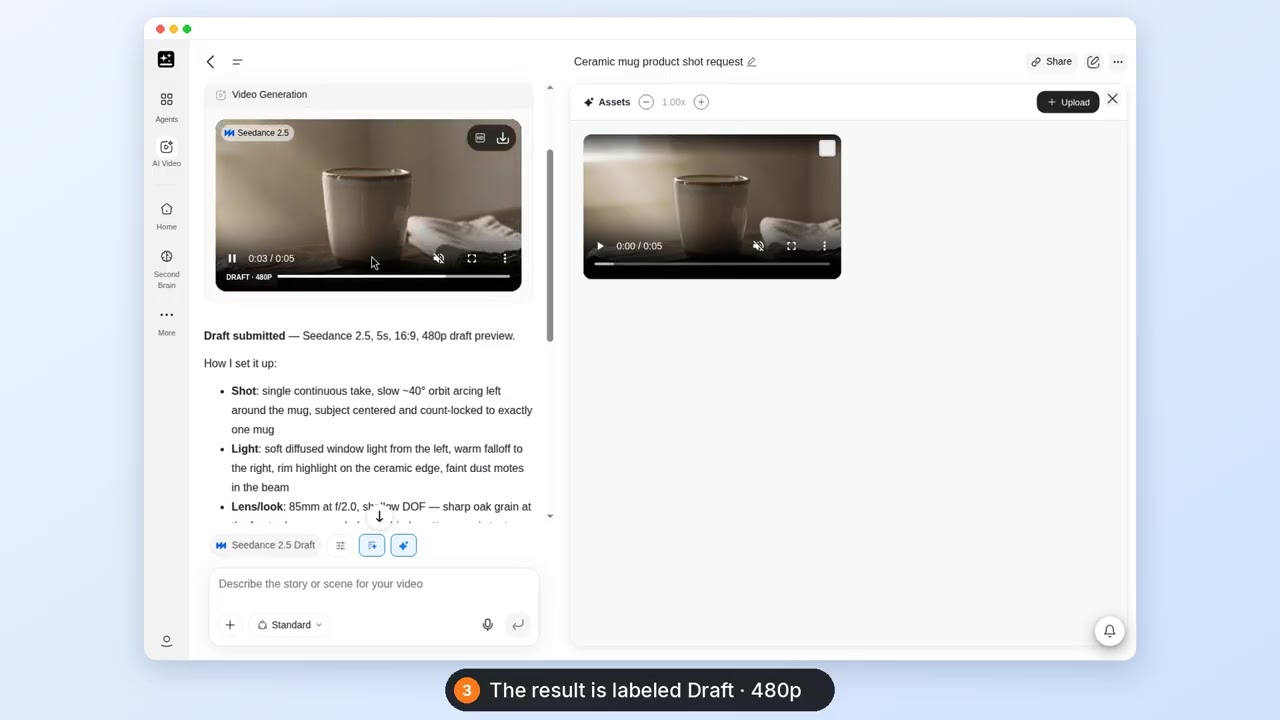
- If the result is labeled Draft · 480p, play it.
- When you're happy, click Render final 1080p.
- If you're not, click Recreate or change the prompt.
A product shot of a ceramic mug on a wooden table, soft window light, slow orbit.
You get: a draft to review, then a final render.
If it stalls: if no result is labeled Draft · 480p, the model doesn't have a draft mode.
Related: What costs credits.
5. Upscale a clip
For: a sharper version of a clip you already like.
Prepare: a result in the chat.
Steps:
- Click Upscale Video on the result.
- Play the new clip and compare it with the first.
You get: a higher-resolution copy of the clip.
If it stalls: if you can't see Upscale Video, the model doesn't offer it. A few upscaler models in the picker do the same job.
Related: Work with a result.
6. Reuse a look with a reference
For: keeping the camera move or the style of a clip.
Prepare: a clip you want to copy from, and a model that supports Reference.
Steps:
- Click Reference on the clip.
- Check Reference Mode in Setting, if the model has it.
- Paste the prompt below and change the subject.
- Send it and compare the result with the reference.
Use the reference clip for the camera move. Same move, but a red kite over a beach.
You get: a new clip that follows the reference.
If it stalls: if Reference isn't on the toolbar, choose a model that supports it.
Related: Setting.
7. Share a project with a teammate
For: giving someone access to your clips.
Prepare: the project open in the chat, and the person's email address.
Steps:
- Open the share panel for the project.
- Add their email and choose Viewer or Editor.
- Or set General Access to Anyone with the link and choose Copy link.
You get: a person who can open the project.
Related: Share a project.
FAQ
What does AI Video do?
It makes video clips from a prompt or from pictures you attach. What is AI Video? covers what it does and doesn't do.
Is AI Video the same as Media Studio?
No. AI Video is the older single-clip page. Media Studio is a canvas for video, audio, music and images. Media Studio explains how they relate.
Why does Try Media Studio keep opening?
It opens on every blank AI Video page until you tick Got it, don't show this again. The Try Media Studio dialog lists when it shows.
Can I set a first and last frame?
There's no control for it. Describe where the clip starts and ends in the prompt.
Can I make a talking avatar?
The picker doesn't list avatar models.
Can I merge or trim clips?
Yes, by asking in the chat. AI Video has no timeline editor.
Is AI Video in the mobile app?
Yes. It's a screen of its own in the app. The Try Media Studio dialog doesn't show on phones.
Is AI Video covered by Free Quota?
No. Every clip uses credits.
Do I pay for a failed clip?
No. Failed generations and clips blocked by a content filter are refunded.
Can I see the price before I send?
No. The picker shows a price multiplier for each model. The composer doesn't show a cost.
Is there a Free plan watermark?
Yes. Free plan: watermark and download has the rules.
How big can an upload be?
100 MB per file, and up to 80 pictures per message. Attach files has the formats.
Can an organization admin turn off AI Video?
Yes. In the admin console, Policies has a Feature Block-List and a Feature Allow-List, and each has an AI Video item.
Can an admin limit which video models people use?
Yes. The organization's model-vendor allowlist blocks the video models it doesn't include.
Does Enterprise still have the AI Video page?
Yes. Enterprise accounts don't see the Try Media Studio dialog, and AI Video stays in the Agents menu, with no Media Studio entry beside it.
Can an admin stop members from deleting their video history?
Yes. An organization history-delete policy can block deleting a project.
Troubleshooting
Find your symptom in the table.
| Symptom | What it usually is | Where to go |
|---|---|---|
| A dialog opens when you open AI Video | The Try Media Studio dialog | Try Media Studio keeps opening |
| You can't find AI Video in the sidebar | It's listed there only for some accounts | AI Video is missing from the sidebar |
| A model is greyed out or missing | It can't take your attachment, or it's hidden for your organization | A model is greyed out or missing |
| Download opens the pricing page | The Free plan rule | Download opens the pricing page |
| A clip has a logo | The Free plan watermark | A clip has a watermark |
| A clip didn't generate | A failure or a content filter | A clip failed or was blocked |
| An upload was refused | The file is over the size limit or in a format that isn't listed | An upload was refused |
| The clip isn't what you described | The prompt needs one clear subject and camera move | The clip ignores the prompt |
| An old project isn't in Media Studio | Old projects stay in AI Video | An old project isn't in Media Studio |
Try Media Studio keeps opening
Choose Not now, and it comes back on the next blank page. Tick Got it, don't show this again and choose Not now. The setting is saved per browser, so repeat it in each browser you use.
AI Video is missing from the sidebar
For most accounts, the sidebar lists AI Video only when Media Studio isn't available to you. Open the Content Creation card on the All Agents page, or the CONTENT CREATION popover on the home page under GENSPARK APPS.
A model is greyed out or missing
A greyed-out model can't take what you attached, such as a picture. Remove the attachment or pick another model. A model that's missing may be hidden for organization members, or blocked by your organization's model allowlist. Ask your organization admin.
Download opens the pricing page
On the Free plan, Download opens the pricing page. Free plan: watermark and download has the rule.
A clip has a watermark
Clips made on the Free plan carry a Genspark logo.
A clip failed or was blocked
If a generation fails, or a content filter blocks it, credits are refunded. Change the prompt, and send it again.
An upload was refused
Check the size and format. The limit is 100 MB per file. Attach files lists the video and audio formats. Media Studio takes larger files than AI Video does.
The clip ignores the prompt
Name one subject and one camera move. Remove extra instructions. If it still misses, try another model.
An old project isn't in Media Studio
Projects made in the old AI Video page open in AI Video. They aren't listed under Projects in Media Studio.
Was this article helpful?