

Media Studio: 3D & HTML PagesTry Now
Media Studio: 3D and HTML pages
The 3D director stage: previs first, render second
Its one job: lock the spatial relationships before you spend credits on video.
Blocking, camera moves, occlusion, where several people or cars are relative to each other — the things words get wrong — are laid out physically as a white model on the stage. You watch the white-model previs, confirm the cameras and the movement, then send that movement back to the board to drive the final render. What you save is not one generation but the cost of reshooting a whole sequence.
Clip: open the stage → look through the master and two shot cameras with the camera picker → play the previs → orbit in Director view → set a camera as Active under CAMERAS → Frame to board → Movement to board → close; the board now has a still and the previs video
Getting started
- Add node → 3D Director Stage (Beta, built by the agent). A node with a 3D badge appears; its only button is Open stage.
- Press Open stage. The stage opens full screen (the first time you see "Opening the director stage…"): the stage's own conversation on the left, the 3D viewport on the right.
- Describe the scene in "Describe your scene..." at the bottom left (who, where, how they move, how the camera moves) and send. The stage agent defaults to the Ultra tier. If you need a start, the empty state offers Help me think of one / Create a world from a scene image / Build a previs from a storyboard / Start from a URL, like a product page.
- The agent builds the scene as a white-model previs: people are cylinders or boxes at real height, the set is grey blocks — volume and movement only, no textures or lighting. It creates one camera per shot (and keeps a master camera) and reports in a few lines when it is done. This step costs almost no media credits, yet it shows whether the space works.
The sentence that matters in the brief: say "white model, movement and camera only" explicitly. Without it the agent may dress the set (neon, rain, reflections), and the video model will then imitate the look instead of the motion. The Night Run example's brief opens with "PURE WHITE-MODEL PREVIS: no colour, no textures, no materials…".
What you see when it opens
Top bar (left to right)
| Control | What it does |
|---|---|
| Director view | Back to the free camera (drag to orbit; hovering shows the keyboard hint: W A S D move, Q E down / up, Shift faster) |
| Camera view ▾ (camera picker) | Lists the cameras the agent created; pick one to look through it; "Add a camera first" while there are none |
| ↻ | Reload the stage from its files |
| 16:9 ▾ | Aspect: 16:9, 9:16, 1:1, 4:3, 21:9, 3:4 |
| Frame to board | Renders one still from the Active camera (1920 px on the long edge) and adds it to the board as an image node; toast "Frame added to the board" |
| Movement to board | Renders the whole timeline through the Active camera (1280 px long edge, rendered in your browser, status "Rendering video…") and adds it as a video node; toast "Video added to the board" |
| Draw | Draw on the frame and drop sticky notes; Queue them or Send straight to the agent (up to 10 queued) |
| Panel icon / × | Show / hide the Inspector; close the stage (Esc works too) |
Inspector on the right: with nothing selected it reads "Click something on the stage or pick it from the outline below to inspect it. Ask the agent to build, move and light the scene." Below are four collapsible sections:
- SETTINGS · n — the switches, colours and sliders this particular stage defines (they come from the agent's code and differ per stage).
- CAMERAS · n — the camera list (with FOV). Click a row to look through it; the selection shows Look through, Set active (the Active camera is the one Frame / Movement to board use), the FOV slider and Position / Target. Each row has an @ (Mention in chat) that inserts
@camera:<id>into the chat so you can point the agent at it precisely. Cameras are created by the agent only — ask for one in the chat. - OBJECTS · n — the objects on the stage. Click a row, or the object in the viewport, to select it: Visible, Position / Rotation / Scale, Size. Also with @.
- ASSETS — Upload a file (GLB, textures, HDR, audio…) from your computer (.glb / .gltf / .obj / .fbx, textures, HDR, audio; 100 MB per file); On this stage lists this stage's files, with Place next to
.glbfiles; Board library · 3D lists the 3D models already in the board's library, also with Place and @.
Player at the bottom: Play / Pause, Loop, the time readout (for example 7.53 / 16.00), a scrubber, @ (Mention this moment in chat, inserting @time:7.5s — "by now the car should be past the corner" is one click away) and full screen (hides the controls; Esc brings them back). The timeline defaults to 10 s at 30 fps; the agent can change it.
In the conversation on the left the agent's work shows as cards: Render camera move
From previs to the real shot
- On the board, drag the previs video node's ⊕ → Video; pick a model that takes a motion reference (Seedance 2.5, for instance), same aspect as the previs.
- In the prompt, say what each block is, and name them by their position relative to the camera ("the brightest block furthest from camera is the fleeing black sedan; the one nearest the camera with the roof bar is the police cruiser, it stays behind the whole time") — not just by colour. The video model follows the previs motion but assigns roles freely.
- Generate. In the Night Run example each of the four cameras produced a previs clip, each clip became a photoreal shot, and the shots were cut into a 16-second sequence in the video composer.
Importing your own 3D models
A .glb exported from Blender, C4D or any other tool goes straight onto the stage: Inspector → ASSETS → Upload a file; when the upload finishes it is placed automatically ("
When the stage is worth it: multi-person blocking, chases, moving through interiors, a product with a fixed relation to its surroundings, several versions of the exact same camera. A plain portrait or a product close-up does not need it.
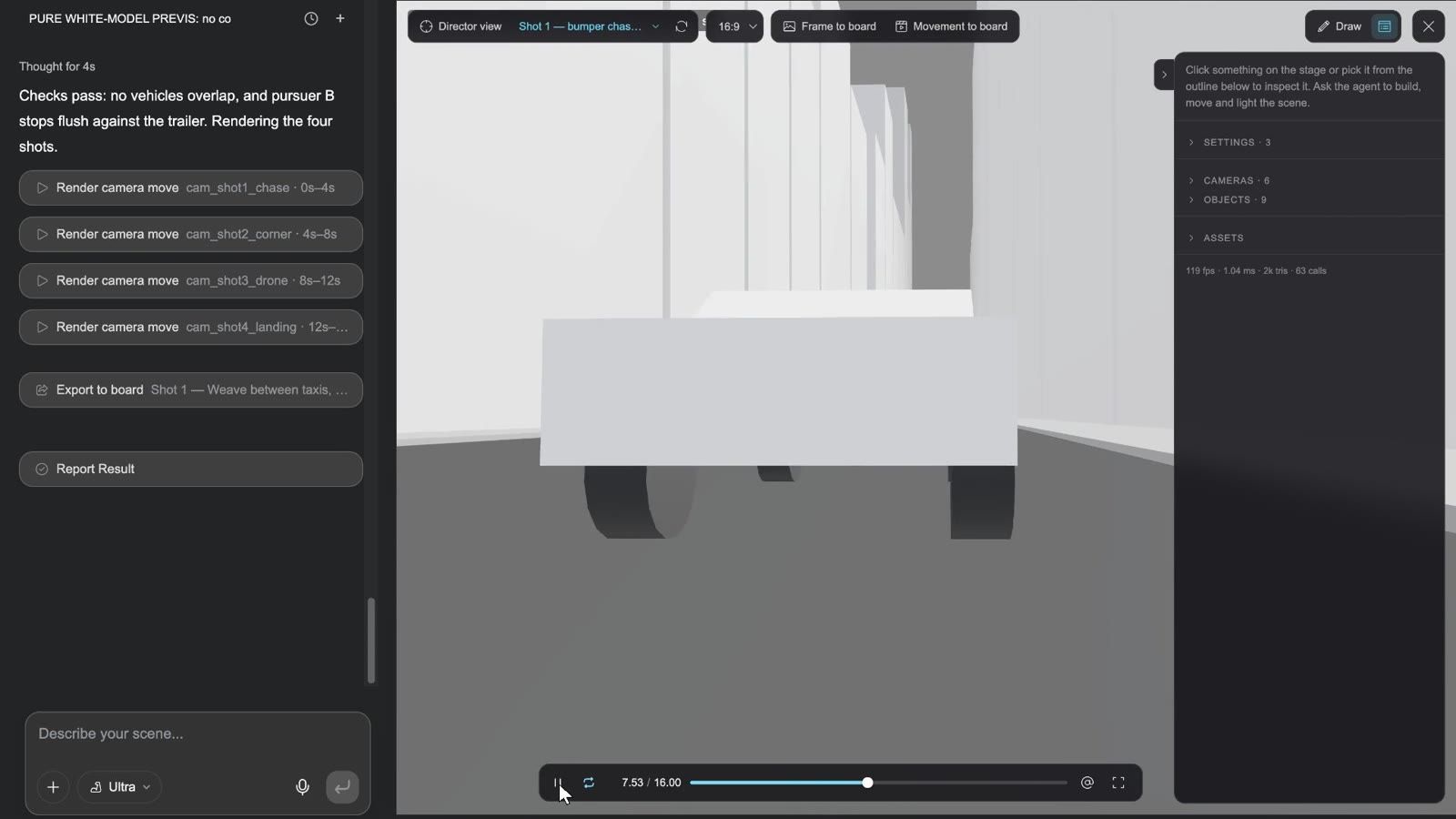
Official examples: Night Run — car chase, 3D stage to Seedance in Get inspired was made exactly this way — four camera moves locked on the white stage, then sent to Seedance for the real shots. Florida House — floor plan to 3D cutaway shows another use: a floor plan turned into a top-down render, then rebuilt on the stage wall by wall as a furnished 3D cutaway, exported as top-down and 45° bird's-eye stills.
The director stage in 30 seconds:
3D worlds and rigging
-
3D World (Add node) / Gen 3D world on an image: a space you can orbit and walk into, generated from a description or a picture; the result is a 3D node with a walk-through view.
-
Rig skeleton: automatic skeleton rigging for animation. Scope matters: it works only on models generated with Tripo, and only on characters / creatures; uploaded models, 3D worlds and already-rigged results cannot be rigged.
HTML pages: three kinds, each with its own Studio
An HTML node produces a page that plays and responds, not an image. Add node → HTML (Beta) places a blank card whose only button is Open studio; the first time you open it, Choose a page type asks:
| Kind | The dialog's description | Canvas | Its Studio is called |
|---|---|---|---|
| Poster | A still design. Its text and layers can be edited directly. | 1080×1620 | Design Studio |
| Motion | An HTML animation: text, shapes and transitions on a timeline, rendered to video. — the dialog undersells it; it is the board's After Effects, see below | 1920×1080 | Motion Studio |
| Interactive film | A branching video: viewers choose at decision points. Plays in the browser and exports to Steam and mobile. | 1920×1080 | Interactive Studio |
Each card plays a short preview on hover. Only Interactive film has a second step, Choose the film's UI theme: Classical (ink and gold-lacquer carvings, vermilion seals — period drama, wuxia, court intrigue), Sci-fi (gunmetal panels, cyan light bars — space, cyberpunk), Fantasy (thin gold lines, amethyst ornaments, talisman seals — cultivation, high fantasy, myth) and Modern (frosted glass, hairline borders, a neon-pink accent, chat-bubble choices — urban, romance, horror, crime). The theme is decided once; its kit goes into the film's theme folder and can be restyled in the Studio later.
The Studio opens as soon as you choose ("Opening studio…"), with a one-line placeholder on the page such as "Describe your poster in the chat". The empty Studio offers a few starters that fill the composer: for posters A launch poster from a short brief / Set my copy as a typographic poster / Restyle the current poster; for motion Animate this page in reading order / A 6-second title card / Time the motion to the narration; for films Write the story graph from my clips / Plan the segments I still need / Restyle the cover and choices.
There is a fourth kind, App (a self-contained interactive page: a game, a tool, a prototype). It is not in the dialog — the agent creates it when a task calls for it — and its Studio is App Studio.
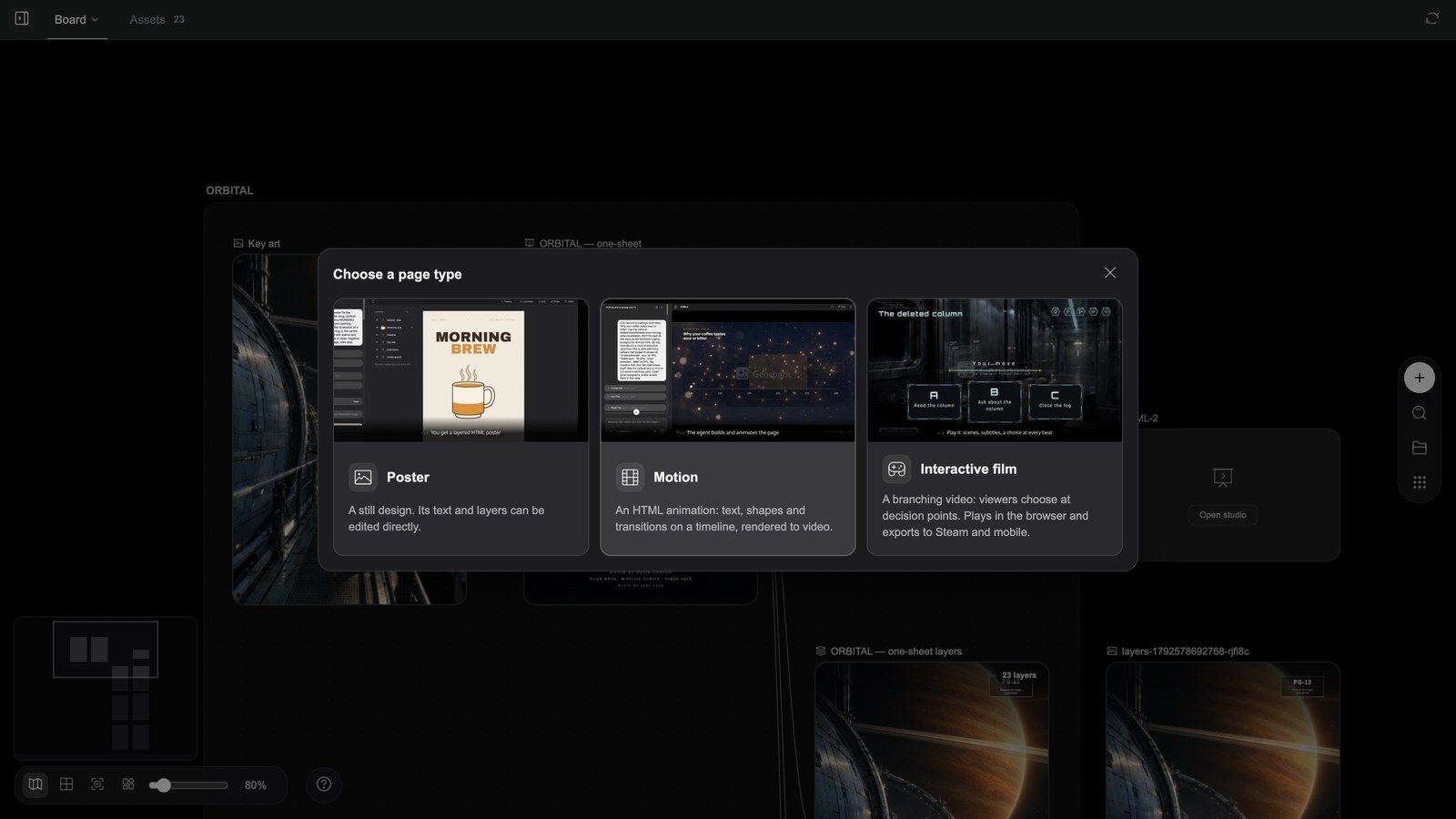
The node toolbar follows the kind (Fullscreen and Delete are always on the right):
| Kind | Toolbar |
|---|---|
| Poster | Export layers, Design Studio |
| Motion | Render, Motion Studio |
| Interactive film | Export build, Download build (once a build exists), Interactive Studio |
| App | App Studio |
A node whose agent-written brief has not run yet shows Run first. Fullscreen runs the page (poster / film / app) or plays the composition (motion).
Posters: still a design file when you are done
Clip: poster node → Export layers → a layer document appears on the board → Edit layers opens the layer editor → change a layer → Export to canvas
Inside Design Studio
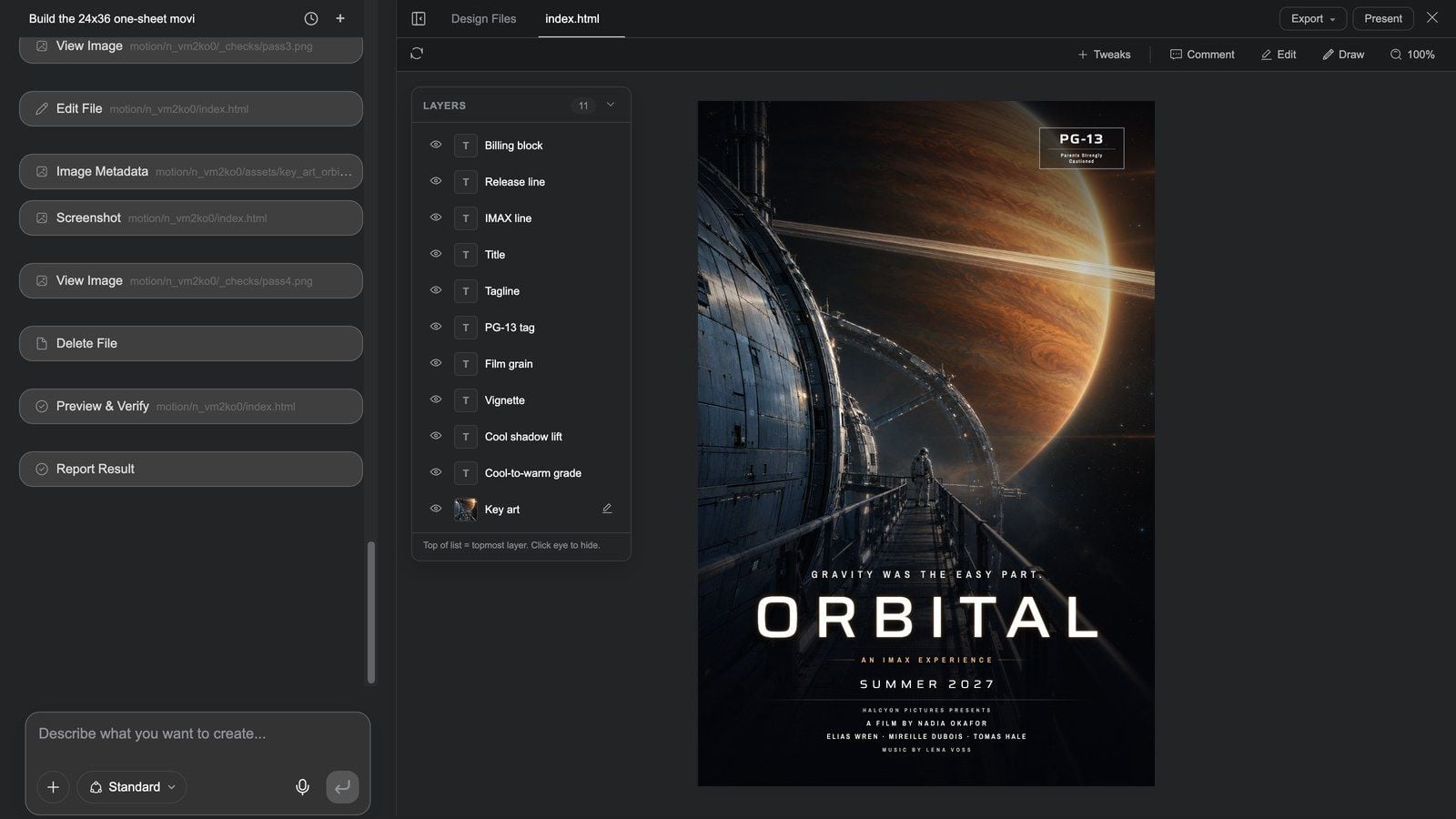
Design Studio opens full screen: the poster's own conversation on the left, the page on the right.
- First tab row: Hide chat / Show chat, Design Files, the file tabs, Questions when the agent asks; on the right Export ▾ (Export image, Export PSD — one layer per poster layer — and Export layers to board) and Present.
- Second row: Reload preview, Tweaks (ask the agent for adjustable controls), Comment (comment on an element of the page), Edit (a right-hand drawer: click anything on the canvas to change its typography, size and box), Draw (mark up and send to the agent), zoom.
- Layers panel: every poster layer (Billing block, Title, Tagline, Key art…), each with an eye for Hide layer / Show layer; image layers offer Regenerate image.
- Changes are written straight into the page; there is no Save button. For a different overall style, ask in the chat.
Export the layers and finish in the layer editor
- Back on the board, select the poster node and press Export layers (the card shows "Exporting layers…").
- When it finishes — "Layers exported to a new node" — a layer document named "
layers" sits next to the poster, one layer per poster layer (up to 128). Layers that cannot be rasterised (SVG-filter film grain, for example) are skipped with "N layers skipped: …". - Press its Edit layers for the Photoshop-grade layer editor: order, opacity, blend modes, retouching, cropping, type — see The board and image tools.
- Export to canvas to bring the result back as a new image, or Download PNG / PSD.
This chain — page → Export layers → layer editor → back to the board — is the most overlooked and most useful one in Media Studio: an AI-generated layout can be edited like a design file instead of regenerated.
Motion pages: the board's After Effects
A Motion node is not "a little animation". It is a composition rendered frame-accurately: the Motion Studio agent writes it in HTML, and Render turns it into video frame by frame. On the board it is the post-production pass a generated clip cannot hold — whenever a frame has to be exact, this is where it goes:
- Copy, numbers, logos and brand type over live or generated footage;
- Title cards, titles, lower thirds, end cards;
- Explainers and data stories: bars grow from the axis, lines draw along their path, numbers count to their value;
- Promo and product pieces, launch films, product updates, HUD demos, trailers: whole pieces made of graphics, type and interface motion;
- Word-synced captions from a narration track (highlight, karaoke pills, full-screen slam, neon, gradient fill — or a plain subtitle bar and a corporate lower third);
- Masks and blend modes, and WebGL shader transitions between scenes (crossfade, wipes, ripple, shutter, glitch, blur-swap, flash…);
- Three.js 3D: models, particles, lights and camera moves — for a 3D shot that must be controlled to the frame rather than guessed by a video model;
- Lottie animations, multi-scene pieces (one sub-composition per scene) and parameterised templates (title, colours and length as variables).
How material gets in: connect the board's video / image / audio nodes to the motion node. A video becomes the full-frame footage underneath (it can carry a slow push or similar move), images become layers, audio becomes the narration or music bed — and the piece is paced to the voice: with an audio node connected, the clip's length and the moment each line appears follow the sound.
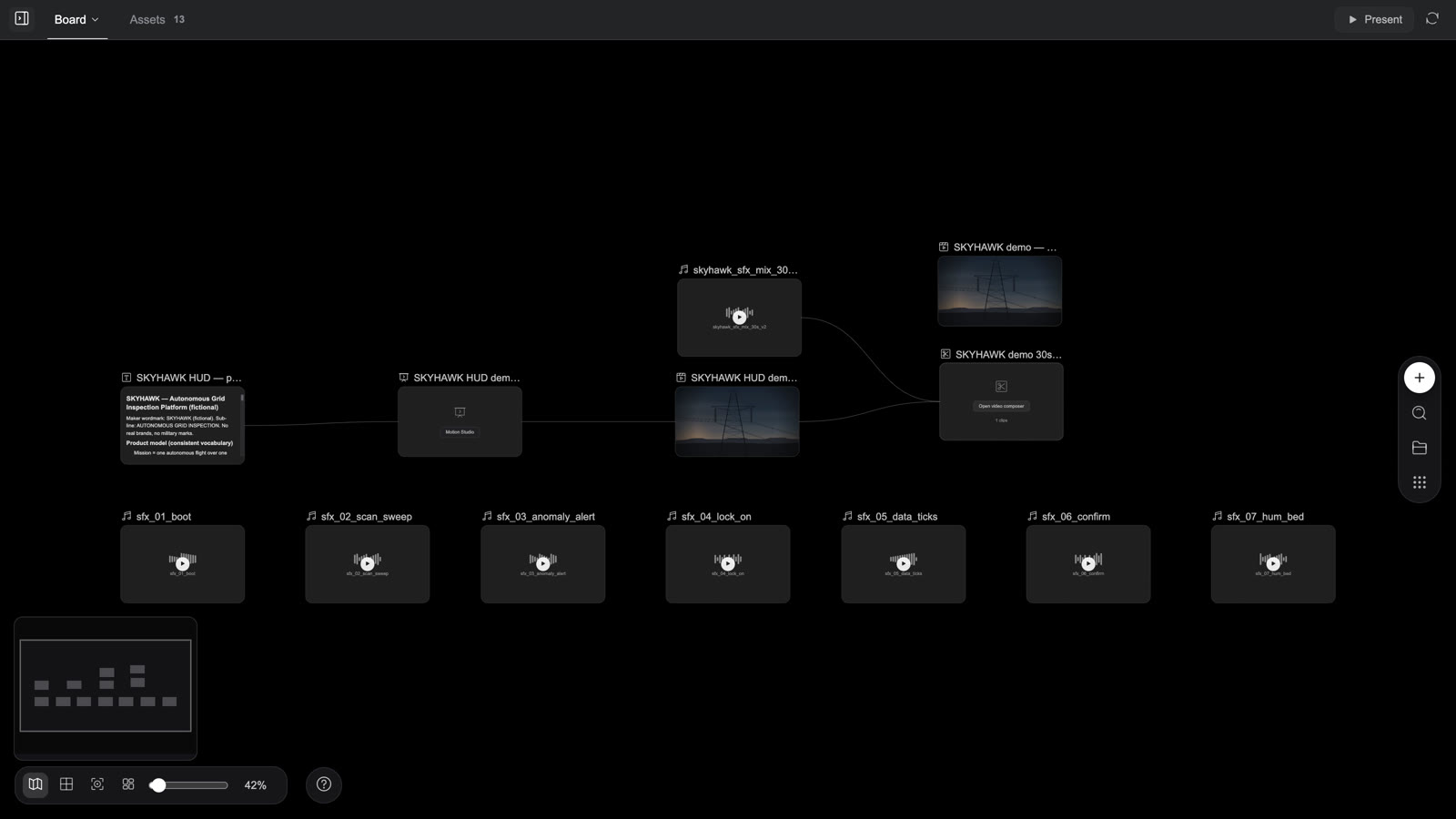
A cut of the nine HTML motion pieces from Get inspired on the home page (5 seconds each): a HUD over drone footage, a launch film whose product UI is drawn in motion, icons morphing into a logo, a product update with its numbers on screen, a data report over footage, charts that draw themselves in a knowledge video, a 1:1 marketplace video, a pixel-game demo and a VHS-styled trailer — every one rendered from a Motion node.
When to use Motion, and when not to
| You want | Use |
|---|---|
| Exact text, numbers, logos or UI; title cards, lower thirds, captions | Motion |
| An explainer, data report, product update, launch film, HUD, trailer, marketplace video | Motion (the whole piece) |
| A clip you already generated, plus titles / brand type / word-synced captions / data overlays | Motion: connect that video node, render a new video node; the original clip stays untouched |
| Human performance, natural scenes, lens character, light | Video generation; then a Motion pass when the text must be exact |
| Just joining clips, a subtitle bar, music, export | The video composer is faster |
| A still layout you can keep editing | Poster |
Getting started
Three routes to the same place:
- Tell the agent (the usual way): describe the piece, say "as an HTML motion page", and connect or @-mention the product shots, footage, logo and narration. The agent writes the script / spec into a text node first, then creates the motion node and hands it to the Studio; the render is the video node next to the motion node, and the composer mixes SFX or adds an opener when you want a master — the nine home-page examples all share this shape: spec text → motion node → rendered video → composer.
- Place the node yourself: Add node → HTML → Open studio → Motion, then write the brief in the Studio's chat (length, scenes, what text each scene shows, brand colours, SFX / narration).
- Start from an example: any HTML motion card under Get inspired on the home page → Copy & continue, then swap in your product name, numbers and colours (each example carries a one-line continuation prompt; see recipe 16).
How Motion Studio works
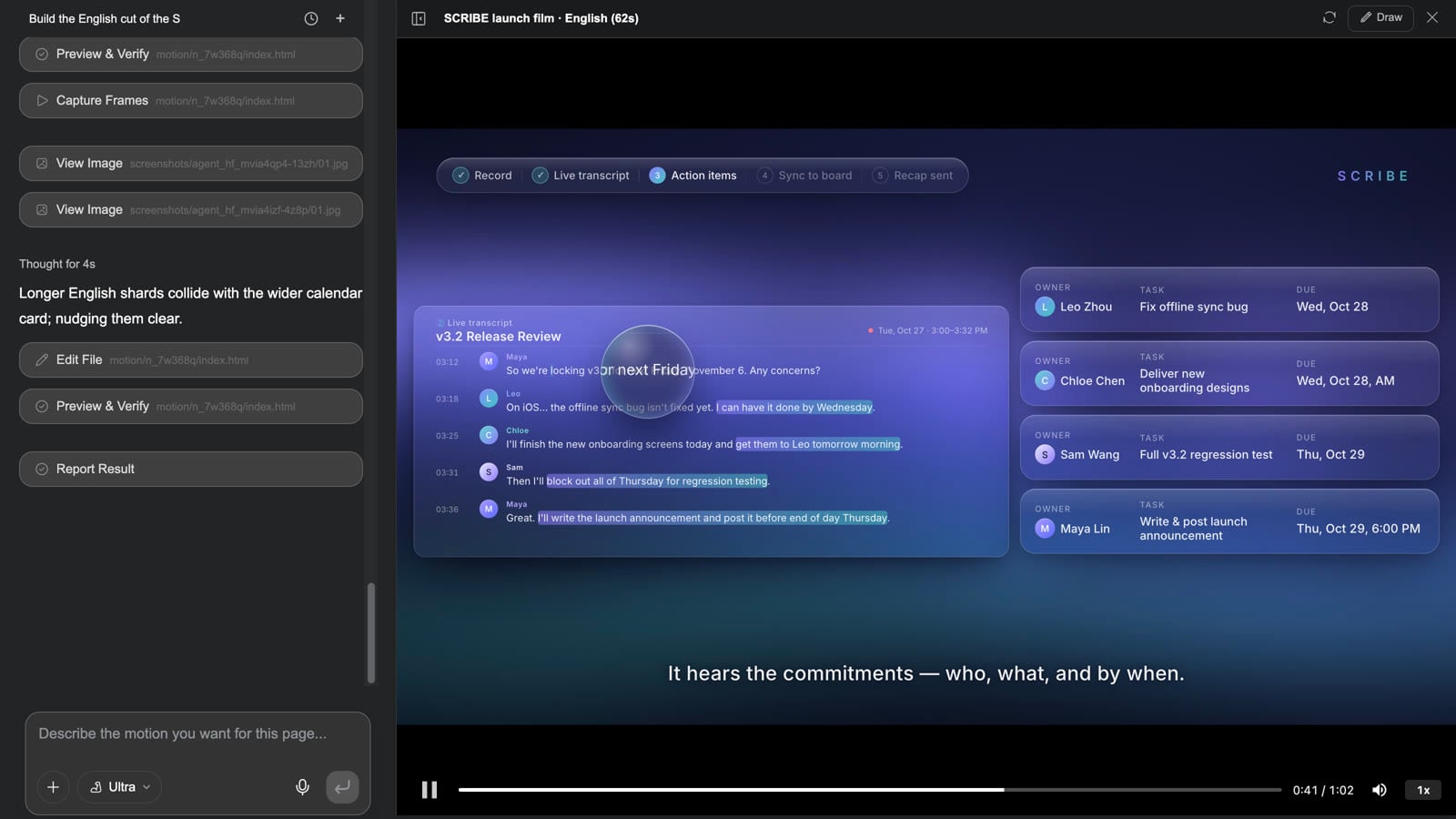
Motion Studio is driven by conversation. There is no keyframe timeline to drag — the agent arranges the footage, text, graphics and transitions on a timeline from your description; you watch the preview (the progress bar scrubs to any moment) and change things with a sentence.
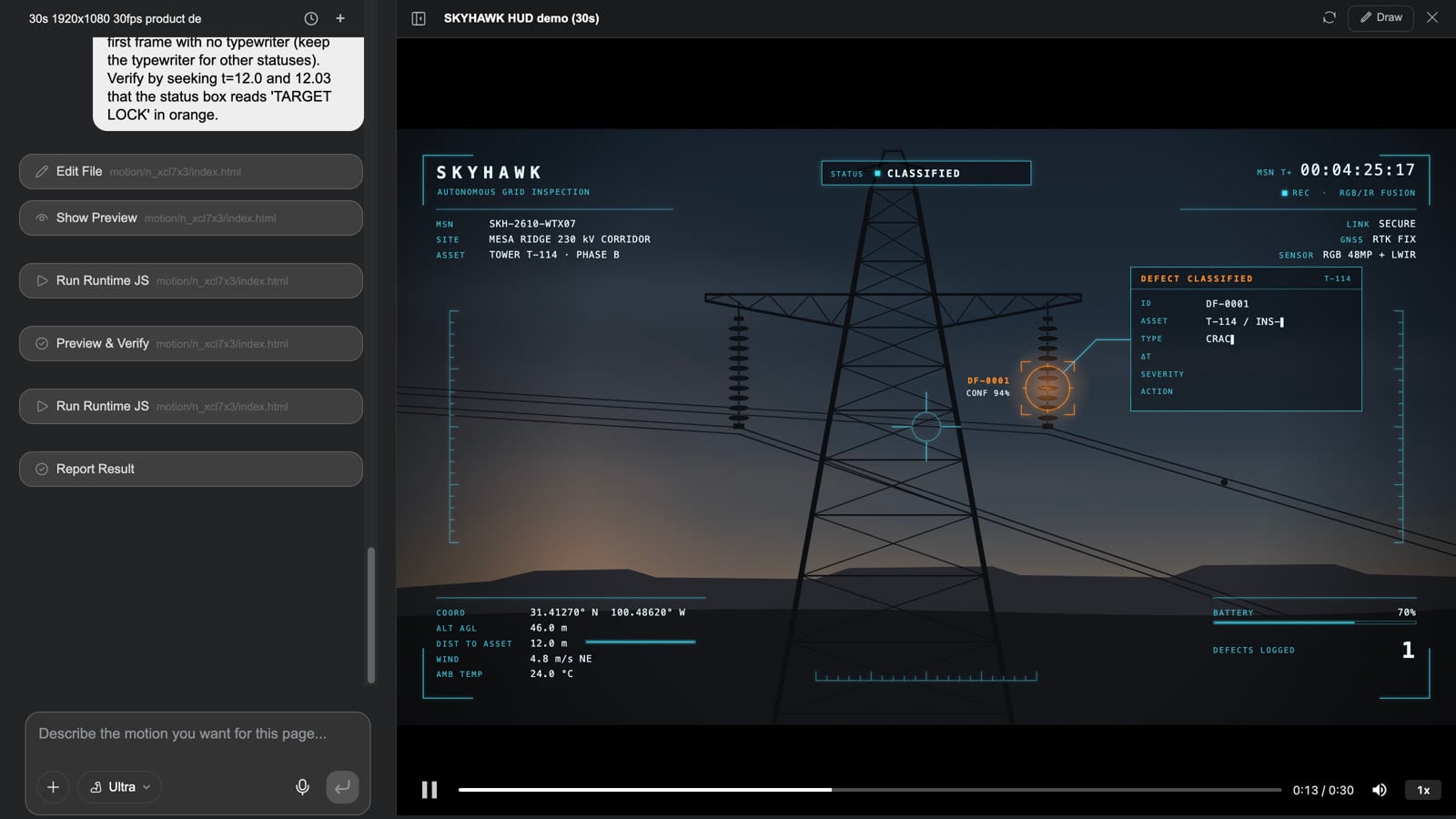
Clip: changing a HUD over drone footage — open Motion Studio → play to the target lock at 12 s → ask for "an amber reticle and the confidence readout in the lower-left" → Reload preview after the agent is done and play again → Close → Render → the video node on the board updates in place
- Select a motion node and press Motion Studio (or the button on the card). The conversation is on the left (the composer reads "Describe the motion you want for this page..."); the player is on the right with Play, a scrubbable progress bar, Mute and Playback speed at the bottom.
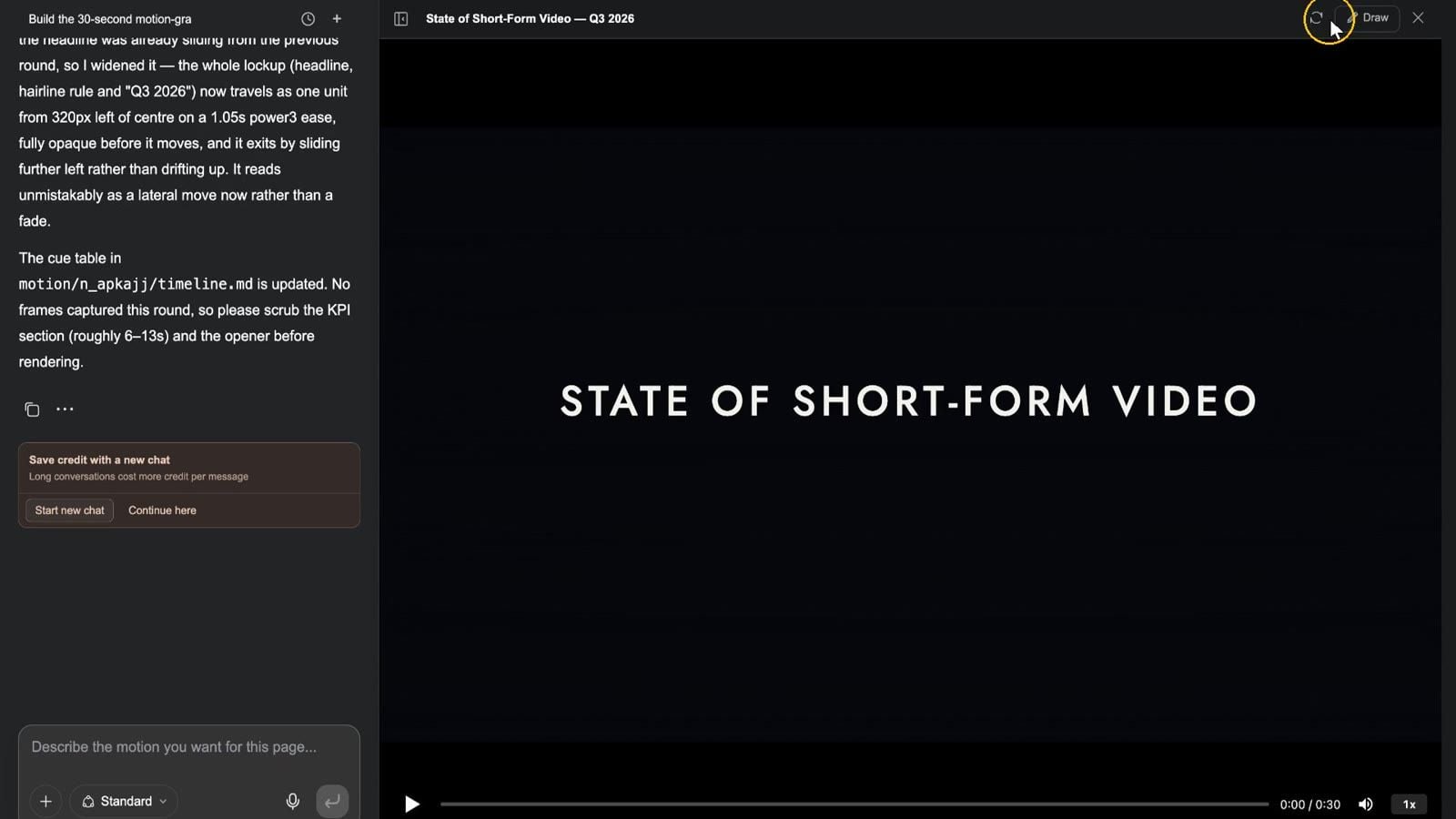
- Scrub to the moment you want changed and describe the change — "slide the headline in from the left instead of fading; count the three big numbers up over two seconds each; make the lock reticle amber; hold the final lockup a second longer". The agent summarises which cue points it changed.
- Press Reload preview and play it again. The top bar also has Draw (circle the spot and send it to the agent) and Close.
- Close the Studio, select the node and press Render: the card shows "Rendering…", then "Motion rendered", and a video node with the same name appears next to it (or is updated). Rendering again updates that video node in place — renders do not pile up.
- That video node can go straight into the video composer for the cut, the mix or an opener.
Worth knowing: connect an audio node to the motion node and the render treats it as narration, matching its length; two renders run at a time, each up to about 20 minutes; a motion page holds up to 60 element nodes. The page's own SFX, music and narration go into the render; to layer more sound, put the rendered video and the audio nodes into the composer together. For heavy compositions (3D, shader transitions, long multi-scene pieces) set the Studio's model tier to Ultra or Mega. When Slides / Design pages become a narrated video, every page is one of these motion nodes — open that page's Motion Studio to change it, then re-render just that page.
Motion pages in 30 seconds:
Interactive films
An interactive film is a graph of 5–15-second segments: viewers choose at each decision point, the story branches, and it ends in one of several endings.
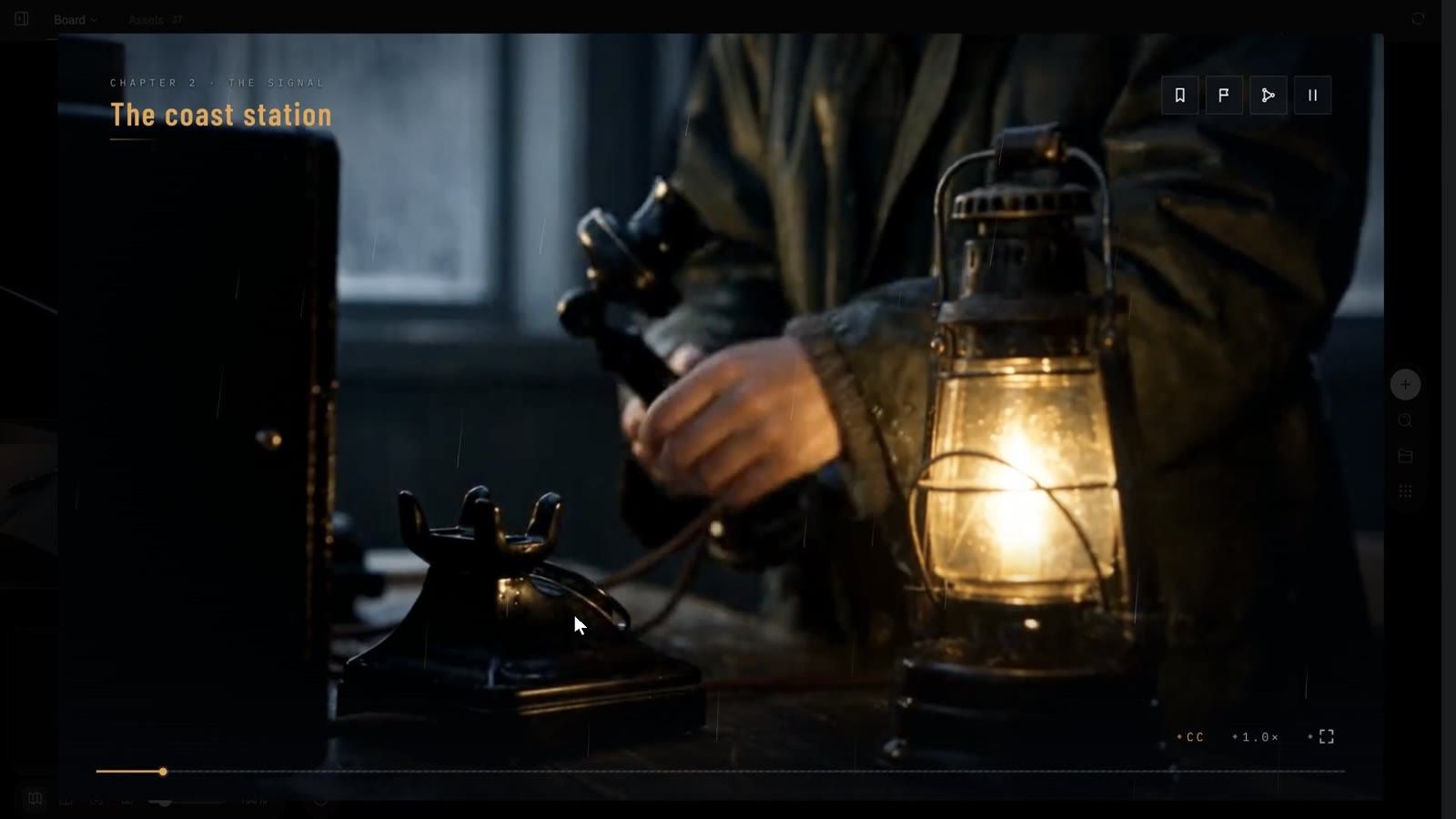
Clip: select the film node → Fullscreen opens the player → cover → New game → the first segment → four choices appear at the decision point → pick one → the story branches → Story tree shows the flowchart → Menu opens the pause card → Resume
Making one
- Script, segments and branches all live in the project:
story.jsonholds the opening, each segment's video, subtitles (.vtt), 1–6 choices and what comes next, plus chapters, characters, achievements and the UI strings. - The easiest route is the Interactive Film Game skill ("Turn a story into a branching interactive film: viewers choose at decision points; preview on the canvas, export to Steam and mobile."): from one story the agent writes the story graph, lists the segments still needed, generates them, and wires them into the player. On the board you see a video node per branch and a "Story tree" text node.
- Use Interactive Studio to adjust the cover, the choice copy and the theme through the chat.
Inside the player
- Cover: title and tagline; Play opens the title menu: Continue / New game / Chapters / Load / Endings (n/4 unlocked) / Achievements / Characters / Settings / Credits.
- While playing: the chapter name top left; four badges top right — Chapters / Endings / Story tree / Menu; bottom right CC (subtitles), 1.0× (speed), Fullscreen. A first watch cannot be skipped ("No skipping on a first watch"); segments you have seen get ⏭ Skip seen.
- Decision points: the choice cards appear a few seconds before a segment ends (optionally with a countdown — Timed decision; on timeout the default choice is taken: "Silence is also a choice").
- Story tree: the flowchart of the whole film with visited nodes lit, plus Fit all / Locate current / Rewind here.
- Menu (pause card): Resume / Replay scene / Chapters / Save / Load / Settings / Back to title; three save slots plus autosave.
- Settings: Volume, Sound effects, Playback speed, Subtitles, Subtitle style (Outline / Bar), Speaker names, Subtitle size, Seen segments, Download all, Clear downloads and saves, Fullscreen.
Packaging and publishing
- Select the node and press Export build: the popover shows "Preparing the build…", "Uploading media n/total", "Packaging the build…".
- When it is done the button becomes Download build, and the popover says "Download the zip and hand it to GenCode, the desktop app. It will help you package and publish it for the web, desktop (Steam) and mobile." (GenCode links to the download page.)
- The zip contains
app/(the web build: index.html, runtime, story.json, manifest),desktop/(an Electron project with Steam depot scripts),mobile/(a Capacitor project for iOS and Android) and a README. Publishing itself happens in GenCode — generating content and hosting it are deliberately separate.
The board exports a streamed build (media is fetched from the cloud), so the project must be shared publicly first; otherwise you see "the project is not shared publicly: streamed builds cannot fetch media until it is".
The official example The Lighthouse Signal — interactive film is a complete four-ending project; its read-only board shows every branch segment and the Story tree.
Interactive films in 30 seconds:
FAQ
How is the director stage different from generating video directly?
The stage gives you a white-model previs first: cameras, blocking and occlusion are visible before any credits go into rendering. For complex spatial scenes this is what prevents reshooting a whole sequence.
Can I use my own 3D models?
Yes. Inspector → ASSETS → Upload a file takes .glb (and gltf / obj / fbx, textures, HDR, audio; 100 MB per file), or Place one from Board library · 3D. Rig skeleton, however, works only on Tripo-generated models — the two are separate things.
Does Frame to board capture the view I am looking at?
No — it renders the Active camera. To capture the camera you are looking through, select it under CAMERAS and press Set active.
Can an HTML page be edited after it is made?
Yes, at several levels: the page itself in its Studio (chat, the Edit drawer, the Layers panel); for pixel-level work, Export layers turns it into a layer document for the layer editor.
Why does Motion Studio have no timeline?
It is conversation-driven: the agent arranges the motion from your description, you watch the preview and change it with a sentence; the player's progress bar scrubs to any moment before you comment. For frame-level control, put the timings in the brief ("the bars grow at second 3", "lock at 12 seconds") and the agent places them to the second — which is exactly what separates it from a video model: the frame is written, not guessed.
Can an interactive film be published?
Yes — Export build, then publish with GenCode to the web, desktop (Steam) and mobile.
Troubleshooting
The stage or Motion Studio will not open
"The 3D director stage is not enabled for this account" / "Motion Studio is not enabled for this account" almost always means a workspace admin has turned Media Studio off (the same switch as the board), or you lack write permission on the project (a read-only share). Read-only projects also show "This stage has not been set up yet. Ask its owner to open it once."
The stage is blank / "The stage failed to load."
Press Reload; if that does not help, Ask the agent to fix it — the agent checks its own code.
The Movement to board video is black or very short
Do not switch tabs while it renders in the browser; check the Active camera and the timeline length (the total on the right of the player).
The exported layers do not match the poster
Export layers rasterises every exportable element; SVG filters and some blend effects cannot become separate layers, so those are skipped and the card says "N layers skipped".
Render does nothing / "already rendering"
One render per node at a time and two per project; wait for "Rendering…" to clear. A poster has no motion to render — it wants Export layers.
Was this article helpful?