


Learn how to edit and dub video in Media Studio, re-voice a clip with Dub, and assemble the finished piece in the video composer.
Updated Jul 14, 2026
Key Features
FAQ
Troubleshooting
Media Studio: video, dubbing and the finished cut
The video node toolbar
Select a video node and its toolbar appears above it. Buttons are icons; hover for the name. A node that is still generating has no toolbar, and a failed node offers only Retry and Delete. Every tool produces a new node and leaves the source alone, so you can experiment freely.
| Tool | What opens | When to use it |
|---|---|---|
| Trim | A filmstrip under the node with a 5-second selection; drag the ends, then Confirm trim. The strip also has Mute preview, Snap to whole seconds, Loop preview inside the selection and a shortcut sheet (← → move the selection, Shift for precision, ↑ ↓ grow / shrink, I / O set in / out, Space preview, Enter confirm, Esc exit) | Only part of a clip is usable; trimming first makes every later tool faster and cheaper (up to 600 s) |
| Reshoot clips | A video configuration node locked to Seedance 2.5, with a multi-range strip: up to 5 ranges of at least 4 s (N/5 clips); the prompt is prefixed with "Rework |
The performance or picture is wrong but the blocking and camera are right: keep the movement and camera, re-render the whole clip |
| Crop | A crop box on the node, Confirm crop | Vertical or square versions of the same footage |
| Enhance | The Video enhance panel: model Topaz Labs, Upscale factor 2x / 4x (with the Output size), Frame rate (optional) Auto or 60fps, a credits estimate; takes 5–10 minutes | Even out sharpness before the final cut; rescue old footage (source ≤ 60 s, output ≤ 4320p) |
| Depth motion capture | A card with Resolution 480P / 720P and Confirm extract; you get a depth-map video titled "Depth motion capture- |
The movement is good but the people and the place must change: treat the motion as a reusable asset and connect it to a new video node (≤ 60 s) |
| Shot breakdown | A "Shot breakdown" text card: tick Shots / Motion / Music under Breakdown dimensions, Start breakdown; the shot list fills the text node, and keyframe stills, the motion analysis and the extracted music arrive as their own nodes | Remaking a long piece shot by shot, or pulling the shot language out of a reference |
| Smart extend | First a toast, "Pick the prefix segment the continuation will follow"; box the opening to keep on the strip, Confirm extend; a Seedance 2.5 configuration node appears with "Continue the |
Stretching a 5-second clip to 10–15 seconds |
| Audio separation | A submenu: Detach audio (an audio node plus a muted copy of the video), Keep vocals only, Keep background only (one new audio node each, ≤ 300 s) | New music under the same voice, or the other way round; or a clean voice to use as a Dub reference |
| Dub | See the next section | New language, new voice, rewritten lines with music and effects remade |
| Frame edit | A submenu: Replace (Object replacement: Select from canvas or Upload from device the replacement, then draw a box on the video around the Object to replace) and Remove (Object removal: Add mask around the Target) | One object has to go or change without regenerating the clip (≤ 30 s) |
| More | Regenerate (nodes with a prompt), Add to bible |
The right-hand group is the usual set: Add to chat, View prompt, Pin, Fullscreen, Download, Delete. The node's own playback bar also has Capture frame (Capture current frame / Capture first frame / Capture last frame); captured frames are new image nodes. A Seedance 480p draft carries a 480p draft tag and a Render 1080p button.
Suggested order: Trim first → then picture tools (Reshoot / Frame edit / Enhance) → then the composer for editing, subtitles and voice.
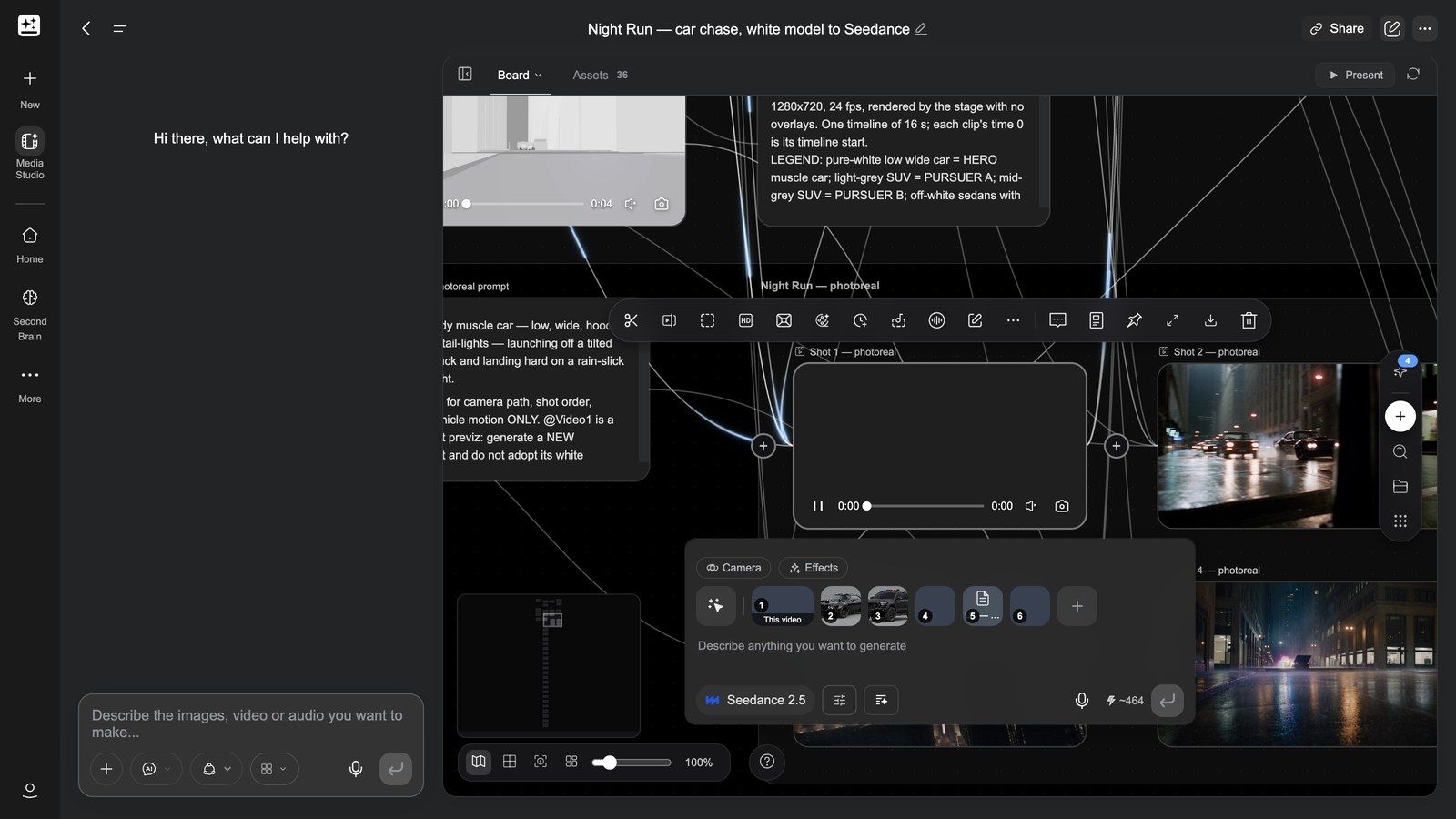
Depth motion capture — turning movement into a reusable asset:
Dub: re-voice the whole clip, get editable tracks back
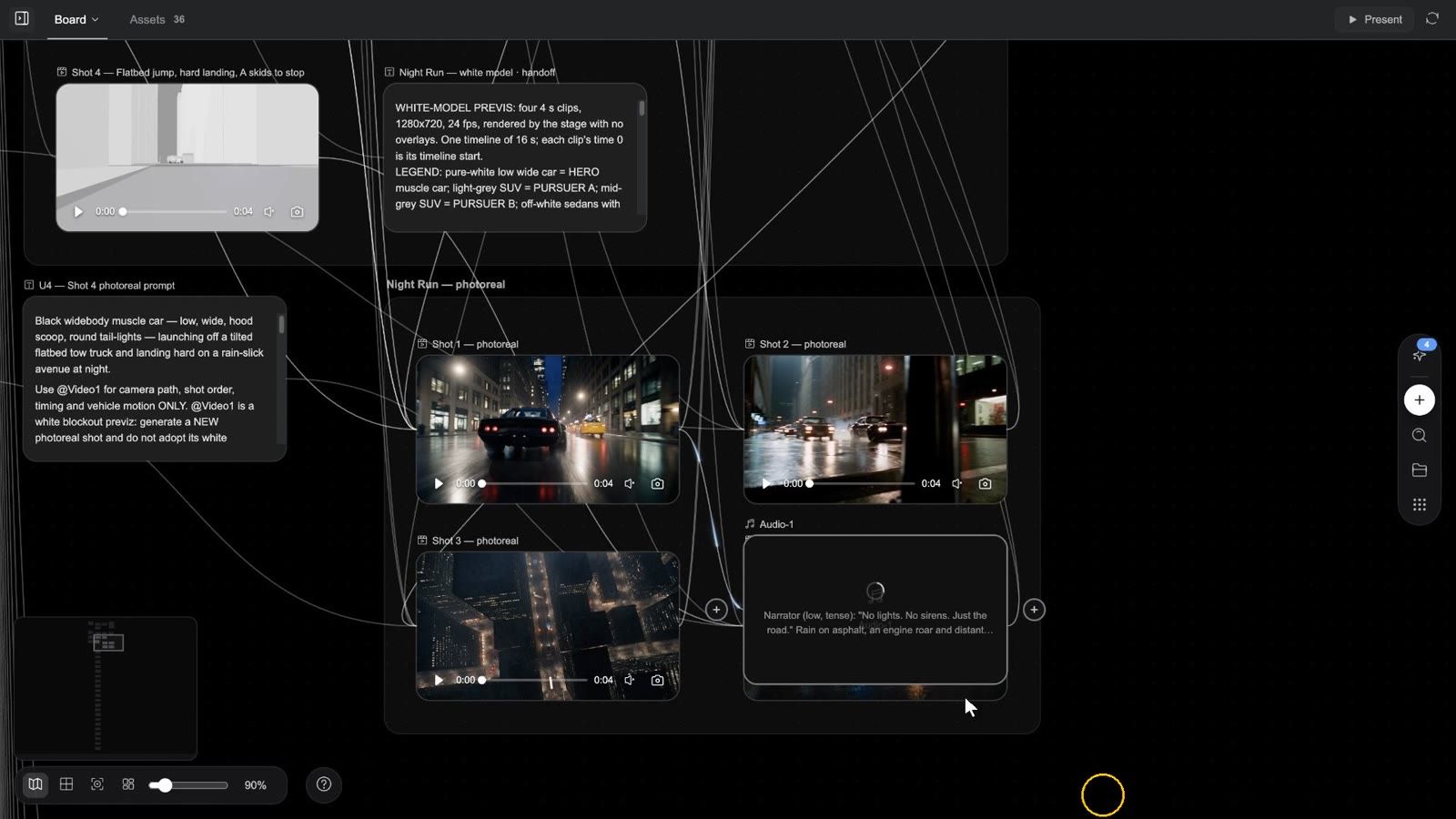
Dub is not "swap the voice". It remakes the entire soundtrack of a clip — lines, music and effects together — and delivers a video composer with three separate audio lanes, not a baked-in mix.
What Dub can do (88 s, with sound): a clip with no sound and one brief, and the whole soundtrack is scored to the picture — two hosts in dialogue, a live band and a sung line, a full room's applause and clinking glasses, cockpit comms in a launch sequence — and it comes back as three tracks, not a baked mix.
The whole flow in 77 seconds (narrated): a clip on the board → select it and press Dub → quote the lines word for word, then describe the music and effects → connect audio nodes for a particular voice (up to six) → send, and the node itself becomes a composer → Dialogue / Sound effects / Music on their own lanes, the clip muted on the main track → mute, trim, split → Export to canvas for a Final cut node, or a Premiere / CapCut project → every stem lands in Assets.
Step by step
- Select the video node and press Dub. An audio configuration node appears on the board with the clip already connected as its reference; the model is fixed to Seed Audio 1.5 and the panel shows the credits estimate.
- The panel states the rule: "Quote every spoken line word for word — the model only voices what you write. Then describe the music and sound effects. Dialogue, sound effects and music arrive as separate lanes on a video composer." Write the brief accordingly:
- quote every spoken line verbatim, in quotation marks — the model voices only what you wrote and never invents lines; if there is no speech, say "no speech";
- then describe the music and sound effects (style, mood, what happens when).
- The panel's own example:
Narrator (warm, calm): "Every great film starts with a story." Soft piano music; gentle UI click sound effects.
- For a particular voice, connect audio nodes to the configuration node as voice references — the only audio-to-audio connection the board allows; up to 6 voices, and only one video.
- Send. When the generation finishes, the node itself becomes a video composer titled "
dub": the original clip on the main track (its own audio muted), then Dialogue, Sound effects and Music lanes in that order. If the stems cannot be split you get a single Mixed lane.
What you can do with it
- Press Open video composer and treat the three lanes like any other clips: move, trim, Split, change speed, Mute track audio, delete.
- For another take, do not rerun inside the composer — go back to the original video node and press Dub again.
- The whole mix exports through the composer's Export; each stem is also saved as a project asset under its lane name and appears in Assets.
Typical uses
| Scenario | How |
|---|---|
| Release in another language | One source clip → Dub with the lines in the target language → a target-language Dialogue lane; keep or replace the Music lane |
| New narrator | Same verbatim lines, a different voice reference |
| Rewritten voice-over | Change the lines in the brief; music and effects are remade to match |
| Several ad versions | Same picture, Dub a 15-second and a 30-second set of lines and music |
The thing people miss: the lines must be verbatim. A brief that only paraphrases is refused with "Seed Audio needs the exact spoken lines: quote every line of dialogue or narration in the brief (or say there is no speech)." A clip can be at most 180 s / 512 MB — Trim first if needed.
The video composer: cutting the finished piece
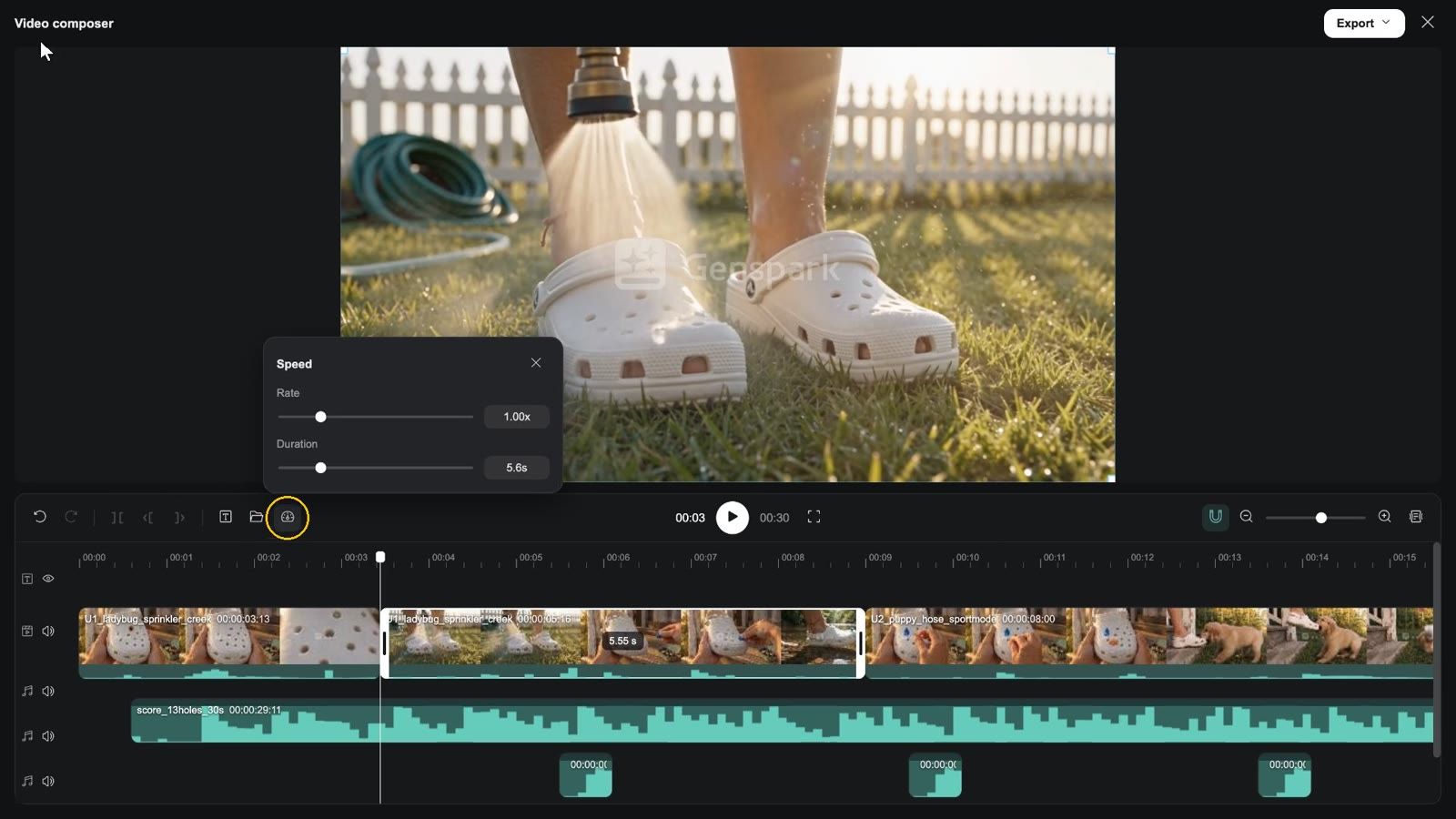
Clip: open the composer → play → move the playhead → select a clip → Split → Speed → add a subtitle in the subtitle panel → Apply to all → Export → Export to canvas → the Final cut node appears on the board
Getting started
- Add node → Video composer (Beta).
- Drag video nodes' ⊕ onto it; the clips line up on the timeline in order and the card shows N clips. Inside the composer you can also Add media from Project assets, or drop files straight onto the timeline.
- Press Open video composer on the card. The toolbar has the same button plus Export video (Export audio when only audio lanes have clips).
What you see when it opens
- Header: the title Video composer (Audio editor when there is no picture), the Export menu, Close.
- Preview: the current frame; under it the current time, play / pause, the total length and Fullscreen preview.
- Deck toolbar, left: Undo, Redo, Split, Trim left, Trim right, Subtitles (toggles the panel), Add media, Speed. Split and Trim need the playhead inside a clip (otherwise the tooltip says "Move the playhead inside a clip…"); Speed needs a selected clip (Rate 0.25x–4x, or type a Duration).
- Deck toolbar, right: Snap (toggle), Zoom out / slider / Zoom in, Collapse preview.
- Tracks, top to bottom: the subtitle rail (eye icon Hide subtitles / Show subtitles), overlay video lanes, the main video lane, audio lanes. Video and audio lanes have Mute track audio / Unmute track audio.
- Right-click a clip: Locate on canvas, Copy, Paste, Detach audio (video clips that still carry their sound), Delete; right-click a subtitle: Delete subtitle.
- Keys: Space play / pause, ⌘Z / ⇧⌘Z undo / redo, ⌘C / ⌘V copy / paste, Delete, Esc closes.
Subtitles
Subtitles opens the right-hand panel. On the Subtitles tab: Search subtitle text and + New subtitle. Select one and the Text tab shows the text box (Enter subtitle text), Font (PingFang SC / Noto Sans CJK SC / Helvetica Neue / Arial / Songti SC), Size (12–96 px), six Preset styles, Apply to all subtitles and Delete subtitle.
Exporting
The Export menu has exactly two groups:
| Group | Option | What you get |
|---|---|---|
| Export to | Export to canvas | A server-side render (the size of the first clip, 30 fps, mp4 — m4a for audio-only) that lands on the board as a new node, " |
| Project file | Export Premiere project / Export CapCut draft | A zip download: FCP7 XML + README for Premiere, draft_content.json + README for CapCut — hand it to an editor |
There is no resolution or format picker and no "export to device" — download the finished file from the Final cut node.
Limits: 9 tracks, 1000 clips, a 20-minute main track and a 21-minute composition, 500-character subtitles, speed 0.25x–4x; three renders per project at a time ("This project already has 3 renders running — wait for one to finish").
Why cut here rather than in an external editor: footage, subtitles, voice and music live in the same project, so a revision needs no download / upload — and when you do hand off, you get a Premiere or CapCut project.
Post-production: title cards, captions and data overlays go to Motion
The composer joins clips, adds a subtitle bar and music, and exports. When a frame must be exact — a title card, a lower third, brand type over footage, captions synced word by word to the narration, numbers and charts, the logo at the end — hand it to an HTML Motion node, the board's After Effects: connect the video node you want to work on, describe the overlays in Motion Studio in a sentence, Render a new video node (the original clip stays untouched) and drop it back into the composer. Capabilities and usage: Motion: the board's After Effects; step by step: recipe 17, a post pass over footage.
Present: play the cut full screen
As soon as one composer in the project has clips on its timeline, Present appears on the right of the board's tab bar: with one composer it opens the player page in a new tab; with several, a dropdown lets you pick. The page has Play, View board and Fullscreen preview. If the linked composer has since been emptied you see "This project has no video composition to present."
Slides / Design pages into a narrated video
Already have a deck in AI Slides, or pages in Design? They can become a narrated video — each page turns into an animated shot, the voice-over reads the script, and the shots are assembled in order.
How to start: say where the pages come from and what the video is for, for example:
Turn my Slides deck "Q3 business review" into an 8-minute narrated video with a calm male narrator, with a short intro and outro between sections.
What actually happens
- Import: the pages are copied from the Slides or Design project into this one; every page compiles into an animated page node (Design's static poster pages are kept as stills and left out of the video by default).
- One round of questions: script changes, whether you want a presenter, what they look like, which model, and whether the animation is "compiled" or "timed to the narration".
- Narration: voice-over per page (Slides uses the speaker notes; Design pages have none, so the script is drafted from the page copy and shown to you first).
- Animation: Compiled (elements appear in reading order, ready in minutes) or Timed to the narration (each element lands when the narrator reaches it; slower with many pages).
- Render and assemble: every page renders to a clip and the clips are joined; a presenter can appear as interstitial segments between chapters or as a corner window lip-synced on content pages.
Limits: a single assembly over 20 minutes is refused (split it); to change one page's animation, open that page's Motion Studio, describe the change, and re-render only that page.
Video FAQ
Can I edit the Dub result separately?
Yes. Dub delivers a video composer with Dialogue / Sound effects / Music on their own lanes; trim, mute or delete each, and each stem is also saved as a project asset.
Will Dub misread my lines?
Not if they are quoted verbatim. A brief that only paraphrases is refused (see the note above).
Can I finish the edit in professional software?
Yes: Export → Export Premiere project / Export CapCut draft downloads an editable project.
How long can one composition be?
A 20-minute main track and a 21-minute composition. Split longer pieces into several compositions and join or deliver them separately.
Can a real presenter appear in a Slides video?
Yes, in two forms: interstitial appearances between chapters, or a rounded corner window on content pages, lip-synced to that page's narration. The presenter can be generated or uploaded.
Video troubleshooting
The composer is empty
It takes its footage from the connected video nodes (an empty main track says "Nothing here yet — connect video nodes, then open the composer"). Connect video nodes to the composer node, or use Add media.
Export keeps spinning or nothing happens
Rendering runs on the server and continues after you close the composer; the board shows "Final cut added to the canvas" when it is done. If you see "The render could not be submitted (no answer from the server) — try Export again", press it again; a project runs at most three renders at once.
Object replacement says the video is too long
Frame edit replace / remove works on clips up to 30 seconds ("This video is longer than 30s — object edits support videos up to 30s."). Trim to the segment first.
Dub says "Clip too long or too large to dub"
The limit is 180 s / 512 MB. Trim the part you want to voice, or dub in segments.
The dubbed track does not line up with the picture
Make sure the lines are verbatim and in picture order; for long pauses, use sentence breaks and punctuation in the brief, or generate first and nudge the lane's start in the composer.