New images from your image
Image to Image AI, same subject, new everything.
Upload a reference image and describe what should change. The AI image generator from image keeps your subject and redraws the style, setting, or mood around it.
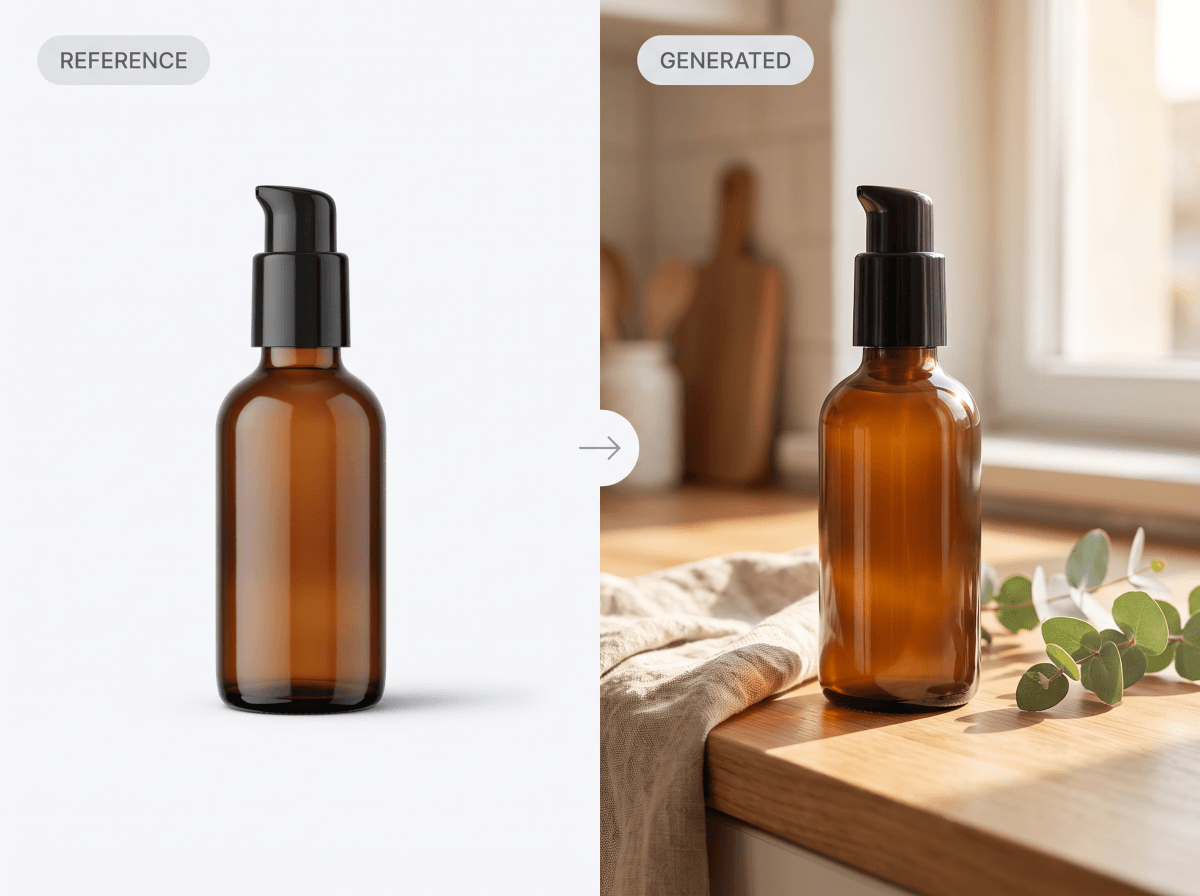
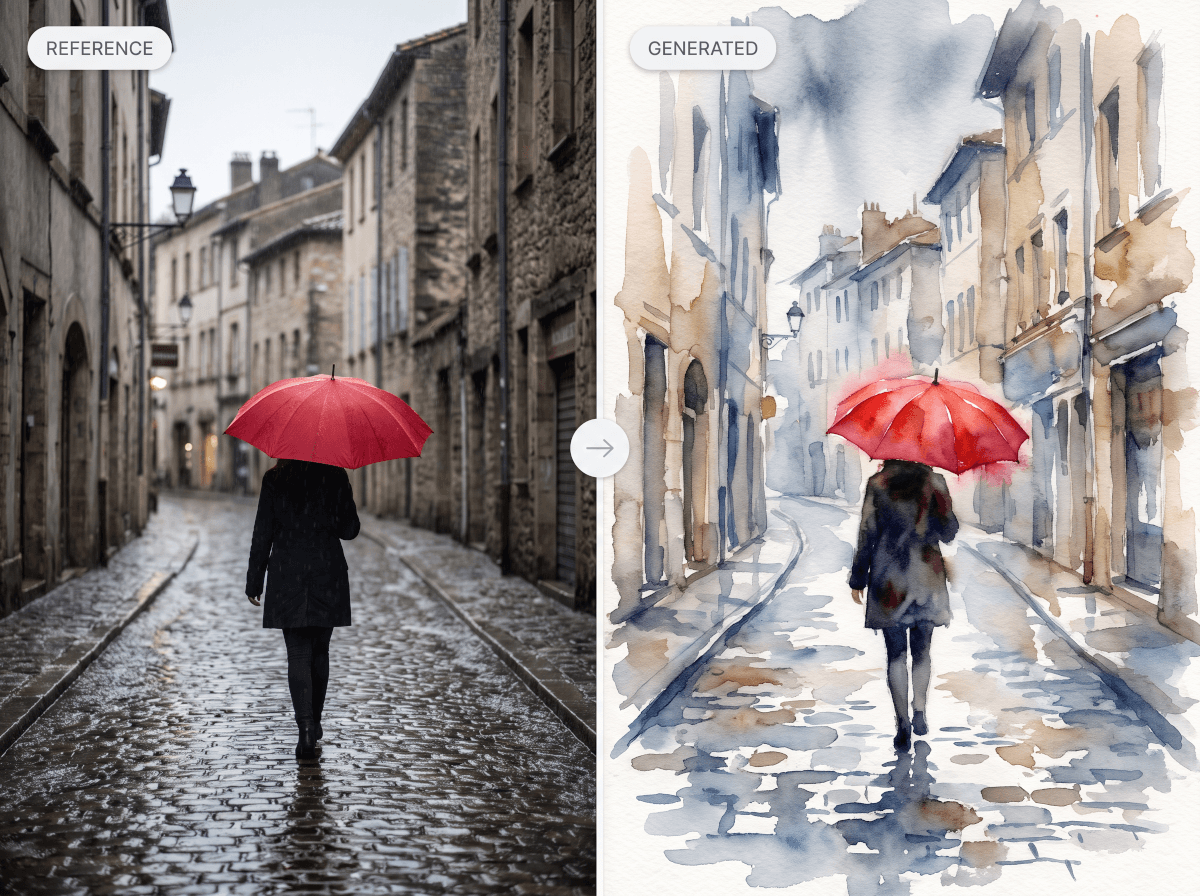
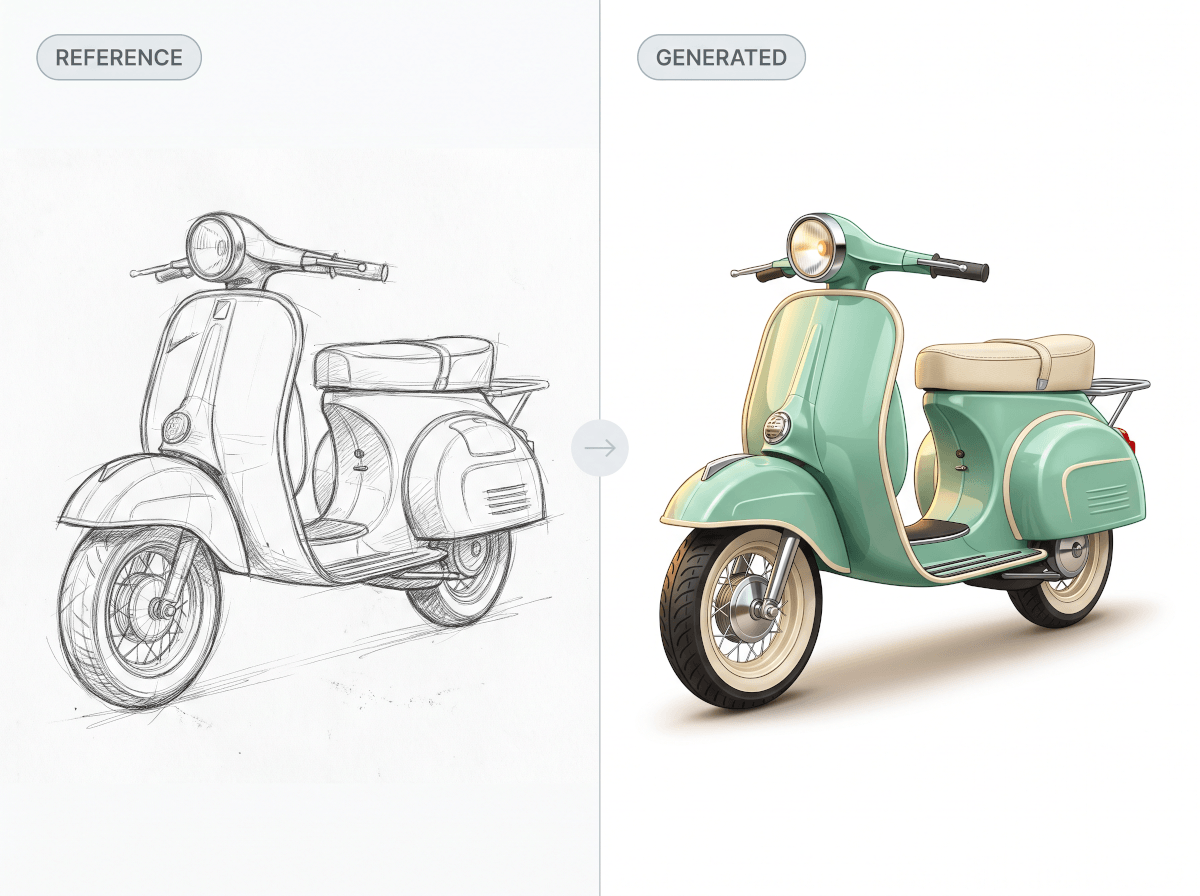
Before and after, same subject
Three image-to-image passes — the reference on the left, the generated result on the right.
Transformation recipes
Six patterns that cover most image-to-image work — each one is a working prompt you can run as-is.
Tap a recipe to load it into the box above — edit it, then attach your image in the workspace.
Which image tool do you need?
Four jobs, four tools — this page is one of them.
Frequently Asked Questions
What is image to image AI?
It's AI image generation guided by a picture instead of only words. You upload a reference image, describe what should change, and the model generates new images that keep your subject while changing style, setting, or details — image in, image out.
How do I generate an image from another image?
Start with the box above: describe the transformation you want, then attach your reference image in the workspace. The agent generates variants from that reference, and you refine with follow-up instructions like a warmer light or the same scene at night.
Will it keep my subject looking the same?
That's the core of the workflow. The reference image anchors the subject's identity and composition, so a product, character, or room stays recognizable while everything around it changes. For stricter consistency, reuse the same reference across every generation.
What styles can I transform an image into?
Any style you can describe — watercolor, oil paint, anime, comic, 3D render, cinematic photo, flat vector, blueprint. There's no fixed filter list; the style instruction is just part of your prompt, so niche directions work too.
How is this different from AI photo editing?
Photo editing changes parts of the original pixels — remove a background, retouch a face, erase an object. Image to image generates a new picture using yours as the anchor, which is what you want for restyling, variants, and medium changes. For pixel-level edits, use the AI photo editor instead.