

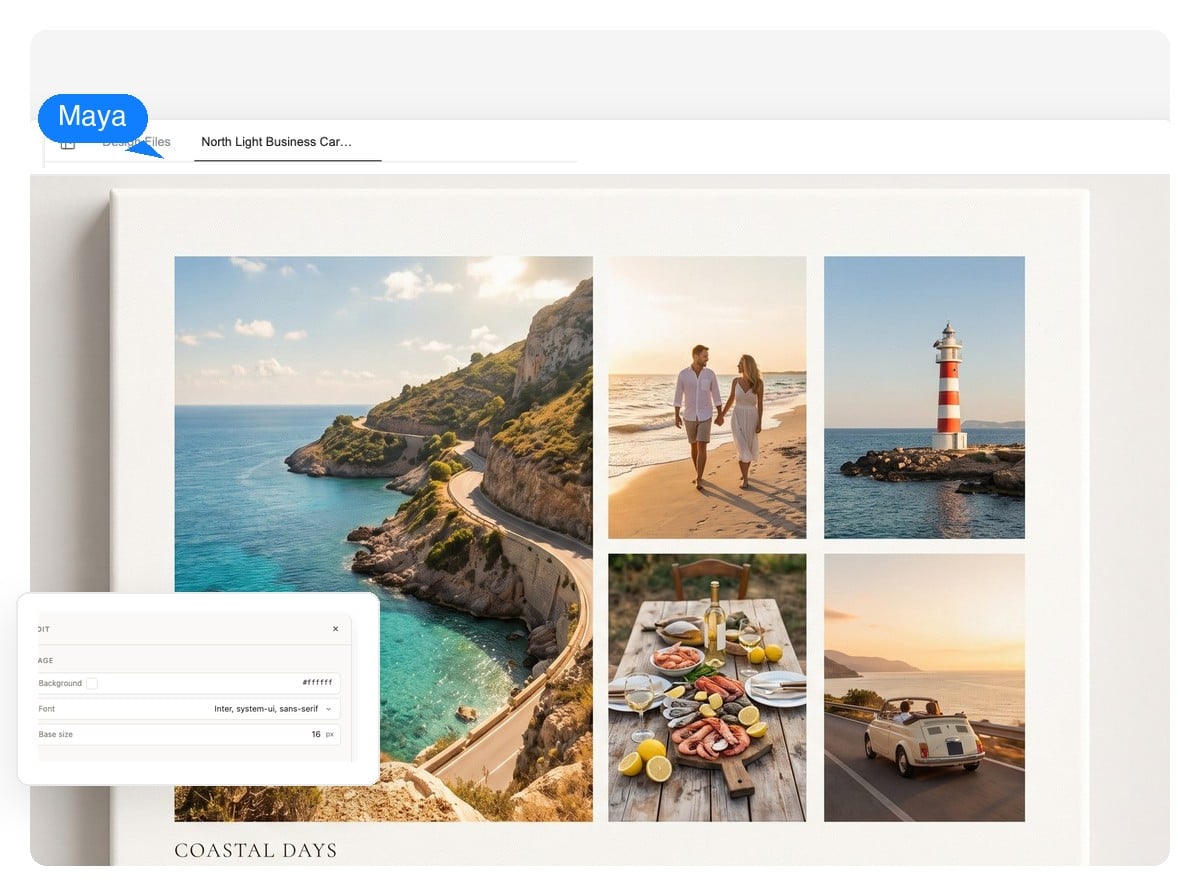
Travel recap
One hero landscape, supporting shots at honest sizes, place-name captions where they help. Print it at 4:3 or ask for a wide re-layout for a header.
Tell it what the photos are — a trip, a year of your kid, a product line — and it composes a real photo collage: one hero shot, even gutters, captions where they belong. Every photo stays its own layer you can swap or regenerate.
The difference
Most collage tools flatten your photos into one image the moment you export. This one builds the collage as a layered design — so finished never means frozen.
Each photo sits on its own layer. Click one to replace it with a different shot — or regenerate it in place until it earns its spot.
The words on the collage are text elements, not pixels. Fix a date, rename a place, or rewrite the title without touching the photos.
Ask for a different ratio or a calmer layout and the design re-lays out — the same photos, re-arranged, not squeezed.
Missing a shot from the set? Generate it with the AI Image Generator and it joins the canvas as one more layer.
Layers
Honest scope: if you just need thirty photos tiled into a plain grid in two clicks, a basic grid app is faster. This is for the collages that have to look designed — where the layout, the type, and the spacing carry the result.
Not template slots
Fixed-frame tools give you slots; add one more photo and everything just shrinks. Here the composition is re-built for the count: the hero shot is re-chosen, gutters stay even, captions move where they still fit.
The four previews are one photo set re-laid out at each count — not four templates. That's the difference between a collage generator that composes and one that fills frames.
Type what the photos are and where the collage is going — “nine shots from our Japan trip, square, for a framed print.” Upload your photos and the AI works them into the design, or start without them.
It works like a designer, not a template: picks a hero shot, sets the grid and the gutters, places the title and captions. Give it a few minutes — it's building a layered design, not filling frames.
Swap or regenerate any photo, rewrite any caption, ask for another ratio. Export a native-size PNG, a layered PSD, or a print-ready PDF when it's right.
Craft, not filters
None of this is secret — it's layout craft. It's what the agent is instructed to care about, and because everything stays a layer, it's also what you can still fix by hand.
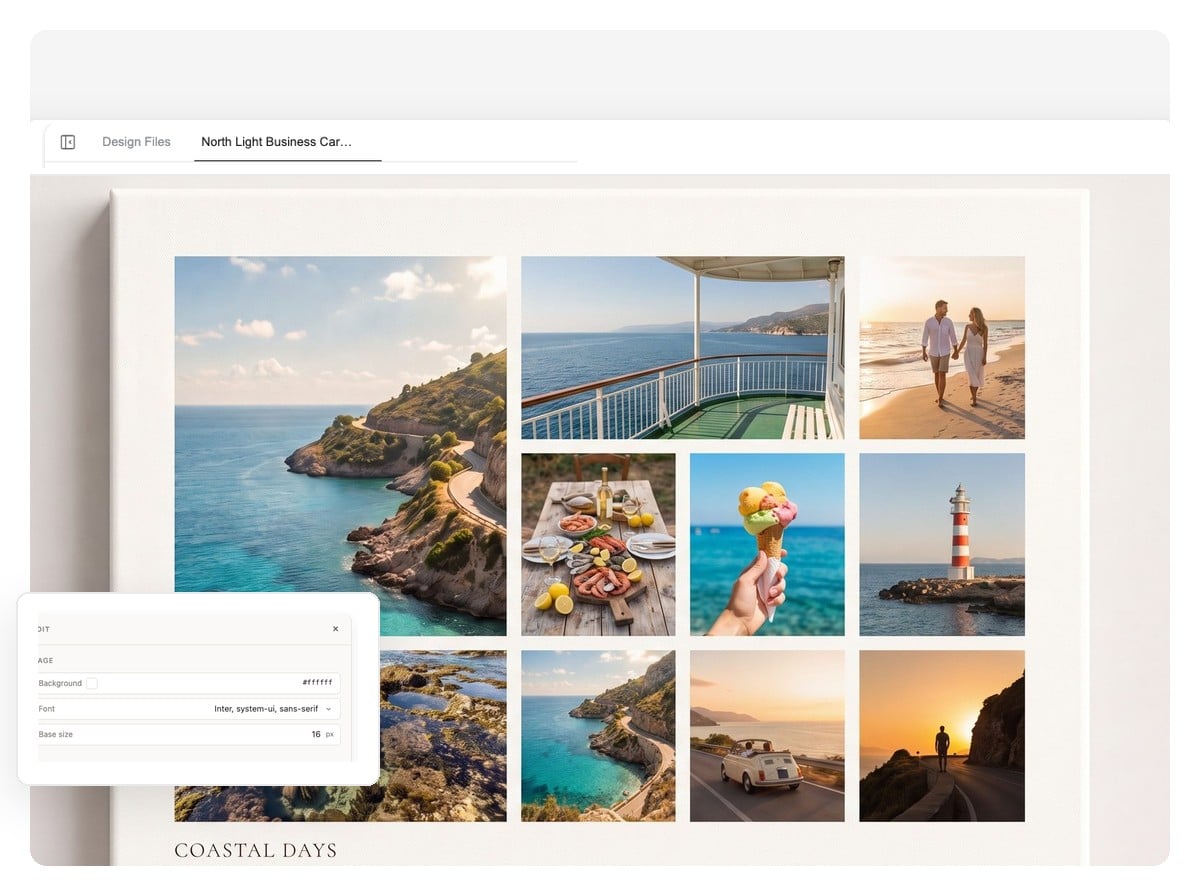
Every rule above stays fixable after generation — hierarchy, gutters, crops, and captions are layers and layout here, not pixels baked into one image.
The same canvas handles a framed print and a story post. Describe the occasion — the layout and tone follow it.
One hero landscape, supporting shots at honest sizes, place-name captions where they help. Print it at 4:3 or ask for a wide re-layout for a header.
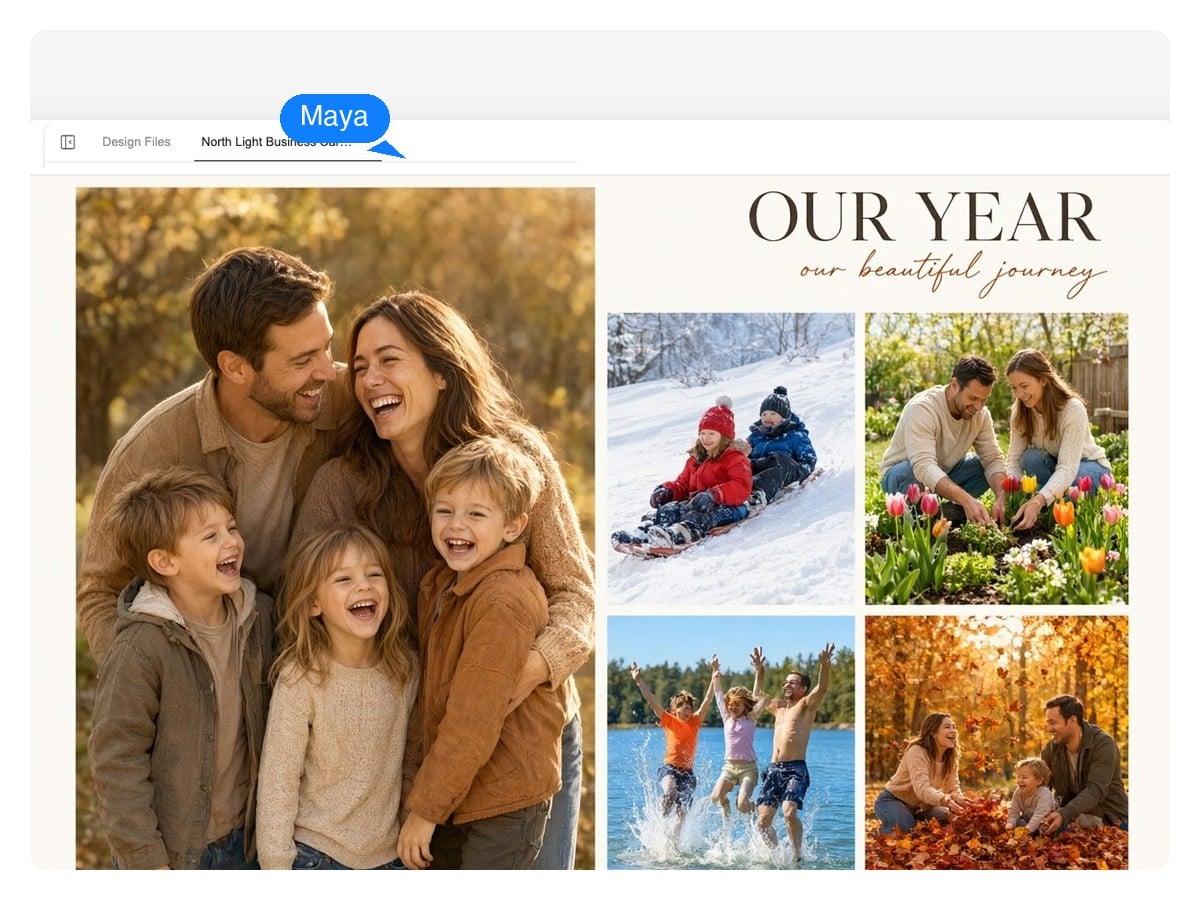
A year of small moments around one hero portrait — the collage grandparents actually frame. Soft background, one title, a caption per season, done.
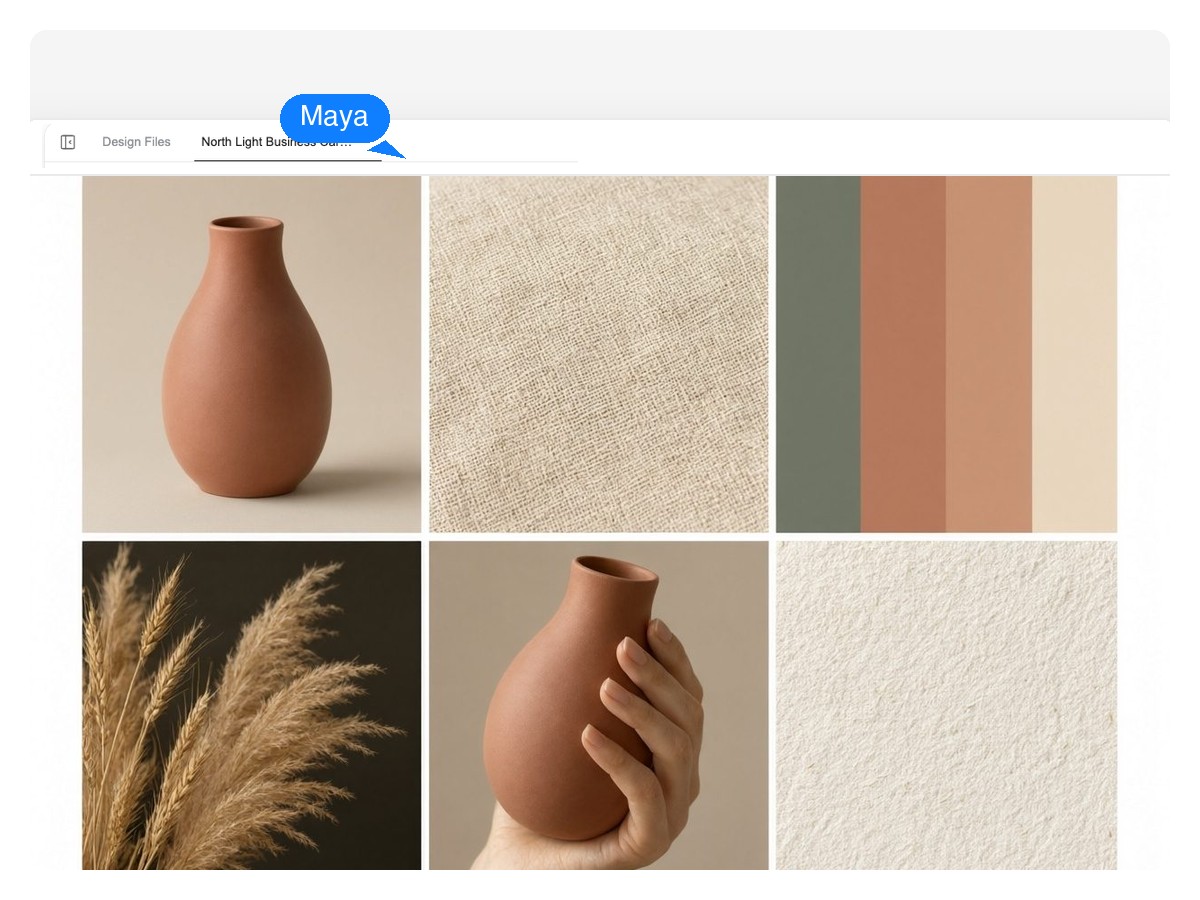
Products, textures, and palette on one canvas for a pitch, a shop banner, or a season plan. Tight grid, generous margins, room for a tagline — a digital collage that reads as intent.
The canvas isn't fixed — ask for any ratio and the collage is composed for it from the start. These are the numbers that matter most often.
| Square social post | 1:1 — 1080 × 1080 px |
|---|---|
| Portrait feed post | 4:5 — 1080 × 1350 px |
| Story / vertical | 9:16 — 1080 × 1920 px |
| Widescreen / header | 16:9 — 1920 × 1080 px |
| 4 × 6 in print | 3:2 — 1800 × 1200 px at 300 DPI |
| 8 × 10 in print | 4:5 — 2400 × 3000 px at 300 DPI |
| A4 print | 210 × 297 mm — 2480 × 3508 px at 300 DPI |
Export the finished collage as a native-size PNG, a layered PSD — every photo, caption, and background on its own layer — or a print-ready PDF. Need more pixels? 4K export renders the same layout at higher density.
A regular collage maker gives you frames: pick a template, drag photos in, export one flattened image. This is an AI collage maker built on a design agent — it composes the layout for your photos (hierarchy, gutters, captions), and the result stays a layered design you can keep editing. If you only need photos tiled fast, a grid app is quicker; if the collage has to look designed, this is the point.
Yes — that's the normal way to use it. Upload your photos and the AI works them into the design: it sizes them, crops toward the subjects, and builds the layout around the shots you brought.
Generate it. Image generation is built into the same canvas, so you can ask for the missing piece — a background texture, a title-card image, an establishing shot — and it drops in as one more layer next to your real photos.
There's no slot count to fill — the layout is composed for however many photos you bring, and the picker above shows the same set re-laid at two, three, five, and nine. As craft, though: past about a dozen photos per canvas, everything shrinks to stamps. Big years deserve two collages.
Yes. Ask for a calmer version, a different hero photo, or another ratio, and the design re-lays out — same photos, new composition. Because nothing is flattened, a layout change doesn't cost you your edits.
The words are text layers, not pixels painted into the image. Click and rewrite them, or ask for a different type treatment — dates, names, and places stay fixable to the end.
The canvas takes any ratio — square for feeds, 4:5 portrait, 9:16 vertical, 16:9 wide, or print shapes like 4×6, 8×10, and A4. Say where the collage is going and it's composed for that shape from the start, instead of cropped into it later.
Yes — set a print canvas up front (a 4×6 at 1800×1200, an 8×10 at 2400×3000, an A4 at 2480×3508 — all 300 DPI) and export a print-ready PDF or the native-size PNG. Photos hold up in print when they're laid out at print size, not upscaled afterward.
Native-size PNG for posting, a layered PSD where every photo, caption, and background is its own layer for finishing in standard design apps, and a print-ready PDF. There's also a 4K export that renders the same layout at higher pixel density.
A few minutes, honestly. It's composing a layout and building separate layers, not stamping your photos into a template — and the payoff is that the first version is a starting point you can edit, not a take-it-or-leave-it image.
Describe the occasion, add your photos, and get a layered photo collage you can still change — then export the PNG, PSD, or print PDF.